Feature Summary
Supports viewing and managing all tickets in the Office Document, providing three categorized views: Ticket Center, Human Service, and Bot Service. Tickets can be filtered by ticket number, service status, date range, agent, ticket tag, user satisfaction, and other criteria. Field configuration and data export are also supported.
Feature Description
| Feature Dimension | Description |
|---|---|
| Membership Restriction | No membership restriction |
| Version Restriction | No version restriction |
Operation Steps
Entering the Ticket Center Page
Feature Entry
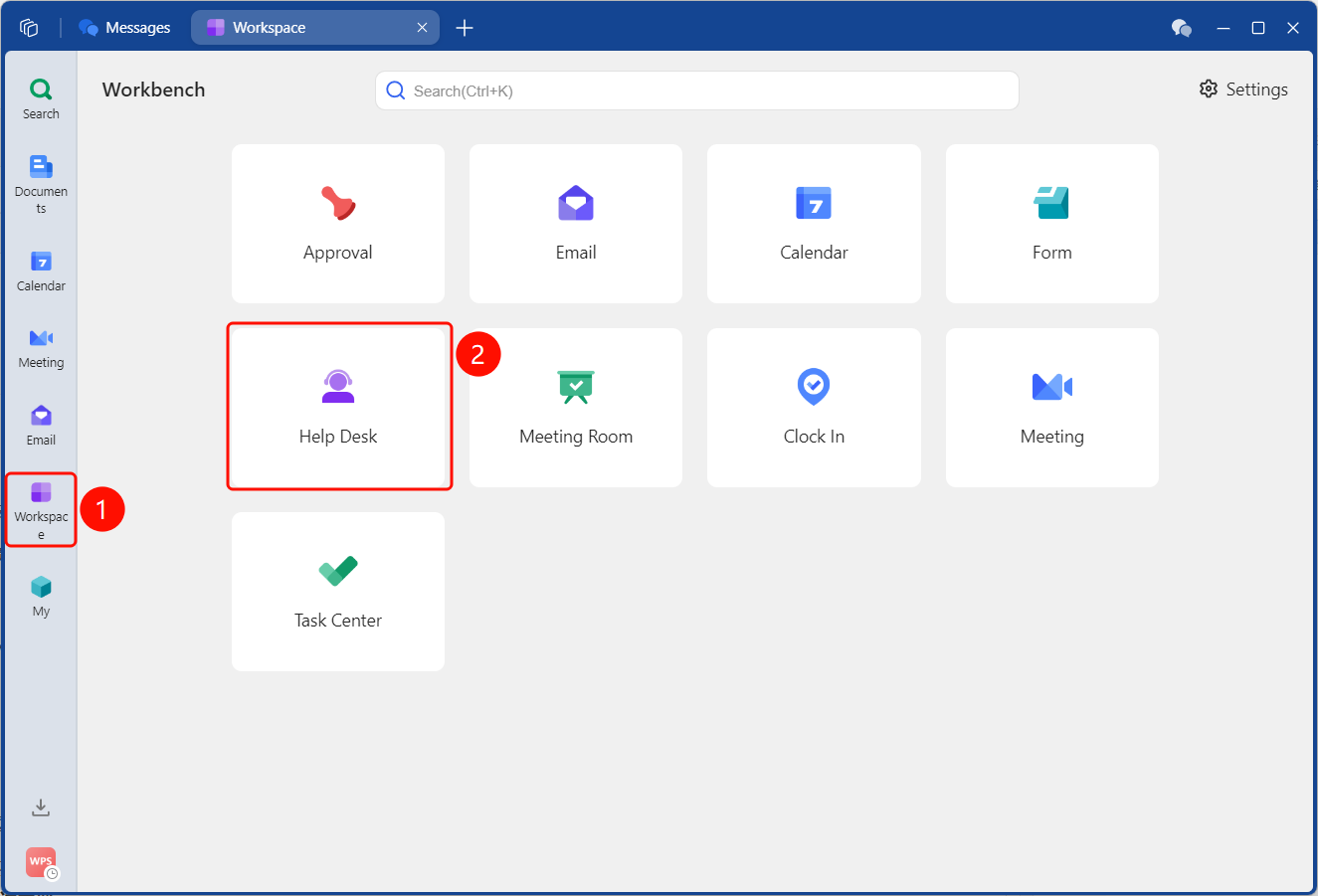
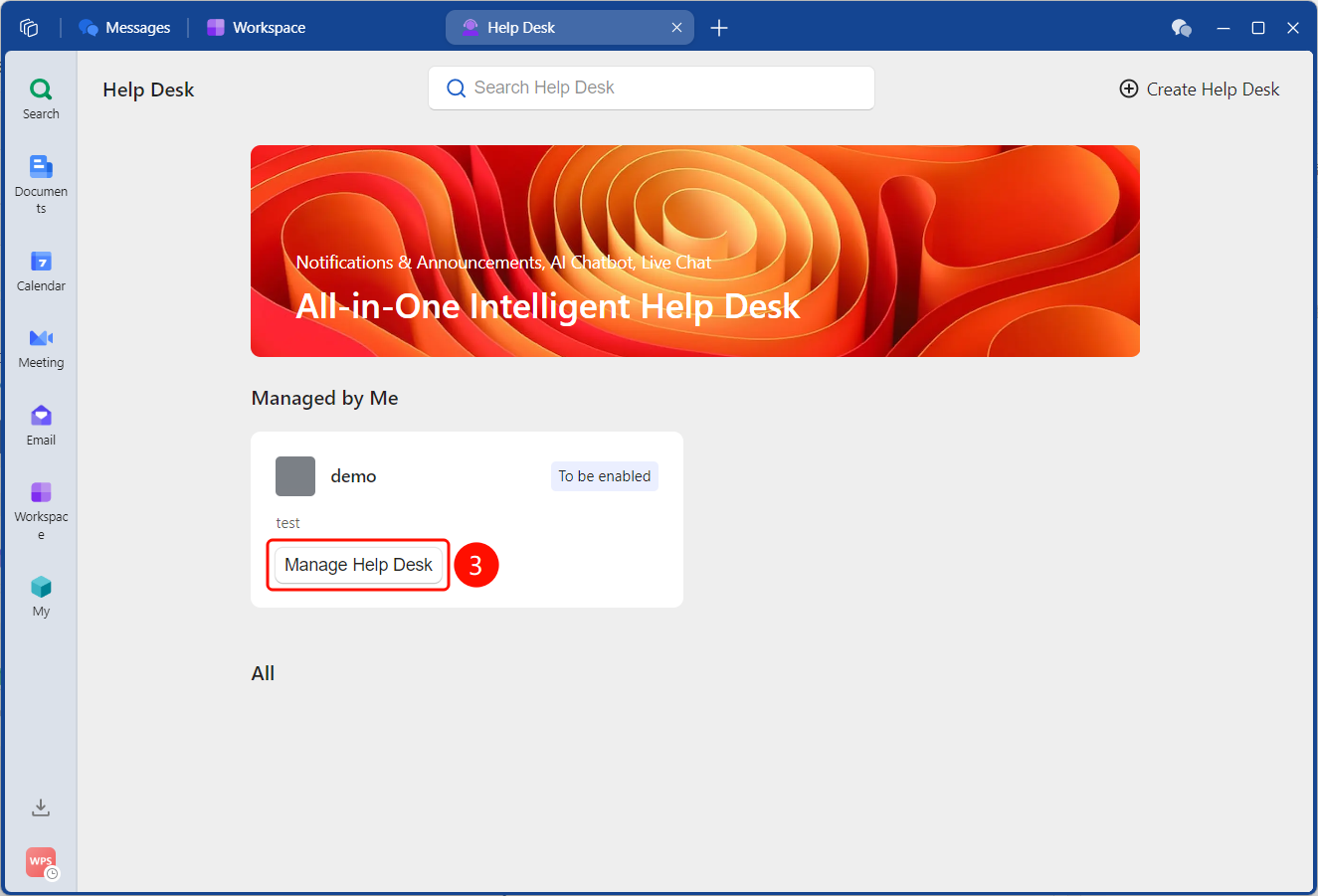
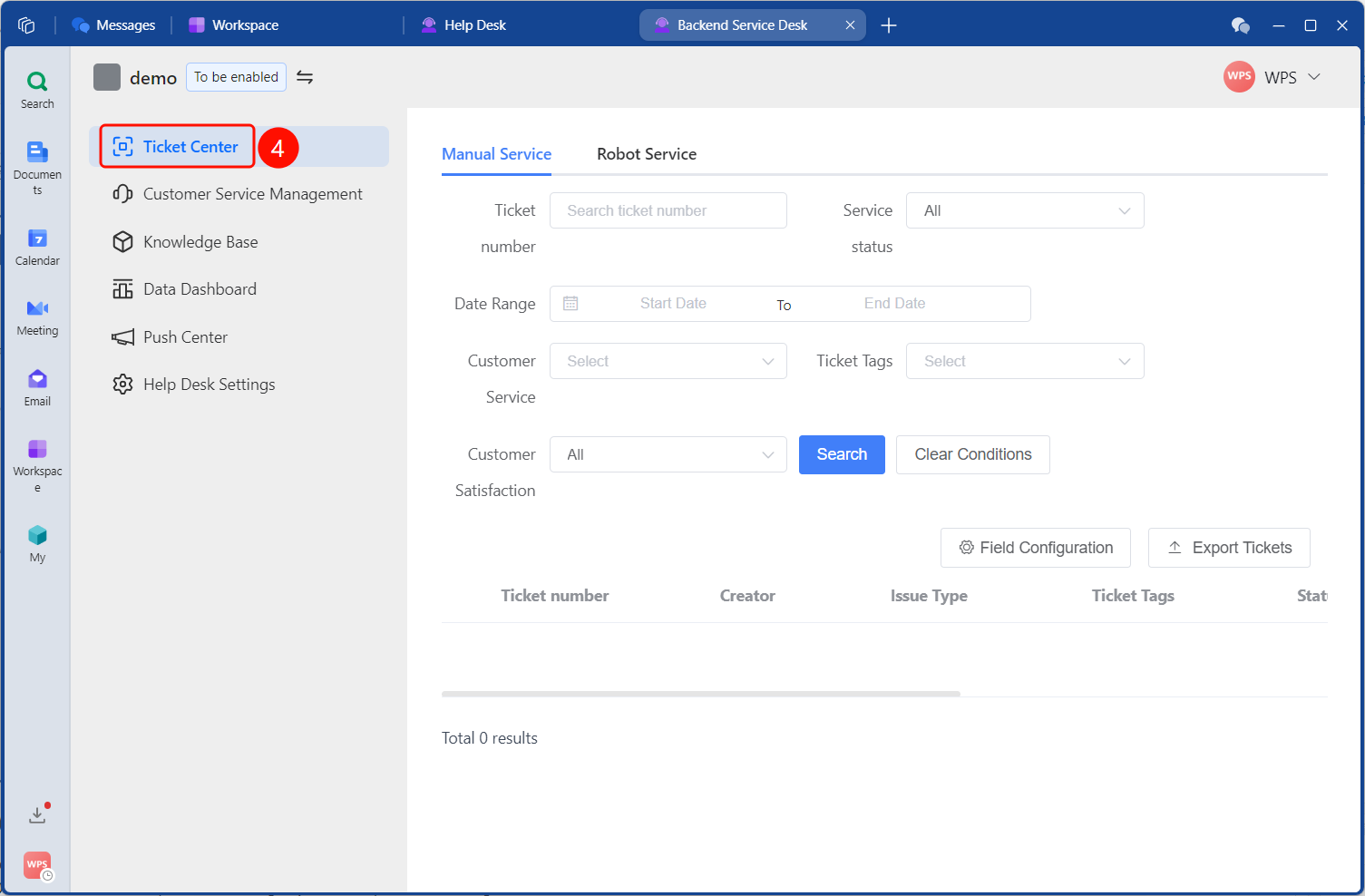
「Left Navigation Bar」Page → 「Workbench」Icon → 「Service Desk」Icon → 「Service Desk Settings」Button → 「Ticket Center」Option
- Click the 「Workbench」 icon in the left navigation bar to enter the Workbench page
- Click the 「Service Desk」 icon to enter the Service Desk homepage
- Click the 「Service Desk Settings」 button to enter the Office Document
- In the left navigation menu, click the 「Ticket Center」 option to enter the Ticket Center page
Viewing Manual Service
Feature Entry
Office Document → 「Ticket Center」Option → 「Manual Service」Tab
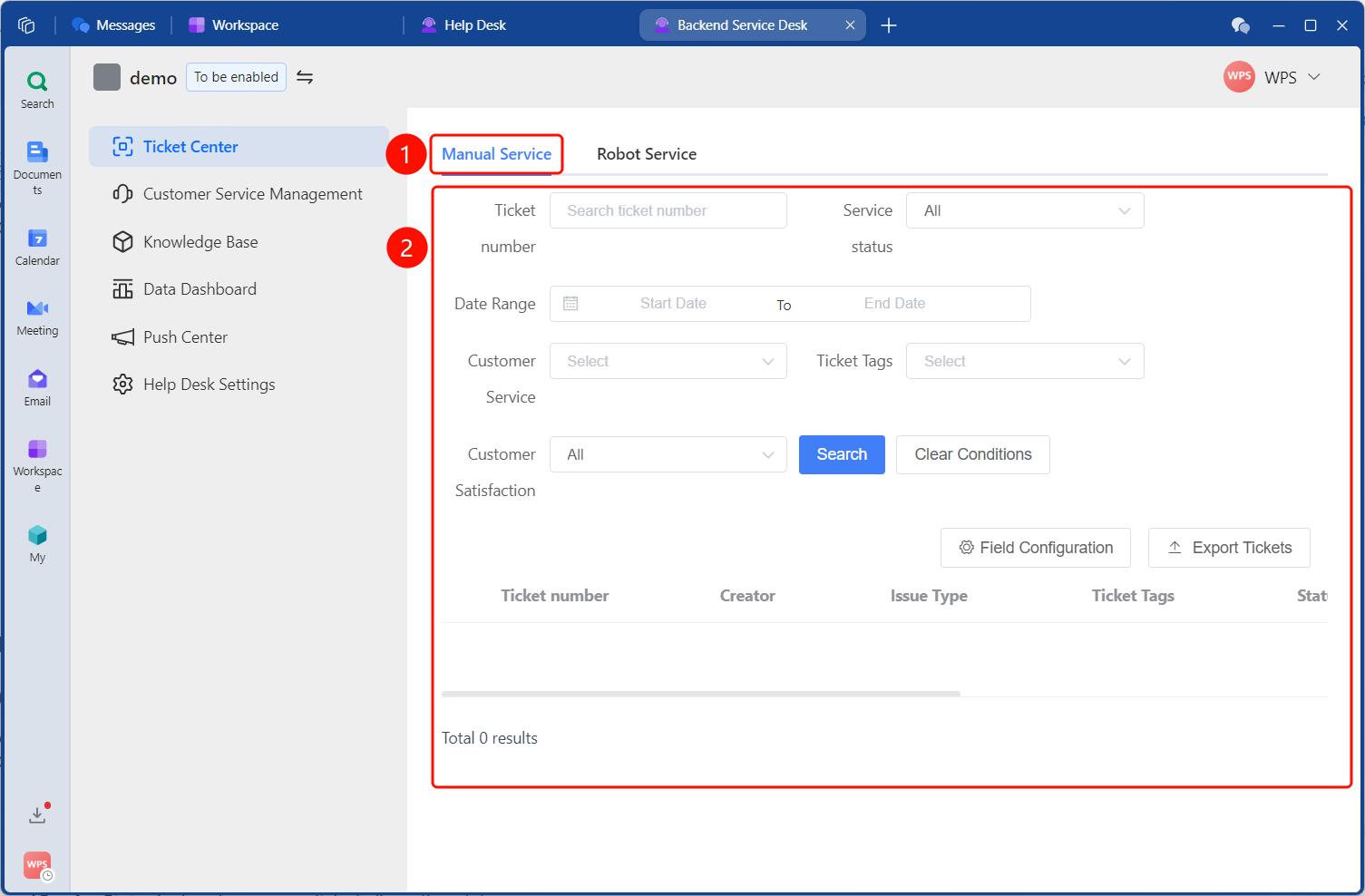
- After entering the Ticket Center page, click the 「Manual Service」 tab
- Configure filter conditions in the filter area:
- 「Ticket Number」 input box: Enter the ticket number for an exact search
- 「Service Status」 dropdown menu: Select all or filter by other statuses
- 「Date Range」: Select the start date and end date respectively
- 「Agent」 dropdown menu: Filter by agent
- 「Ticket Tag」 dropdown menu: Filter by tag
- 「User Satisfaction」 dropdown menu: Select all or filter by satisfaction level
- After configuration, click the 「Search」 button to view results
- To reset conditions, click the 「Clear Conditions」 button
- The ticket list displays the following fields: Ticket Number, Creator, Status, Agent, Creation Time, Issue Type, Ticket Tag
- Supports 「Field Configuration」 and 「Export Tickets」 operations
Viewing Robot Service
Feature Entry
Office Document → 「Ticket Center」Option → 「Robot Service」Tab
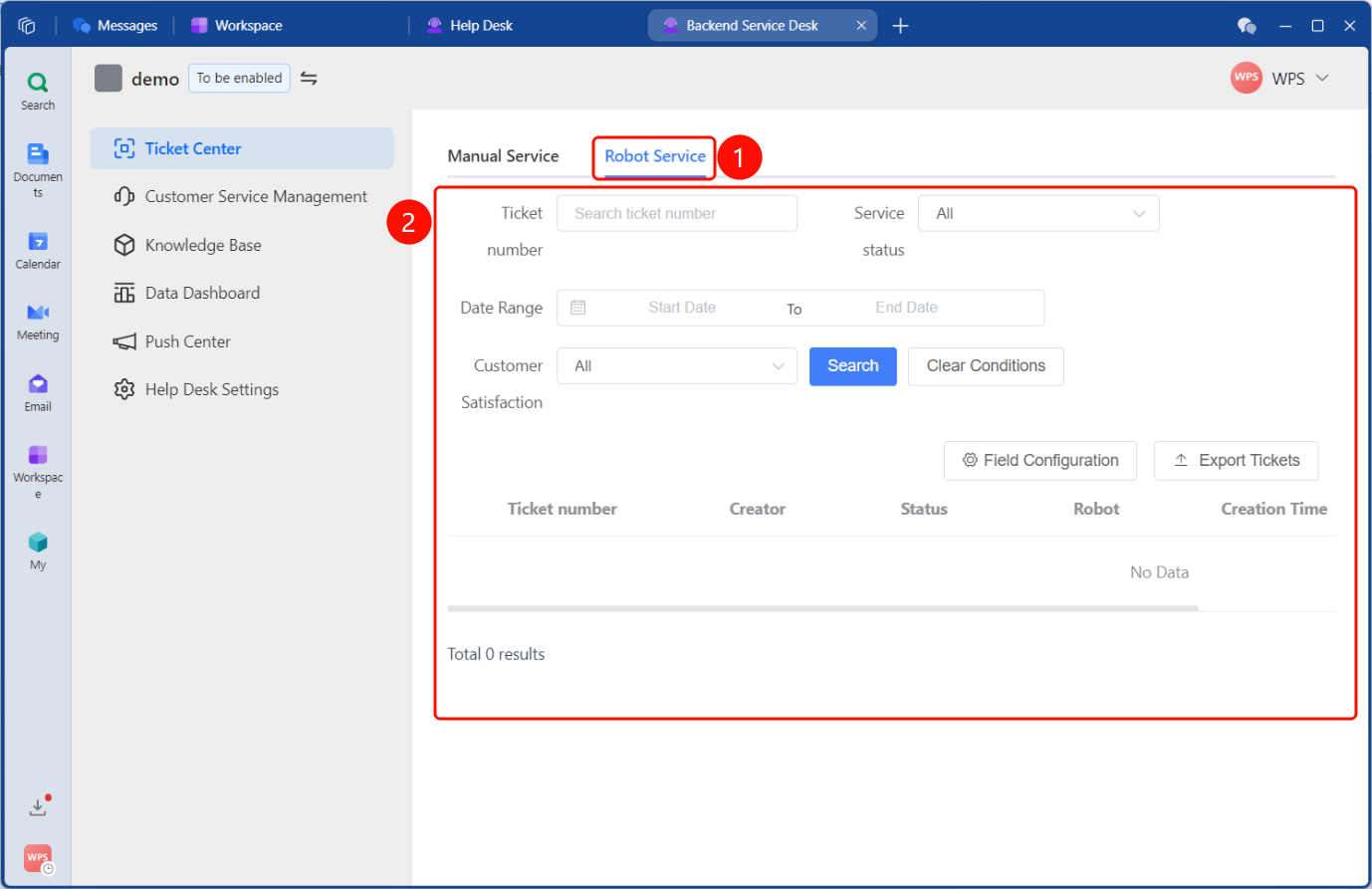
- After entering the Ticket Center page, click the 「Robot Service」 tab
- Configure filter conditions in the filter area:
- 「Ticket Number」 input box: Enter the ticket number to search
- 「Service Status」 dropdown menu: Select all or other statuses
- 「Date Range」: Select the start date and end date
- 「Customer Satisfaction」 dropdown menu: Filter by satisfaction level
- After configuration, click the 「Search」 button to view results
- To reset conditions, click the 「Clear Conditions」 button
- The ticket list displays the following fields: Ticket Number, Creator, Status, Bot, Creation Time, End Time, User Satisfaction
- Supports 「Field Configuration」 and 「Export Tickets」 operations
FAQ
Q1: What is the difference between the Ticket Center, Human Service, and Bot Service tabs?
- Solution: Ticket Center displays complete information for all tickets (including all fields such as status, issue type, tags, agent, satisfaction, etc.); Human Service only displays tickets handled by human agents; Bot Service only displays tickets handled by AI bots. The filter conditions and displayed fields vary across the three views.
Q2: What filter conditions are supported for the ticket list?
- Solution: Multi-dimensional filtering is supported by ticket number, service status, date range (start date and end date), agent, ticket tag, user satisfaction, and more. Filter conditions can be combined. After configuration, click 「Query」 to view results.
Q3: How to export ticket data?
- Solution: On the Ticket Center and Bot Service pages, click the 「Export Tickets」 button to export the ticket data under the current filter conditions, facilitating offline statistics and analysis.
Notes
- When the Work Order Center page is empty, first verify that the filter criteria are configured correctly, or check whether any work orders have been created in the Service Desk.
- The filter criteria in the Human Service and Bot Service tabs are configured independently; switching tabs will not affect each other's filter criteria.
- The "Clear Criteria" button can reset all filter criteria with one click, restoring the default display.