Feature Summary
Supports creating and managing push messages in the Service Desk Office Document, allowing you to push policy announcements, event notifications, holiday greetings, and other message content to users. It supports filtering and querying push Records by criteria such as push description, push status, push type, push time, and pusher.
Feature Description
| Feature Dimension | Description |
|---|---|
| Membership Restriction | No membership restriction |
| Version Restriction | No version restriction |
Operation Steps
Enter the Push Center Page
Feature Entry
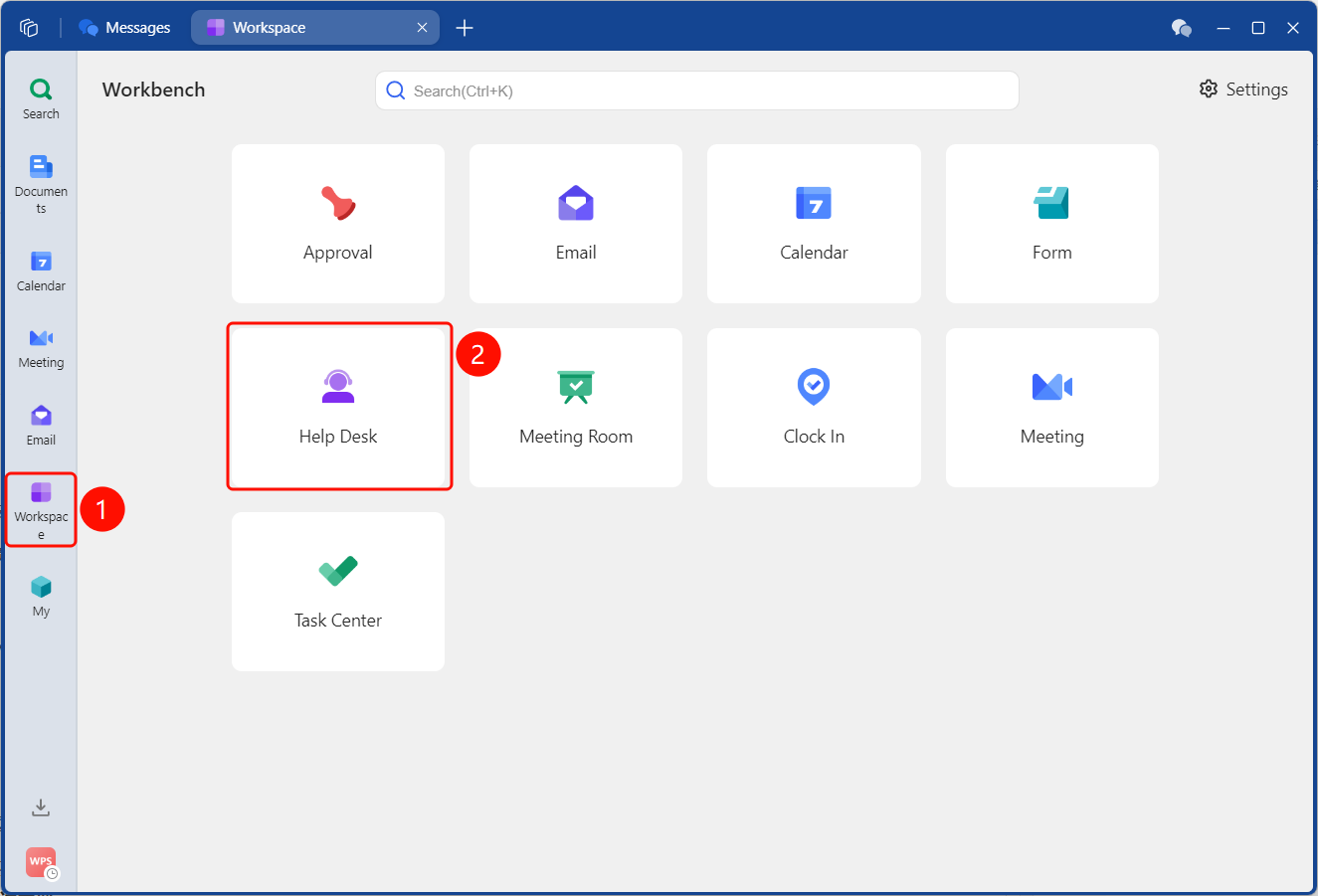
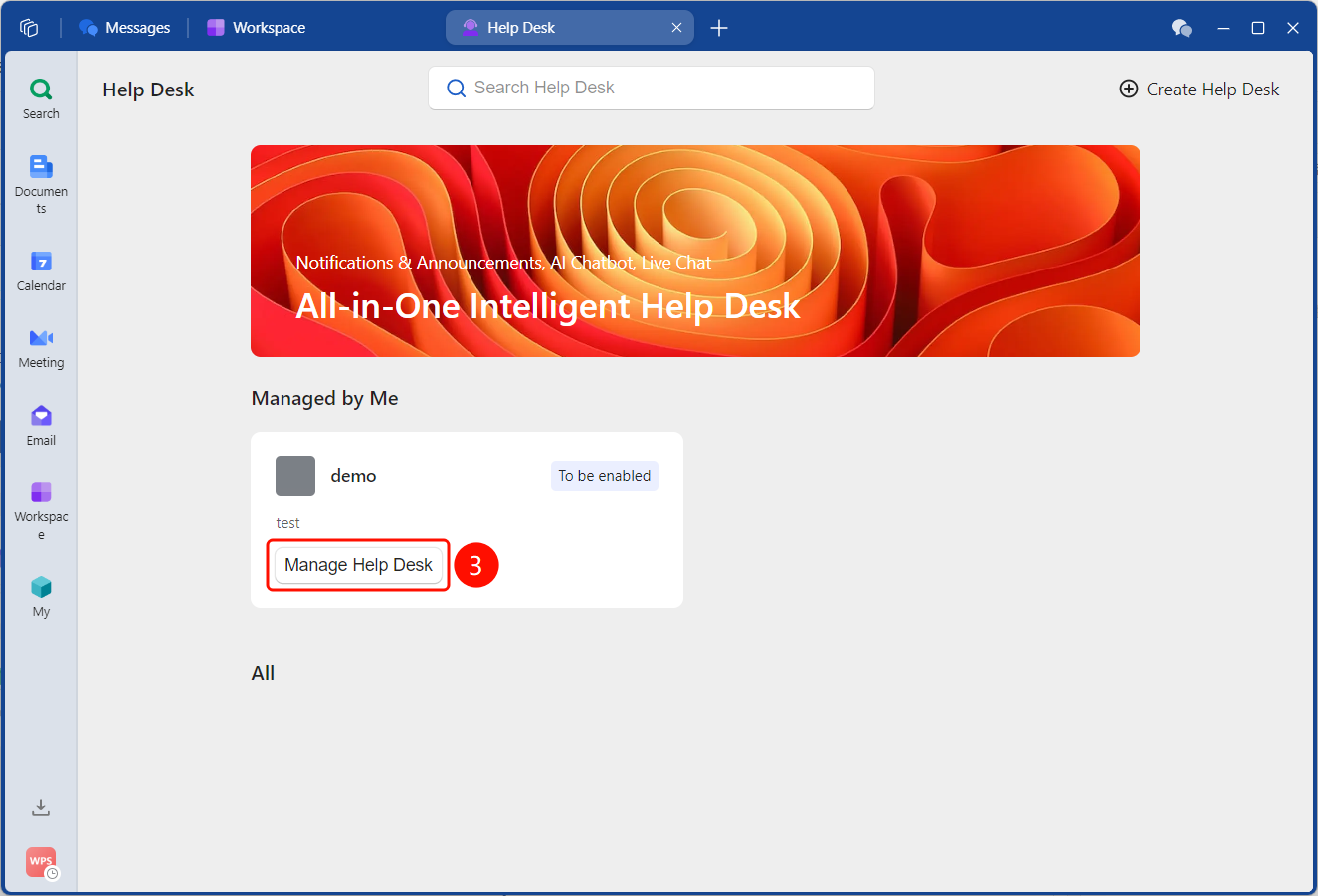
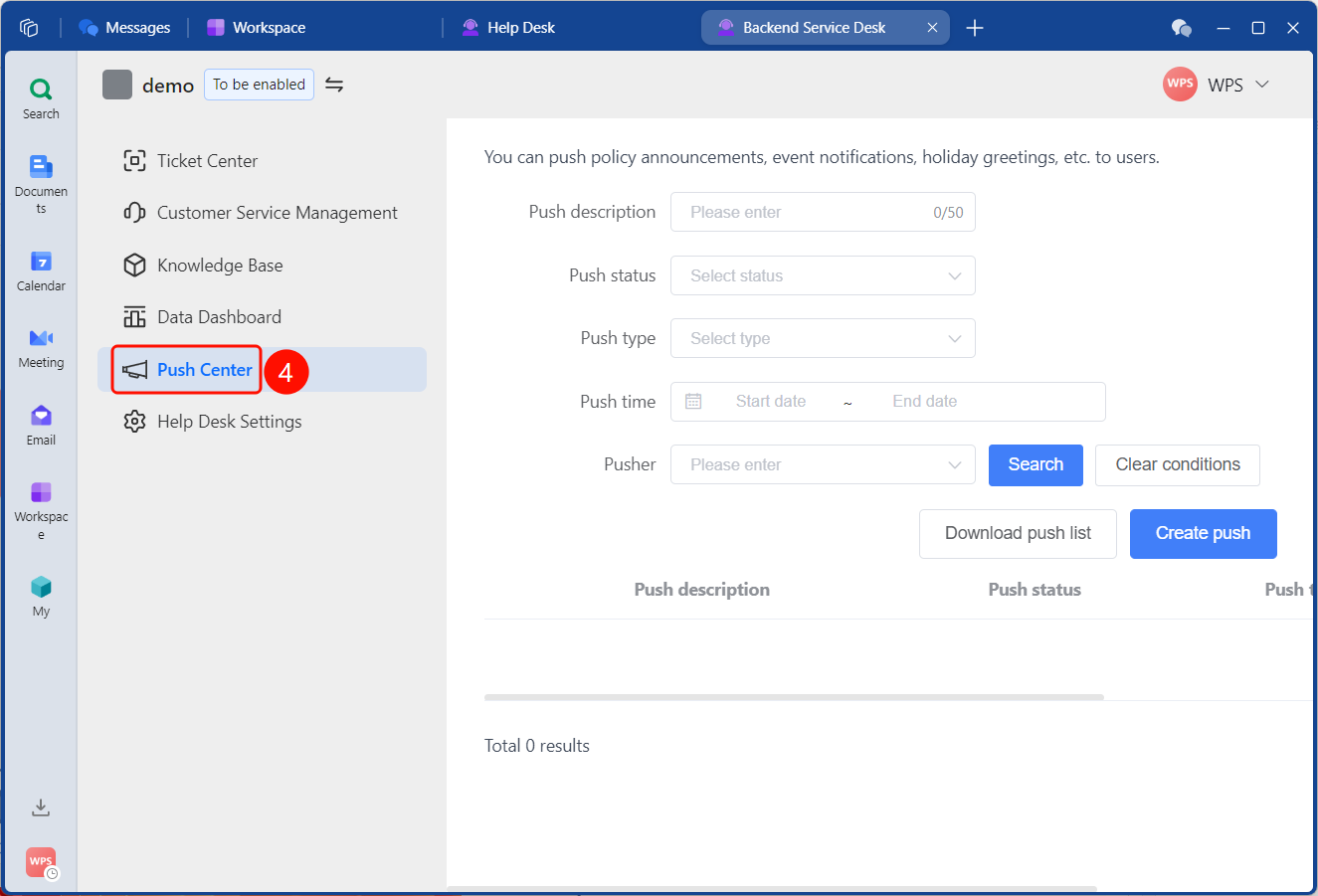
「Workbench」 button → 「Service Desk」 option → 「Manage Service Desk」 button → 「Push Center」 option
- Click the 「Workbench」 icon in the left navigation bar to enter the Workbench page
- Click the 「Service Desk」 icon to enter the Service Desk homepage
- Click the 「Manage Service Desk」 button to enter the Service Desk Office Document
- In the left navigation menu, click the 「Push Center」 option to enter the Push Center page
View Push Record List
Feature Entry
Service Desk Office Document → 「Push Center」 option → Push record list area
- After entering the Push Center page, the page displays the list of created push Records
- The list table contains the following fields: Push Description, Push Status, Push Type, Push time, Pusher.
Filter Push Records
Feature Entry
Service Desk Office Document → 「Push Center」 option → Filter criteria area
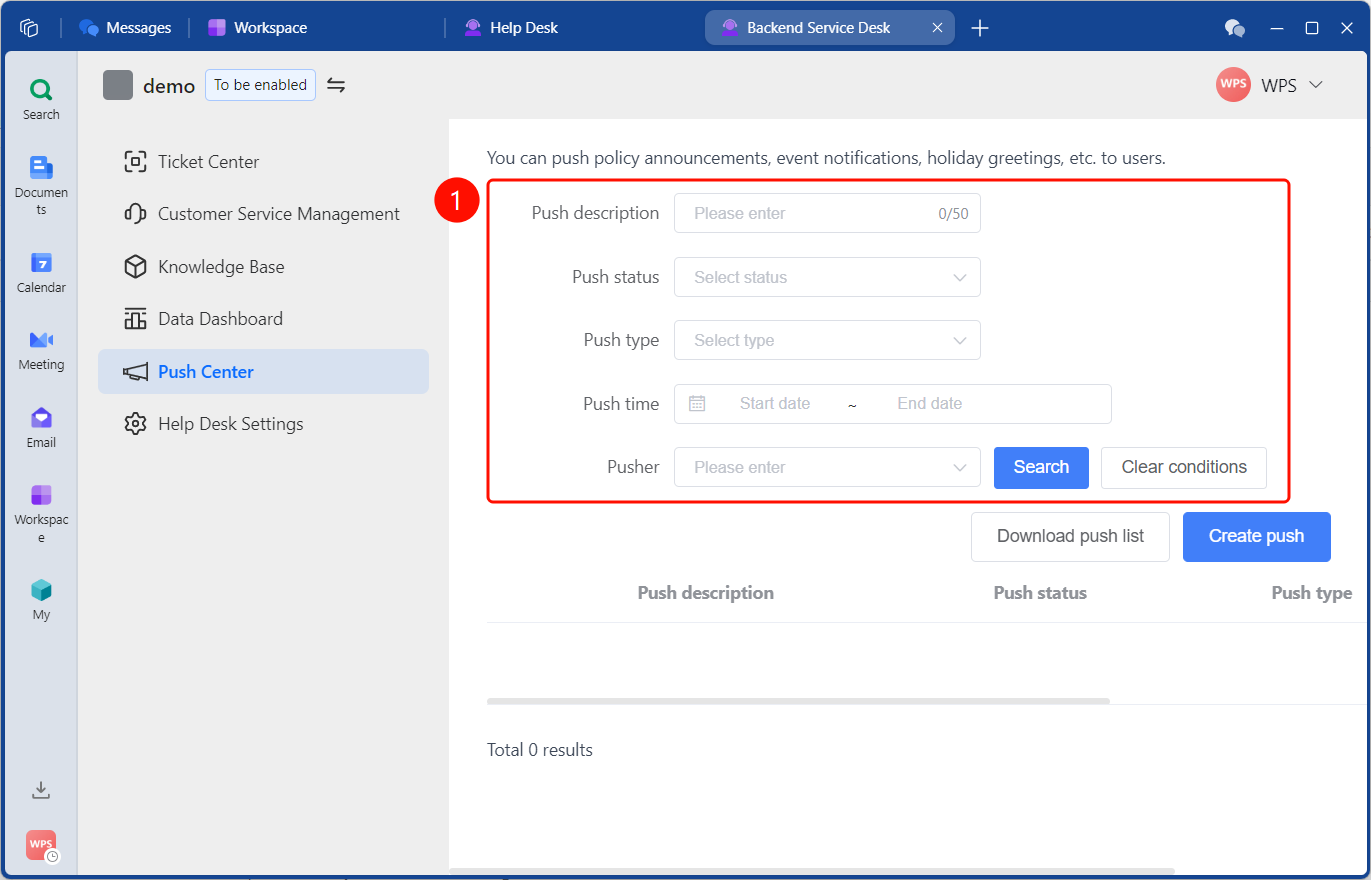
- In the filter area at the top of the Push Center page, configure the filter criteria:
- 「Push Description」 input box: Enter the push description content for fuzzy search, up to 50 characters
- 「Push Status」 dropdown menu: Select the push status to filter (e.g., Pushed, Not Pushed, etc.)
- 「Push Type」 dropdown menu: Select the push type to filter (e.g., Announcement, Notification, etc.)
- 「Push Time」: Select the start date and end date respectively to filter by push time period
- 「Pusher」 input box: Search by pusher name or account
- After configuration, click the 「Search」 button to view the filtered results
- To Reset all filter criteria, click the 「Clear Conditions」 button
Create Push
Feature Entry
Service Desk → 「Manage Service Desk」 → 「Push Center」 option → 「Create Push」 button
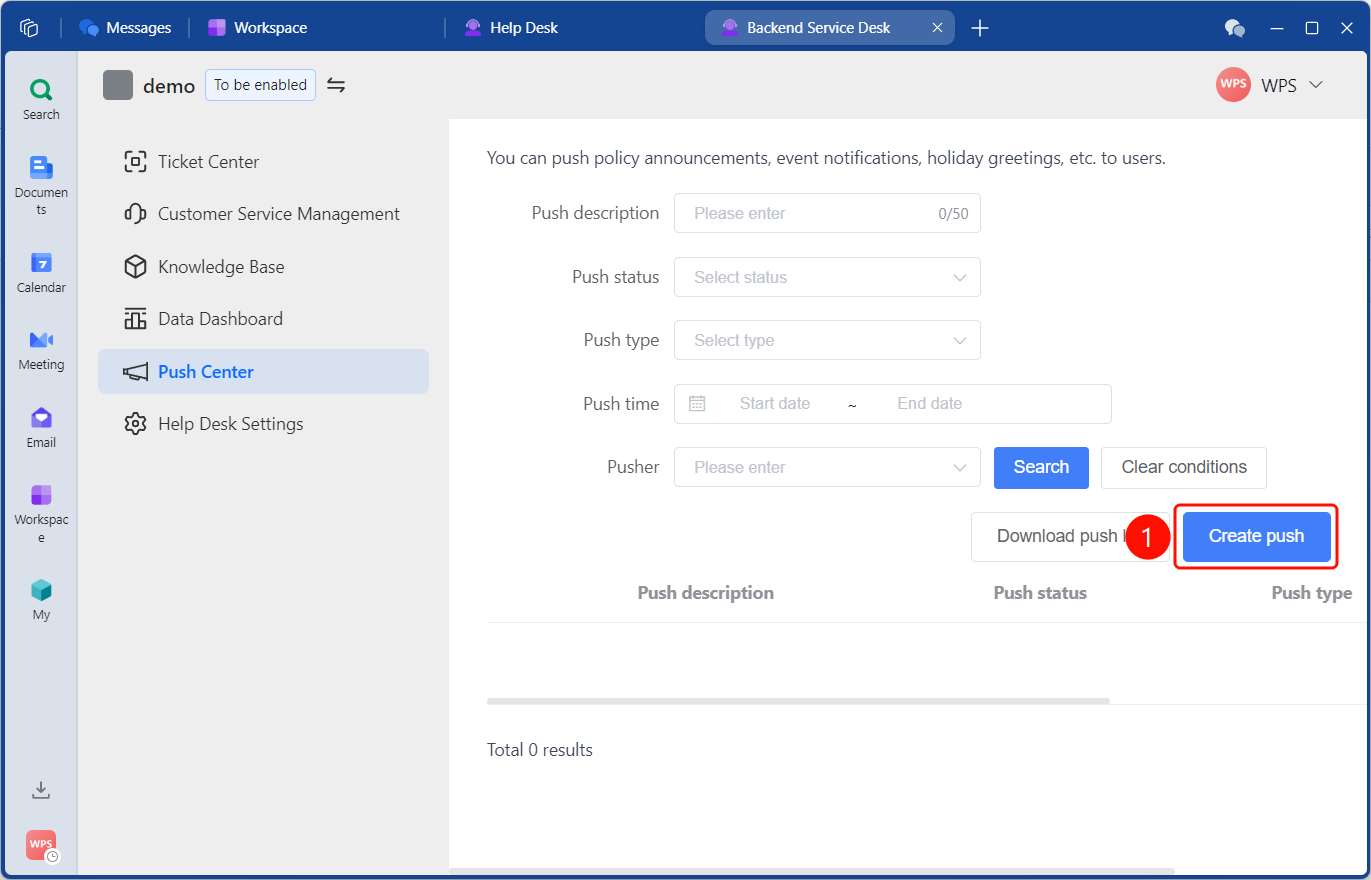
- On the Push Center page, click the 「Create Push」 button to enter the Create Push page
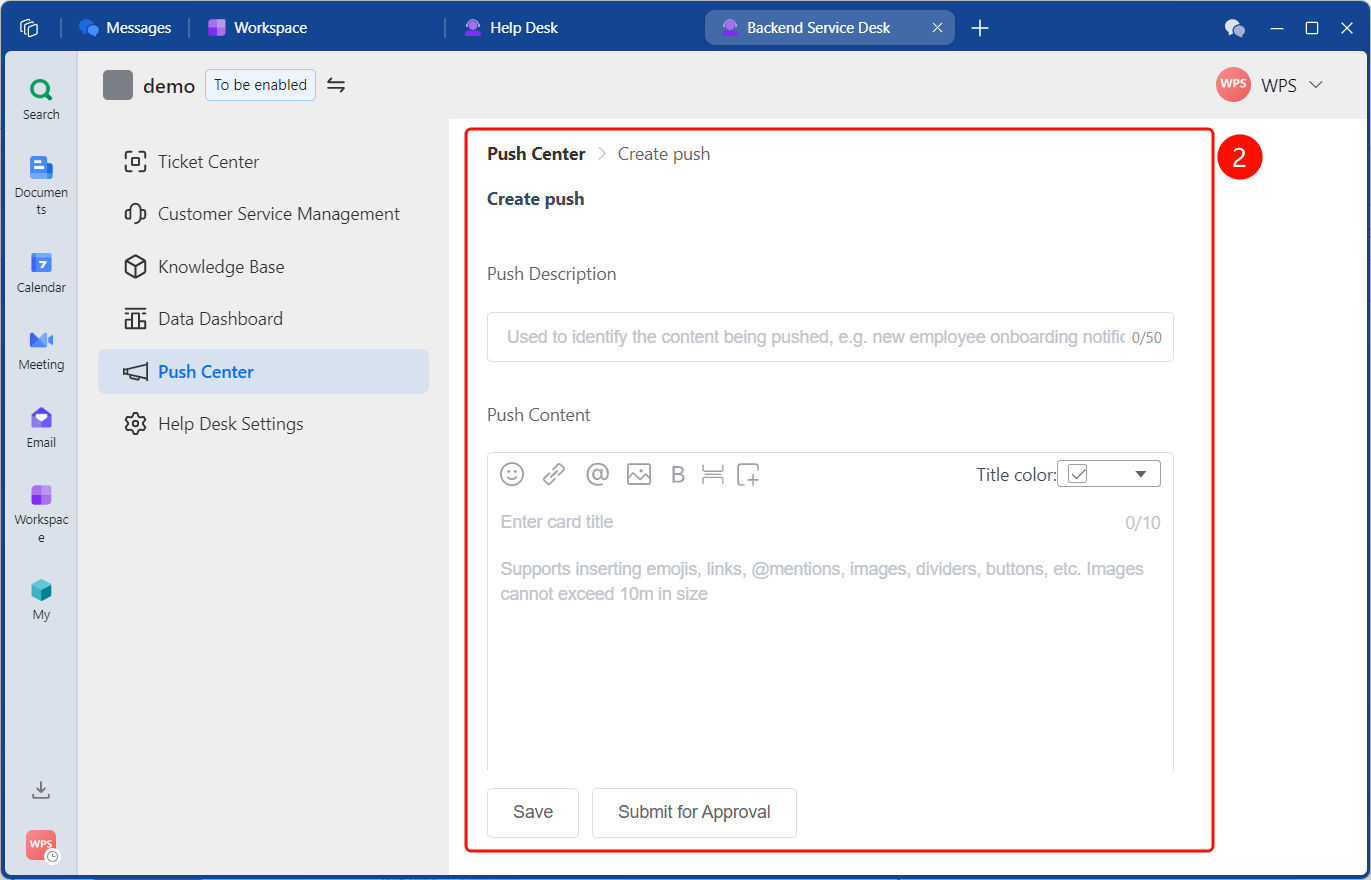
- Fill in the 「Push Description」 input box: Enter a brief description to identify the push content, up to 50 characters
- Edit the 「Push Content」:
- Select 「Title Color」 to set the display color of the card title
- Fill in the 「Card Title」 input box, enter the push title, up to 10 characters
- Enter the push body content in the rich text editing area, up to 3000 characters
- Supports inserting various elements such as emojis, links, @mentions, images, dividers, and buttons. Image size cannot exceed 10MB
- During editing, you can click the 「Send Preview to Me」 link to send a preview message to yourself to check the effect
- Select 「Push Type」:
- Immediate Push: After approval, it will be pushed to the selected members immediately
- Scheduled Push: After approval, you need to set the push time
- New Employee Onboarding Push: After approval, it will be sent via Service Desk private message to new employees in the selected organizations and departments within the visible range
- Set 「Push Scope」: Select the target members or departments for the push
Please confirm that when pushing the message, the push target is within the visible range of the current Service Desk and not in the prohibited range, otherwise they will not receive the push. When saving or submitting for approval, push targets not within the visible range will be filtered out.
- After confirming the information is correct, select the operation as needed:
- Click the 「Save」 button to save the push draft
- Click the 「Submit for Approval」 button to submit the approval process
Download Push List
Feature Entry
Service Desk Office Document → 「Push Center」 option → 「Download Push List」 button
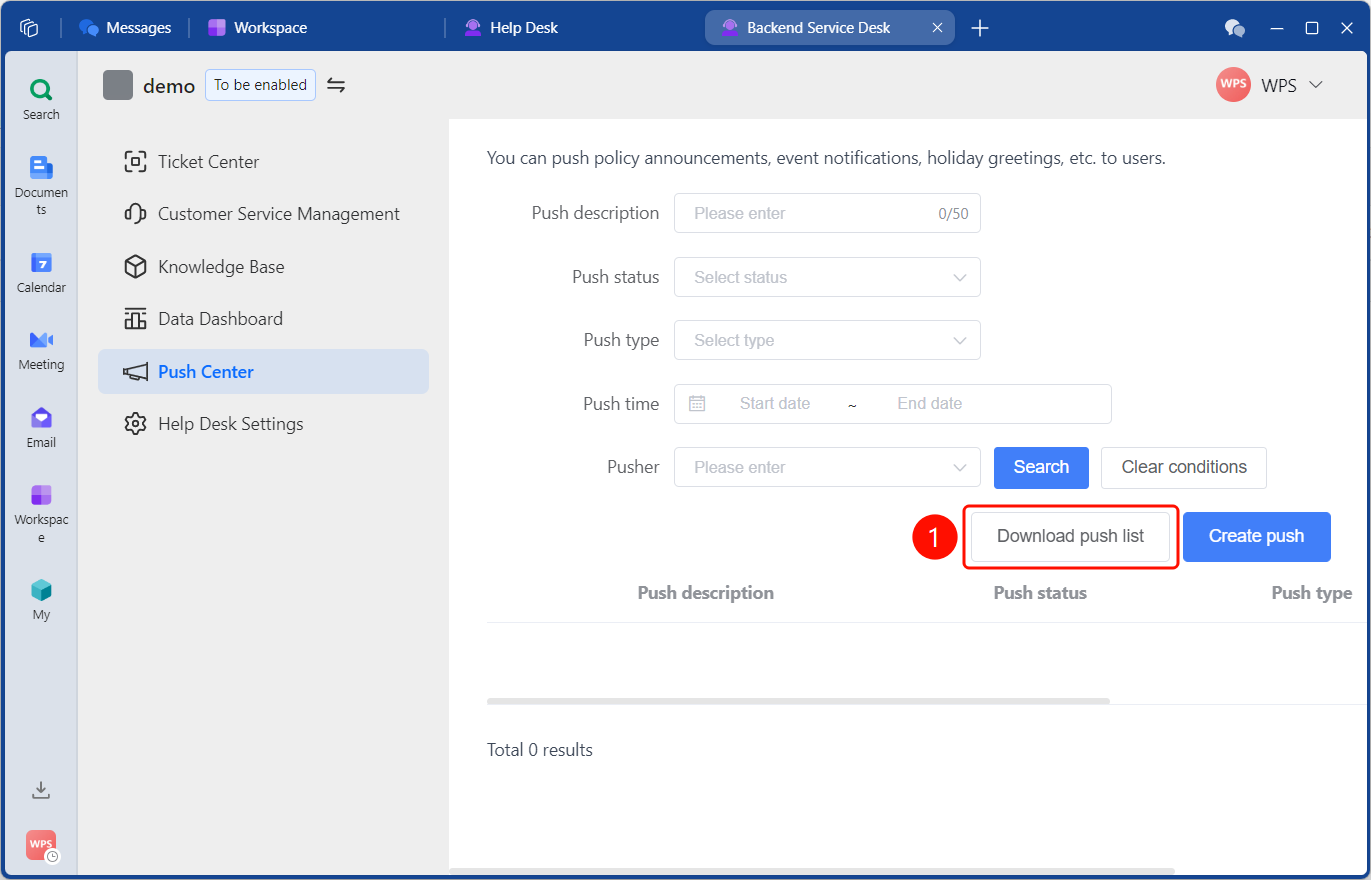
- On the Push Center page, click the 「Download Push List」 button
- The system exports the current push record data as a file for download
- The downloaded push list contains field information such as push description, push status, and push type
FAQ
Q1: What types of messages does the Push Center support pushing?
- Solution: Supports pushing various types of messages such as announcements, event notifications, and holiday greetings. The specific push type can be selected when creating a push.
Q2: What formats are supported for editing the push card content?
- Solution: The push card content includes a title (up to 10 characters, with configurable title color) and a body (up to 3000 characters). The body supports inserting various elements such as emojis, links, @mentions, images, dividers, and buttons. Image size cannot exceed 10MB. During editing, you can click 「Send Preview to Me」 to send a preview message to yourself to check the actual effect.
Q3: How to export push record data?
- Solution: Click the 「Download Push List」 button on the Push Center page to export the current push record list data as a file for offline viewing and archiving.
Notes
- The push description supports a maximum of 50 characters.
- After creating a push, you can view the current status of the push in the push record list.