Feature Summary
The Service Desk is a one-stop intelligent service platform designed for various scenarios such as IT, HR, administration, and finance. It supports features including AI bot auto-reply, human agent assignment, and notification/announcement push, helping organizations efficiently resolve employee issues.
Feature Description
| Feature Dimension | Description |
|---|---|
| Membership Restriction | No membership restriction |
| Version Restriction | No version restriction |
Operation Steps
Accessing the Service Desk
Feature Entry
「Left Navigation Bar」 page → 「Workbench」 icon → 「Service Desk」 icon
- Click the 「Workbench」 icon in the left navigation bar to enter the Workbench page.
- In the Workbench application list, find and click the 「Service Desk」 icon to enter the Service Desk homepage.
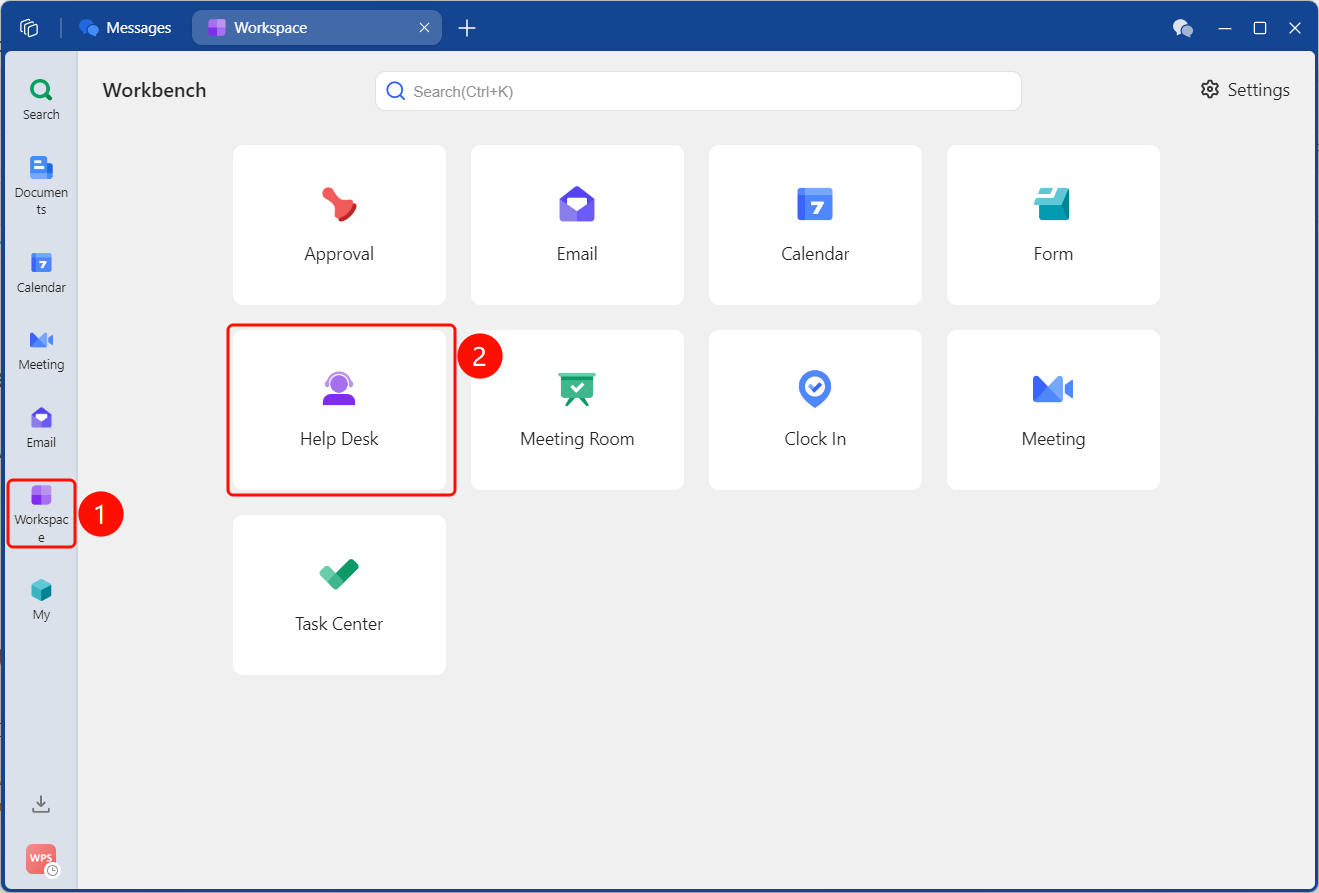
Viewing Service Desk Introduction
Feature Entry
「Workbench」 page → 「Service Desk」 icon
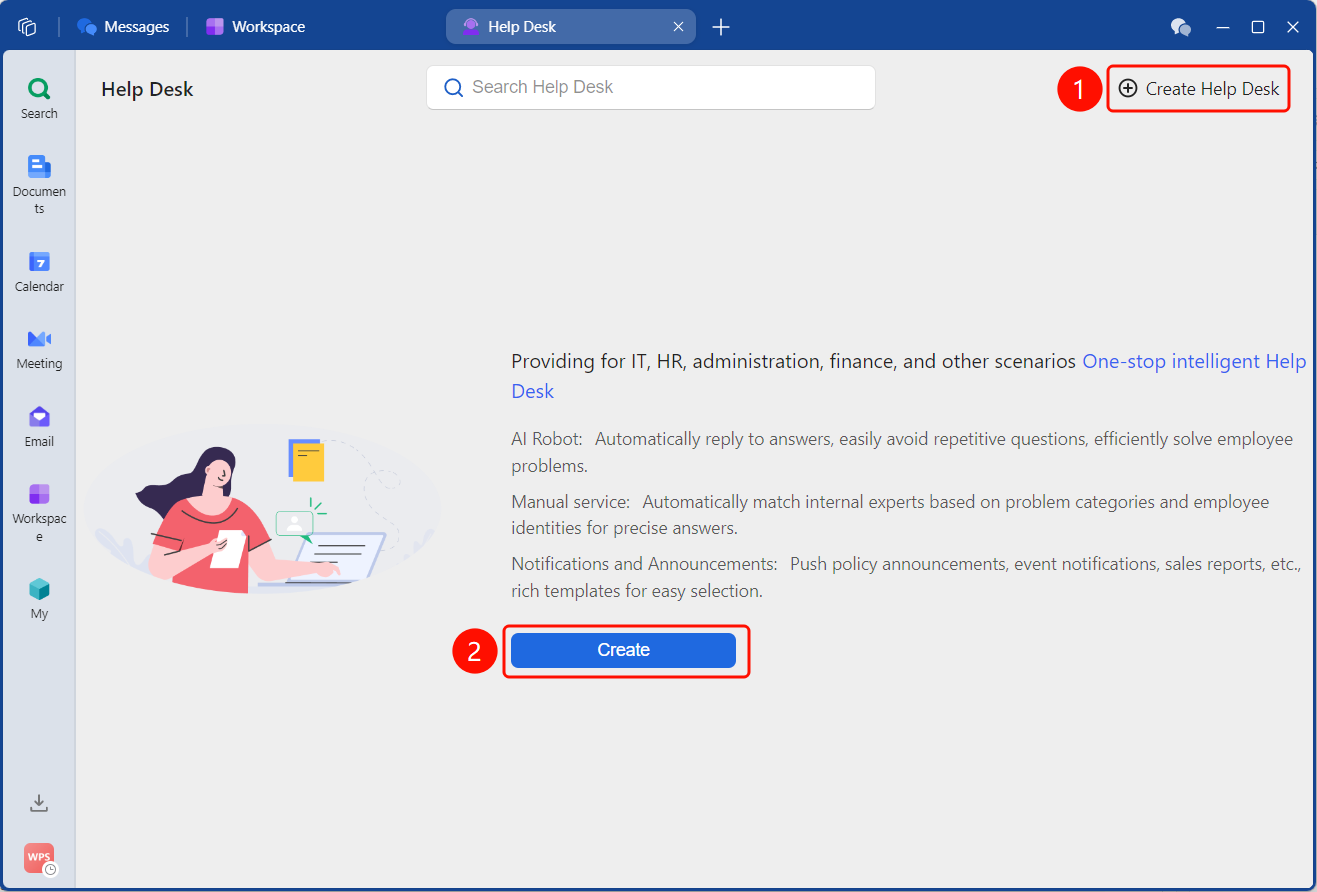
- After entering the Service Desk, the introduction page is displayed by default.
- The 「Create Help Desk」 button is displayed at the top of the page.
- The 「Create」 button is displayed at the bottom of the page. Click it to start creating a Service Desk.
Viewing Created Service Desks
Feature Entry
Service Desk page → Service Desk list area
- After entering the Service Desk page, the list of created Service Desks is displayed.
- The list shows the Service Desk name and a preview of the most recent message.
- Click any Service Desk entry to enter its session window.
FAQ
Q1: What service modes does the Service Desk session support?
- Solution: Three core service modes are supported: AI bot can automatically reply to common questions; human service can match internal experts for precise answers; notifications and announcements support pushing policy announcements, event notices, sales reports, etc.
Q2: How to create a new Service Desk?
- Solution: After entering the Service Desk page, click the 「Go to Create」 button and follow the prompts to complete configurations such as Service Desk name and service scope to create a new Service Desk. The newly created Service Desk will be displayed in the list.
Q3: How to initiate a session in the Service Desk?
- Solution: After entering the target Service Desk, you can directly enter your question in the session input box. The system will automatically match the AI bot or transfer to a human agent for a response based on the question type.
Notes
- When using the Service Desk for the first time, you need to click 「Create Service Desk」 or 「Go to Create」 to complete the creation before using the session feature.
- The list of created Service Desks is sorted by the most recent message time, with the latest session displayed at the top.
- The Service Desk entry must be accessed through the Workbench. Ensure that the 「Service Desk」 application is installed in the Workbench.