Feature Summary
Supports managing approval data in the Light Approval Office Document, allowing you to view, filter, and export approval form data through three modules: Data Management, Export Records, and Batch Export.
Feature Description
| Feature Dimension | Description |
|---|---|
| Membership Restriction | No membership restriction |
| Version Restriction | No version restriction |
Operation Steps
Accessing the Data Management Page
Feature Entry
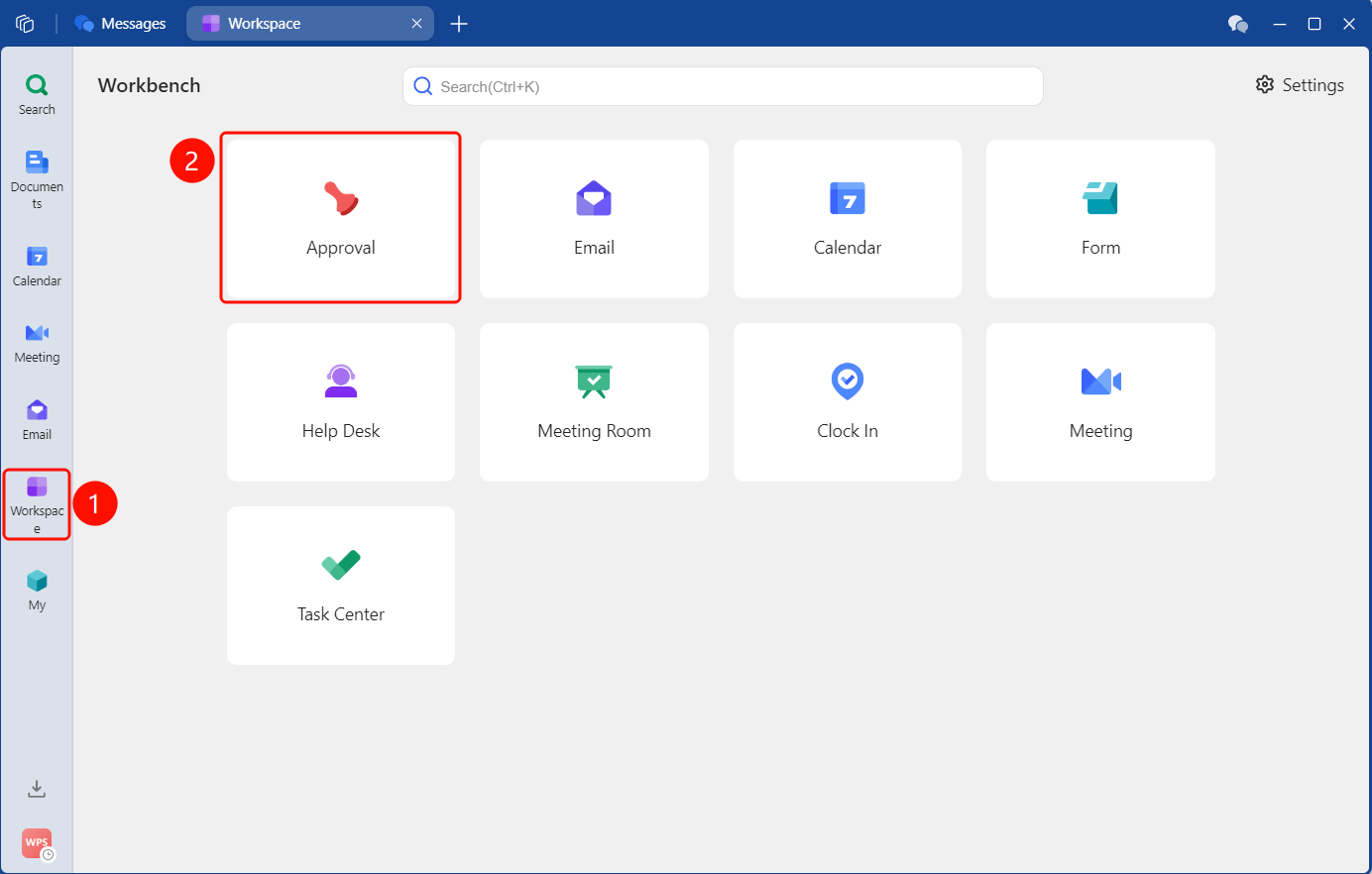
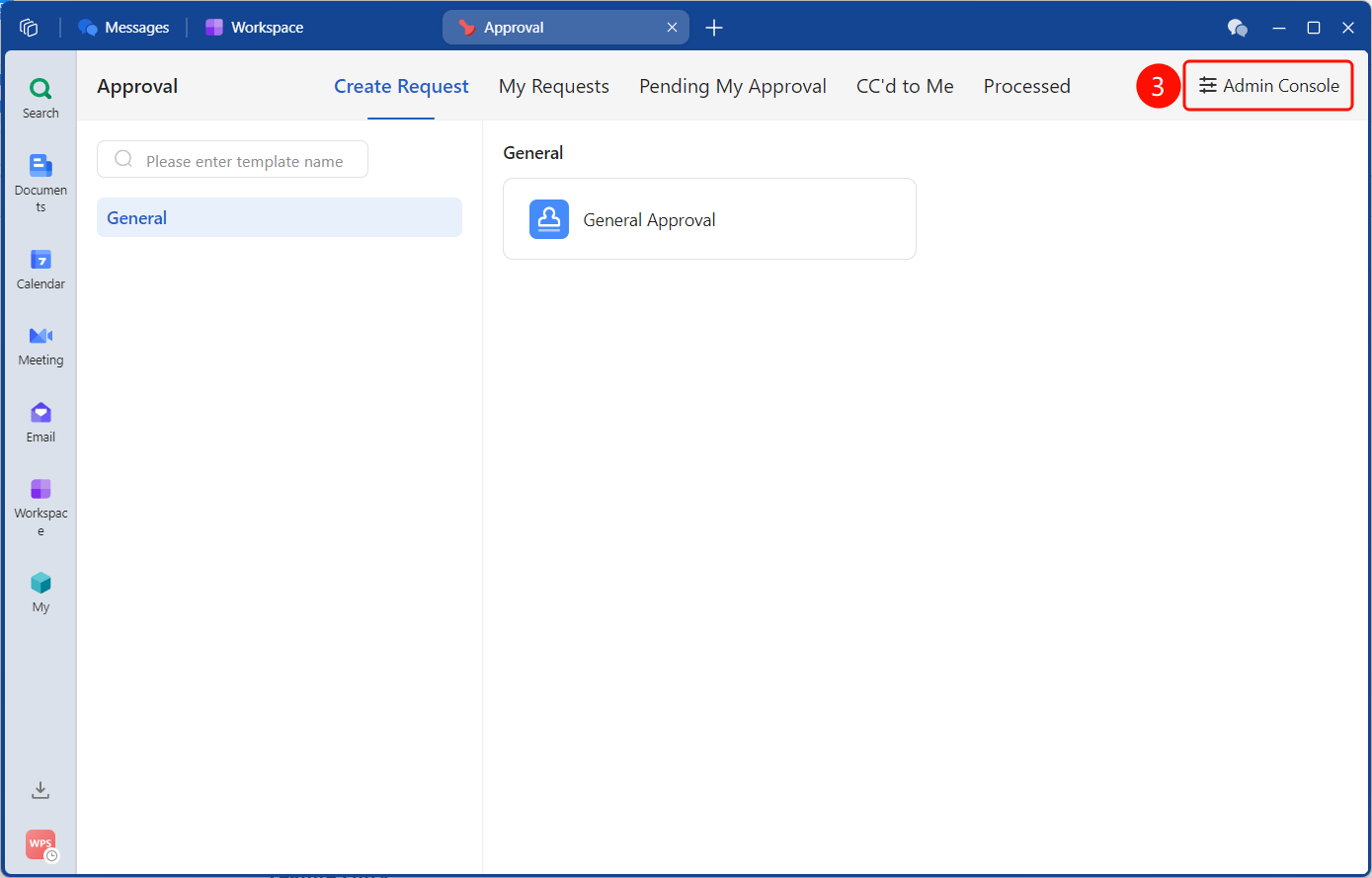
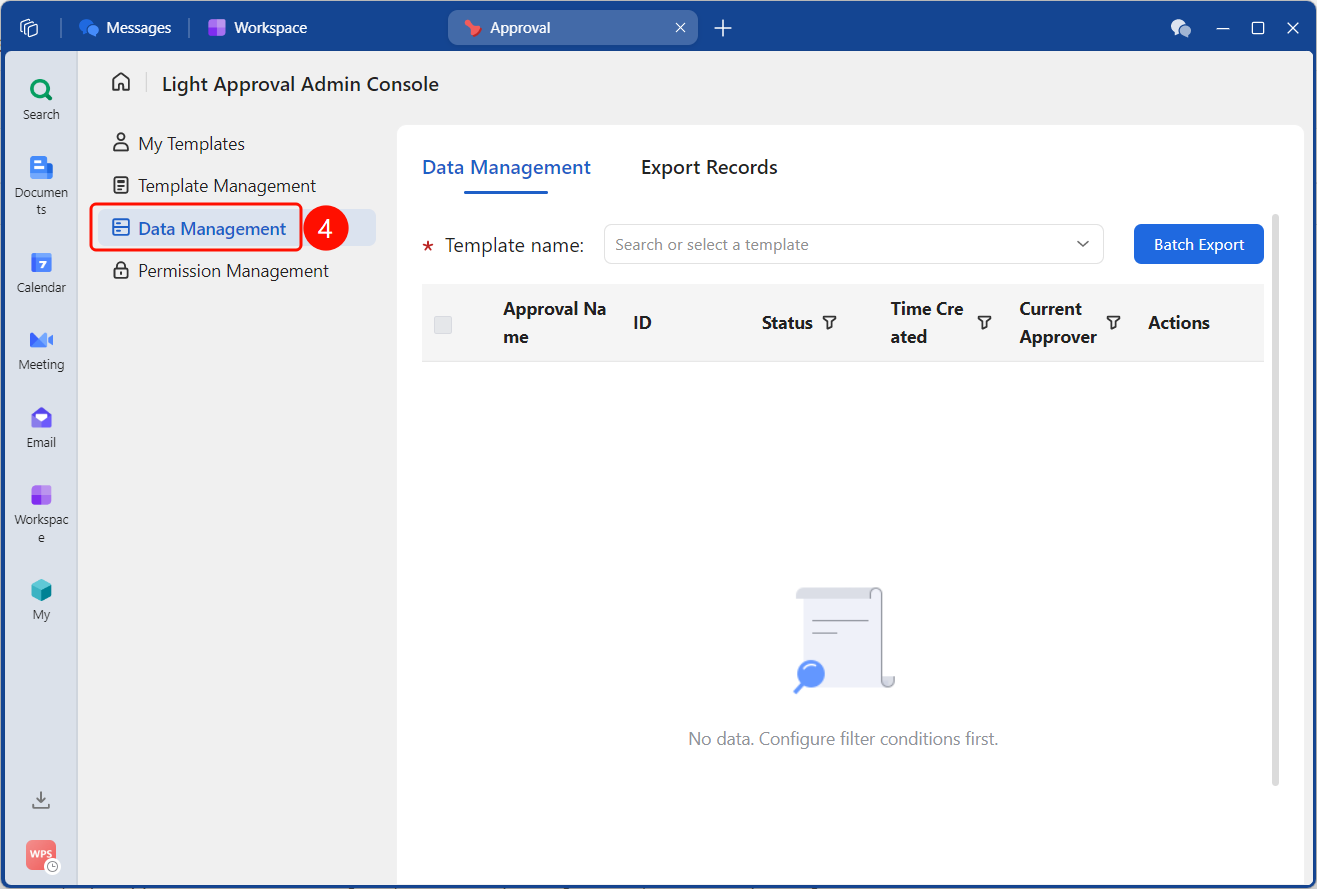
「Workbench」page →「Light Approval」icon →「Office Document」button →「Data Management」tab
- Click 「Workbench」 in the left navigation bar to enter the Workbench page
- Find and click the 「Light Approval」 icon in the Workbench app list to enter the Light Approval page
- Click 「Office Document」 at the top of the Light Approval page to enter the template Office Document
- Click 「Data Management」 in the left navigation panel to enter the Data Management page
- The Data Management page provides three sub-tabs: Data Management, Export Records, Batch Export
Viewing Approval Data
Feature Entry
「Light Approval Office Document」→「Data Management」tab →「Data Management」sub-tab at the top
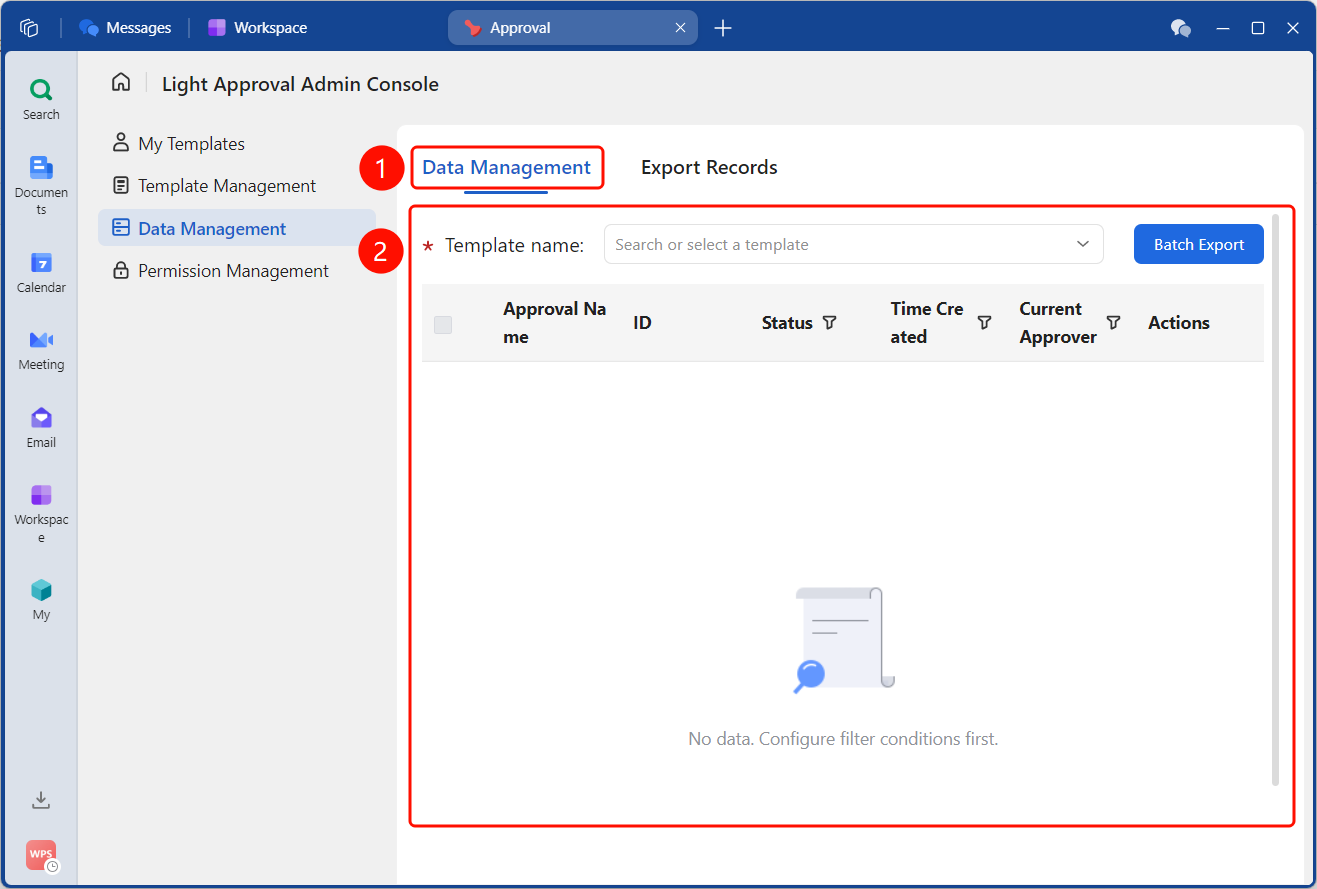
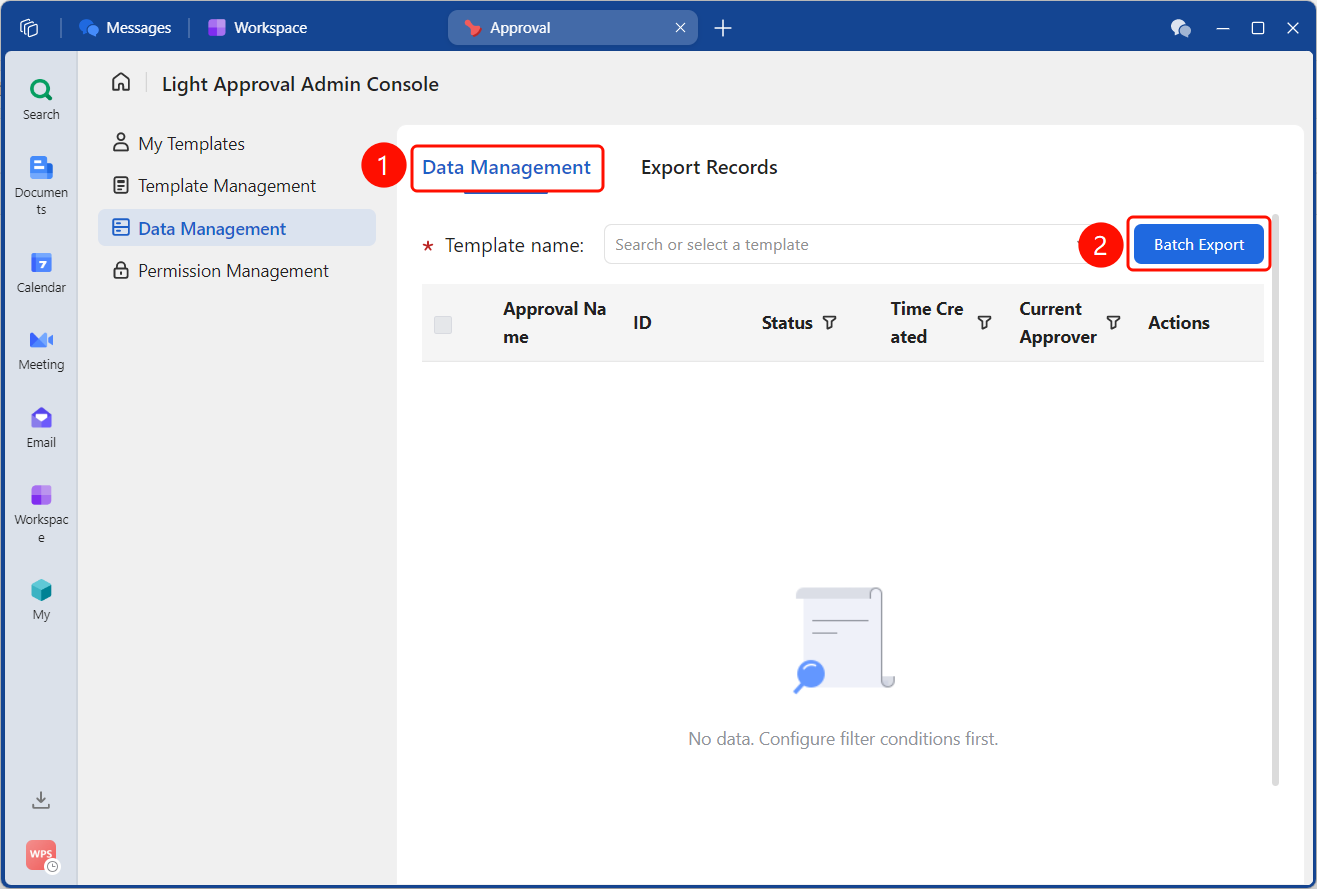
- In the Data Management tab of the Light Approval Office Document, click the 「Data Management」 sub-tab at the top
- The Template Name filter box at the top of the page allows you to search or select a template for filtering
- The data list displays the following field information:
| Field | Description |
|---|---|
| Approval Form Number | The unique number of the approval form |
| Approval Status | The current processing status of the approval form |
| Creation Time | The initiation time of the approval form |
| Current Approver | The person responsible for approval at the current node |
| Actions | Operations that can be performed on the approval work order |
| Approval Name | The name of the approval form |
- When no filter criteria are configured, the page displays 'No data, please configure filter criteria first'
- After selecting a template, the system will display the approval form data under the corresponding template
Viewing Export Records
Feature Entry
「Light Approval Office Document」→「Data Management」tab →「Export Records」sub-tab at the top
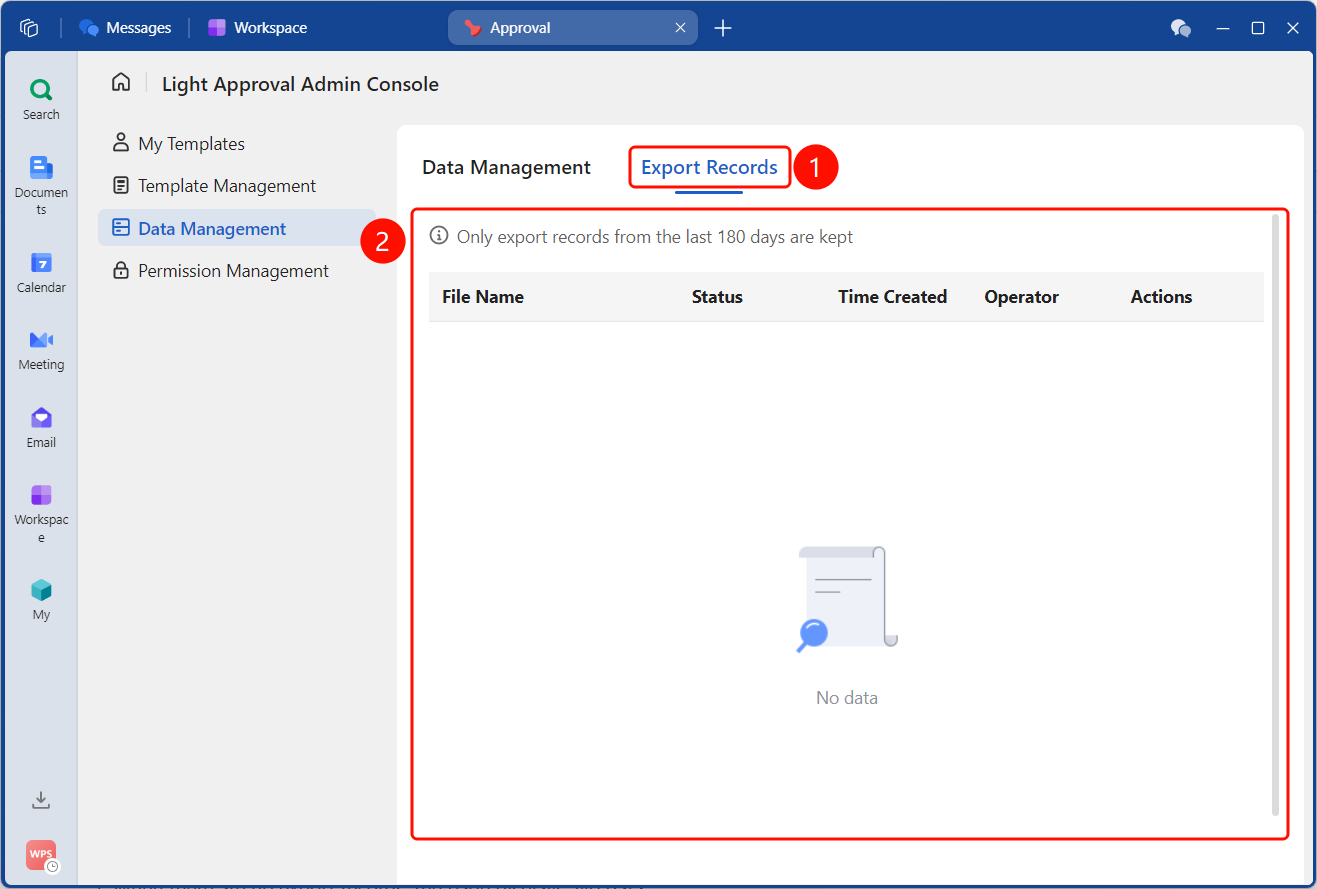
- In the Data Management tab of the Light Approval Office Document, click the 「Export Records」 sub-tab at the top
- The top of the page prompts 'Only export records from the last 180 days are retained', records beyond this period will be automatically cleared
- The export record list displays the following field information:
| Field | Description |
|---|---|
| File Name | The name of the exported file |
| Export Status | The execution status of the current export task |
| Creation Time | The initiation time of the export task |
| Operator | The user who initiated the export operation |
| Actions | Operation buttons such as downloading the exported file |
- When there are no export records, the page displays 'No data'
Batch Exporting Approval Data
Feature Entry
「Light Approval Office Document」→「Data Management」tab →「Batch Export」sub-tab
- On the Data Management page, click the 「Batch Export」 sub-tab
- Follow the on-page prompts to select export conditions and template scope
- After confirming, initiate the export task. Once completed, you can view and download it in Export Records
FAQ
Q1: Why does the Data Management page display 'No data'?
- Solution: On the Data Management page, you need to first select or search for an approval template in the Template Name filter box at the top. After selection, the approval form data under the corresponding template will be displayed.
Q2: How long are export records retained?
- Solution: Export records are only retained for the last 180 days. Records beyond this period will be automatically cleared by the system. If long-term preservation is needed, it is recommended to download them locally in time.
Q3: Can the approval data in Data Management be modified?
- Solution: The Data Management page only supports viewing and exporting approval data. If you need to modify the status or content of an approval form, you must do so in the original approval form.
Notes
- Approval form data in Data Management is displayed by template dimension. Data from different templates must be filtered and viewed separately.
- Files in export records cannot be recovered after expiration. Please download and back them up in time.