Feature Summary
Supports managing template Admins in the Light Approval Office Document, configuring approval template permission scopes by adding, editing, and deleting Admins to ensure templates are secure and controllable.
Feature Description
| Feature Dimension | Description |
|---|---|
| Membership Restriction | No membership restriction |
| Version Restriction | No version restriction |
Operation Steps
Accessing the Permission Management Page
Feature Entry
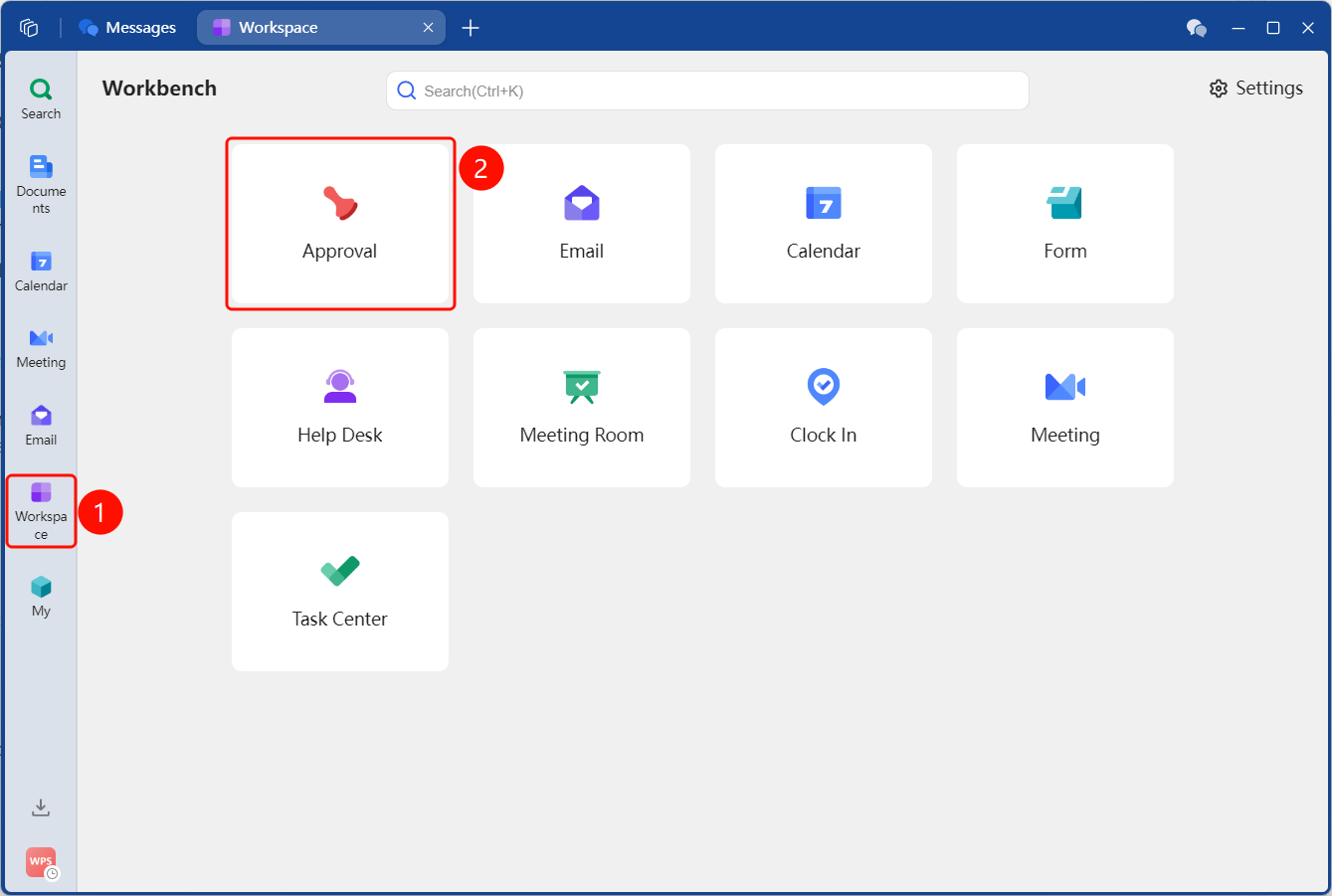
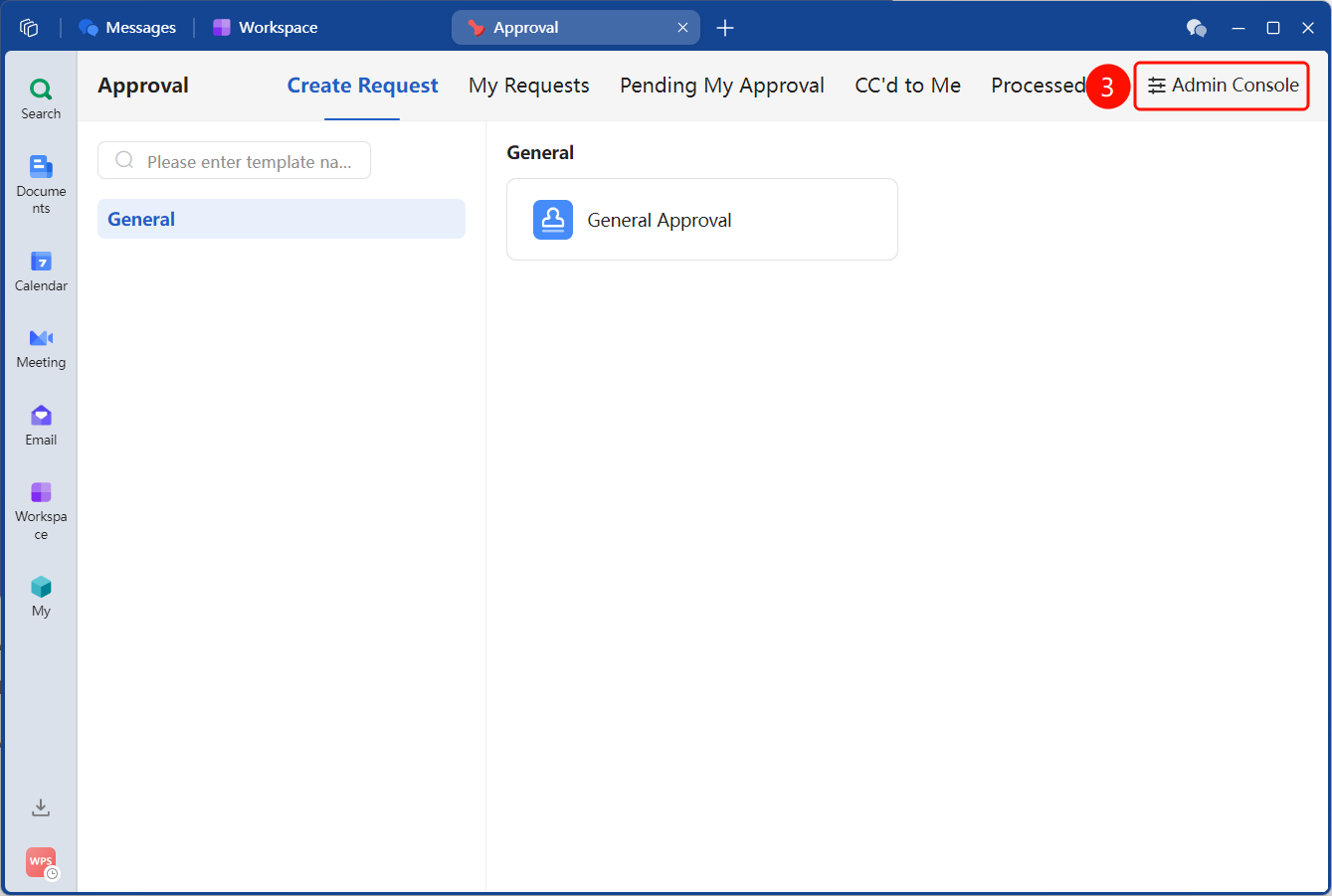
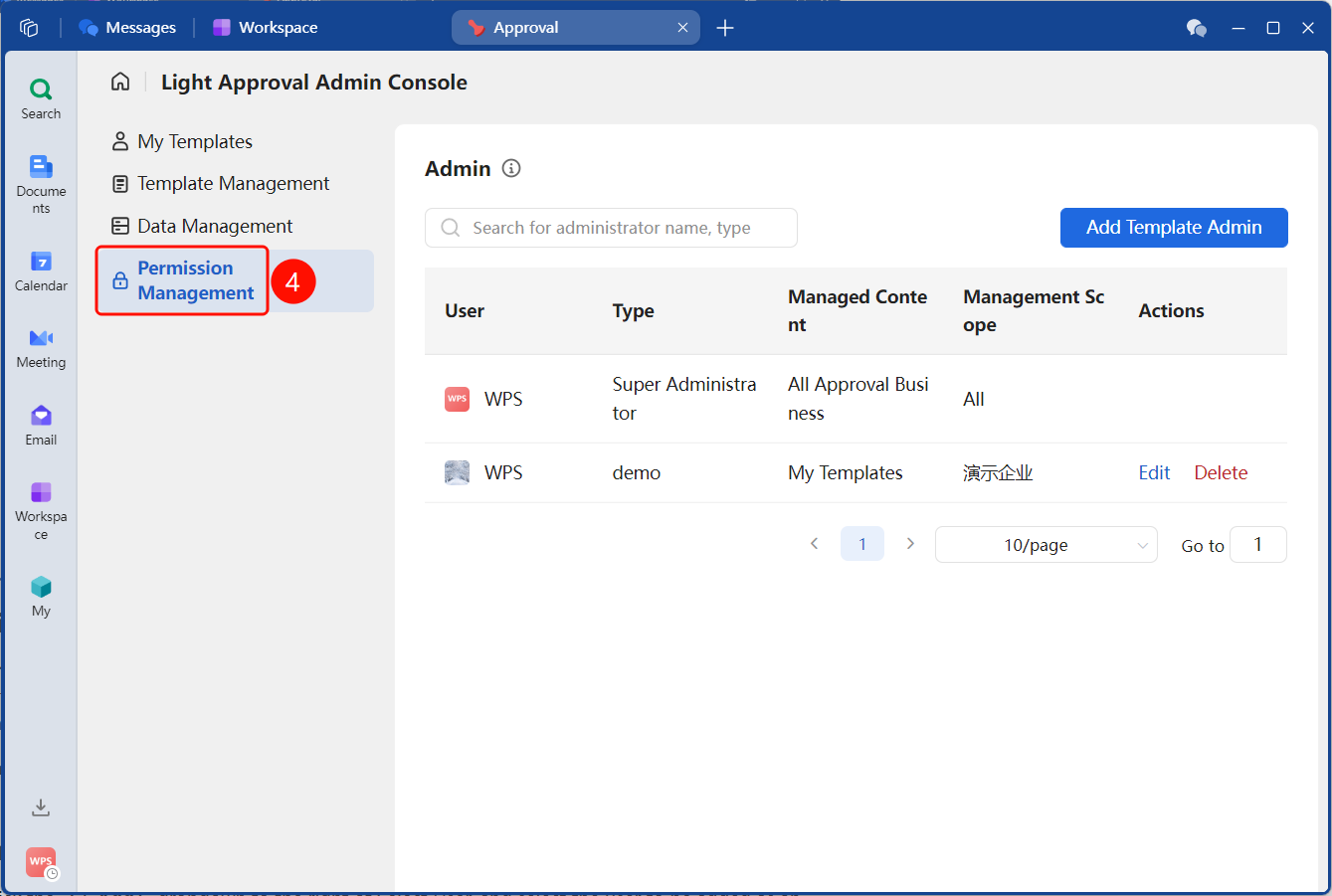
「Left Navigation Bar」 page → 「Workbench」 icon → 「Light Approval」 app icon → 「Office Document」 button → 「Permission Management」 tab
- Click 「Workbench」 in the left navigation bar to enter the Workbench page
- Find and click the 「Light Approval」 icon in the Workbench app list to enter the Light Approval page
- Click 「Office Document」 at the top of the Light Approval page to enter the template Office Document
- Click 「Permission Management」 in the left navigation panel to enter the Permission Management page
Adding a Template Admin
Feature Entry
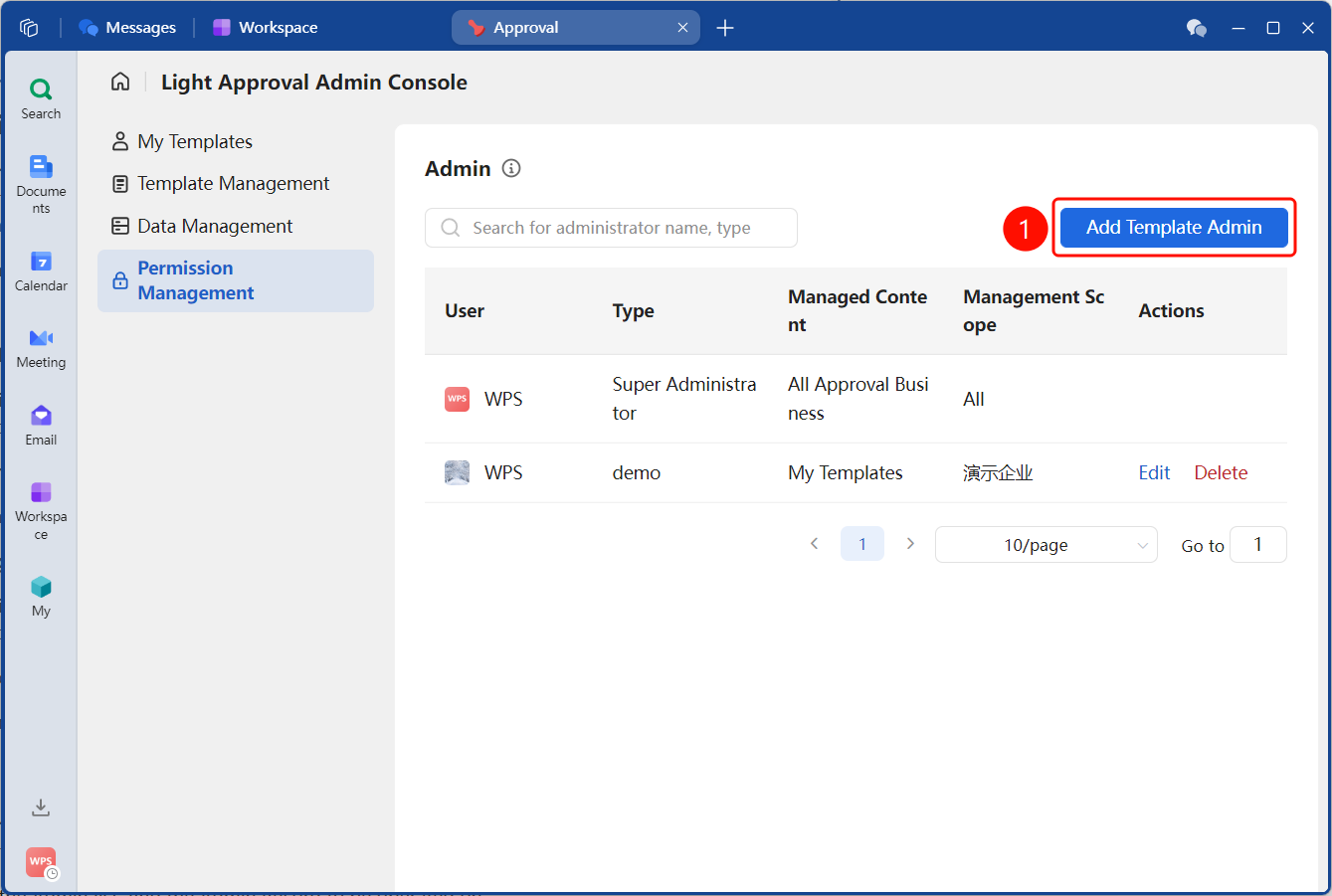
「Light Approval Office Document」 page → 「Permission Management」 tab → 「Add Template Admin」 button
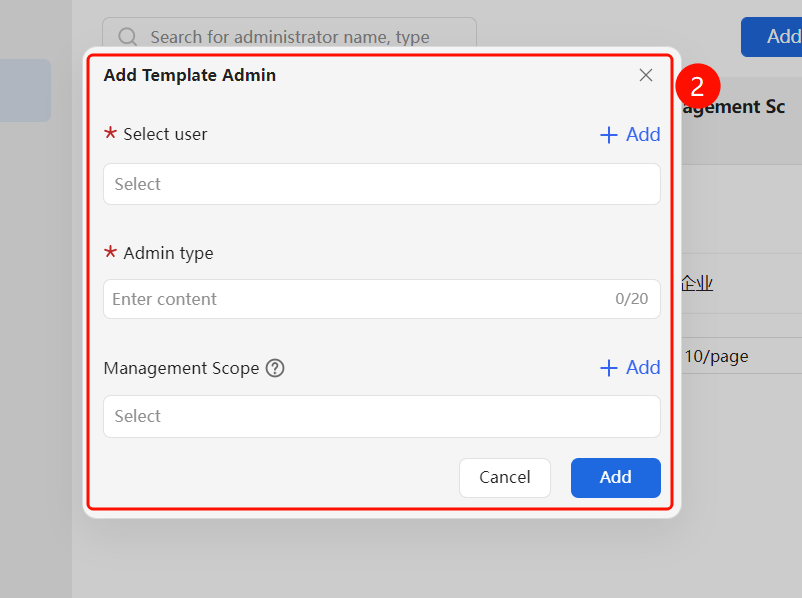
- On the Permission Management page, click the 「Add Template Admin」 button to open the Add Admin dialog
- Configure the following information in the dialog:
Select User:
- Click the 「+ Add」 dropdown to the right of Select User, and select the user to be added as an Admin
Admin Type:
- Enter the Admin type description in the input field, up to 20 characters
Management Scope:
- Click the 「+ Add」 button to the right of Management Scope, and select the template scope the Admin can manage
- Click the Add button to complete the configuration
Editing or Deleting an Admin
Feature Entry
「Light Approval Office Document」 page → 「Permission Management」 tab → 「Actions」 column
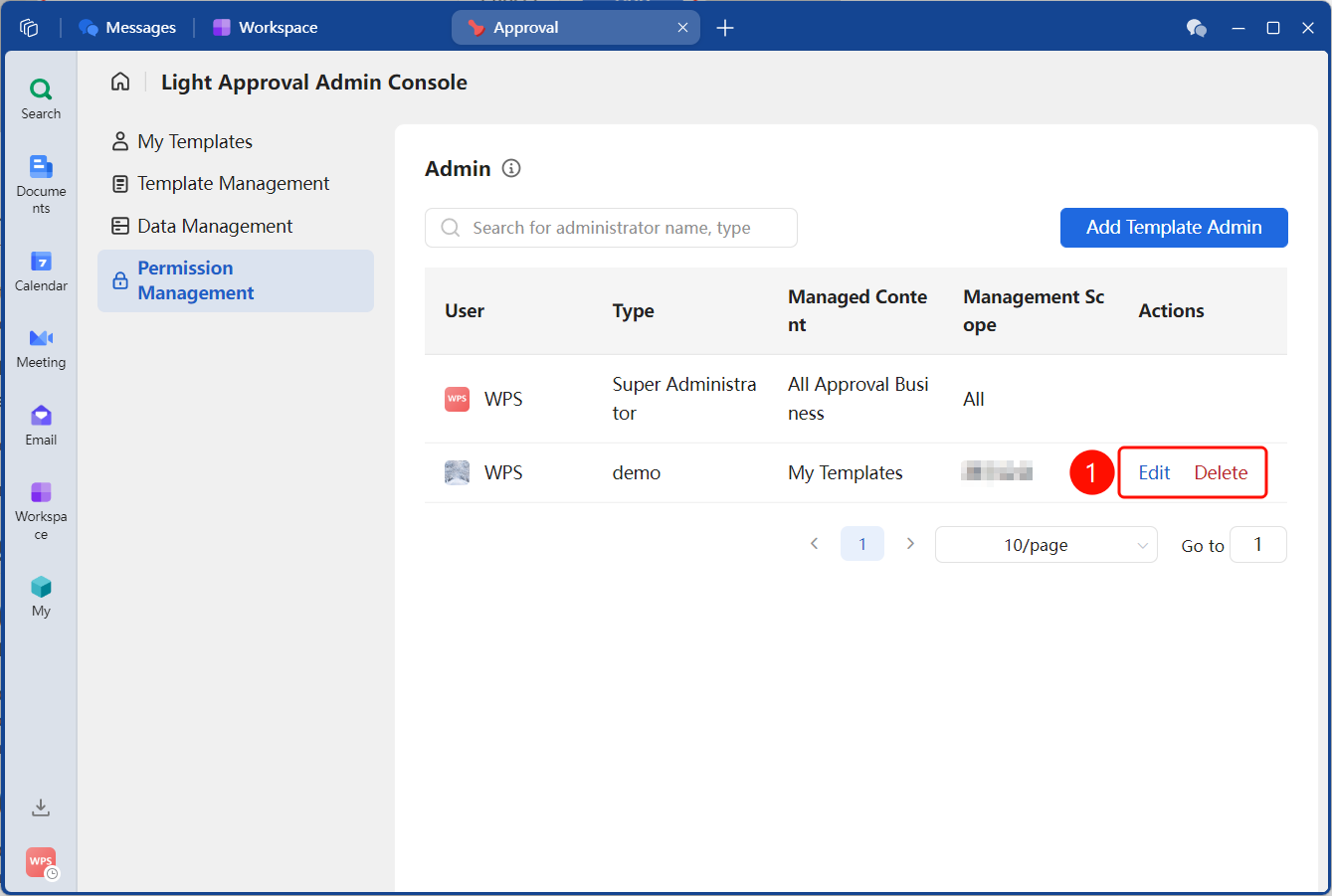
- In the Admin list, find the Admin Record to be operated on
- Click the corresponding button in the Actions column:
- Edit: Modify the Admin's type or management scope
- Delete: Remove the Admin from template management
- The operation takes effect after confirmation
FAQ
Q1: What is the difference between a Super Admin and a regular Admin?
- Solution: Super Admin has management permissions for all templates and can manage all approval templates; a regular Admin's management scope is limited by the set Management Scope, and can only manage templates within the specified scope.
Q2: What is the impact of not setting a management scope?
- Solution: If no management scope is set, the Admin can manage all personnel in their Contacts, and the management permissions are not limited by the template scope.
Q3: Can multiple Admins be added?
- Solution: Adding multiple Admins is supported. Different types and management scopes can be set for each Admin to achieve hierarchical management.
Notes
- The Admin type name (e.g., Super Admin) is custom text and must be entered manually.
- Deleting an Admin is an irreversible operation. After deletion, the user will lose template management permissions.
- The management scope only takes effect when configuring the template's visible scope and managers.