Feature Summary
Light Approval is an online approval tool that supports initiating approval requests, viewing my requests, handling pending approvals, viewing Cc records, and processed records.
Feature Description
| Feature Dimension | Description |
|---|---|
| Membership Restriction | No membership restriction |
| Version Restriction | No version restriction |
Operation Steps
Initiate Request
Feature Entry
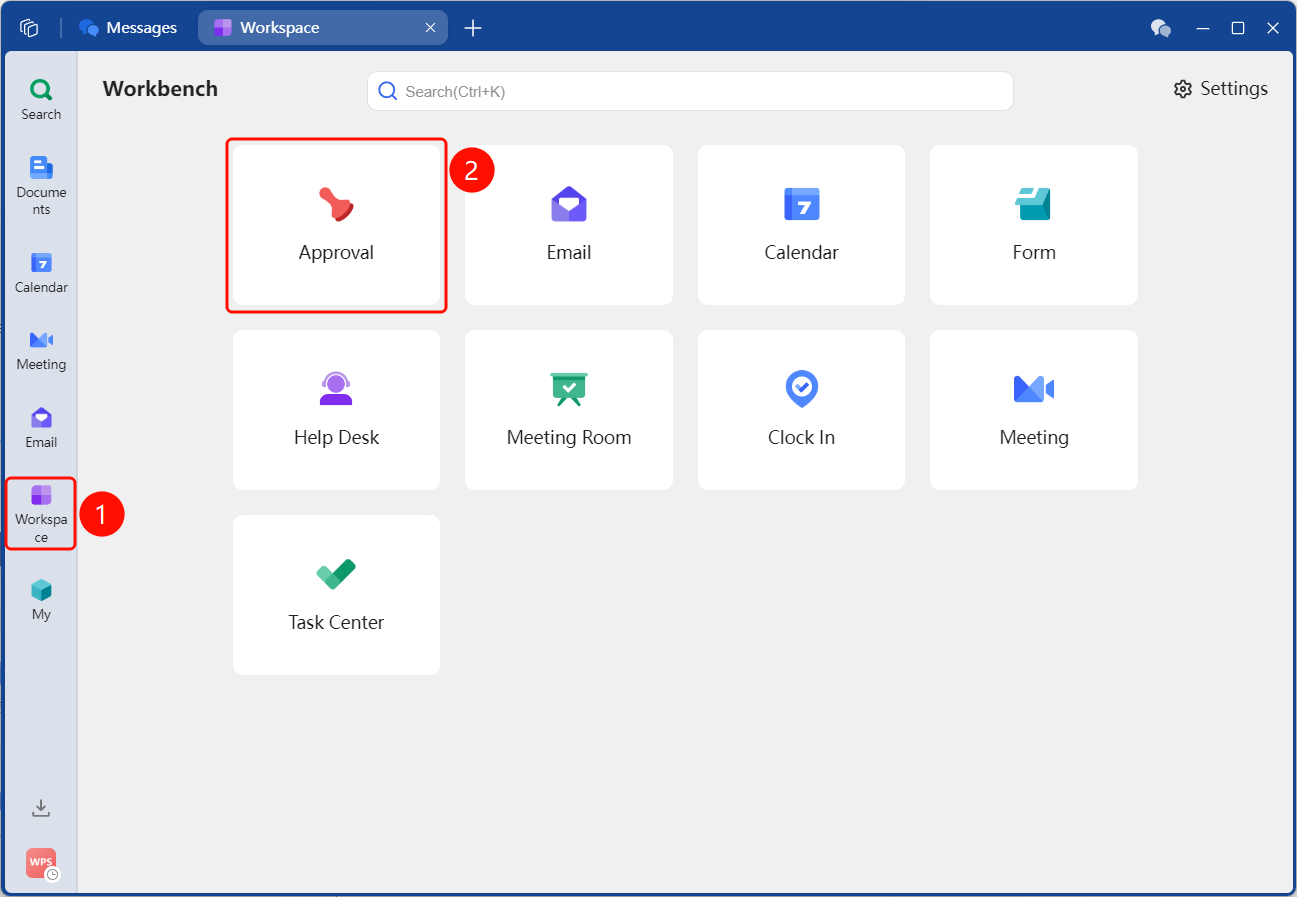
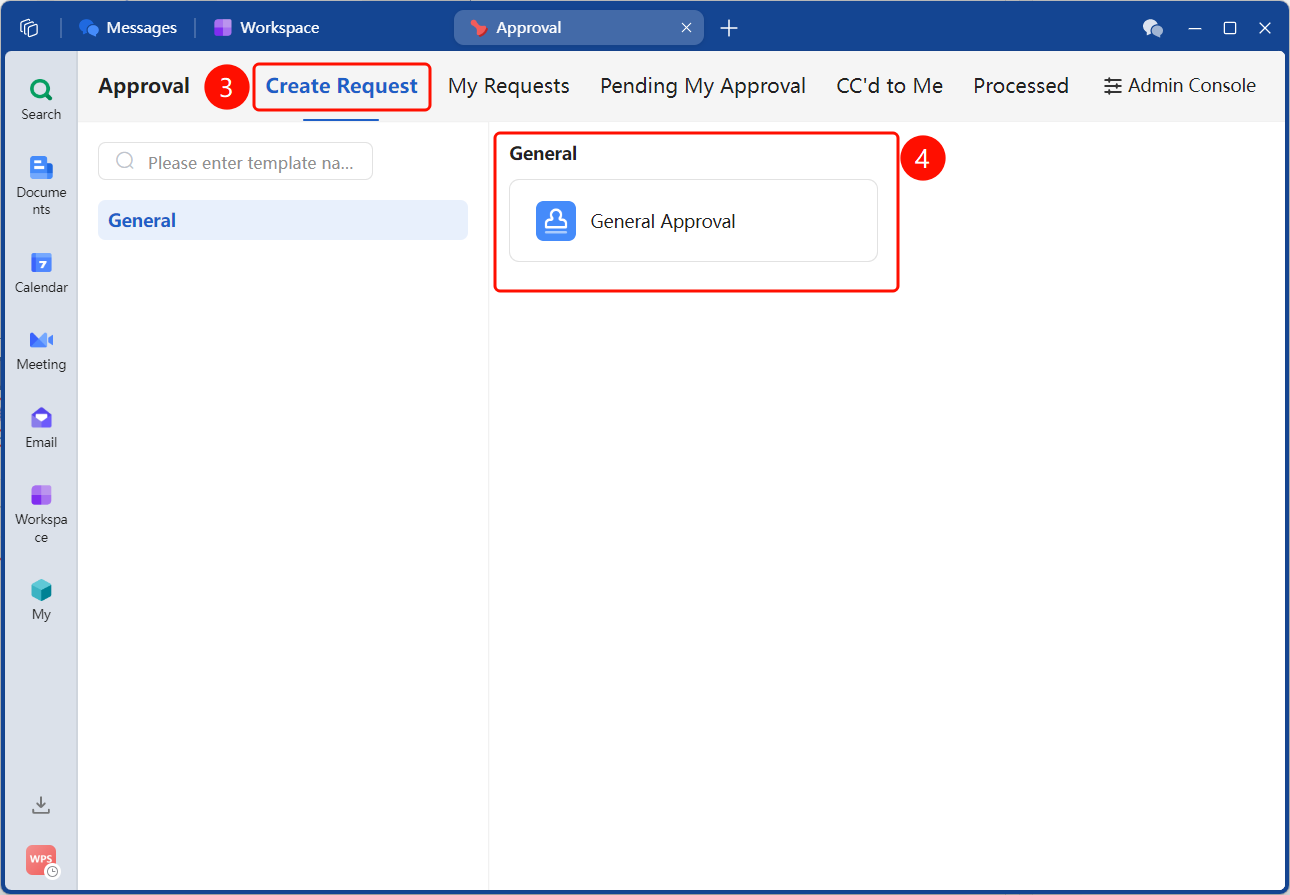
「Left Navigation Bar」Page → 「Workbench」Icon → 「Light Approval」App Icon → 「Initiate Request」Tab
- On the 「Initiate Request」 page, find the approval template you need and click on it.
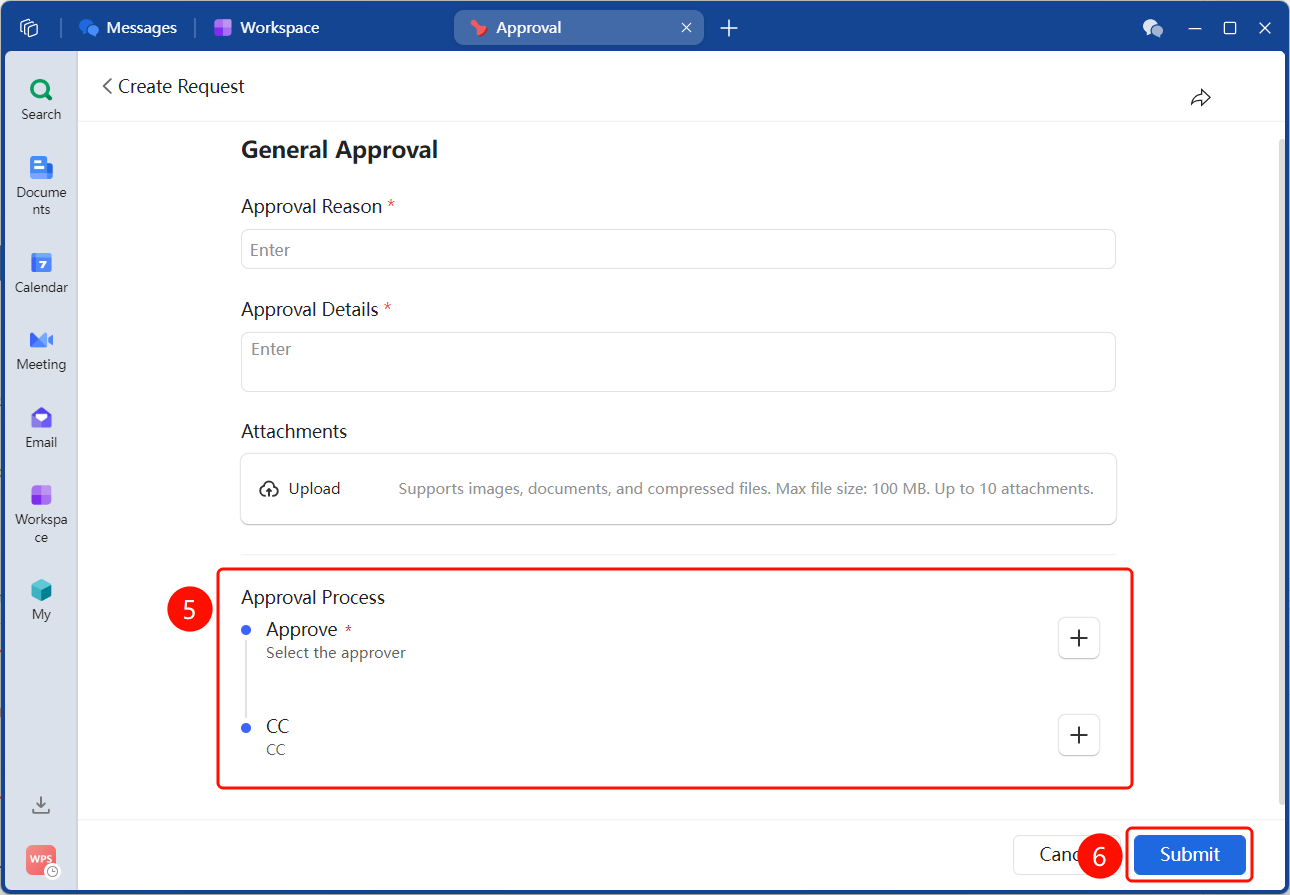
- On the approval ticket filling page, fill in the approval content.
- In the 「Approval Process」 area, click the 「Please Select Approver」 button under 「Approval」 to select an approver.
- If you need to Cc others, click the 「Please Select」 button under 「Cc」 to select Cc recipients.
- After confirming the information is correct, click the 「Submit」 button to complete the initiation of the approval.
My Requests
Feature Entry
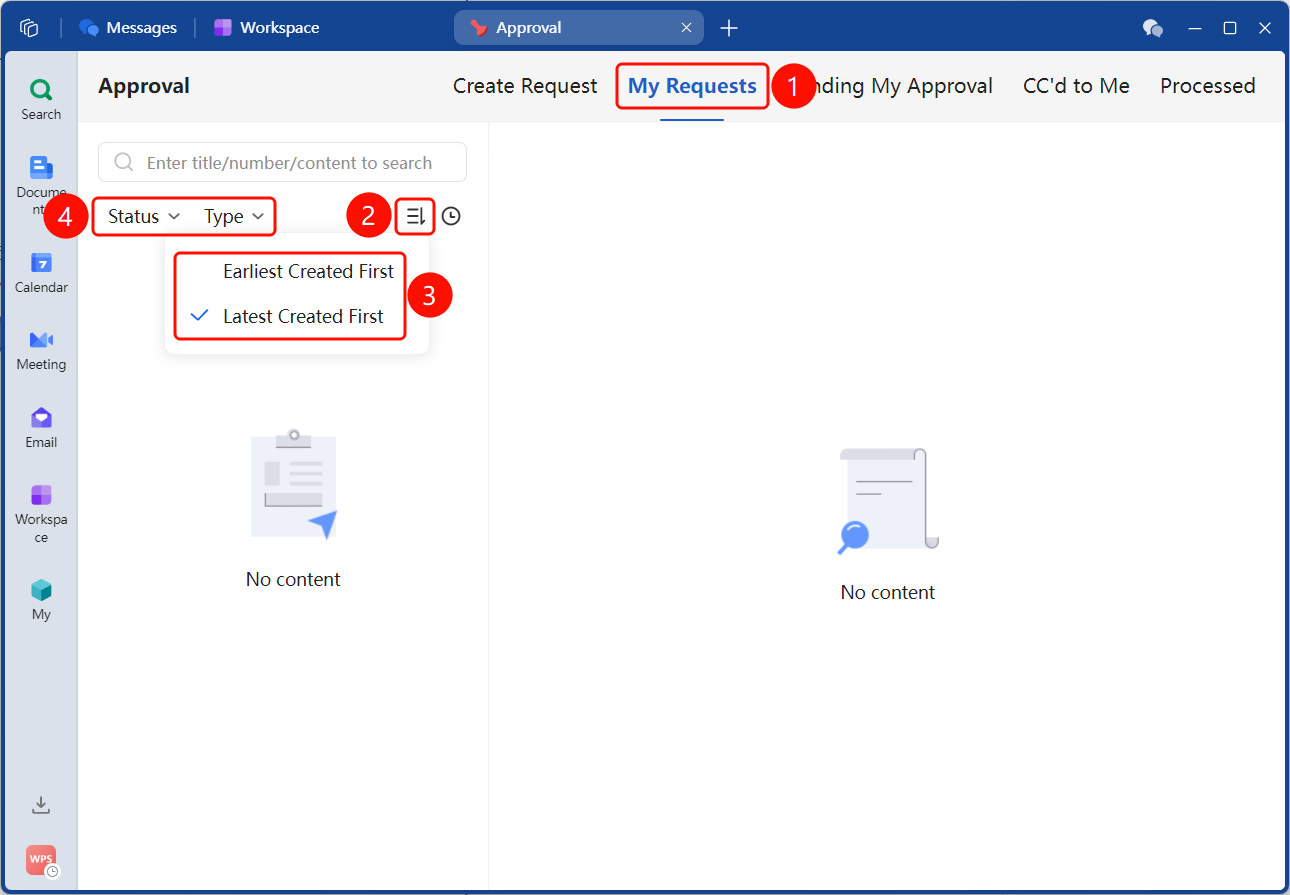
「Left Navigation Bar」Page → 「Workbench」Icon → 「Light Approval」App Icon → 「My Requests」Tab
- On the 「My Requests」 page, you can enter the title, number, or body content in the search box to search.
- Click the sorting dropdown box to select the 「Last Initiated First」 sorting method.
- The list displays 「Status」 and 「Type」 columns by default, making it easy to quickly understand the request progress.
Pending My Approval
Feature Entry
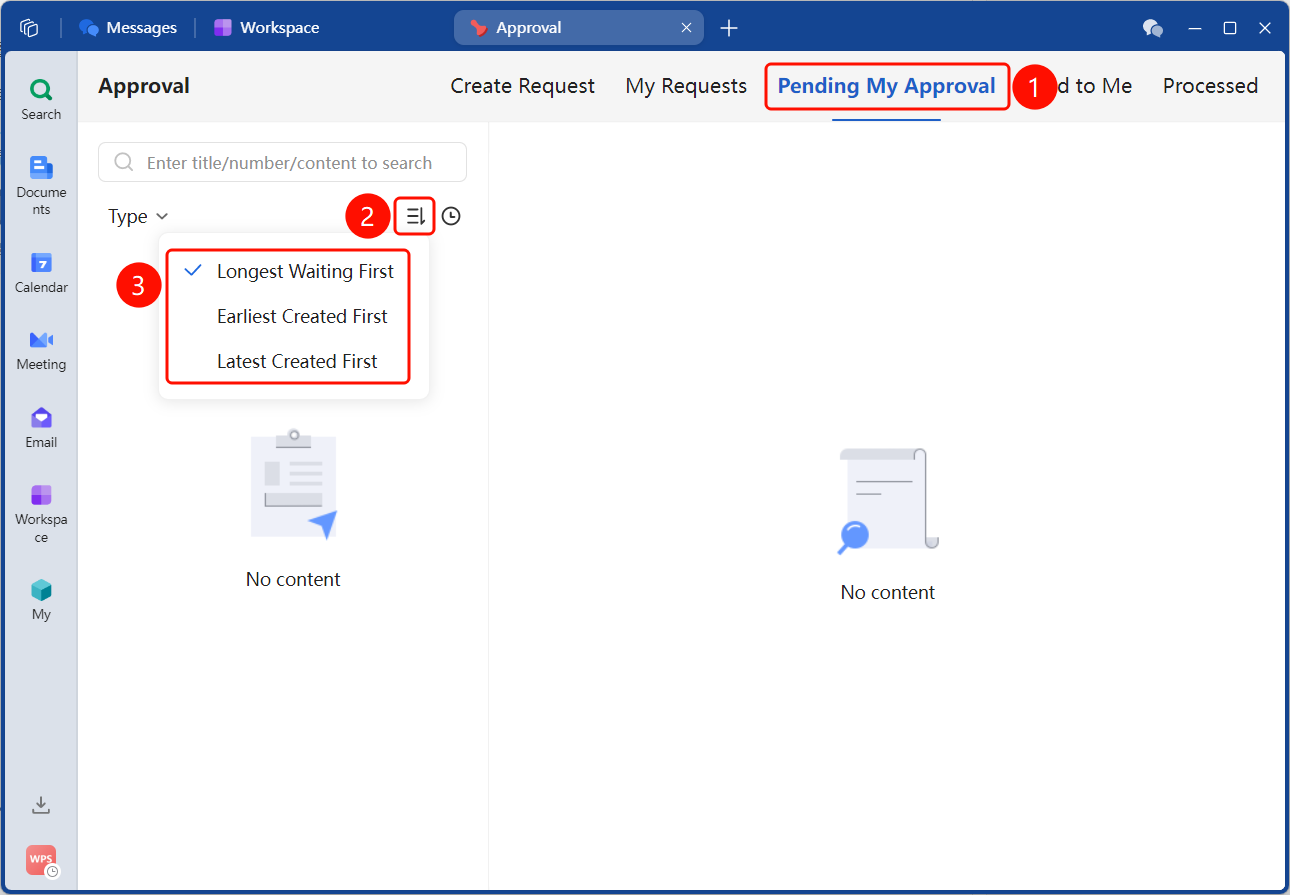
「Left Navigation Bar」Page → 「Workbench」Icon → 「Light Approval」App Icon → 「Pending My Approval」Tab
- On the 「Pending My Approval」 page, you can enter the title, number, or body content in the search box to search.
- Click the sorting dropdown box to select the 「Longest Waiting First」 sorting method.
- In the pending approval list, click the approval request you need to handle to enter the details page for approval operations.
Cc to Me
Feature Entry
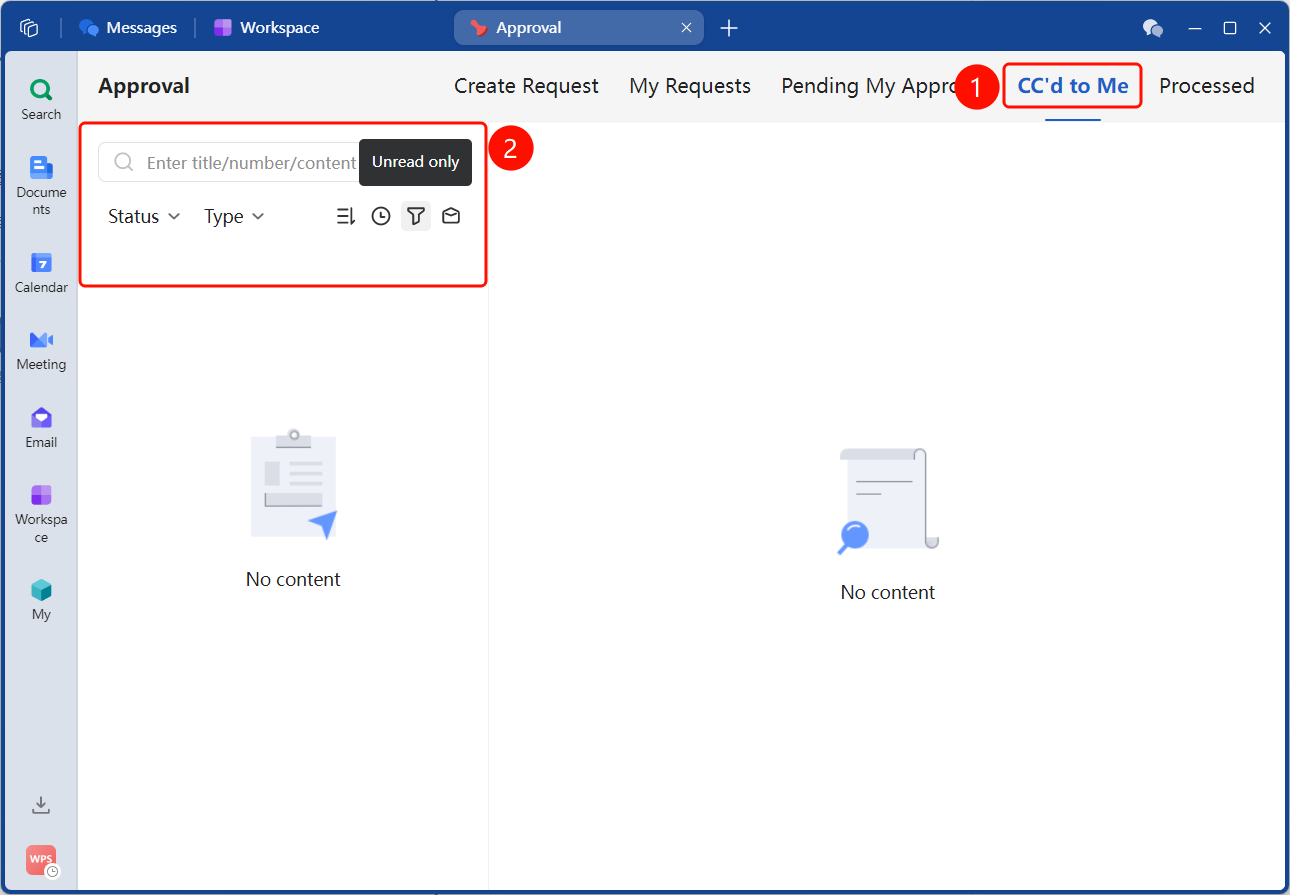
「Left Navigation Bar」Page → 「Workbench」Icon → 「Light Approval」App Icon → 「Cc to Me」Tab
- On the 「Cc to Me」 page, you can enter the title, number, or body content in the search box to search.
- Check the 「Unread Only」 checkbox to filter only unread Cc records.
- The list displays 「Status」 and 「Type」 columns by default.
Processed
Feature Entry
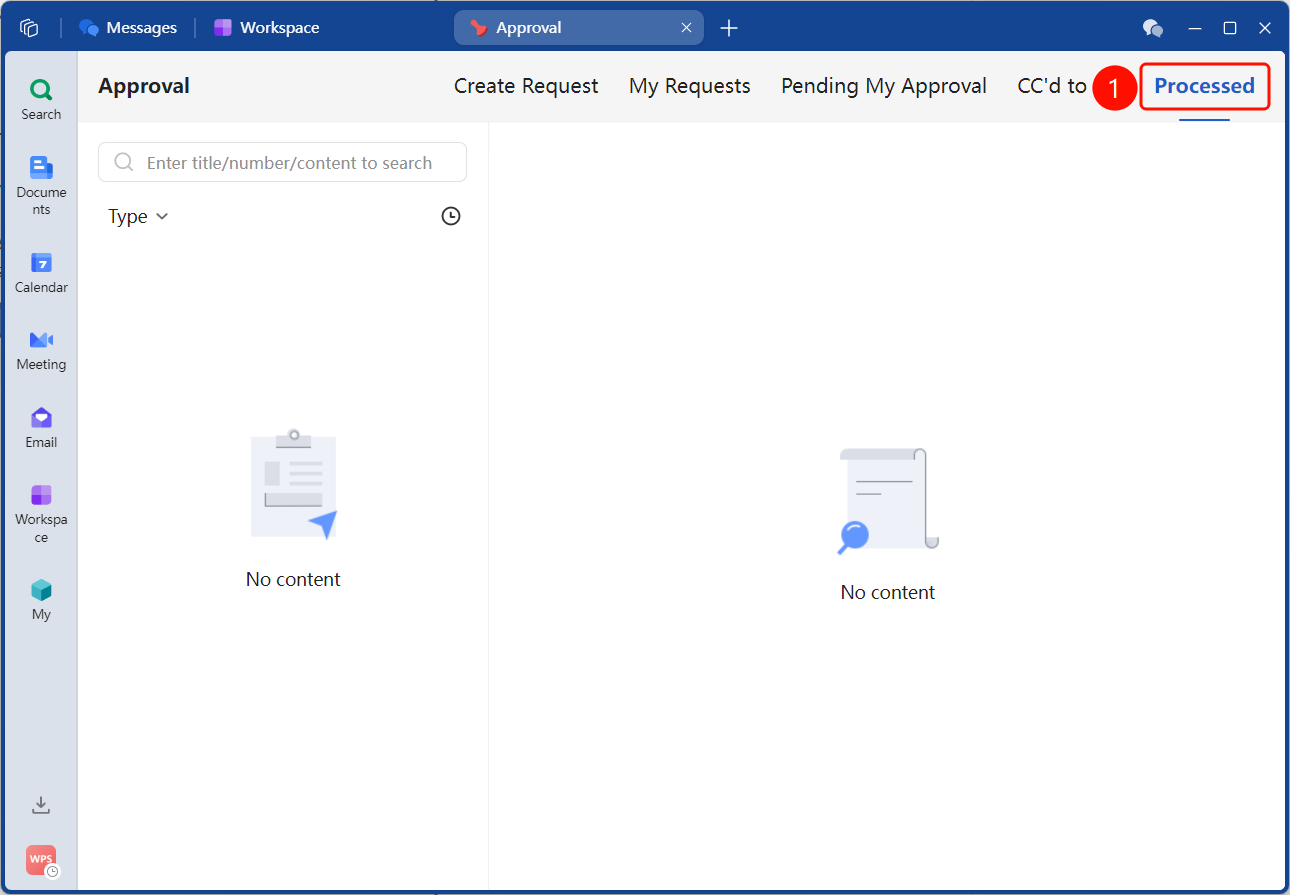
「Left Navigation Bar」Page → 「Workbench」Icon → 「Light Approval」App Icon → 「Processed」Tab
- Click the 「Processed」 tab at the top.
- On the 「Processed」 page, you can enter the title, number, or body content in the search box to search for processed approval tickets.
FAQ
Q1: What should I do if I cannot find the approval template?
- Solution: Please contact the Admin to confirm whether the view permission for this template has been subscribed to. The Admin can set the visible range of the template in 「Light Approval Office Document」 → 「Template Management」.
Q2: How can I check the progress after submitting an approval?
- Solution: In the 「My Requests」 tab, you can view the current status of the initiated approval request (e.g., Pending Approval, Approved, Rejected, etc.).
Q3: How to enter the Office Document?
- Solution: On the 「Initiate Request」 page, click the 「Office Document」 button in the upper right corner to enter the Light Approval Office Document for template management, permission management, and other operations.
Notes
- The approver and Cc recipients must be selected correctly; otherwise, the approval request cannot be processed normally.