Feature Summary
Workspace settings are used by Admins to configure the display content of the WPS Collaboration workspace, supporting the setup of default workspaces, bulletin boards, web workspaces, recommended apps, and app grouping modules to meet the personalized needs of the organization.
Feature Description
| Feature Dimension | Description |
|---|---|
| Membership Restriction | No membership restriction |
| Version Restriction | No version restriction |
Operation Steps
Enter the Workspace Settings Page
Feature Entry
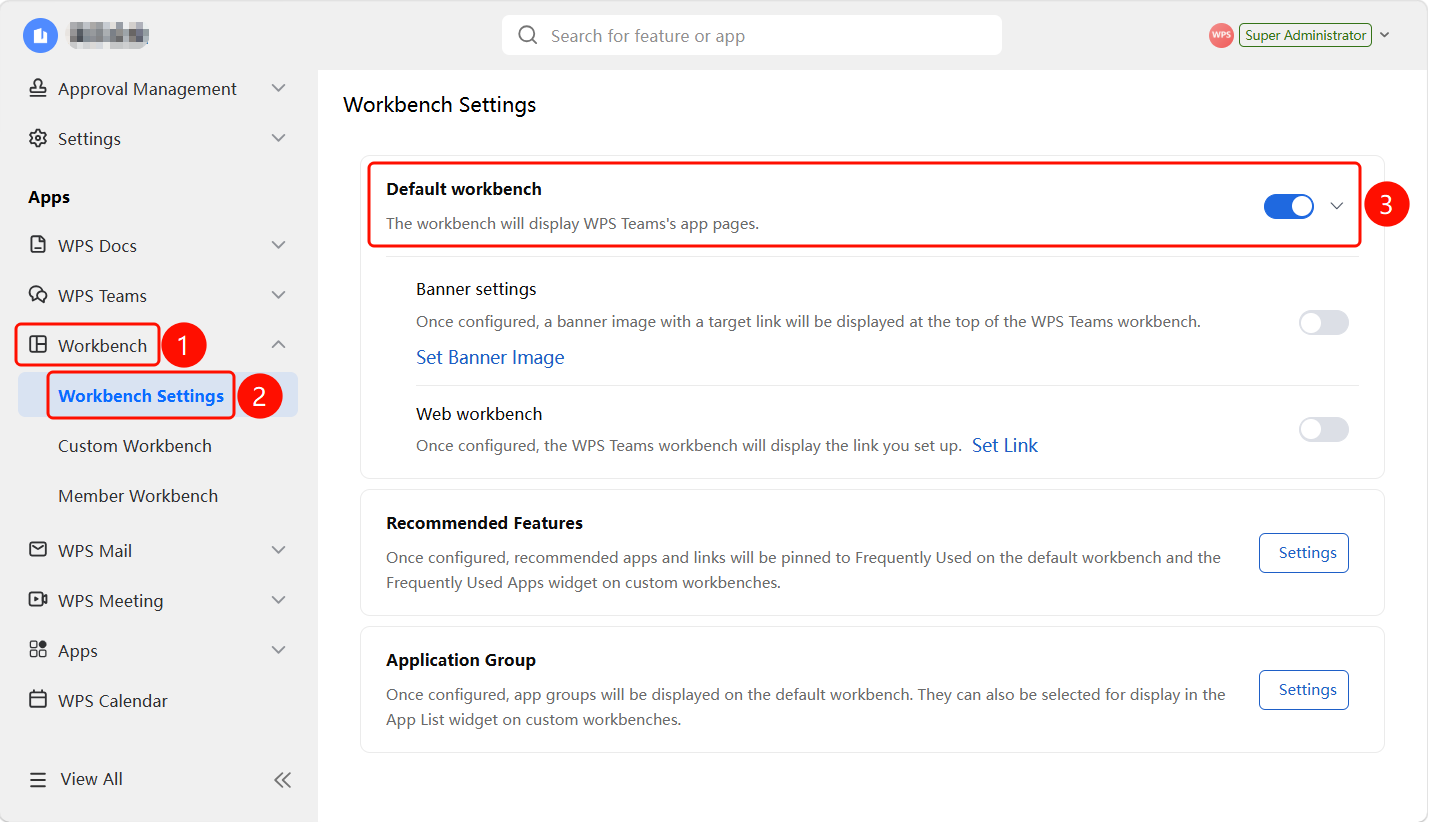
Organization Office Document → "Workspace" dropdown list → "Workspace Settings" option → "Default workbench"
- Enter the organization Office Document (address:
https://ap.wps.com/admin/center/) - In the left navigation bar of the Office Document, click the "Workspace Settings" option to enter the workspace settings page.
- Find "Default workbench" on the right side
Set Up Bulletin Board
Feature Entry
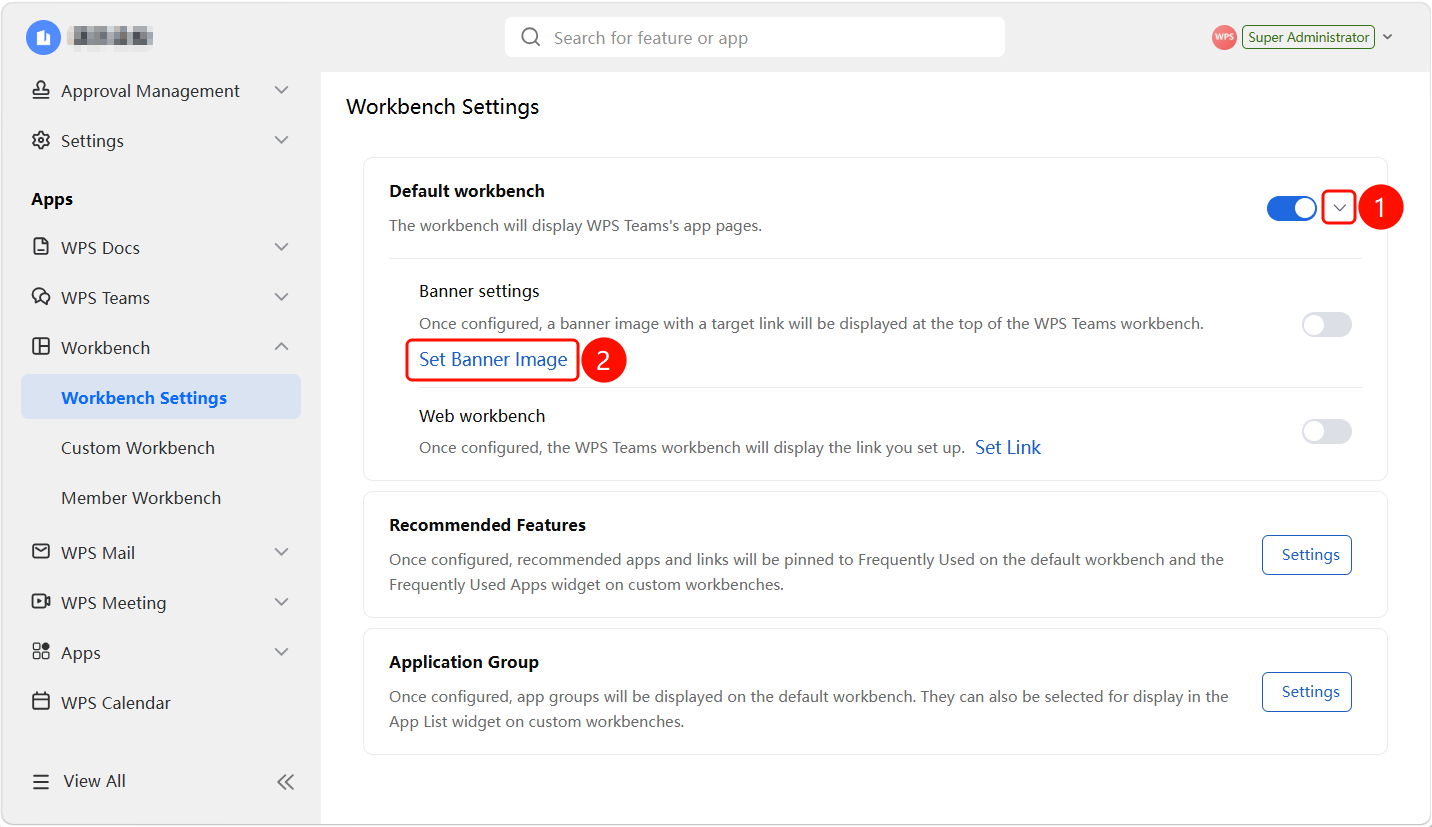
"Workspace Settings" page → "Default workbench" dropdown list → "Banner settings"
- In the "Banner settings" area, click the "Set Banner Image" button.
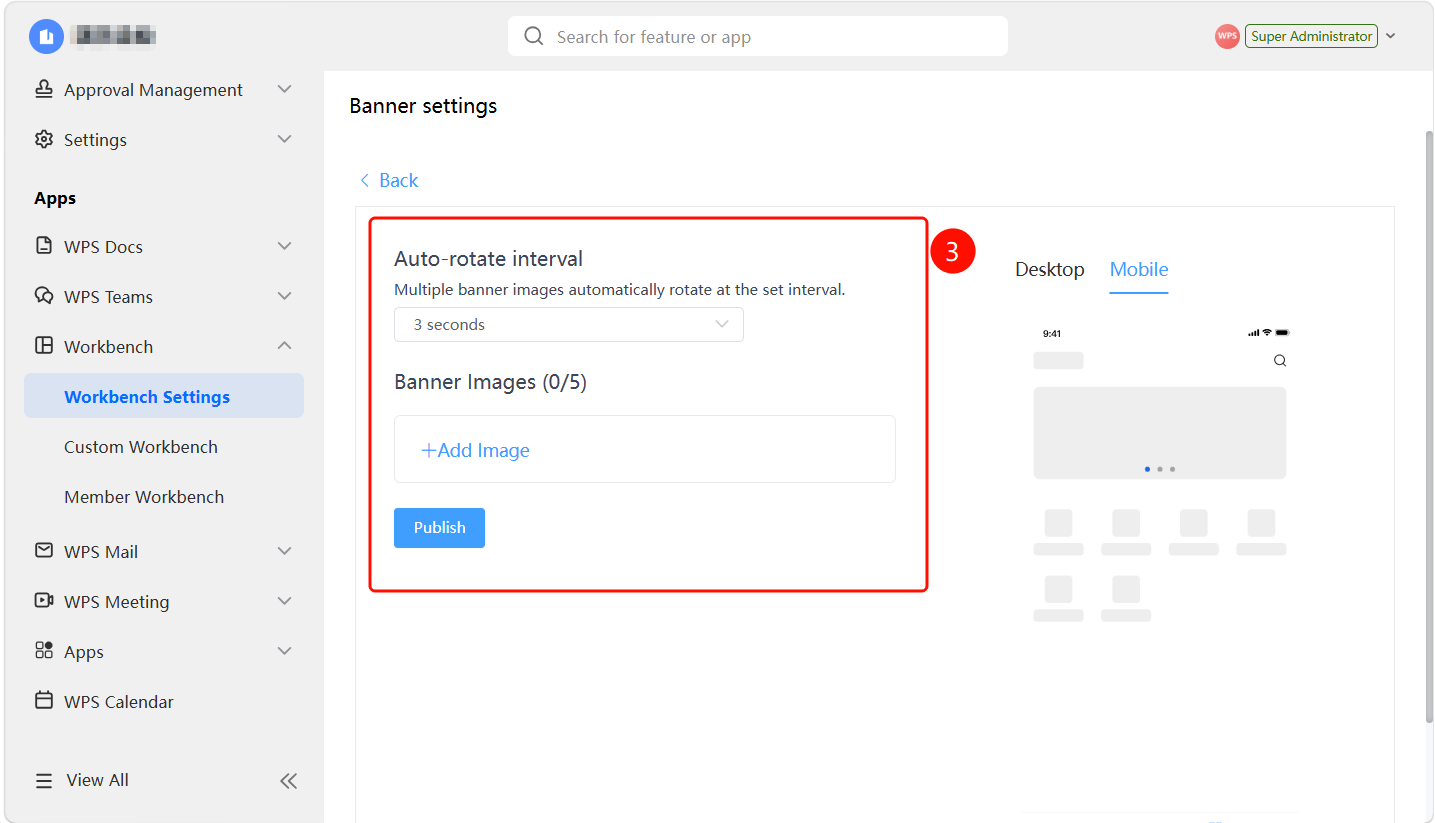
- Upload a promotional image and configure the redirect link.
- After setup, the promotional image will be displayed at the top of the WPS Collaboration workspace, and users can click it to jump to the specified link.
Set Up Web Workspace
Feature Entry
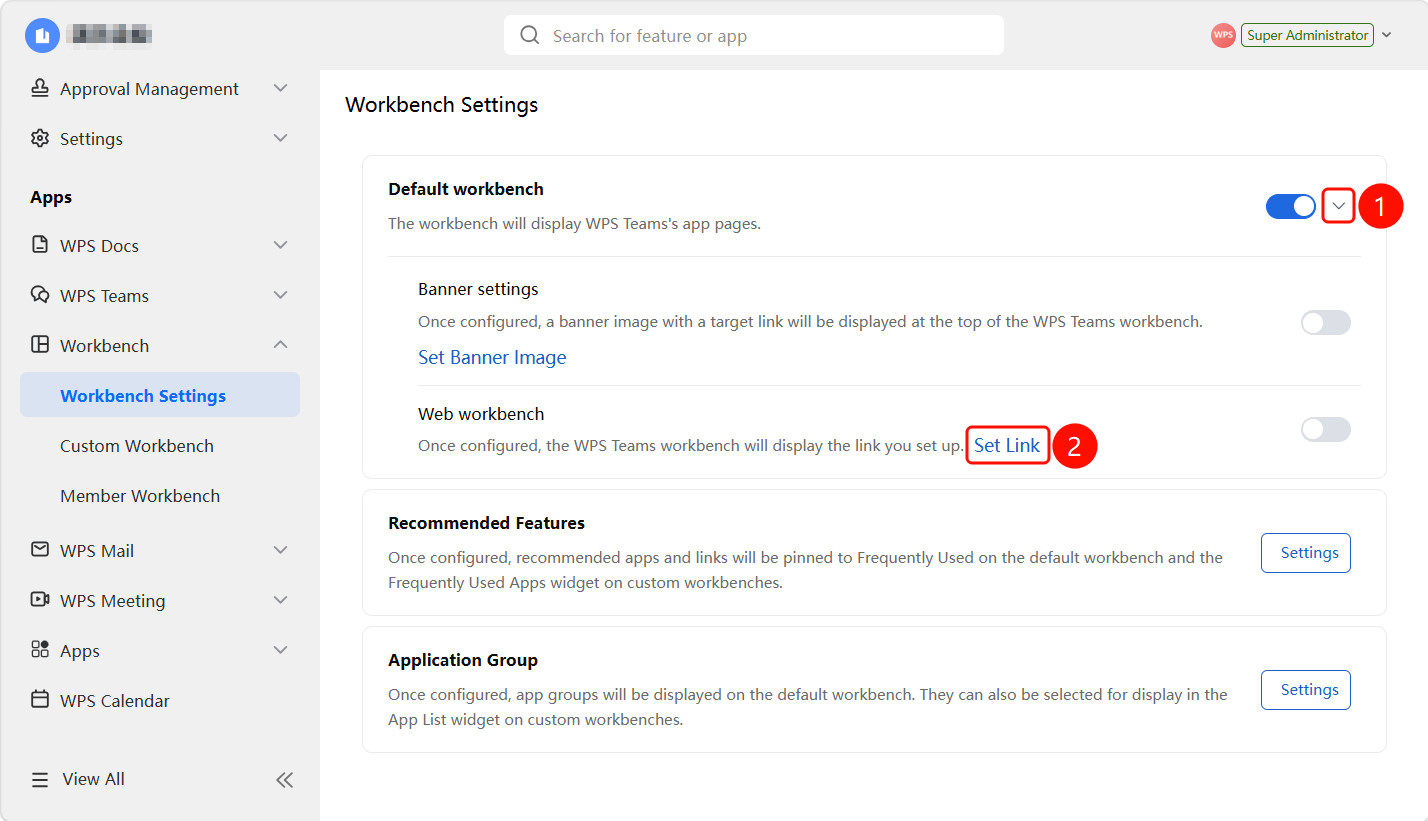
"Workspace Settings" page → "Default workbench" dropdown list → "Web workbench" area
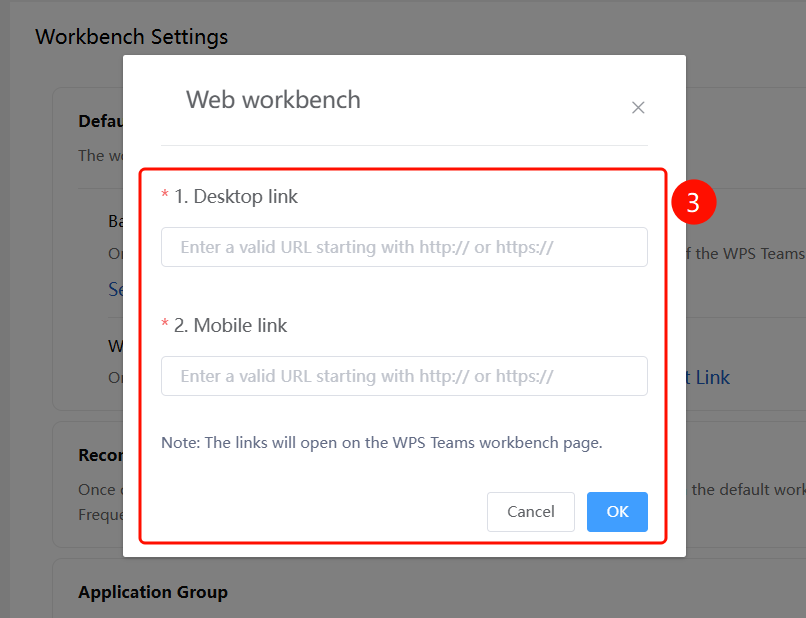
- In the "Web workbench" area, click the "Set Link" button.
- Enter the external web link address to be displayed.
- After setup, the WPS Collaboration workspace will display the web content configured by this link.
Set Up Recommended Features
Feature Entry
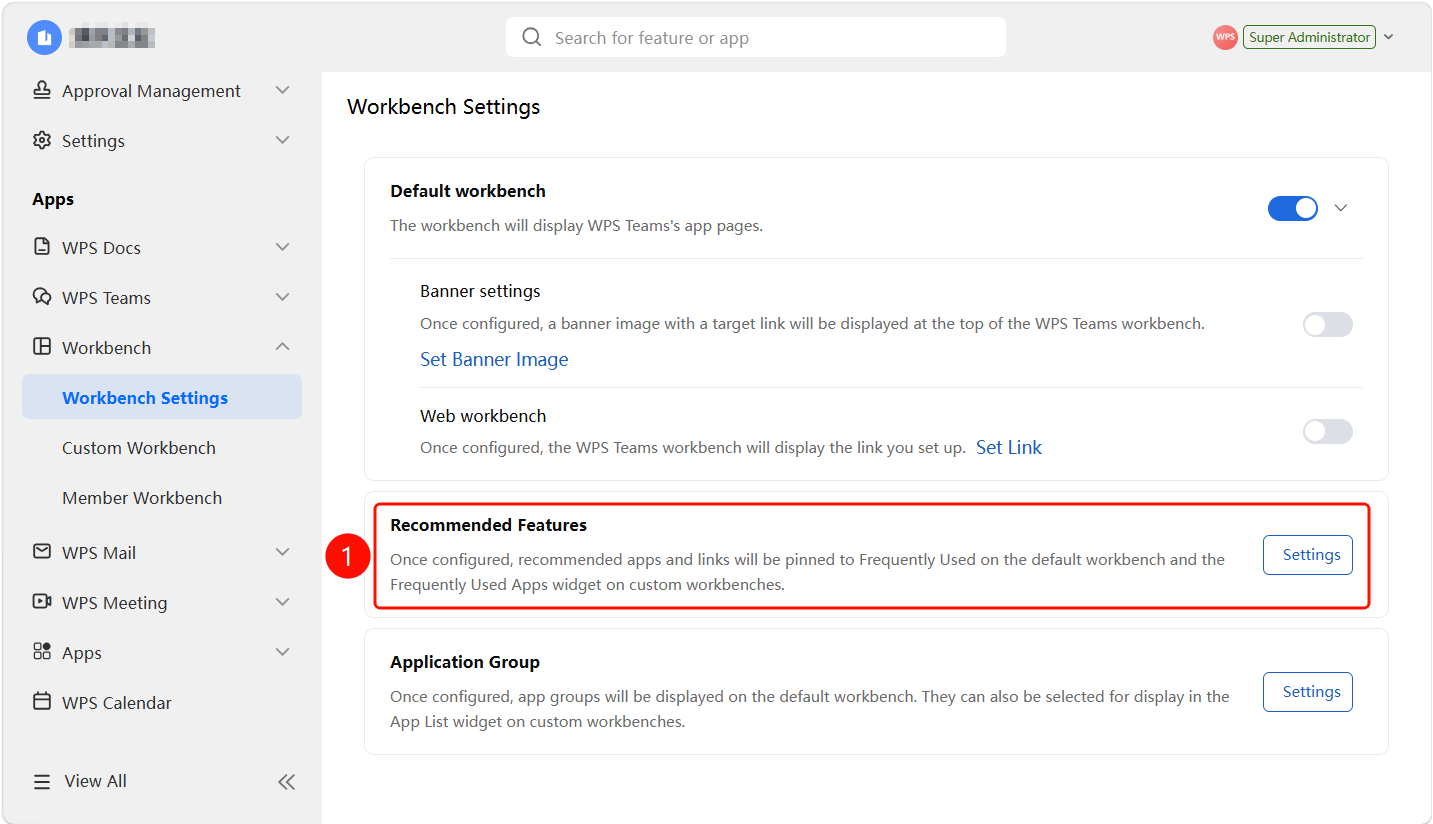
"Workspace Settings" page → "Recommended Features" area
- In the "Recommended Features" area, click the "Settings" button.
- Select the frequently used apps that need to be pinned to the top.
Set Up App Grouping
Feature Entry
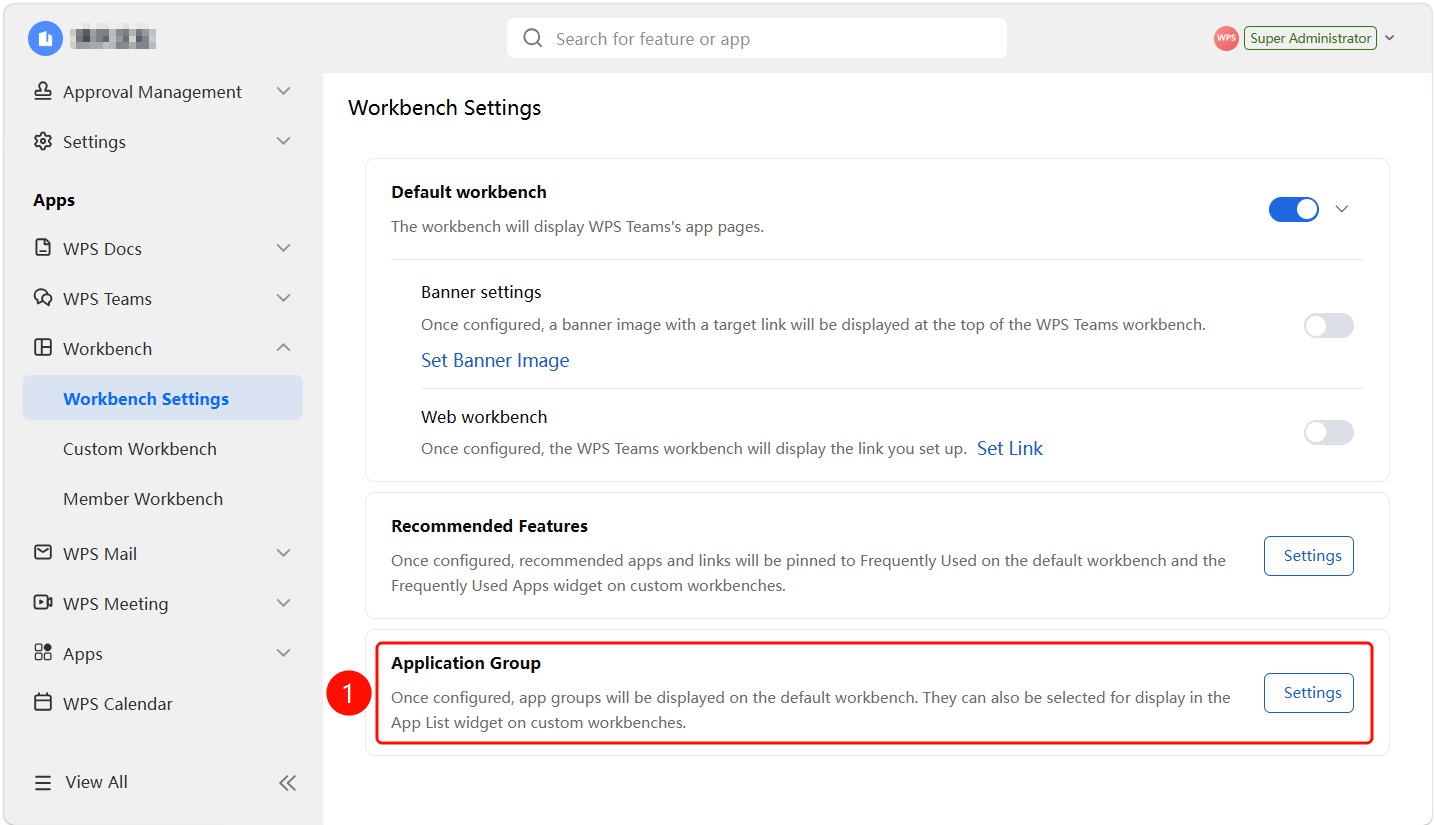
"Workspace Settings" page → "App Grouping" area
- In the "App Grouping" area, click the "Settings" button.
- Configure the app grouping content. After setup, the app grouping will display all apps.
FAQ
Q1: Where is the workspace settings page?
- Solution: In the left navigation bar of the Office Document, click the "Workspace Settings" option to enter the configuration page.
Q2: What is the difference between the bulletin board and the web workspace?
- Solution: The bulletin board displays an image at the top of the workspace and supports click-to-redirect, suitable for displaying promotional images or event posters; the web workspace displays the content of a configured web link at the top of the workspace, suitable for embedding external applications or system pages.
Notes
- Workspace settings require operation by a Super Admin or a member with corresponding administrative permissions
- Bulletin board setup requires uploading compliant promotional images and configuring valid redirect links
- Settings for recommended apps and app grouping take effect for all users, please configure with caution