Feature Summary
「Event」is used to manage personal and team events in WPS Teams, supporting multiple view switching, quick event creation, viewing others' event schedules, and calendar display filtering.
Feature Description
| Feature Dimension | Description |
|---|---|
| Membership Restriction | No membership restriction |
| Version Restriction | No version restriction |
| Operation Permission | All users can view events; only the event creator can edit |
Operation Steps
Enter the Event Page
Feature Entry
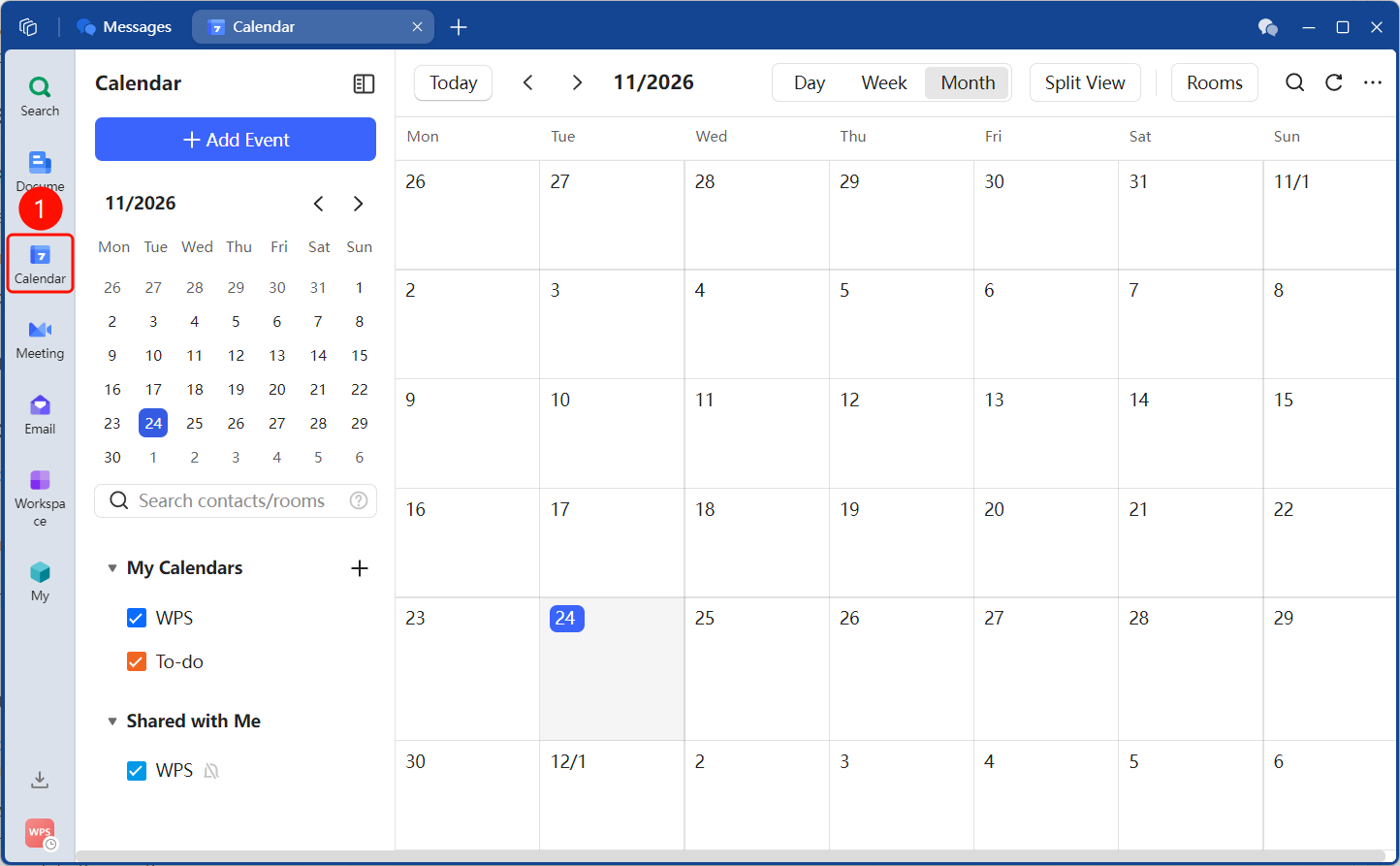
Left navigation bar →「Calendar」tab
- In the main interface of WPS Teams, click the 「Calendar」tab in the left navigation bar to switch to the event view.
- The current date will be highlighted with a blue circle in the calendar.
Add Event
Feature Entry
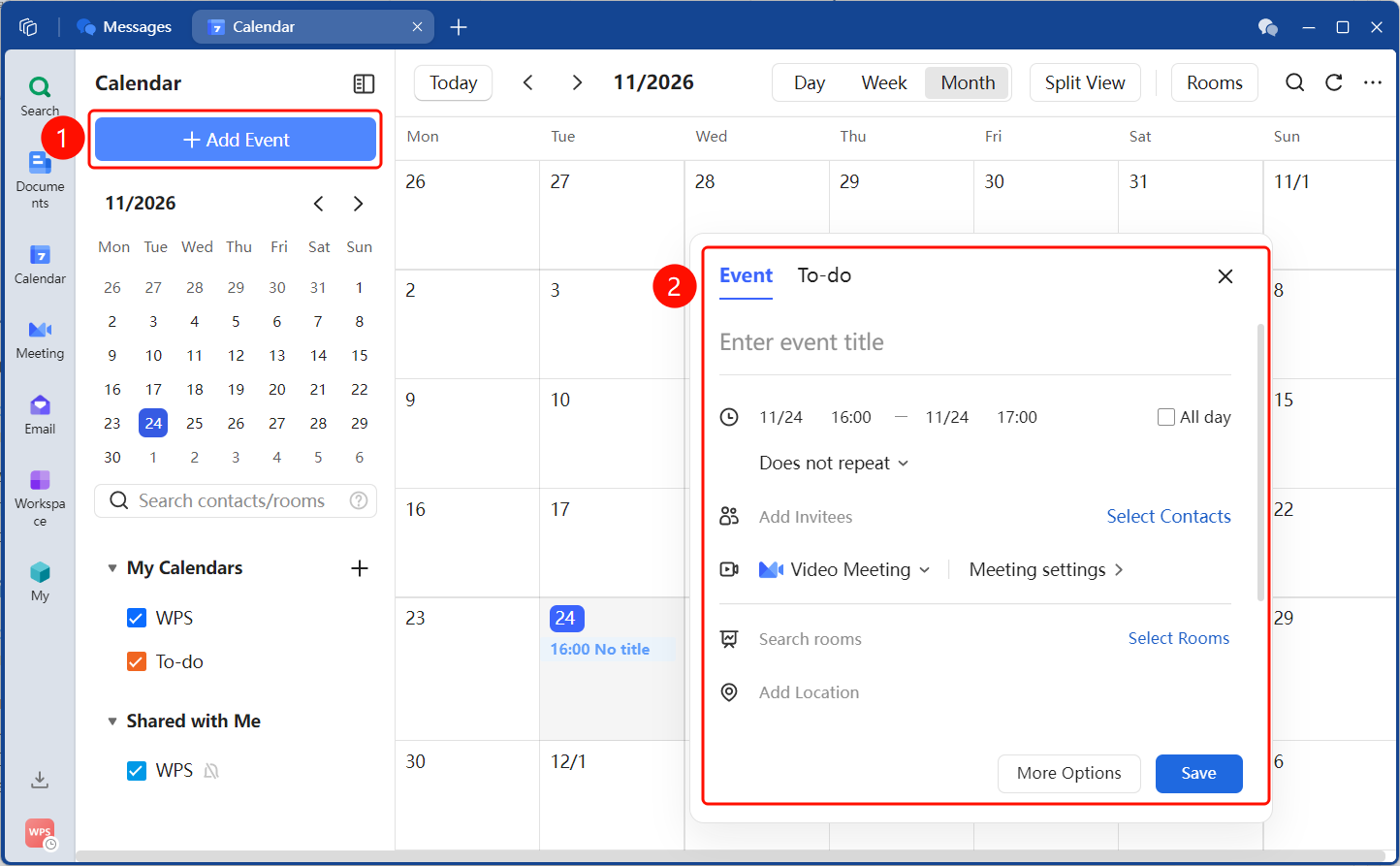
Calendar page →「+ Add Event」button
- At the top of the event page, click the blue 「+ Add Event」button.
- The event editing panel will pop up. Fill in the event title, time, reminder, and other information to complete the creation.
Quick Add Event
Feature Entry
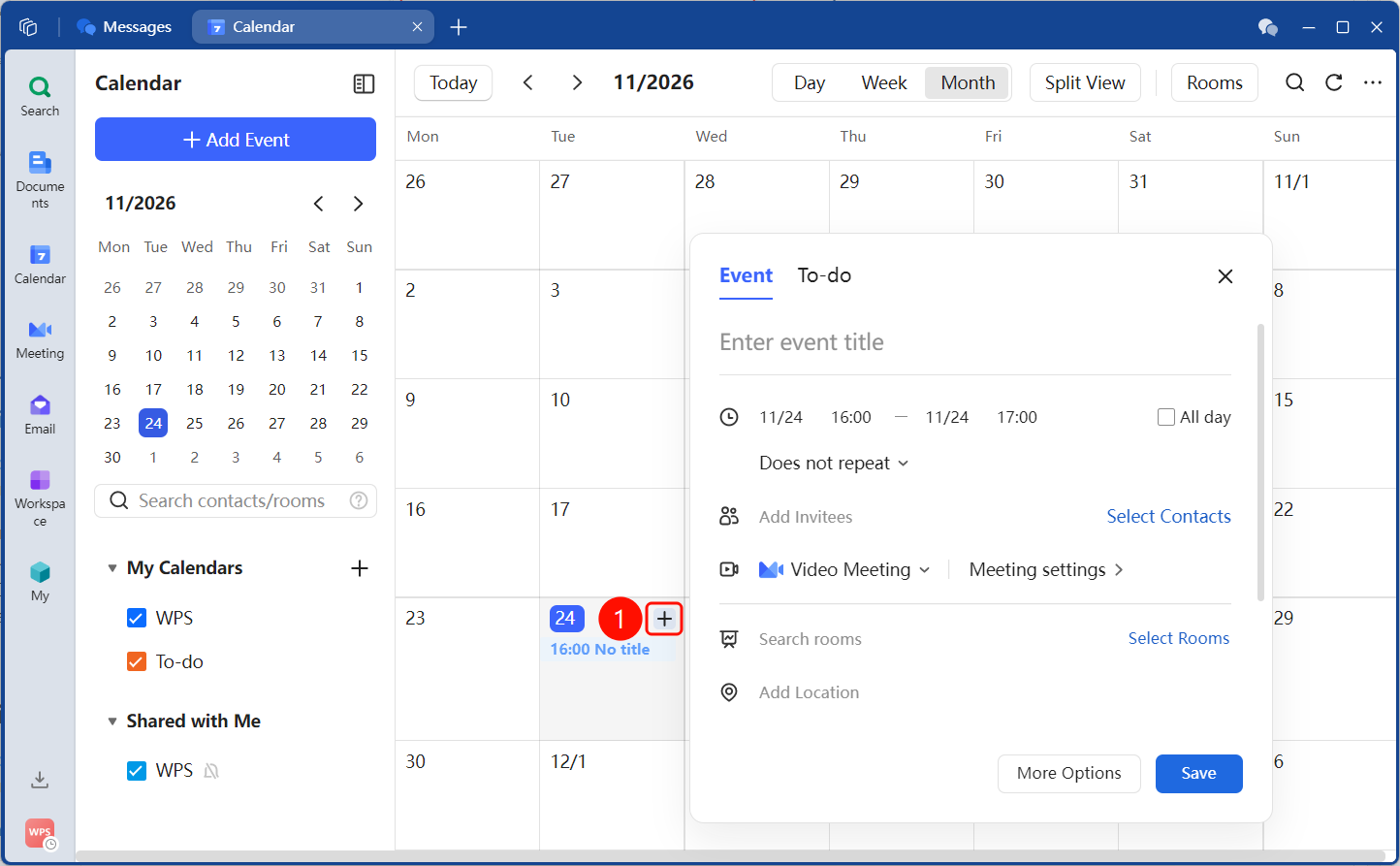
Calendar date cell →「+」icon
- In the calendar view, hover the mouse over the target date cell, and a 「+」icon will appear in the upper right corner of the cell.
- Click the 「+」icon to create a new event directly on that date without navigating to the event editing panel.
Switch View
Feature Entry
Calendar page → View switch button
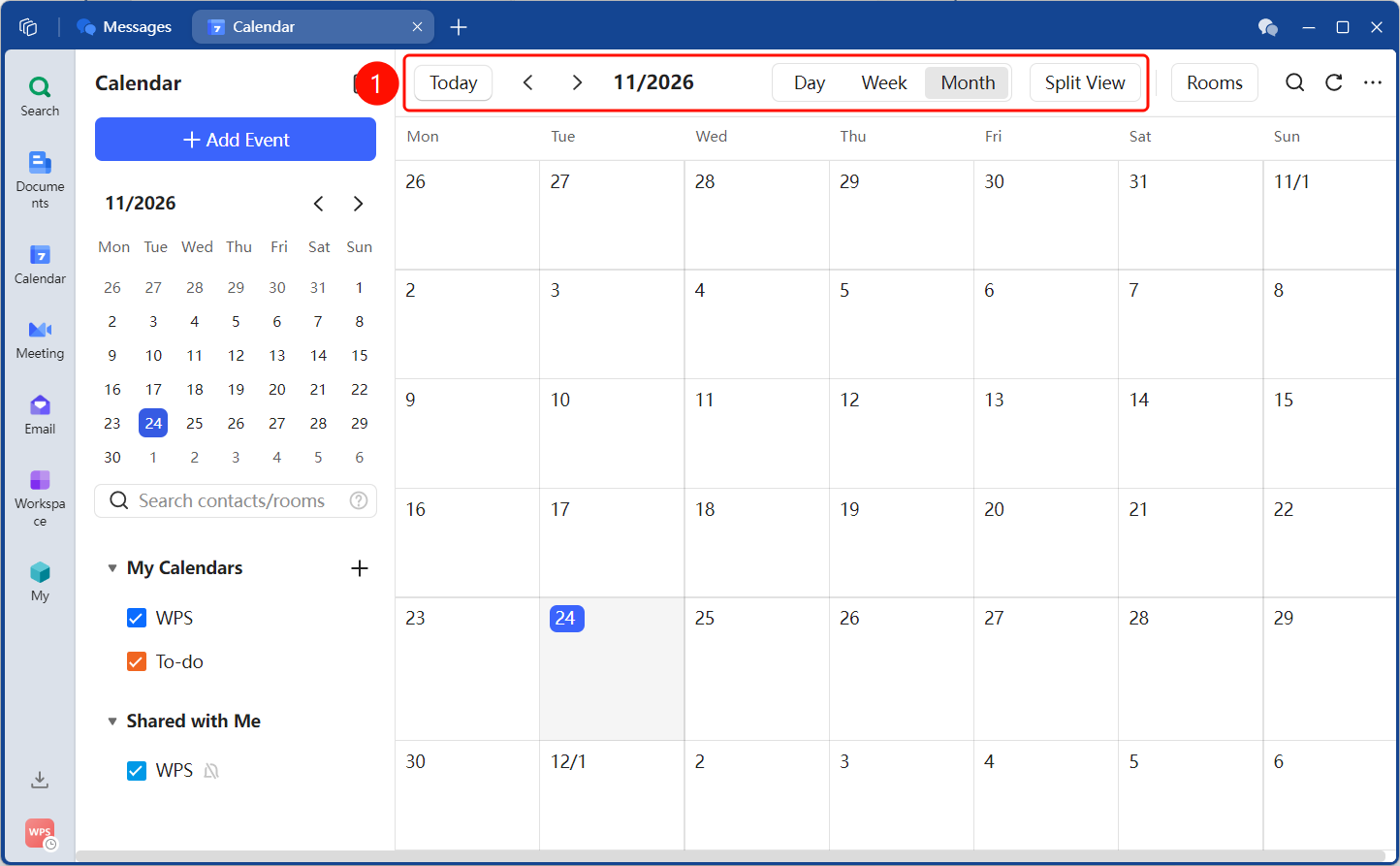
In the top toolbar of the calendar page, you can select different event display views:
| View | Description |
|---|---|
| Day | Displays the day's events in a single-day timeline format |
| Week | Displays all events within a week |
| Month | Displays all events of the current month in a monthly calendar format (default view) |
| Split View | Displays the calendar and event details in separate columns for easy browsing and editing simultaneously |
- Click the 「Today」button to quickly jump to the current date.
- Click the arrows to switch to the previous/next month.
Filter Calendar
Feature Entry
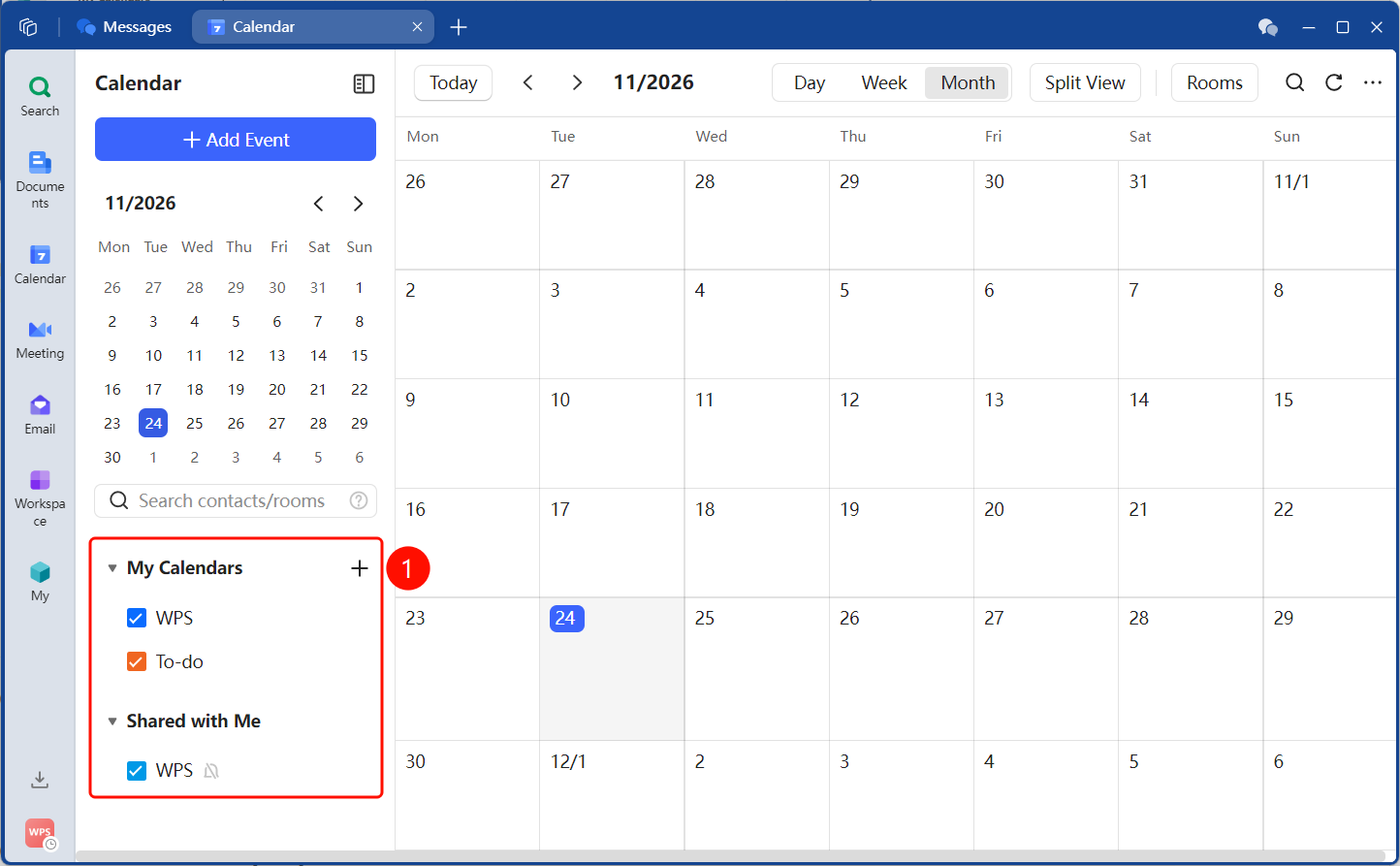
Left panel →「My Calendar」area
- On the left side of the event page, expand the 「My Calendar」area.
- Control the display or hiding of events under that calendar by checking/unchecking the corresponding calendar name.
- Supported display types include:
- Personal Calendar: Displays events created by yourself
- To-do: Displays associated calendar to-do items
- Shared Calendar: Displays event schedules shared by others
FAQ
Q1: How to modify or delete a created event?
- Solution: Click the corresponding event in the calendar view to enter the event details panel. Click the 「Edit」icon in the top toolbar to modify the event content, and click the 「Delete」icon to delete the event. Only the event creator can edit and delete.
Q2: Can I view other people's events?
- Solution: In the 「My Calendar」area, you can display their event schedules by checking their calendars. The prerequisite is that the other party has shared their calendar with you, or you have subscribed to their shared calendar.
Q3: What is the difference between Week view and Day view?
- Solution: The Day view displays the details of the day's events by the hour, suitable for viewing a detailed single-day schedule; the Week view displays all events in a weekly dimension, making it easy to compare time allocation across the week.
Notes
- Switching the event view does not affect the content of created events, only changes the display method
- Clicking 「View Details」on an event sharing card from a chat can quickly jump to the corresponding event details page
- The event reminder time depends on the settings when the event was created; no reminder will be sent if not set