Feature Summary
Favorites is a feature in the WPS Teams personal center that allows you to view and manage various types of favorited content, including Chat History, files, events, and more. You can also use the search function to quickly locate favorited content.
Feature Description
| Feature Dimension | Description |
|---|---|
| Membership Restrictions | No membership restrictions |
| Version Restrictions | No version restrictions |
Steps
Accessing the Favorites Page
Feature Entry
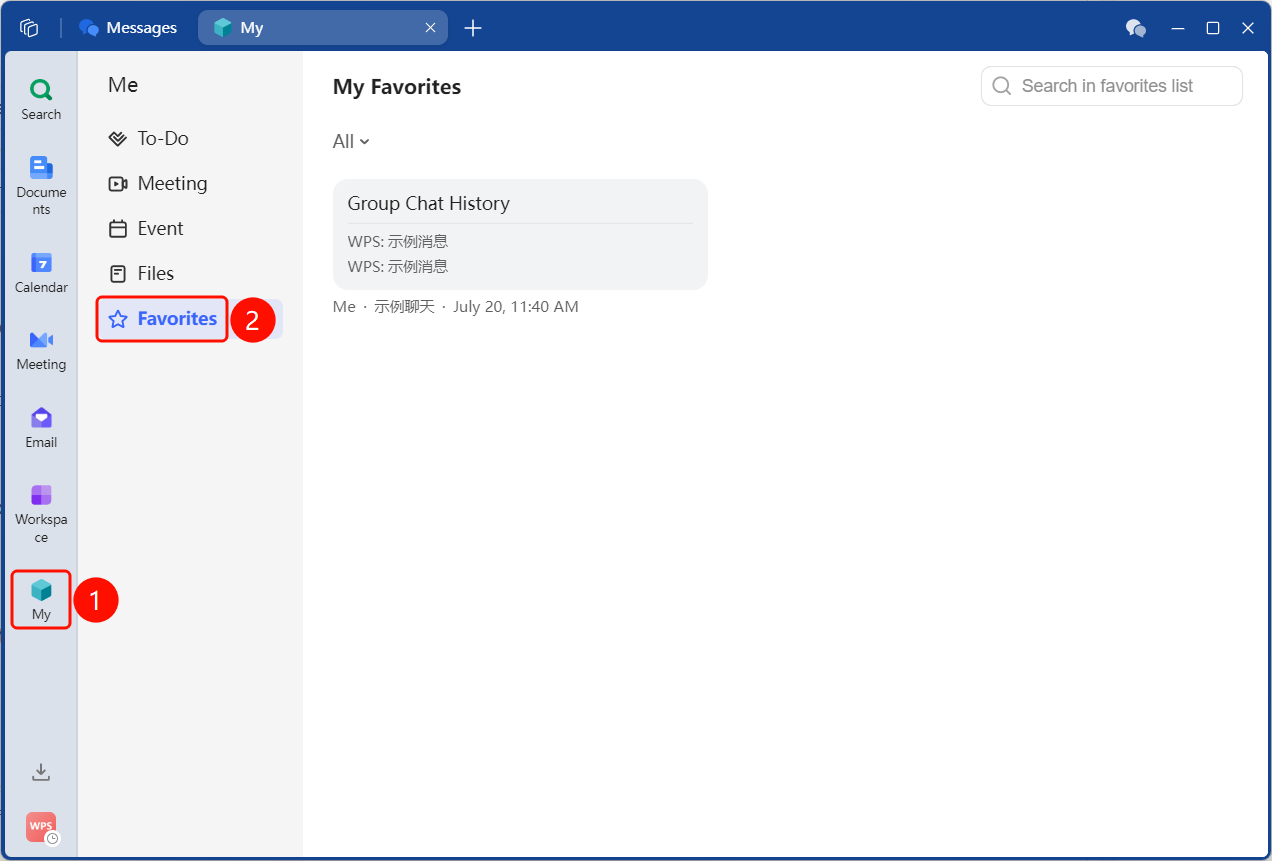
「Left Navigation Bar」Page → 「My」Icon → 「Favorites」Tab
- Open the WPS Teams client
- In the left navigation bar, click the 「My」 icon to enter the personal center page
- In the left panel tabs, click the 「Favorites」 tab. The right content area will display a list of favorited content
Searching Favorited Content
Feature Entry
「Favorites」Page → 「Top Search Box」Input Field
- Enter the 「Favorites」 page
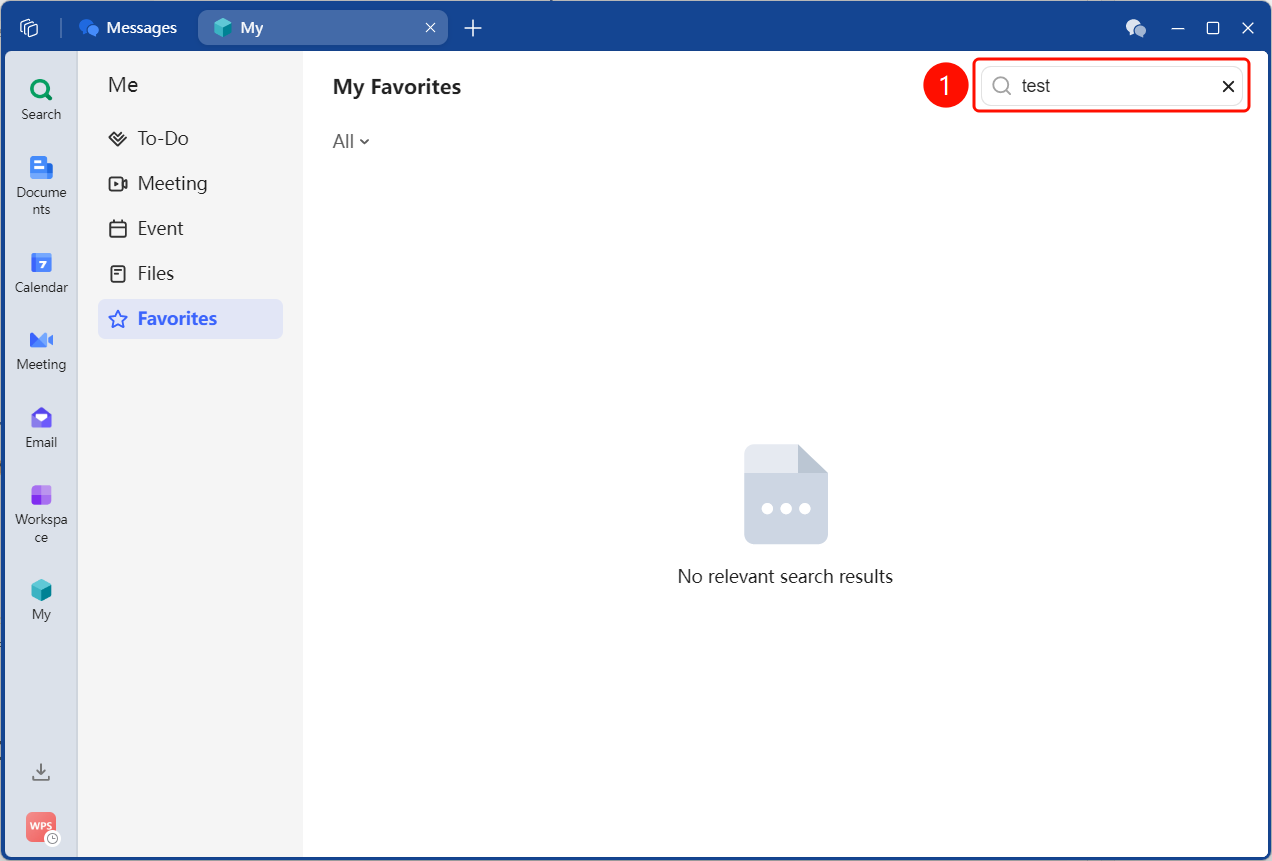
- In the top search box, enter keywords to search favorited content
- The system automatically filters out favorited items whose names or content contain the keywords
Viewing Favorited Content Details
Feature Entry
「Favorites」Page → Favorited Item
- Enter the 「Favorites」 page
- In the favorites list, click any favorited item to jump to the original content's location (such as Chat History, Document, etc.)
- The information displayed for a favorited item includes:
- Favorite Source: Such as 「Group Chat History」, 「Event」, 「Meeting」, etc.
- Content Preview: Displays the message sender and content Summary
- Source Information: Displays the source group or user and the time it was favorited
FAQ
Q1: What types of content can be favorited on the Favorites page?
- Solution: It supports favoriting messages from Chat History, files, events, meetings, and other content. The source type (such as 「Group Chat History」) is marked on the favorited item for quick identification.
Q2: How can I quickly find target content among a large number of favorites?
- Solution: Use the search box at the top of the Favorites page. Enter keywords to search within the favorited content, and the system will automatically match and display the qualifying items.
Q3: Does favorited content take up local space?
- Solution: Favorites only Record the link index of the content and do not store the files themselves, so they do not take up local storage space.
Q4: Will my favorited content still be there after I switch devices?
- Solution: Sign in to the same WPS 365 account, and your favorited content will automatically sync to the new device without needing to re-favorite anything.
Notes
- The favorite source type is displayed as a label on the item (such as 「Group Chat History」) to help distinguish between different types of favorites