Feature Summary
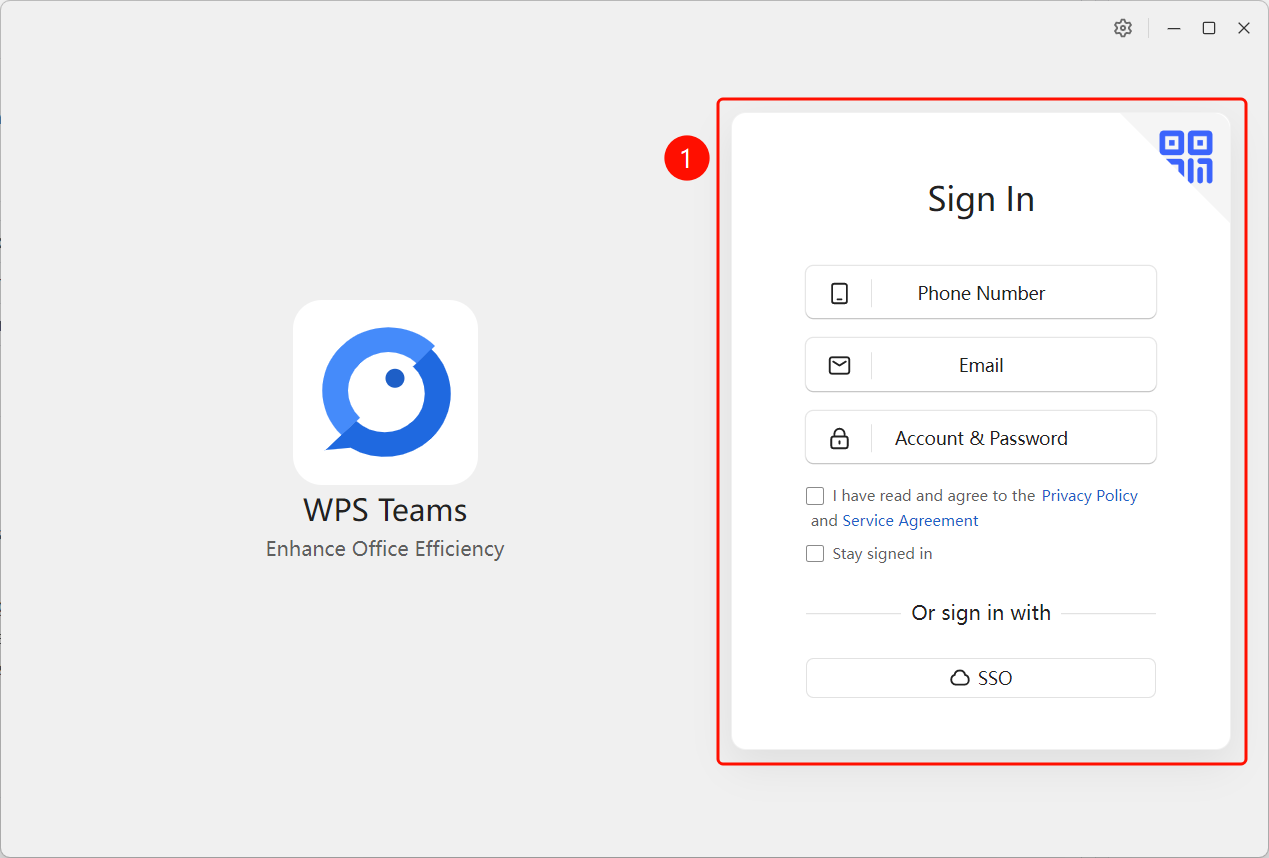
WPS Collaboration account sign-in portal, supporting Email, SMS verification code, and SSO. Choose the appropriate sign-in method to quickly enter the collaboration workspace.
Feature Description
| Feature Dimension | Description |
|---|---|
| Membership Restriction | No membership restriction |
| Version Restriction | No version restriction |
Steps
Sign in to Account
Feature Entry
「WPS-Teams Launch Screen」→ Select sign-in method →「Sign in」button
- Open the WPS Teams client, click the sign-in screen, and follow the prompts to select mobile number, Email, or SSO to complete sign-in.
- Follow the on-screen prompts to enter the SMS verification code or account password, etc.
- Click the Sign in button to complete sign-in.
FAQ
Q1: What sign-in methods does WPS Collaboration support?
- Solution: Supports Email, SMS verification code sign-in, and organization SSO sign-in. Organization users can sign in with one click via organization SSO.
Q2: What should I do if I don't receive the verification code during sign-in?
- Solution: Please check whether the mobile number or Email is correct and confirm whether it has been blocked or filtered.
Q3: Is data synced to other devices after signing in?
- Solution: After signing in, Chat History and cloud Documents are automatically synced in real time across all signed-in devices, with no manual operation required.