Feature Summary
Supports configuring general settings in the WPS Teams client, including display language, window zoom, time zone, conversation settings, home page display, app settings, large font mode, appearance theme, and more.
Feature Description
| Feature Dimension | Description |
|---|---|
| Membership Restriction | No membership restriction |
| Version Restriction | No version restriction |
Operation Steps
Enter the General Settings Page
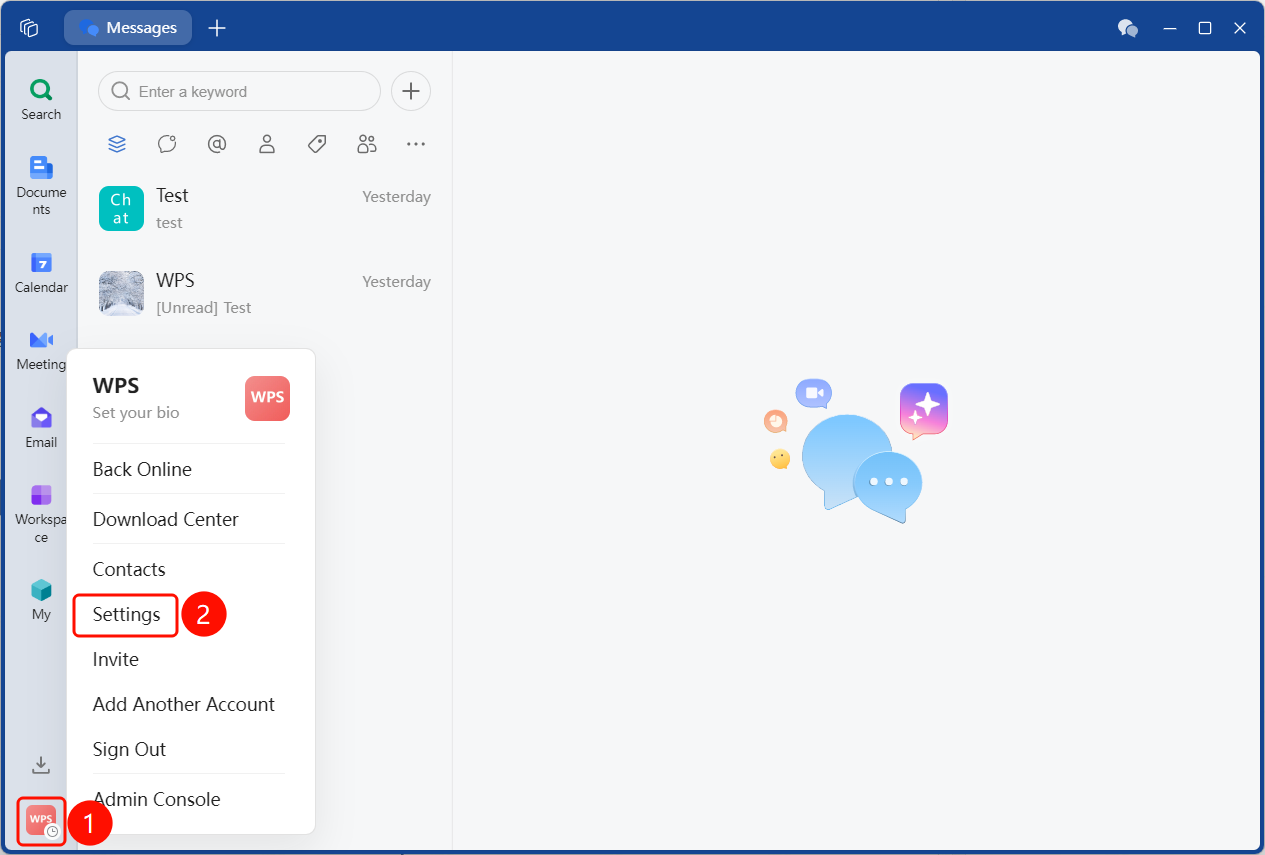
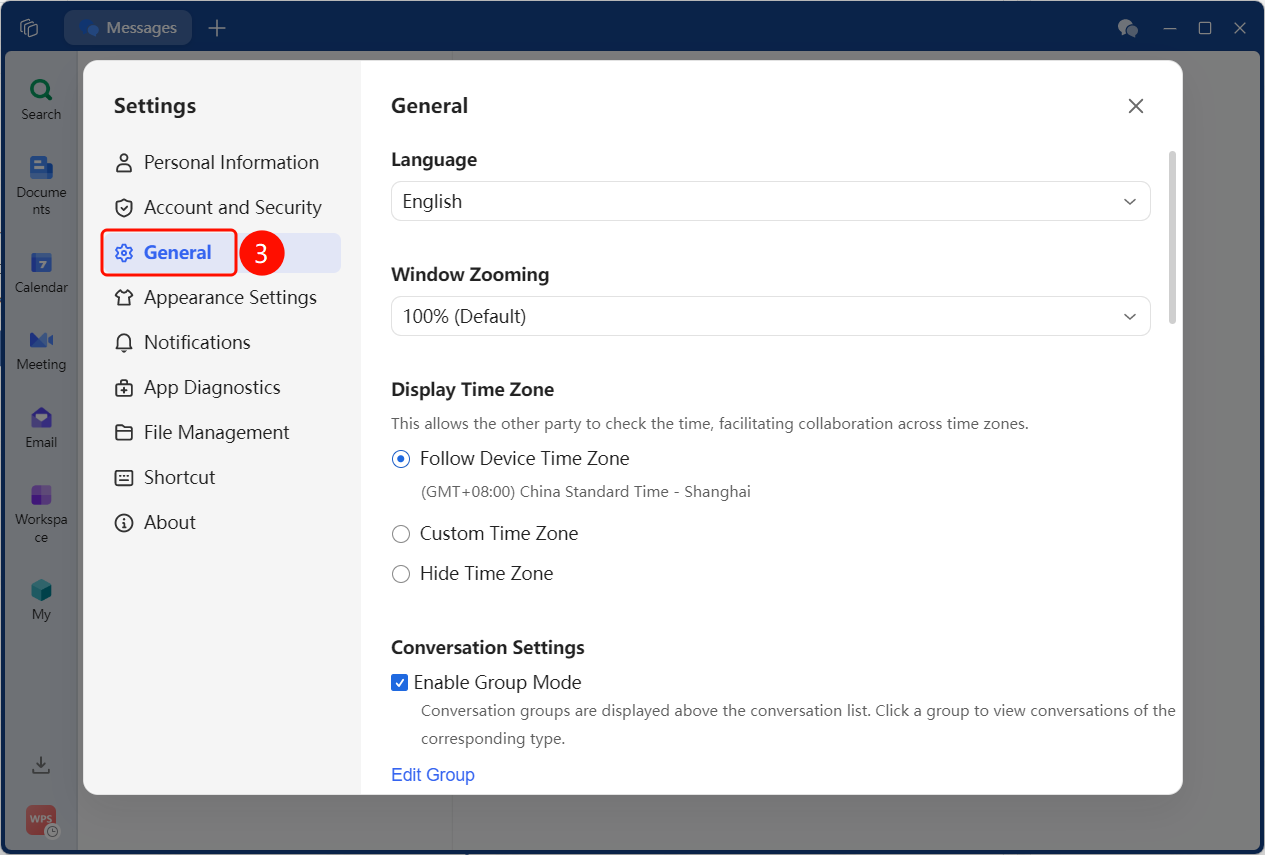
Feature Entry WPS Teams Main Interface → "Profile Picture" Icon in the Lower-Left Corner → "Settings" Button → "General" Option
- In the lower-left corner of the WPS Teams main interface, click the profile picture area.
- In the pop-up menu, click the "Settings" button.
- In the left-side list of the "Settings" page, click the "General" option.
Set Display Language, Window Zoom, and Time Zone
Feature Entry "Settings" Page → "General Settings" Option → "Display Language" Area
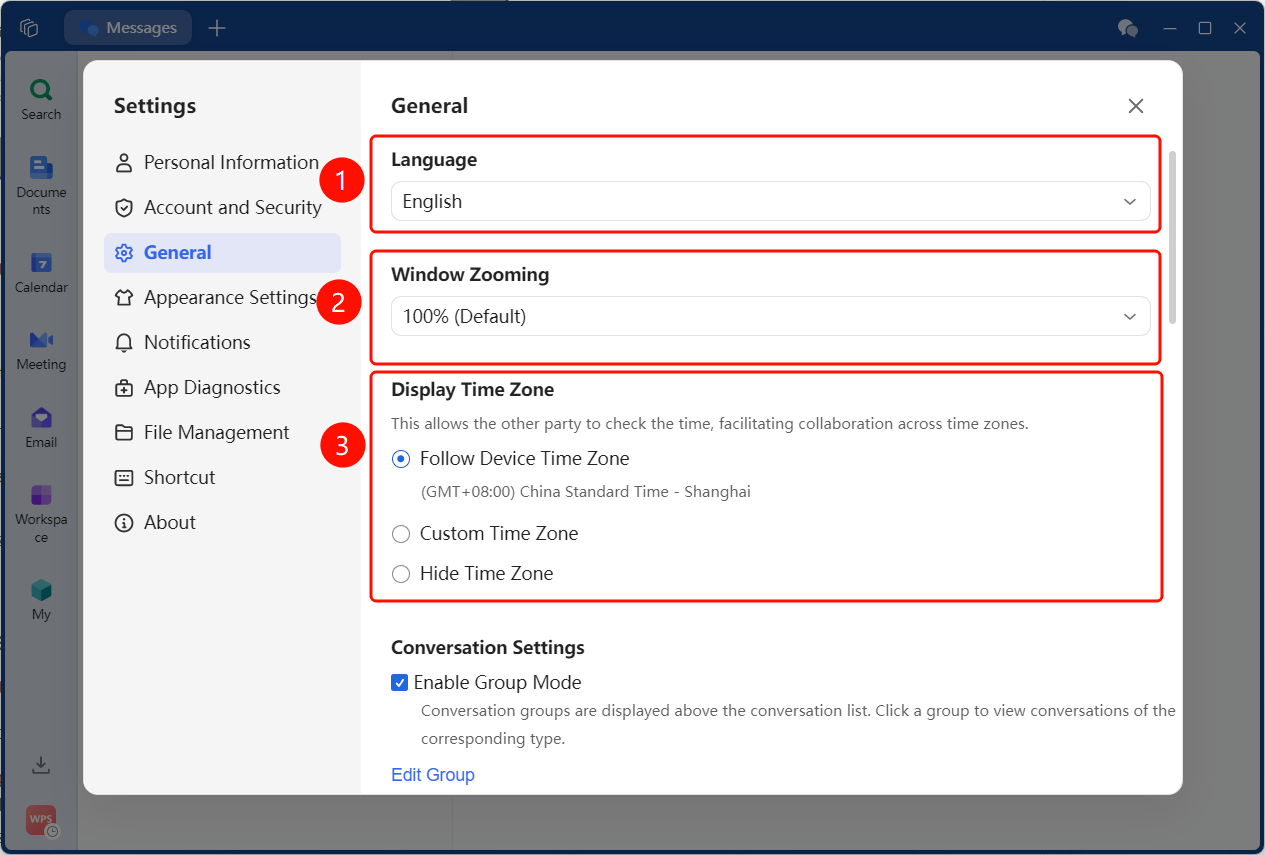
- In the "Display Language" drop-down selection box, select the language displayed on the client interface.
- In the "Window Zoom" drop-down selection box, select the interface zoom ratio, such as "100% (Default)".
- In the "Display Time Zone" area, select the time zone display method:
- "Follow Device Time Zone" : Automatically use the device's current time zone.
- "Custom Time Zone" : Manually select a specified time zone.
- "Hide Time Zone" : Do not display time zone information externally.
Set Conversations and Home Page Display
Feature Entry "Settings" Page → "General Settings" Option → "Conversation Settings" Area
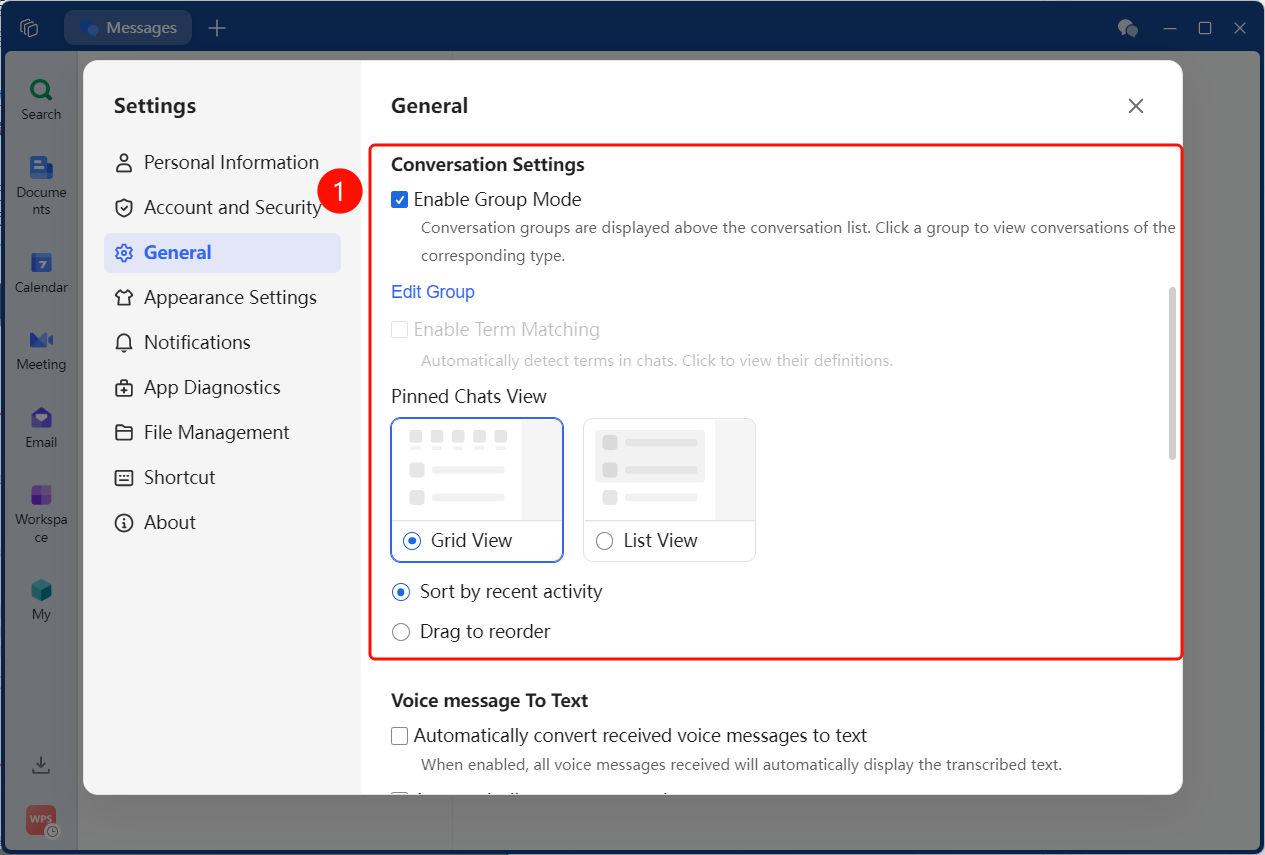
- In the "Conversation Settings" area, set the conversation grouping mode:
- Enable the "Enable Grouping Mode" toggle to display conversation groups above the conversation list. Click a group to view specific types of conversations.
- Click "Edit Groups" to delete/add groups, or adjust the group order.
- In the "Pinned Conversation View" area, select the display method for pinned conversations:
- "Grid View" : Display pinned conversations in a grid format.
- "List View" : Display pinned conversations in a list format.
- In the sorting method area, select the conversation sorting method:
- "Sort by Recent Activity" : Automatically sort by the time of the most recent message.
- "Manual Drag Sort" : Manually drag to adjust the conversation order.
- In the "Navigation Bar Management" area, click the left sidebar management "Go to Edit" option to manage the display items of the left navigation bar.
- In the "Home Page Display Mode" area, select the display position of the home page:
- "Fixed at the First Position of the Top Navigation Bar" : The home page is fixed at the far left of the top navigation bar.
- "Fixed in the Left Shortcut Area, No New Tab When Entering the Page" : The home page is displayed in the left shortcut area.
Set Apps and Cache
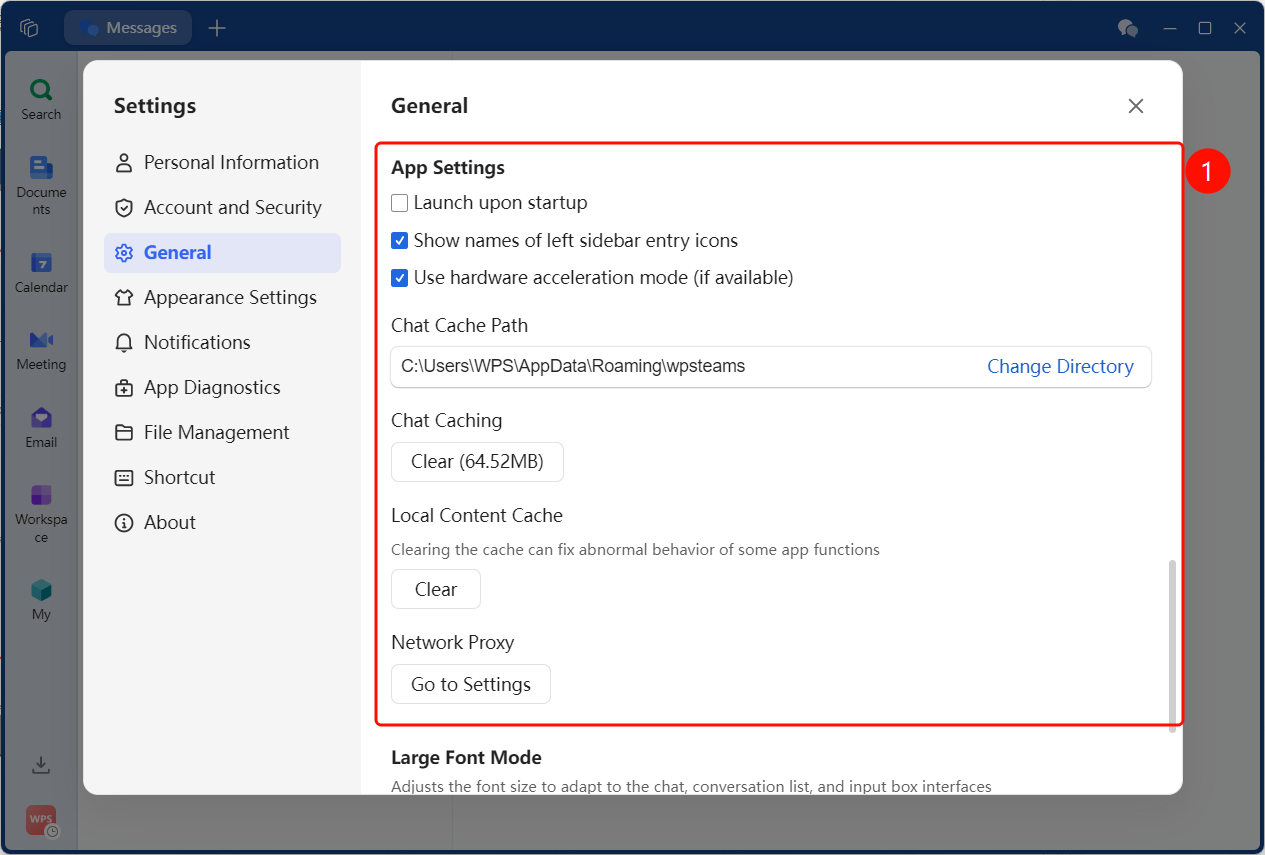
Feature Entry "Settings" Page → "General Settings" Option → "App Settings" Area
- In the "App Settings" area, check or uncheck the following toggles:
- "Launch at System Startup" Checkbox: When enabled, WPS Teams will automatically start when the system boots.
- "Show Icon Name on Left Sidebar" Checkbox: When enabled, name text is displayed next to the left navigation bar icons.
- "Use Hardware Acceleration (If Available)" Checkbox: When enabled, uses GPU hardware acceleration to improve performance.
- In the "Chat Content Cache Path" area, view the current cache path, and click the "Change Directory" button to modify the cache storage location.
- In the "Chat Content Cache" area, view the cache size, and click the "Clear" button to clear the chat content cache.
- In the "Local Content Cache" area, click the "Clear" button to clear the local content cache, which can fix abnormal behavior of some features within the app.
- In the "Network Proxy" area, click the "Go to Settings" link to enter the proxy configuration page.
Set Large Font Mode
Feature Entry
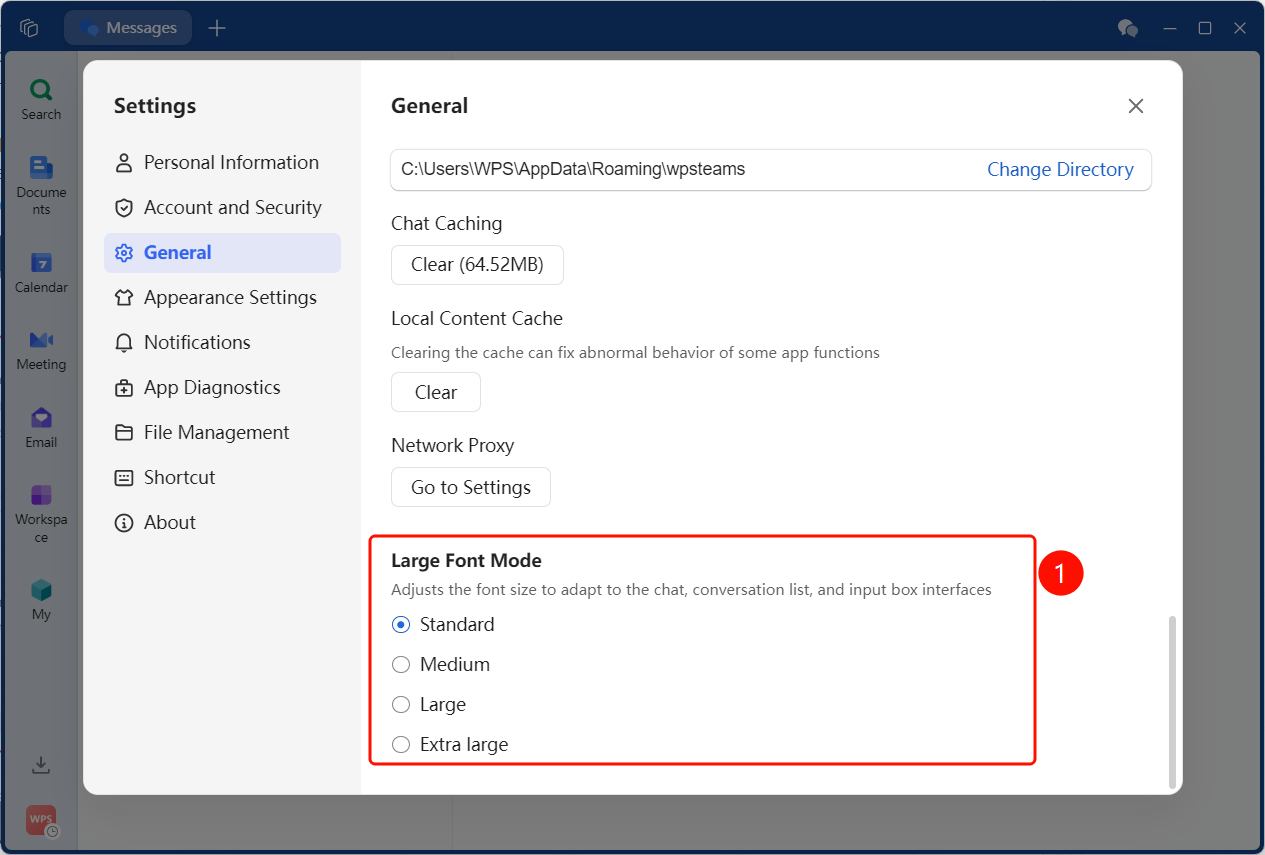
"Settings" Page → "General Settings" Option → "Large Font Mode" Area
- In the "Large Font Mode" area, select the font size for the main interface such as chat, conversation list, and input box:
- "Standard" : Use the default font size.
- "Large" : Enlarge the font size for easier reading.
- "Extra Large" : Use the maximum font size.
Notes
- Settings such as language, zoom, and time zone take effect immediately after modification without restarting the application.
- After clearing the cache, some sessions that require re-sign-in may need to reload data.
- The auto-start on boot setting only takes effect on the current device. You need to reconfigure it after switching devices.
- The optional color palettes for navigation bar color and message bubble color are provided by system presets. Custom colors are not currently supported.