Feature Summary
Supports configuring message notification settings in the WPS Teams client, including alert sounds, Notification, notification pop-up style, in-app notification opening method, and notification behavior during meetings.
Feature Description
| Feature Dimension | Description |
|---|---|
| Membership Restriction | No membership restriction |
| Version Restriction | No version restriction |
Operation Steps
Enter the Message Notification Settings Page
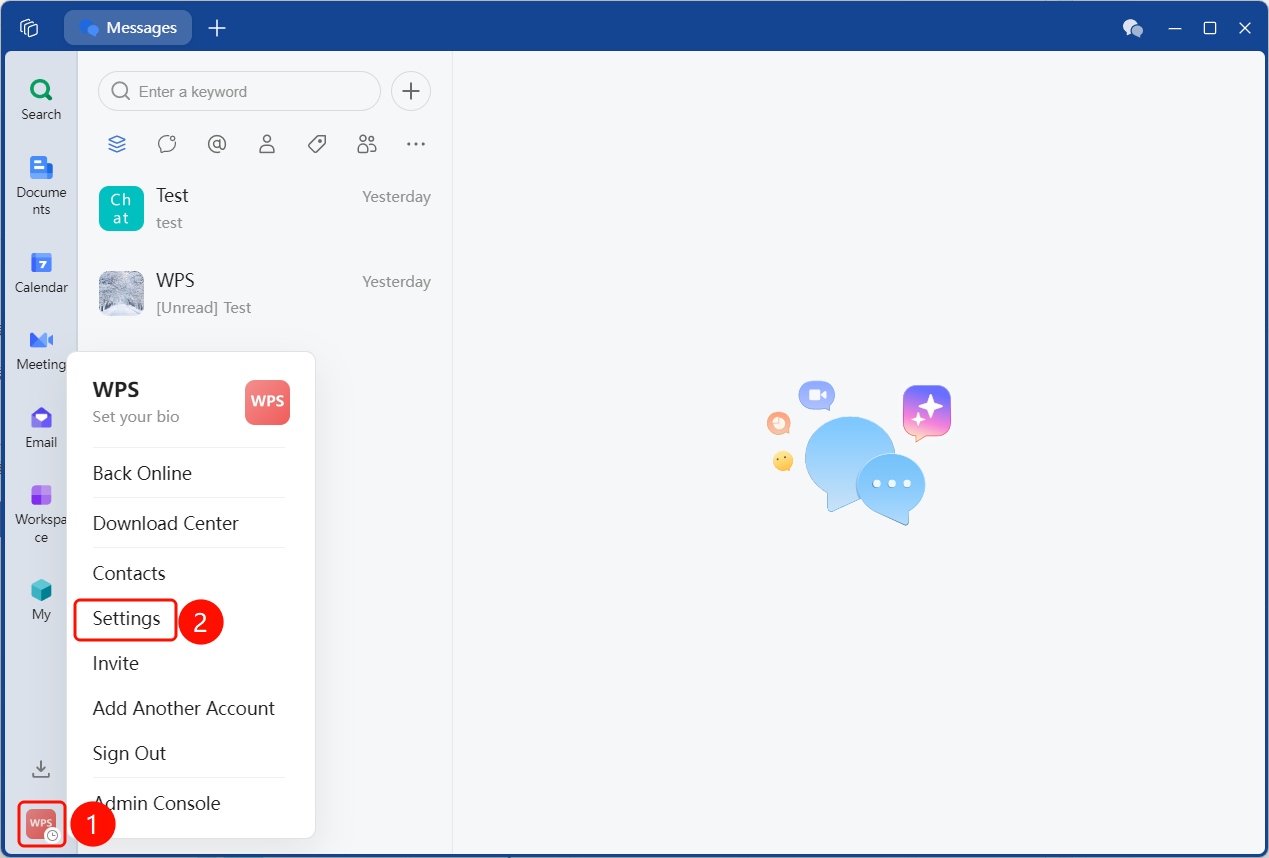
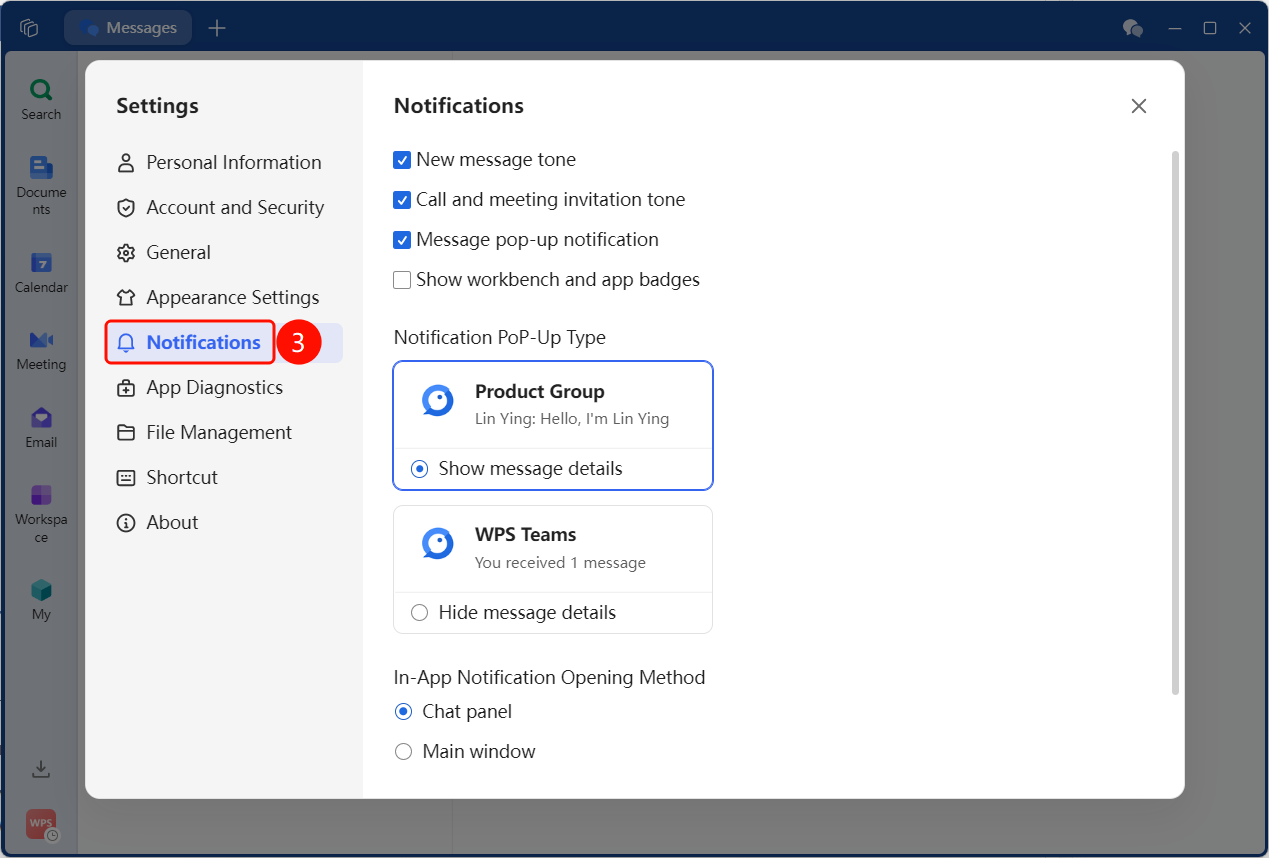
Feature Entry WPS Teams main interface → "Profile Picture" icon in the lower-left corner → "Settings" button → "notifications" option
- In the lower-left corner of the WPS Teams main interface, click the profile picture area.
- In the pop-up menu, click the "Settings" button.
- In the left-side list of the "Settings" page, click the "notifications" option.
- The message notification settings area is displayed on the right, including configuration items such as alert sounds, pop-ups, and notification styles.
Set Message Alert Sound
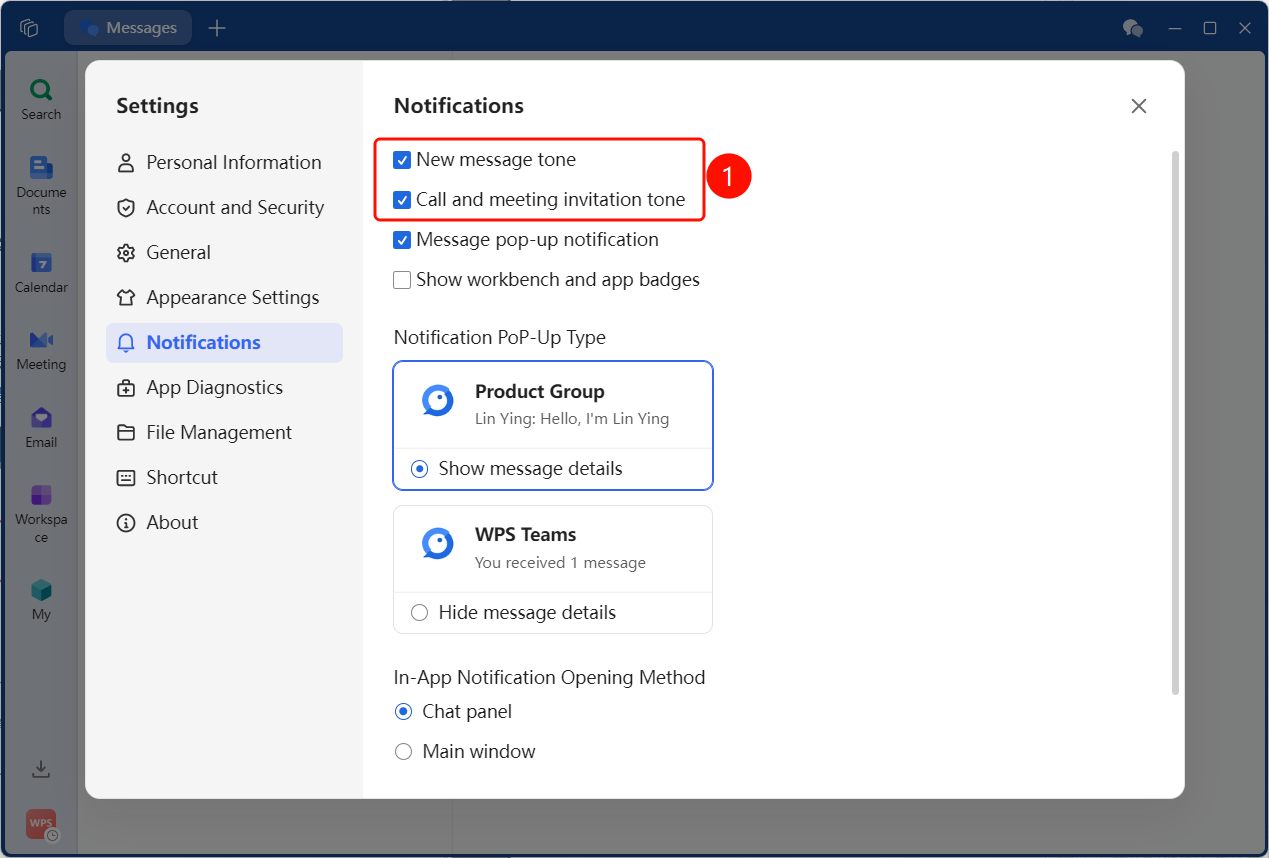
Feature Entry "Settings" page → "notifications" option → "New Message tone" checkbox & "Call and meeting tone" checkbox
- In the "New Message tone" setting item, check or uncheck the switch:
- When enabled, an alert sound is played when a new message is received.
- When disabled, no alert sound is played when a new message is received.
- In the "Call and meeting tone" setting item, check or uncheck the switch:
- When enabled, an alert sound is played when a call or meeting invitation is received.
- When disabled, no alert sound is played when a call or meeting invitation is received.
Set Message Pop-up Notification
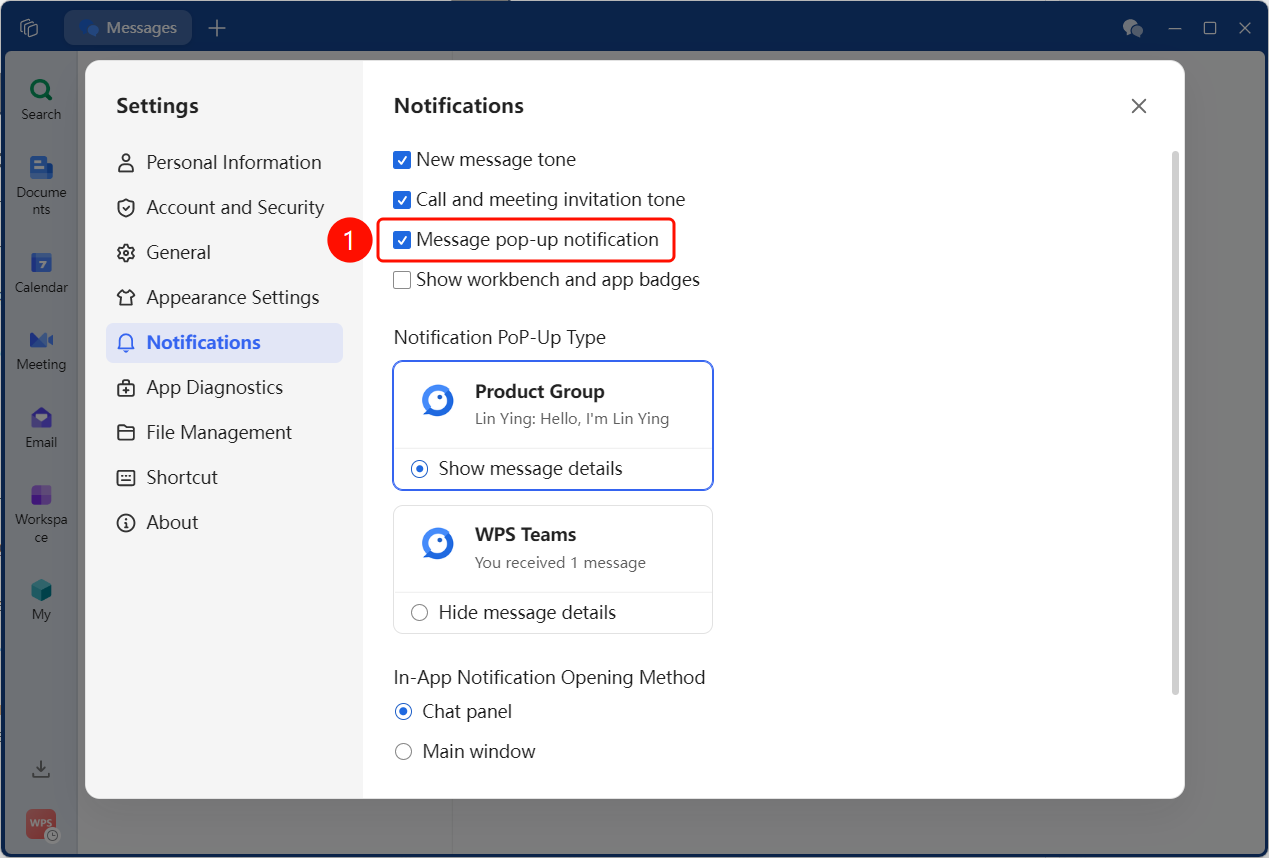
Feature Entry "Settings" page → "notifications" option → "Message Pop-up Notification" checkbox
- In the "Message Pop-up Notification" checkbox, check or uncheck the switch:
- When enabled, a notification window pops up in the lower-right corner of the desktop when a new message is received.
- When disabled, no notification window pops up when a new message is received.
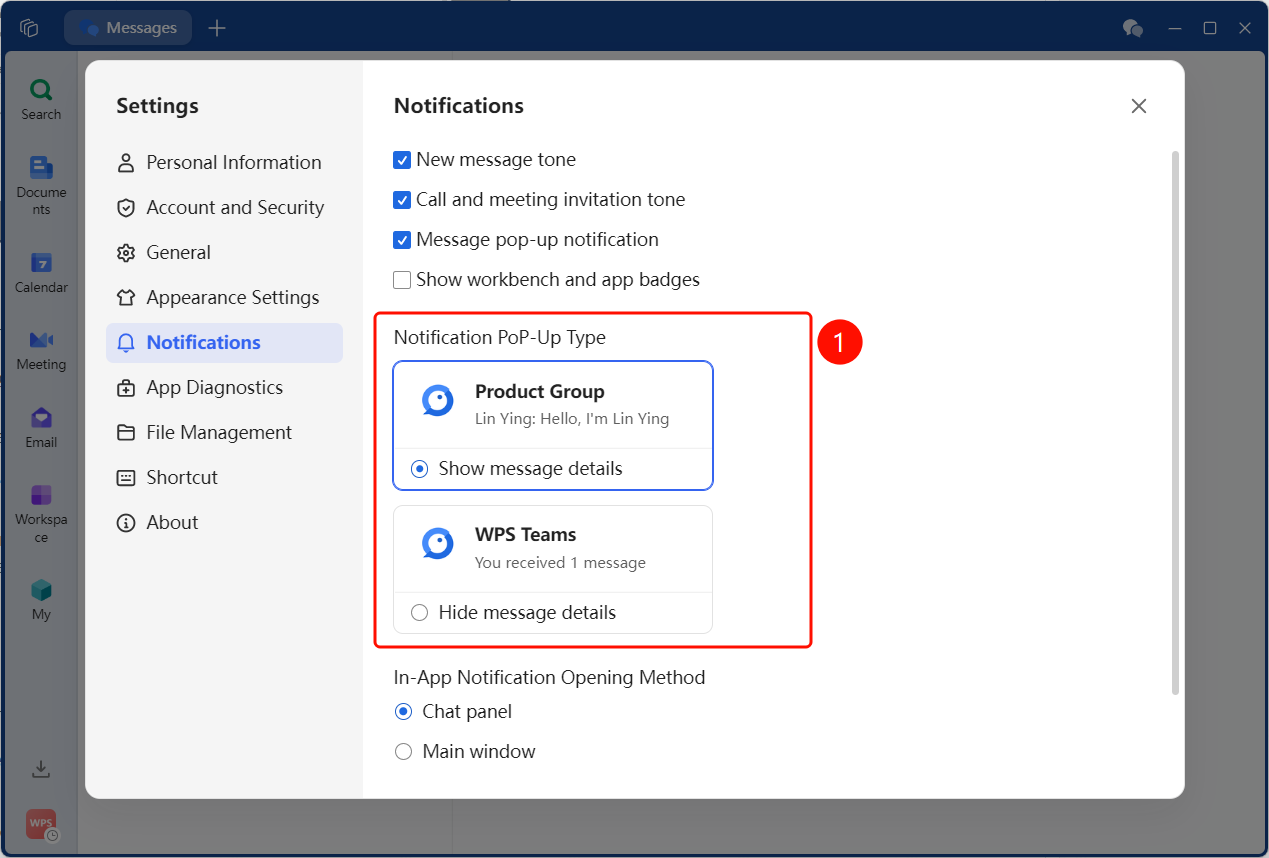
Set Notification Pop-up Style
Feature Entry "Settings" page → "notifications" option → "Notification Pop-up Style" area
- In the "Notification Pop-up Style" setting item, preview the effect example of the notification pop-up.
- Select the display method for message details:
- "Show Message Details" option——The notification pop-up displays the message sender and specific content.
- "Hide Message Details" option——The notification pop-up only displays "You have received 1 message", without showing specific content, to protect privacy.
Set In-App Notification Opening Method
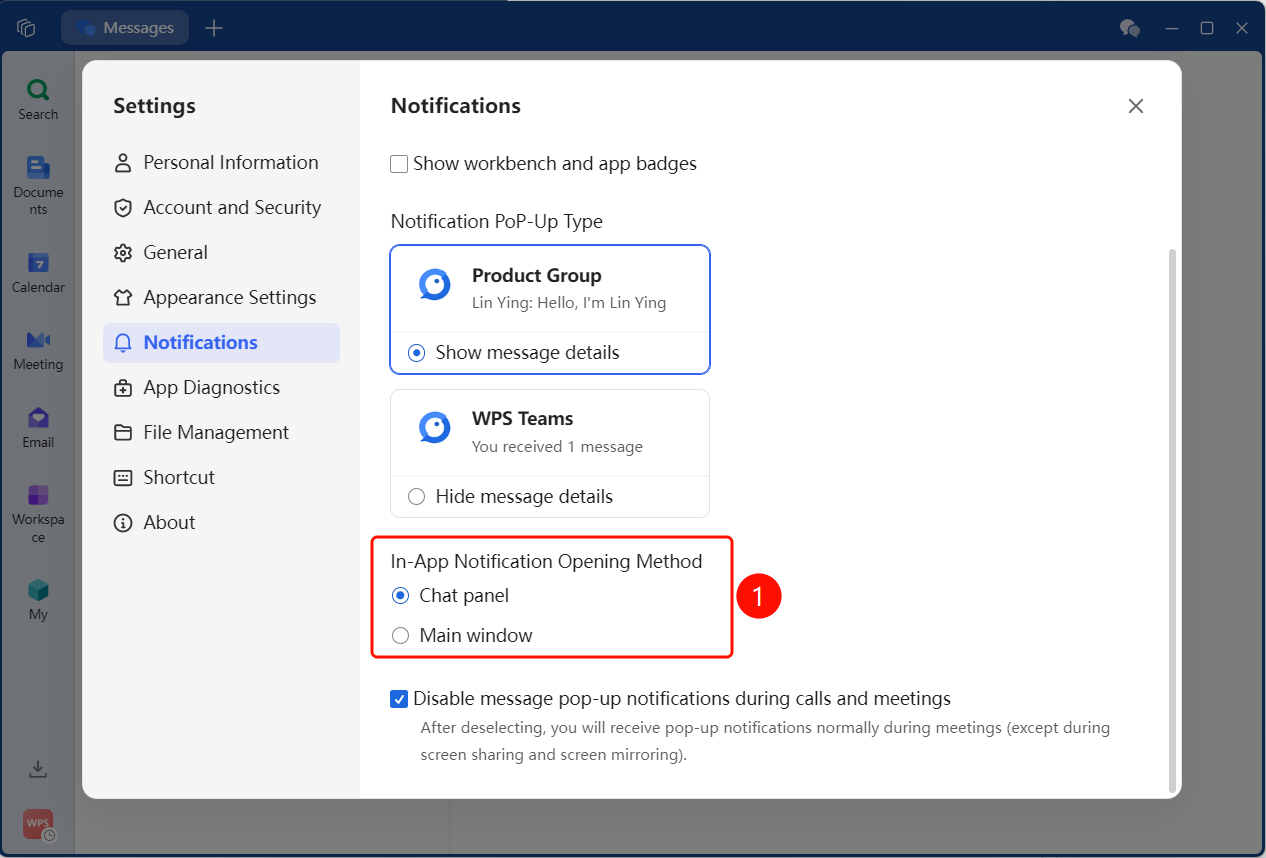
Feature Entry "Settings" page → "notifications" option → "In-App Notification Opening Method" area
- In the "In-App Notification Opening Method" setting item, select the opening location after clicking the notification:
- "Chat Panel" option——After clicking the notification, view the message in the chat panel without switching the current window.
- "Main Window" option——After clicking the notification, switch to the WPS Teams main window to display the message.
Set Notification Behavior During Calls and Meetings
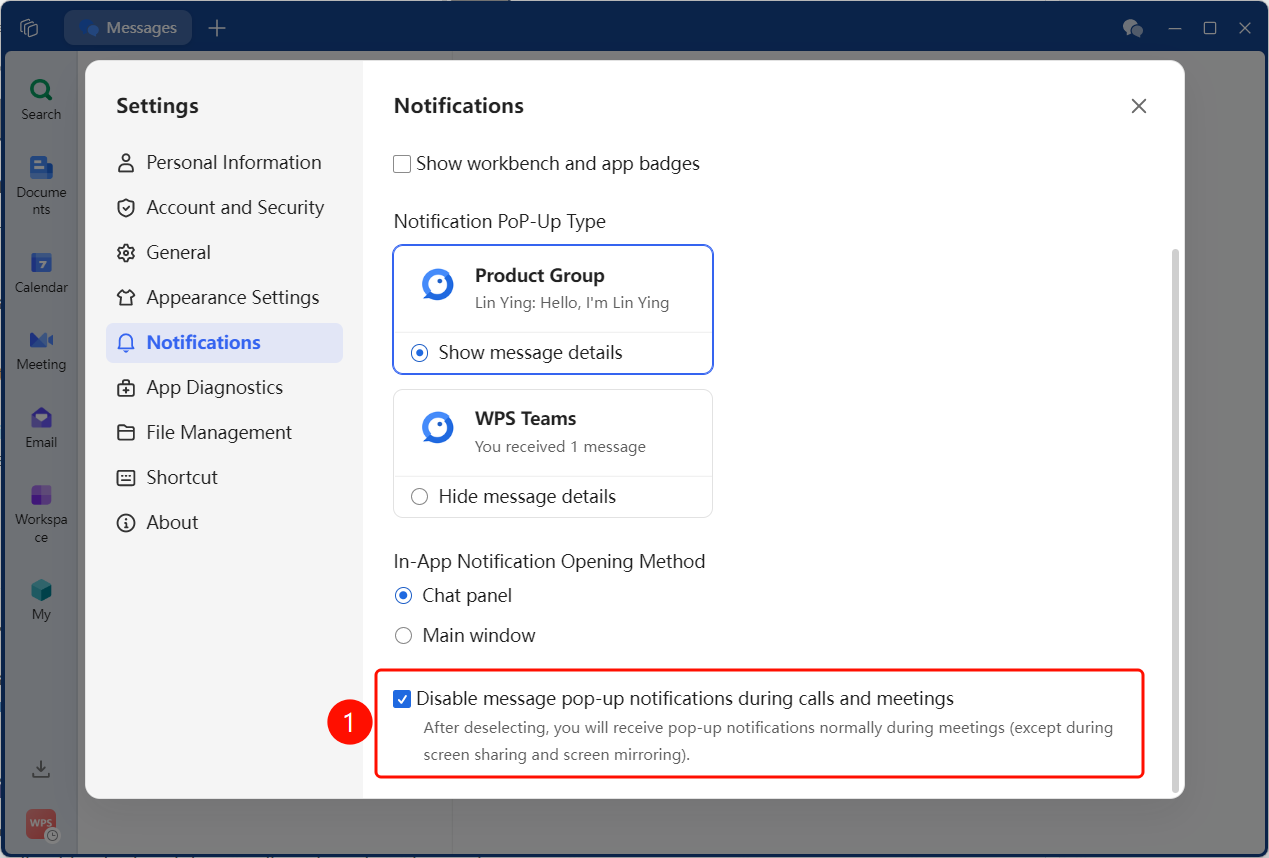
Feature Entry "Settings" page → "notifications" option → "Disable Message Pop-up Notifications During Calls and Meetings" checkbox
- In the "Disable Message Pop-up Notifications During Calls and Meetings" setting item, check or uncheck the checkbox:
- When checked, message pop-up notifications are not displayed during calls and meetings to avoid interruptions.
- When unchecked, message pop-up notifications are received normally during calls and meetings (except when using screen sharing and casting).
FAQ
Q1: How to protect message privacy in notification pop-ups?
- Solution: Select the "Hide Message Details" option in "Notification Pop-up Style". The notification pop-up will only display "You have received 1 message", without showing the message sender and specific content, protecting privacy and security.
Q2: How to avoid message notification interruptions during meetings?
- Solution: Check the "Disable Message Pop-up Notifications During Calls and Meetings" checkbox. Message pop-up notifications will not be displayed during calls and meetings to avoid interrupting the meeting.
Q3: After clicking a notification, does it jump directly to the chat or the main window?
- Solution: You can choose in "In-App Notification Opening Method": Select "Chat Panel" to view the message in the chat panel without switching the current window; select "App Main Window" to switch to the WPS Teams main window to display the message.
Notes
- The alert sound settings only control the alert sounds of the WPS Teams client and do not affect the system volume settings.
- "Hide Message Details" only affects the content displayed in the pop-up notification; the message content in the chat panel is always displayed in full.
- "Disable Message Pop-up Notifications During Calls and Meetings" always disables pop-up notifications during screen sharing and casting, regardless of this setting.