Feature Summary
Supports network diagnostics in the WPS Teams client to detect network issues, as well as uploading or exporting app usage logs to troubleshoot feature anomalies, crashes, and other problems.
Feature Description
| Feature Dimension | Description |
|---|---|
| Membership Restriction | No membership restriction |
| Version Restriction | No version restriction |
Steps
Accessing the App Diagnostics Page
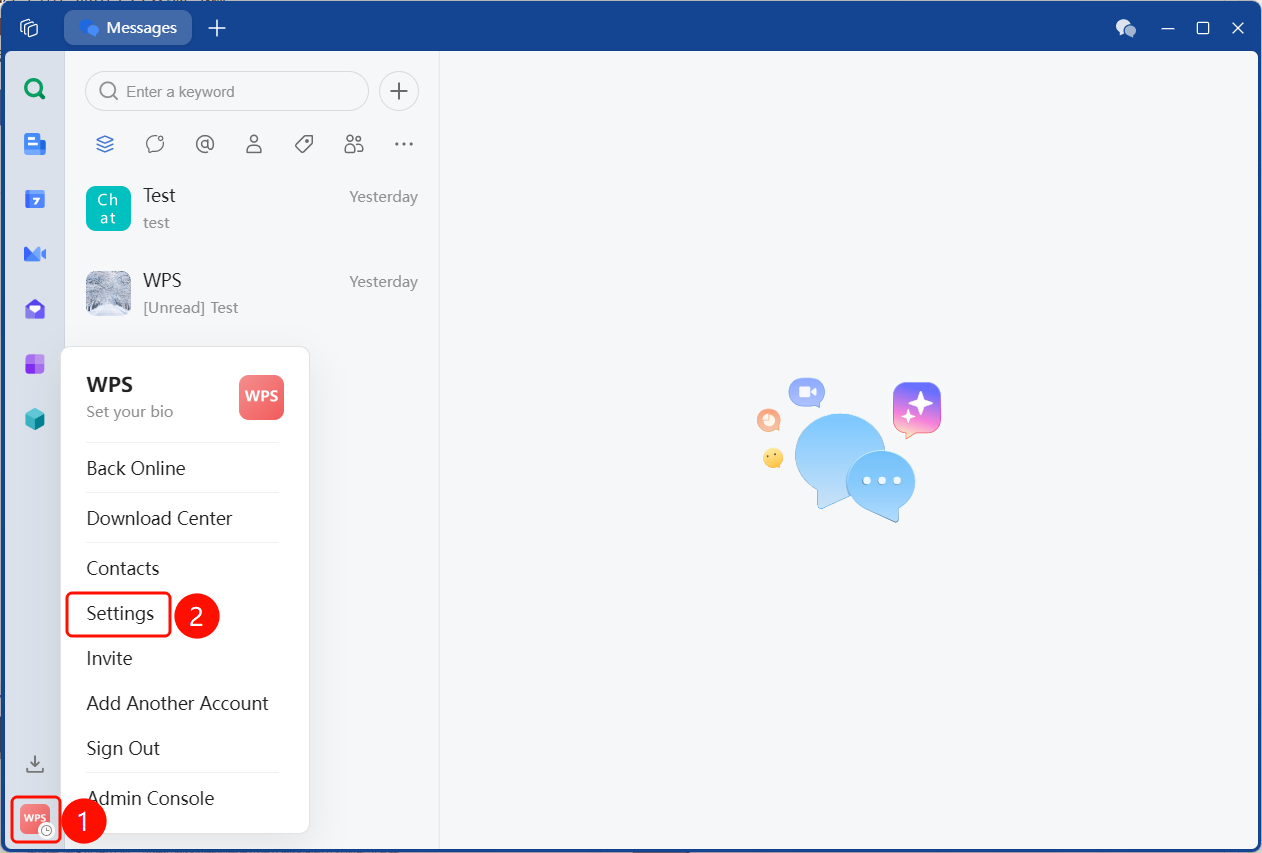
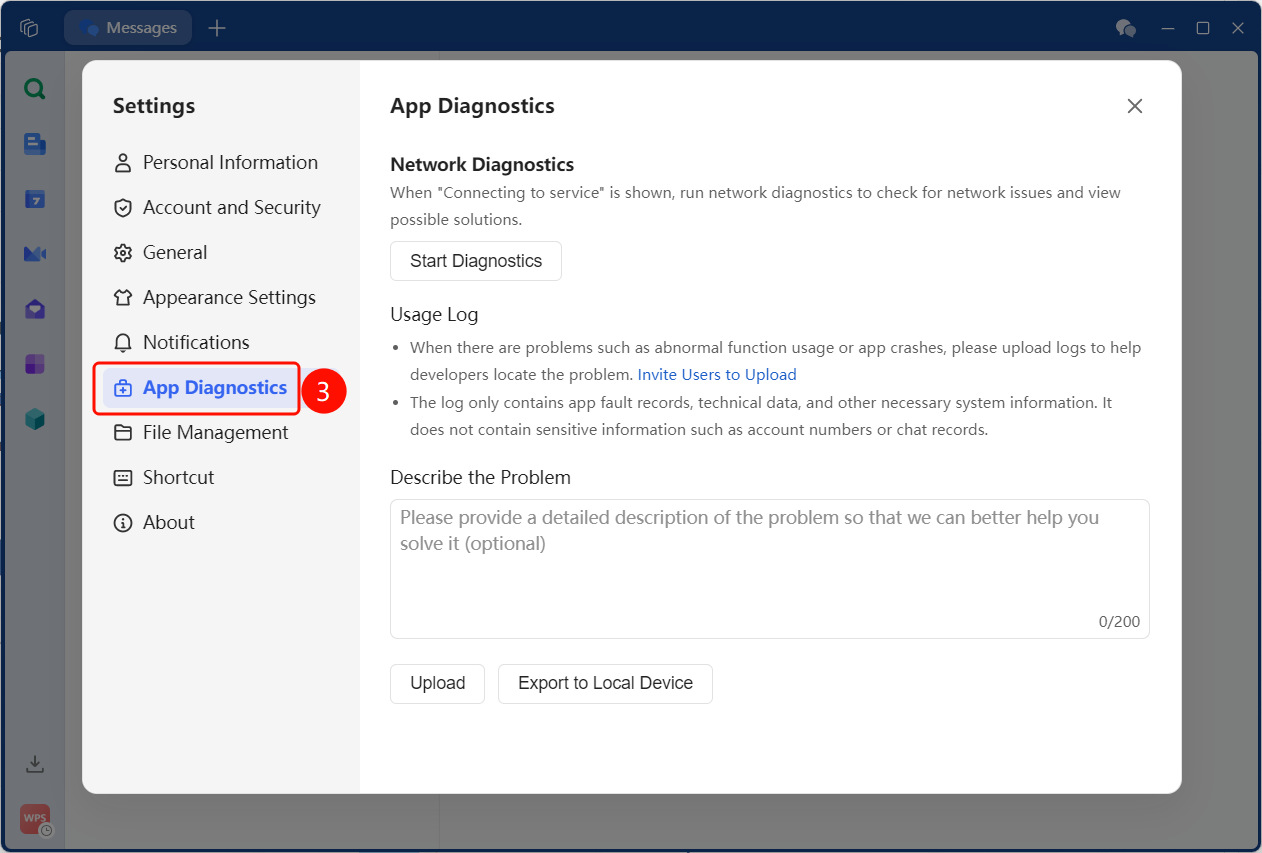
Feature Entry WPS Teams main interface "Profile Picture" icon in the lower-left corner → "Settings" button → "App Diagnostics" option
- In the lower-left corner of the WPS Teams main interface, click the profile picture area.
- In the pop-up menu, click the "Settings" button.
- In the left-side list of the "Settings" page, click the "App Diagnostics" option.
Using Network Diagnostics
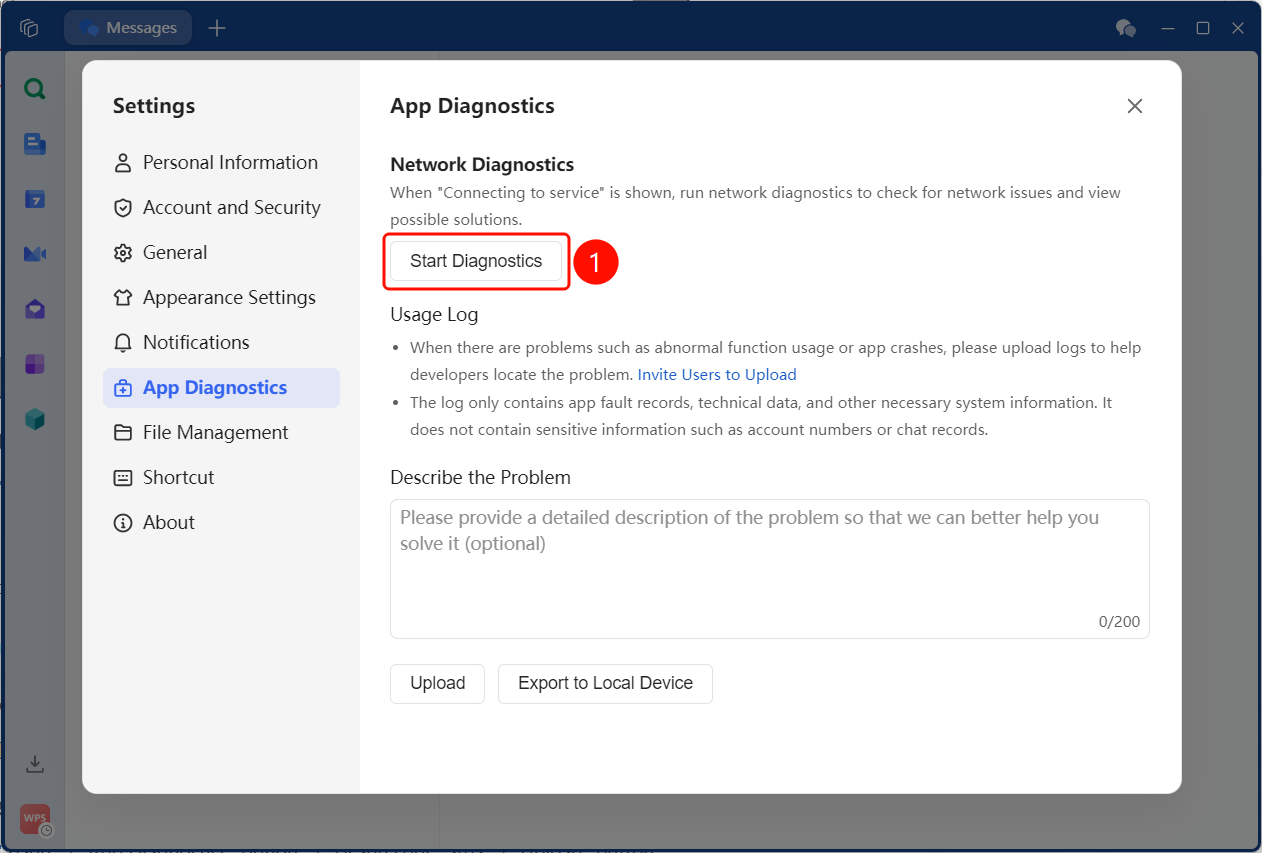
Feature Entry "Settings" page → "App Diagnostics" option → "Network Diagnostics" area → "Start Diagnostics" button
- In the "Network Diagnostics" area, view the feature description: When the prompt "Connecting to service..." appears, you can use network diagnostics to determine if there is a network problem and obtain a solution.
- Click the "Start Diagnostics" button.
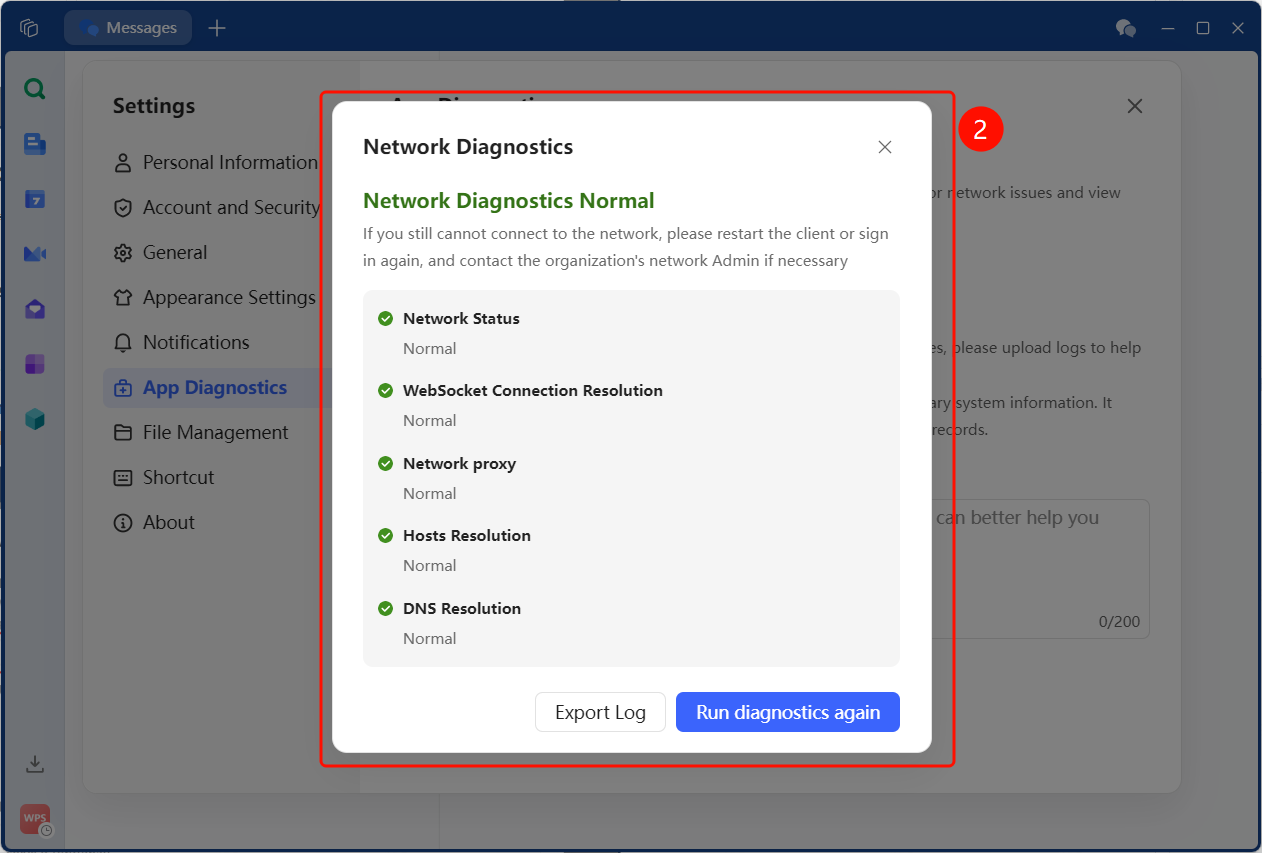
- The system automatically performs network diagnostic tests. After completion, it displays the diagnostic results and corresponding solutions.
Uploading Usage Logs
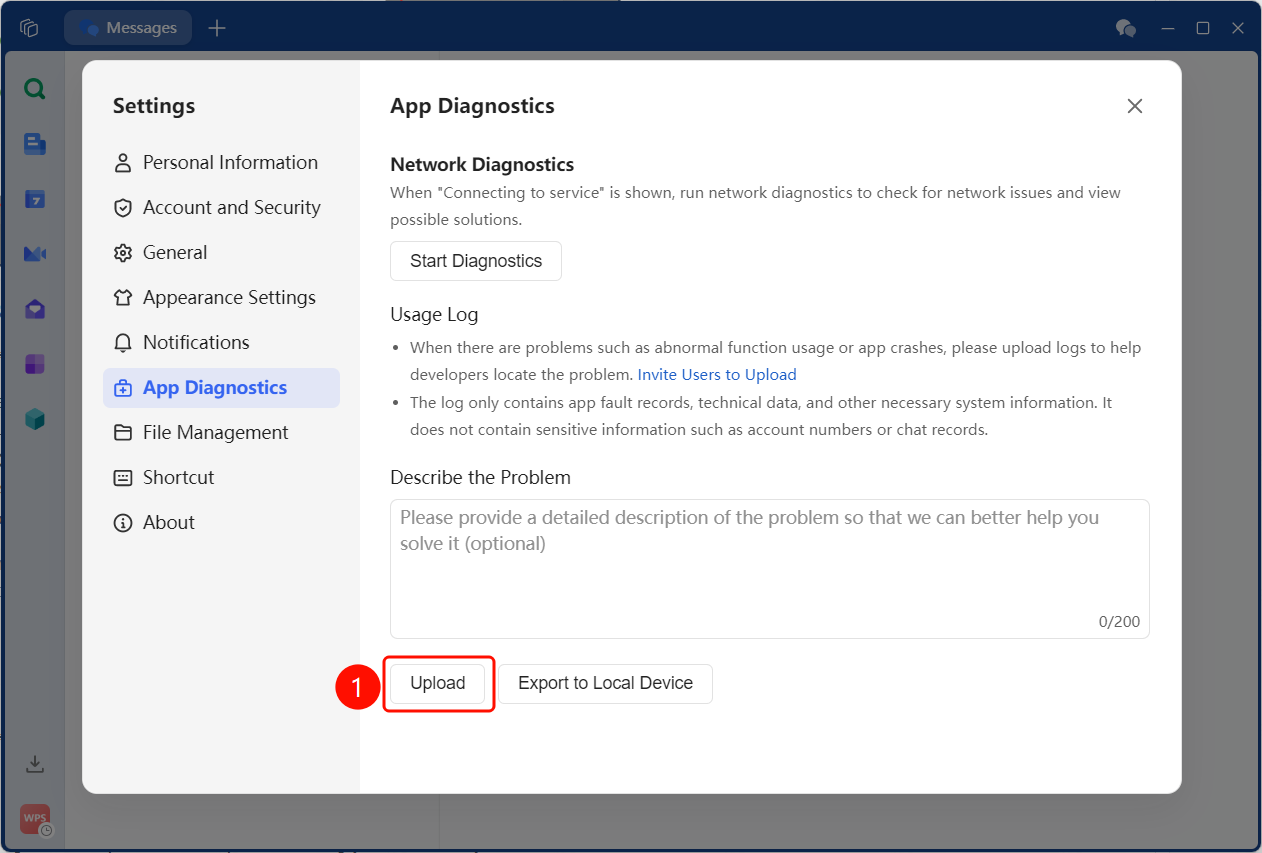
Feature Entry "Settings" page → "App Diagnostics" option → "Usage Logs" area → "Upload" button
- In the "Usage Logs" area, view the log description: When issues such as feature anomalies or unexpected app crashes occur, uploading logs helps developers better locate the problem.
- (Optional) In the "Problem Description" input box, fill in a specific description of the problem to help developers locate the issue. A maximum of 200 characters can be entered.
- Click the "Upload" button to submit the usage logs and problem description to the developers.
Note: The logs contain only the app's fault records, technical data, and other necessary system information. They do not contain sensitive information such as account details or Chat History.
Exporting Usage Logs Locally
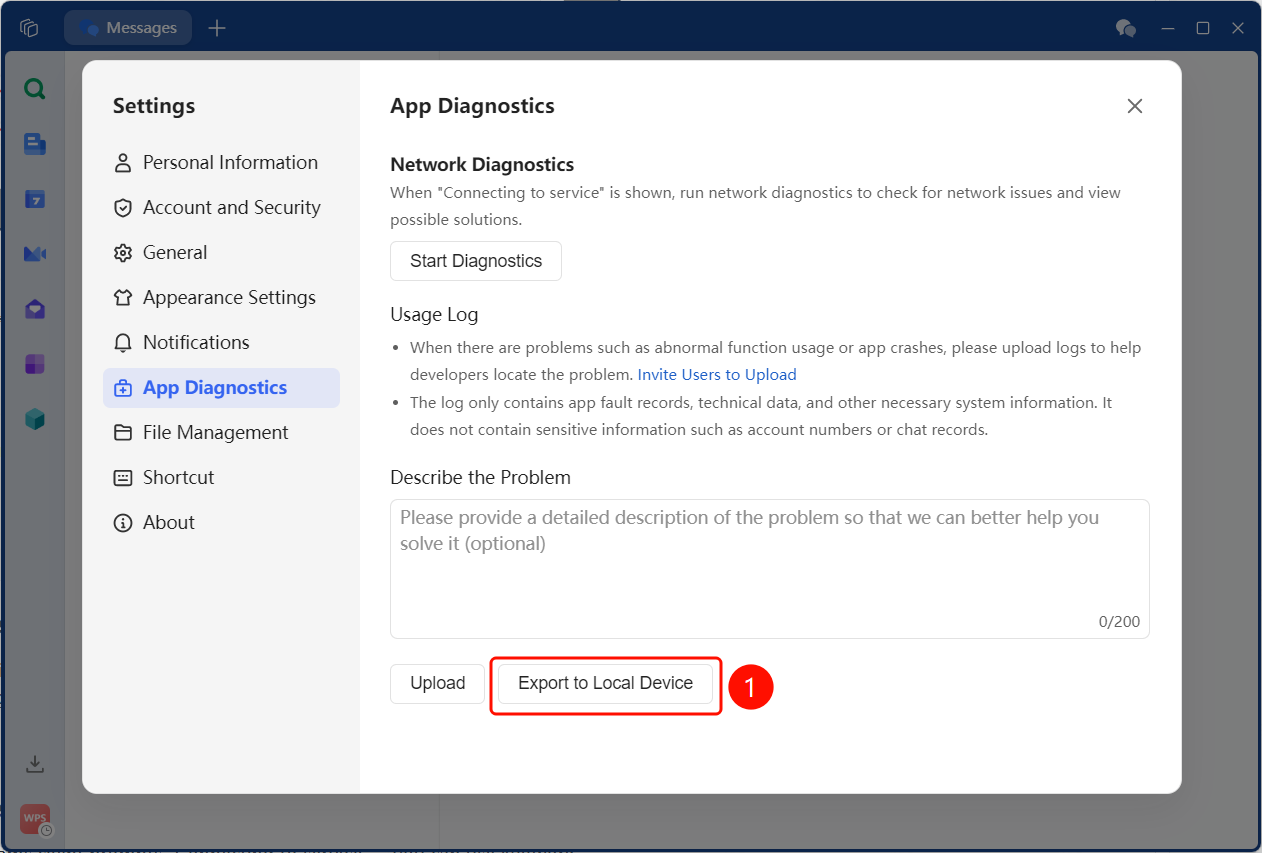
Feature Entry "Settings" page → "App Diagnostics" option → "Usage Logs" area → "Export Locally" button
- In the "Usage Logs" area, click the "Export Locally" button.
- The system saves the usage log file to a specified local path, allowing you to view it yourself or provide it to technical support personnel for analysis.
FAQ
Q1: What features does the App Diagnostics page include?
- Solution: The App Diagnostics page includes two functional areas: "Network Diagnostics" and "Usage Logs". Network Diagnostics is used to check if the network connection is normal; Usage Logs is used to upload or export app operation logs to help developers locate feature anomalies and crash issues.
Q2: When should I use Network Diagnostics?
- Solution: When the WPS Teams client prompts "Connecting to service...", you can use Network Diagnostics to determine if there is a network problem and obtain the corresponding solution based on the diagnostic results.
Q3: Will uploading logs leak personal privacy?
- Solution: No. The logs contain only the app's fault records, technical data, and other necessary system information. They do not contain sensitive information such as account details or Chat History, so users can upload them with confidence.
Q4: What is the difference between uploading logs and exporting logs?
- Solution: "Upload" submits the logs directly to the developers for problem location; "Export Locally" saves the log file to a local path, allowing you to view it yourself or provide it to technical support personnel through other channels. Both can be used in combination, and the problem description is optional.
Notes
- Network Diagnostics is only used when the client prompts "Connecting to service...". There is no need to run diagnostics when the connection is normal.
- The problem description is optional and can contain a maximum of 200 characters. The more detailed the description, the more helpful it is for locating the issue.
- The logs do not contain sensitive information such as account details or Chat History, ensuring privacy security.