Feature Summary
View and customize shortcuts in the WPS Teams client to enhance operational efficiency. This includes binding and restoring default settings for shortcuts such as sending messages, window control, screenshots, and screen recording.
Feature Description
| Feature Dimension | Description |
|---|---|
| Membership Restriction | No membership restriction |
| Version Restriction | No version restriction |
Operation Steps
Enter the Shortcut Settings Page
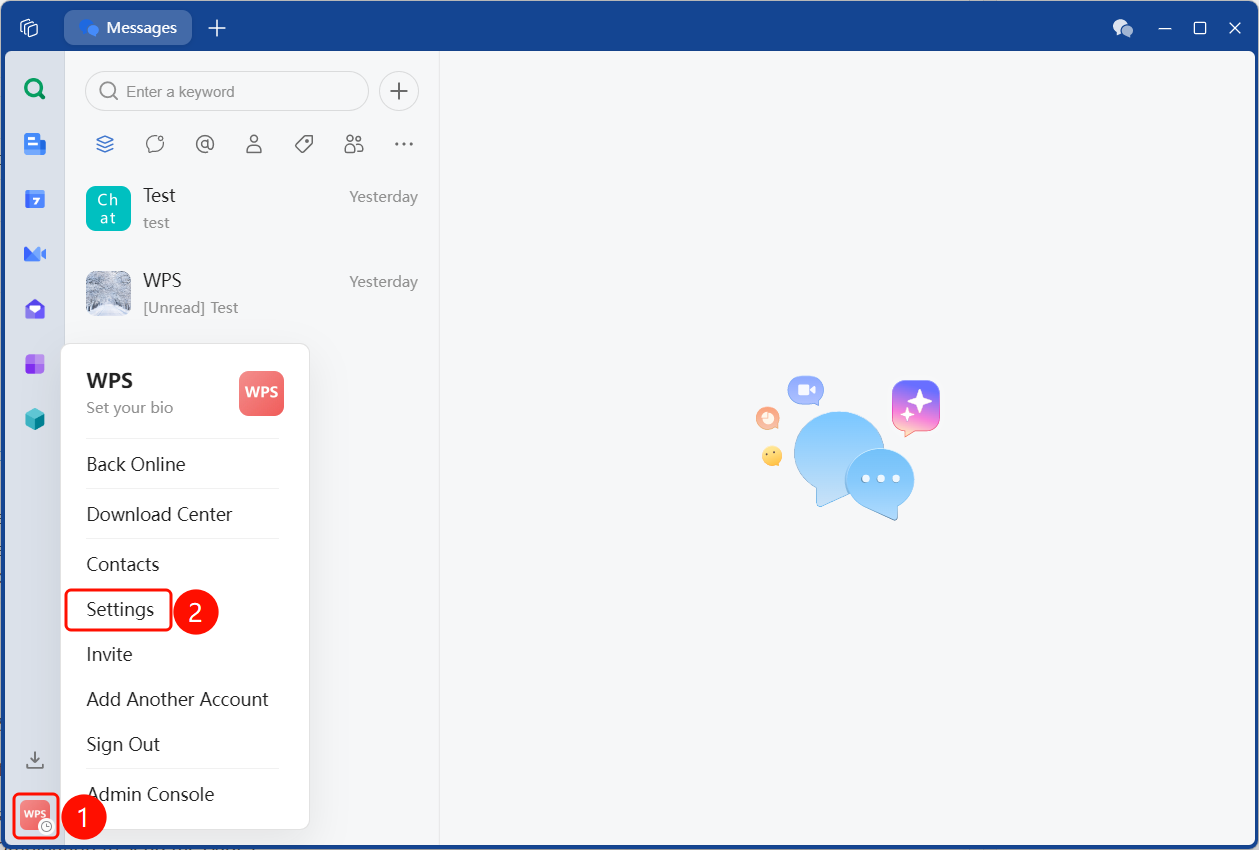
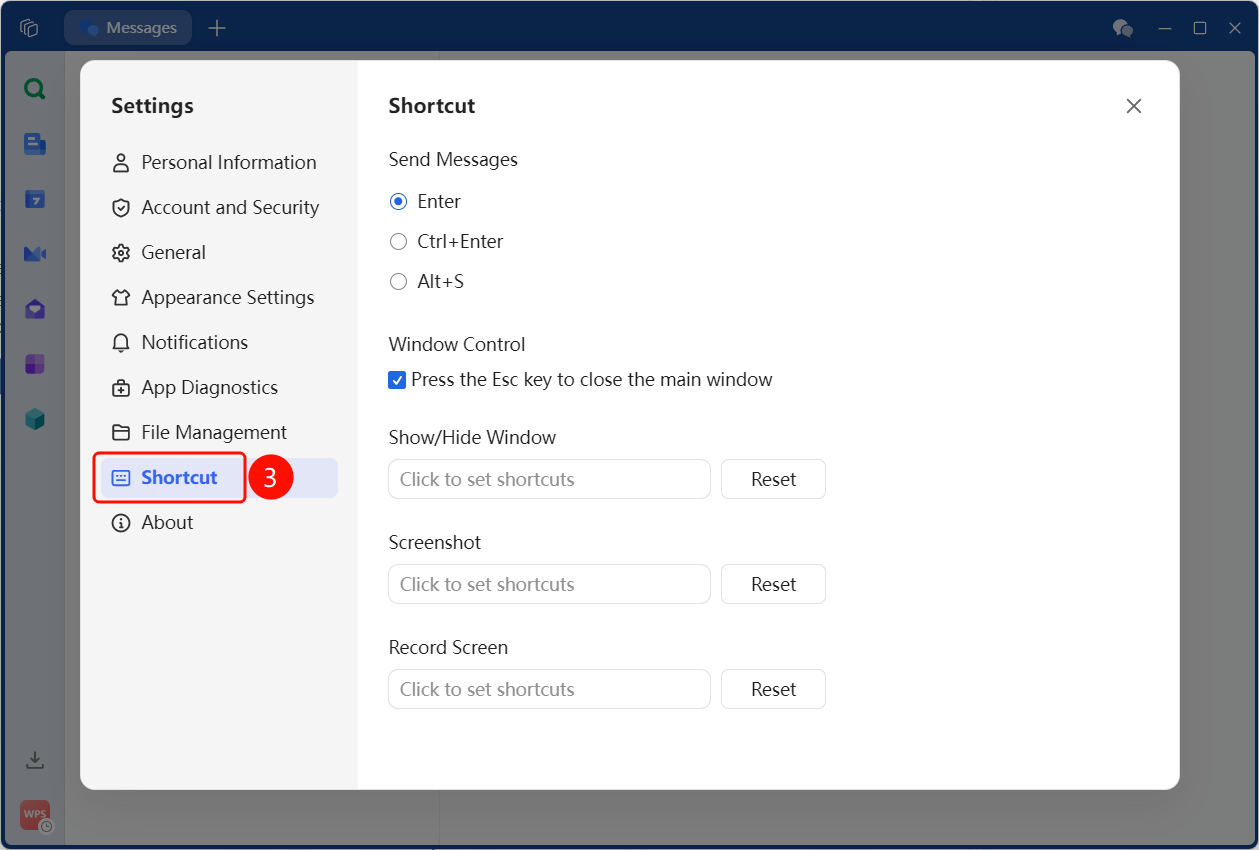
Feature Entry WPS Teams Main Interface → "Personal Avatar" icon in the lower-left corner → "Settings" button → "Shortcut" option
- In the lower-left corner of the WPS Teams main interface, click the personal avatar area.
- In the pop-up menu, click the "Settings" button.
- In the left-side list of the "Settings" page, click the "Shortcut" option.
- The shortcut configuration area is displayed on the right, including shortcut setting items for sending messages, window control, screenshots, screen recording, etc.
Set Shortcuts for Sending Messages
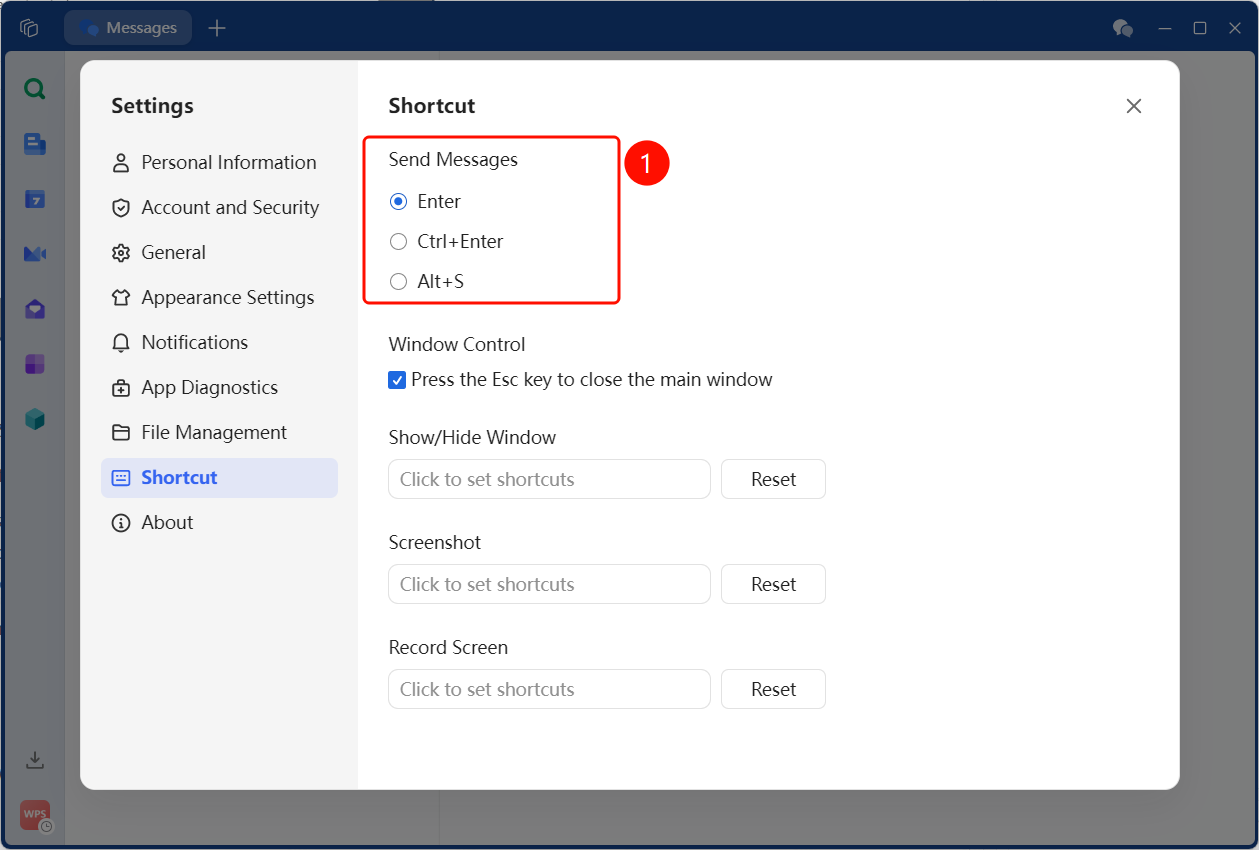
Feature Entry "Settings" option → "Shortcut" tab → "Send Message" area
- In the "Send Message" area, you can select one of the following shortcuts to send messages:
- "Enter" option — Press the Enter key to send messages directly.
- "Ctrl+Enter" option — Press the Ctrl+Enter key combination to send messages.
- "Alt+S" option — Press the Alt+S key combination to send messages.
- Click the corresponding option button to switch the currently used send shortcut.
Window Control
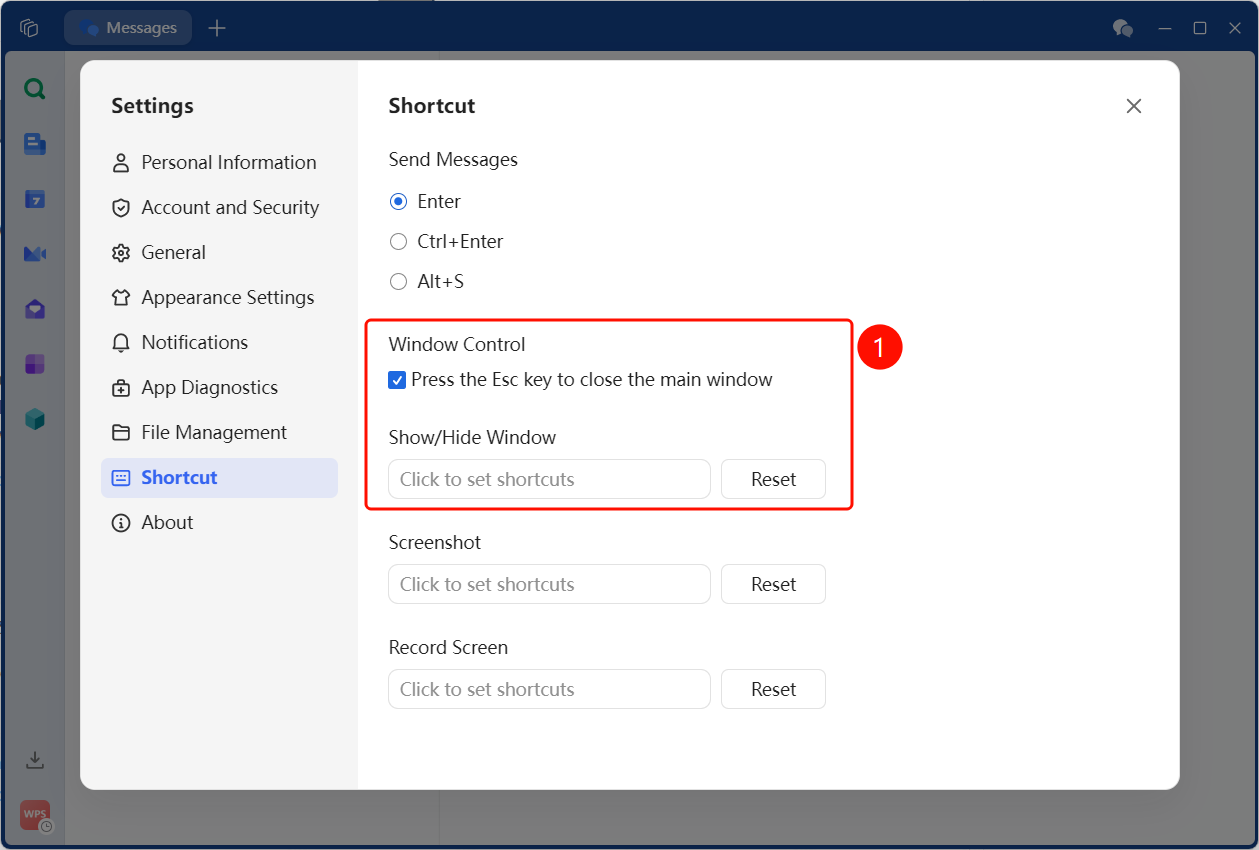
Feature Entry "Settings" option → "Shortcut" tab → "Window Control" area
- In the "Window Control" area, you can configure the following shortcuts:
- "Press Esc to close the main window" toggle — When enabled, press the Esc key in the main window to close the window.
- "Show/Hide Window" setting item — Click the "Click to set shortcut" button, then press the desired shortcut key combination for custom binding. After binding, you can use this shortcut to quickly show or hide the WPS Teams main window.
- To restore the system default value, click the "Restore Default" button next to the setting item.
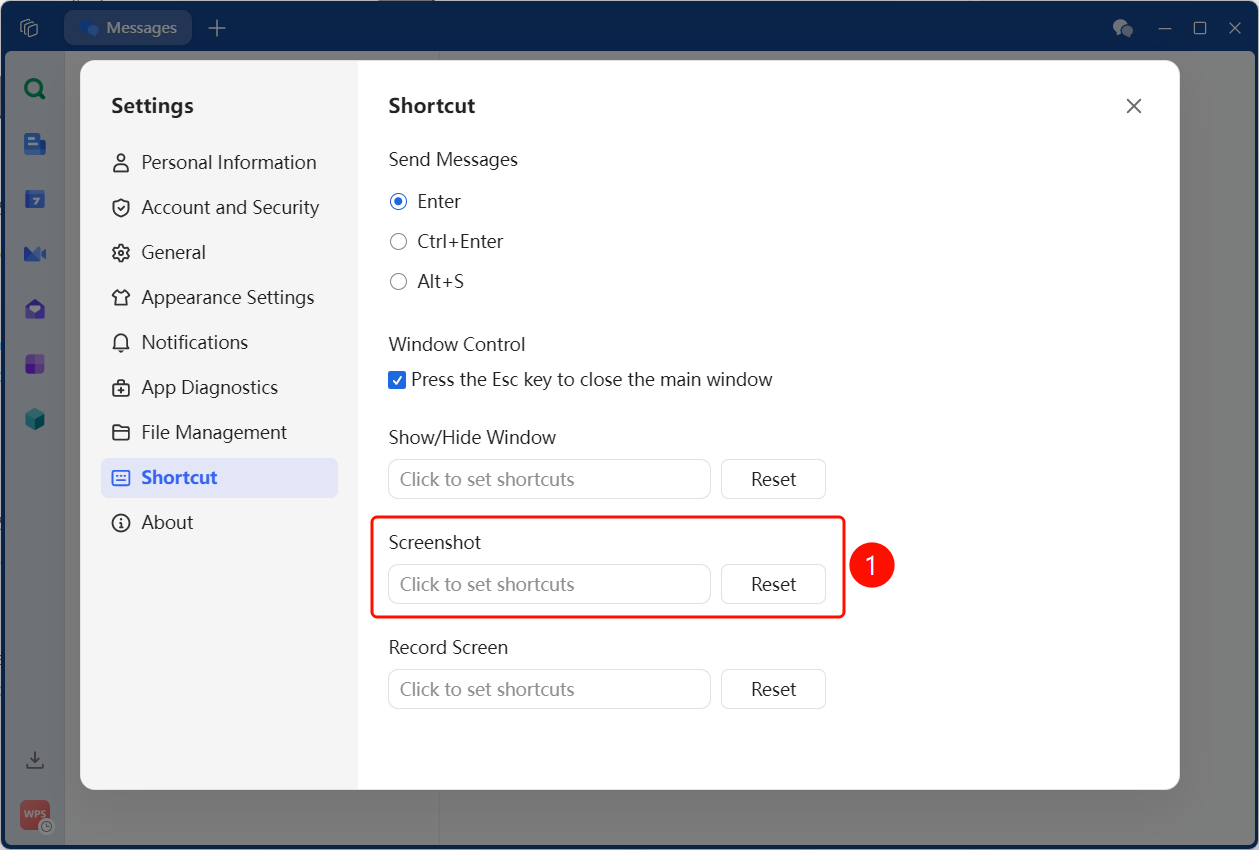
Set Screenshot Shortcut
Feature Entry "Settings" option → "Shortcut" tab → "Screenshot" area
- In the "Screenshot" setting item, click the "Click to set shortcut" button.
- Press the desired shortcut key combination on the keyboard to complete the screenshot shortcut binding.
- After binding, you can quickly trigger the screenshot feature using this shortcut.
- To restore the system default value, click the "Restore Default" button.
Set Screen Recording Shortcut
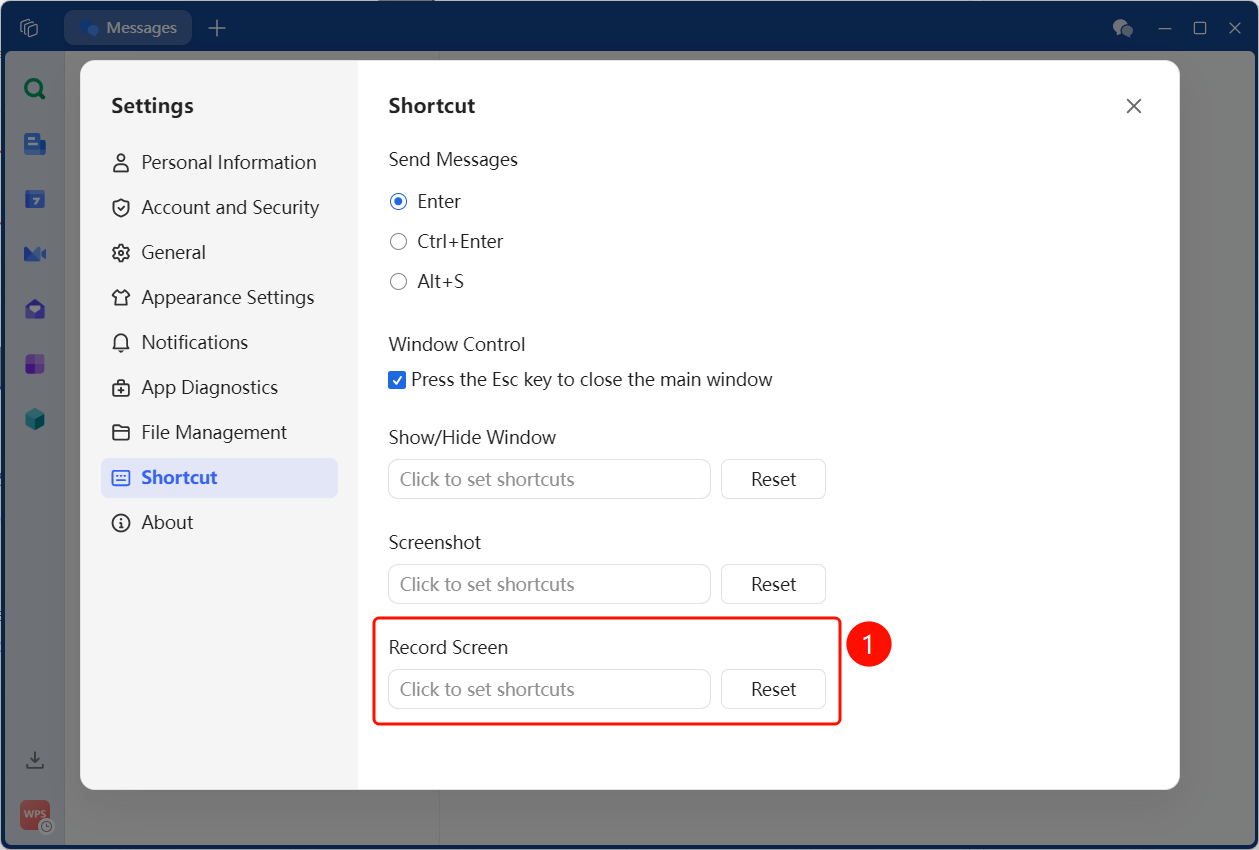
Feature Entry "Settings" option → "Shortcut" tab → "Record Screen" area
- In the "Screen Recording" setting item, click the "Click to set shortcut" button.
- Press the desired shortcut key combination on the keyboard to complete the screen recording shortcut binding.
- After binding, you can quickly trigger the screen recording feature using this shortcut.
- To restore the system default value, click the "Record Screen" button.
FAQ
Q1: How to customize shortcuts?
- Solution: In the corresponding shortcut setting item, click the "Click to set shortcut" button, then press the desired shortcut key combination on the keyboard. The system will automatically record and bind it. To restore the default value, click the "Restore Default" button.
Q2: What are the options for the send message shortcut?
- Solution: The send message shortcut supports three options: "Enter" (press Enter to send directly), "Ctrl+Enter" (press Ctrl+Enter to send), and "Alt+S" (press Alt+S to send). Click the corresponding option button to switch.
Q3: How to set the Esc key to close the main window?
- Solution: In the "Window Control" area, find the "Press Esc to close the main window" toggle. After enabling it, you can press the Esc key in the main window to quickly close the window.
Notes
- When customizing shortcuts, please avoid conflicts with system or other application shortcuts.
- Clicking the "Restore Default" button will restore the corresponding shortcut to the system default value, and the custom binding will be cleared.
- "Press Esc to close the main window" is a checkbox. It takes effect immediately after checking or unchecking.