Feature Summary
WPS Teams (WPS Collaboration) provides a Windows client installation package, supporting both one-click installation and custom installation. You can configure options such as installation path, auto-start on boot, and desktop shortcut as needed.
Feature Description
| Feature Dimension | Description |
|---|---|
| Membership Restriction | No membership restriction |
| Version Restriction | No version restriction |
Steps
One-Click Installation
Feature Entry Installer startup page → "One-Click Install" button
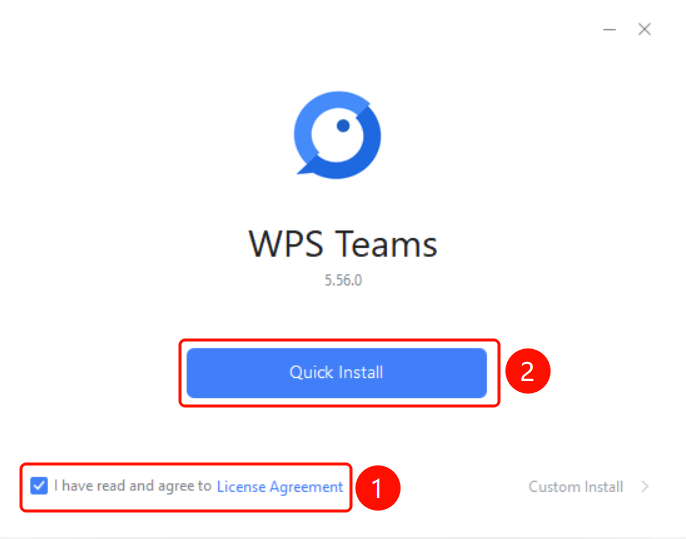
- Double-click to run the WPS Teams installer and enter the installation startup page.
- Select the "I have read and agree to the license agreement" checkbox.
- Click the "One-Click Install" button, and the system will automatically complete the installation using the default path and configuration.
Custom Installation
Feature Entry Installer startup page → "Custom Install" button
- Double-click to run the WPS Teams installer and enter the installation startup page.
- Select the "I have read and agree to the license agreement" checkbox.
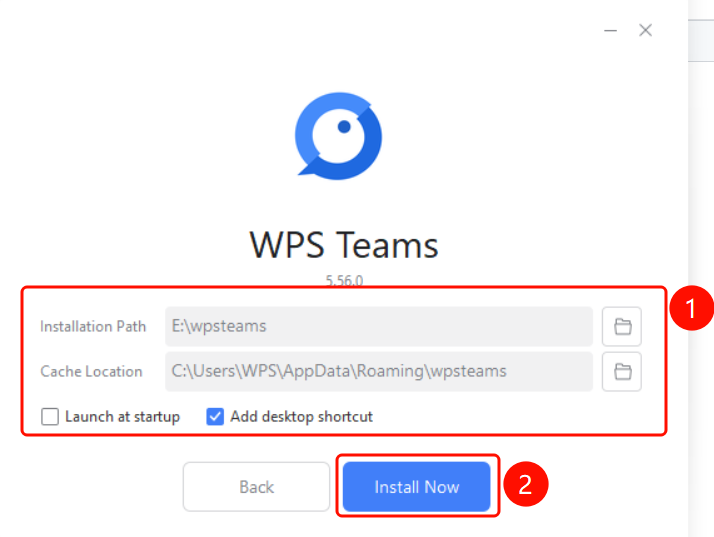
- Click the "Custom Install" button to enter the installation configuration page.
- On the installation configuration page, set the following options as needed:
- Installation Path: Click the "Browse" button to modify the installation directory.
- Auto-start on Boot: Select the "Auto-start on Boot" checkbox to automatically run WPS Teams when the computer starts.
- Add Desktop Shortcut: Select the "Add Desktop Shortcut" checkbox to generate a shortcut icon on the desktop.
- After confirming the configuration is correct, click the "Install Now" button to begin installation.
Sign In and Usage
Feature Entry "Desktop Shortcut" icon or "Start Menu" → "WPS Teams"
- After installation is complete, double-click the "WPS Teams" desktop shortcut to launch the application.
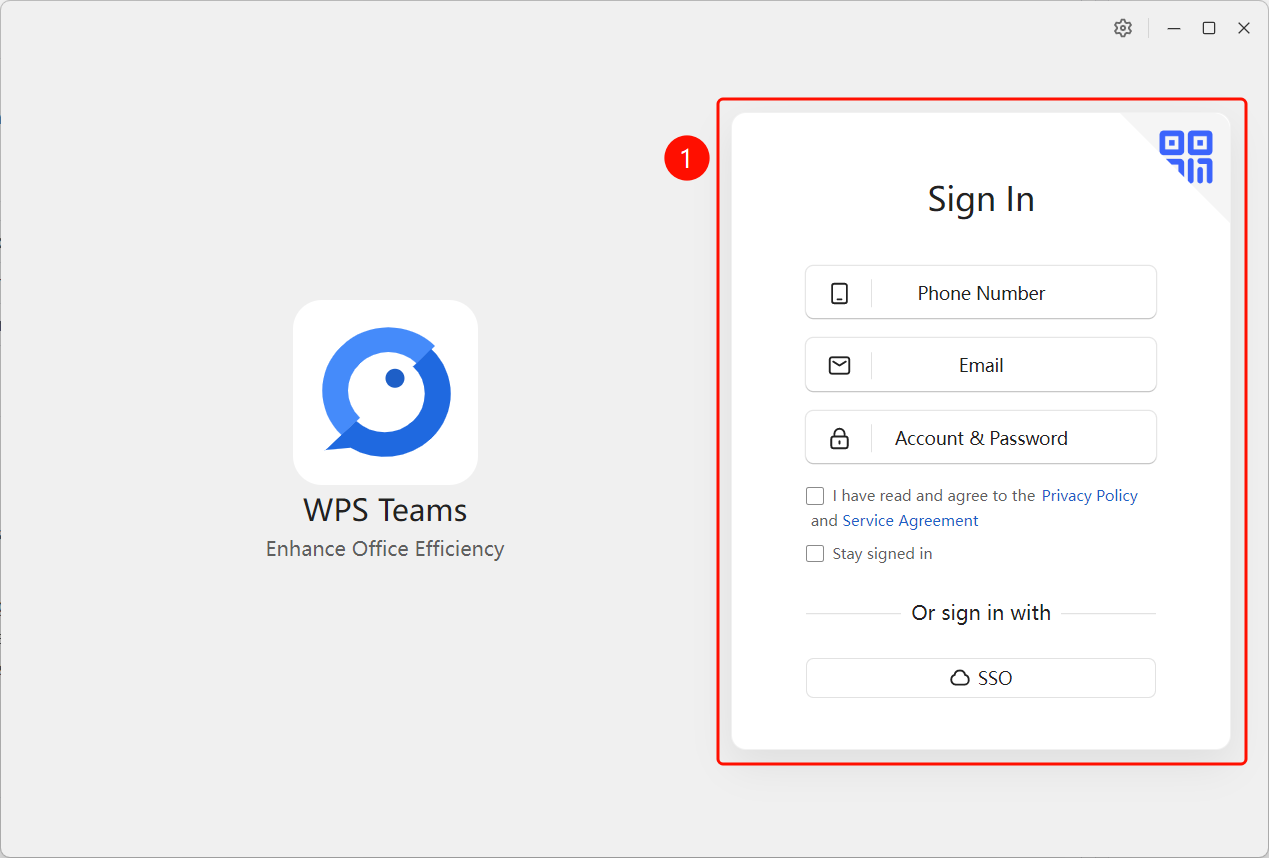
- On the sign-in page, enter your Email, phone number, or use SSO to sign in.
- After signing in successfully, you will enter the workspace and can use features such as messaging, Document, and Meeting.
FAQ
Q1: What is the difference between one-click installation and custom installation?
- Solution: One-click installation uses default configuration (installation path, auto-start on boot, and desktop shortcut are all system presets) without manual setup; custom installation allows users to choose the installation path, enable or disable auto-start on boot and desktop shortcut.
Q2: Can the installation path be modified?
- Solution: Yes. In custom installation mode, click the "Browse" button to select another directory for installation.
Q3: How to make WPS Teams auto-start on boot?
- Solution: On the custom installation page, select the "Auto-start on Boot" checkbox. This option can also be modified in the application settings after installation.
Q4: What should I do if there is no shortcut on the desktop after installation?
- Solution: If the "Add Desktop Shortcut" checkbox was not selected during installation, a desktop icon will not be generated. You can find "WPS Teams" in the Start Menu to launch the application, or re-run the installer, choose custom installation, and select this option.
Notes
- Before installation, ensure that the "I have read and agree to the license agreement" checkbox is selected, otherwise the installation cannot proceed.
- If you need to return to the previous step during installation, click the "Back" button.