Feature Summary
Member mute management is a feature within the chat message settings of the organization's Office Document. It allows admins to add specified members to a mute list. Added members will be unable to speak in any conversation within the collaboration chat.
Feature Description
| Feature Dimension | Description |
|---|---|
| Membership Restriction | No membership restriction |
| Version Restriction | No version restriction |
Steps
Access the Member Mute Management Page
Feature Entry
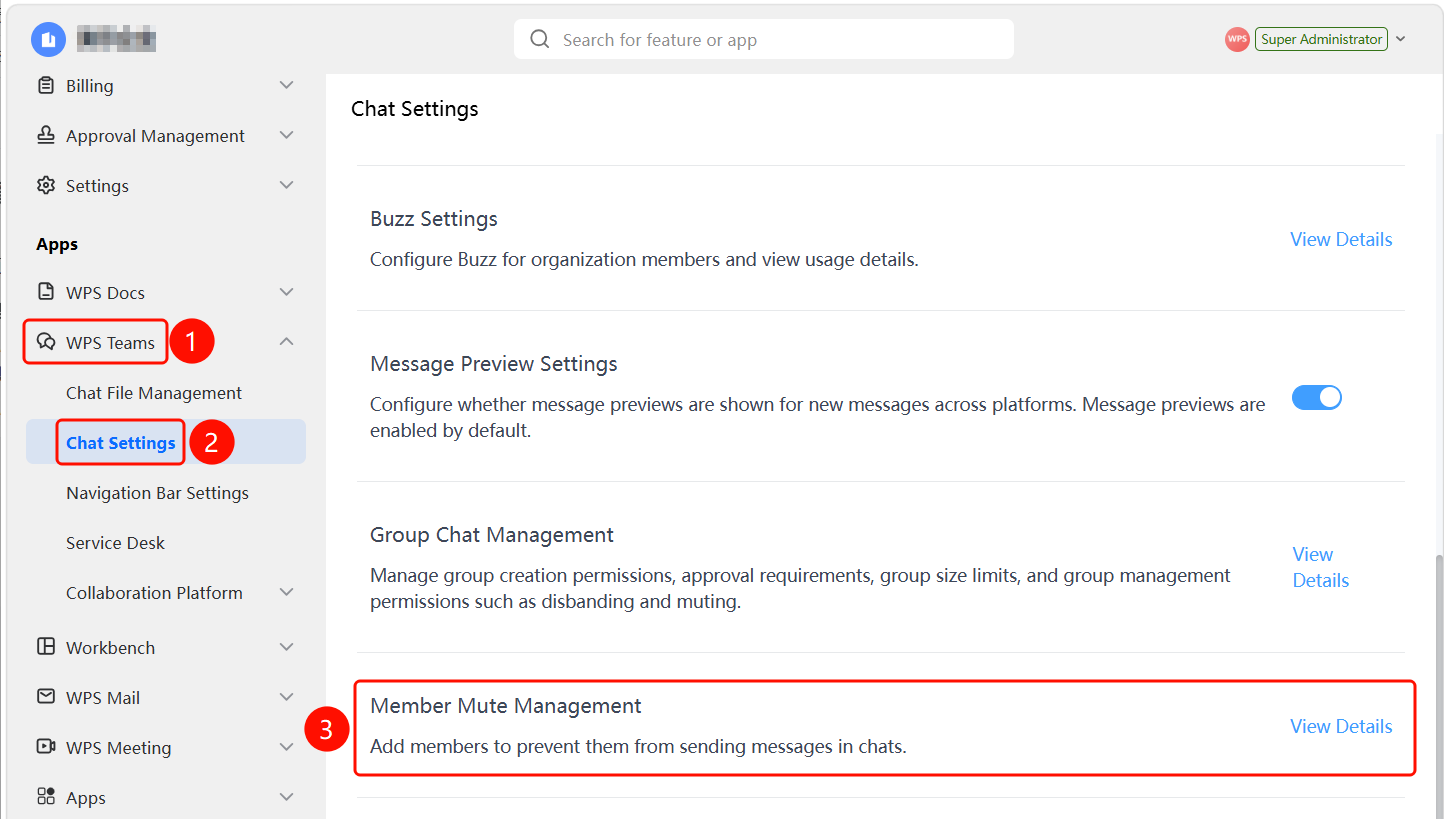
「Office Document」page → 「WPS Collaboration」option → 「Chat Message Settings」option → 「Member Mute Management」View Details link
- Sign in to 「Office Document」
- In the left navigation bar, click the 「WPS Collaboration」 option to expand the collaboration management menu
- Click the 「Chat Message Settings」 option to enter the chat message settings page
- In the configuration item list, find the 「Member Mute Management」 configuration item, and click the 「View Details」 link to enter the member mute management page
Add Muted Members
Feature Entry
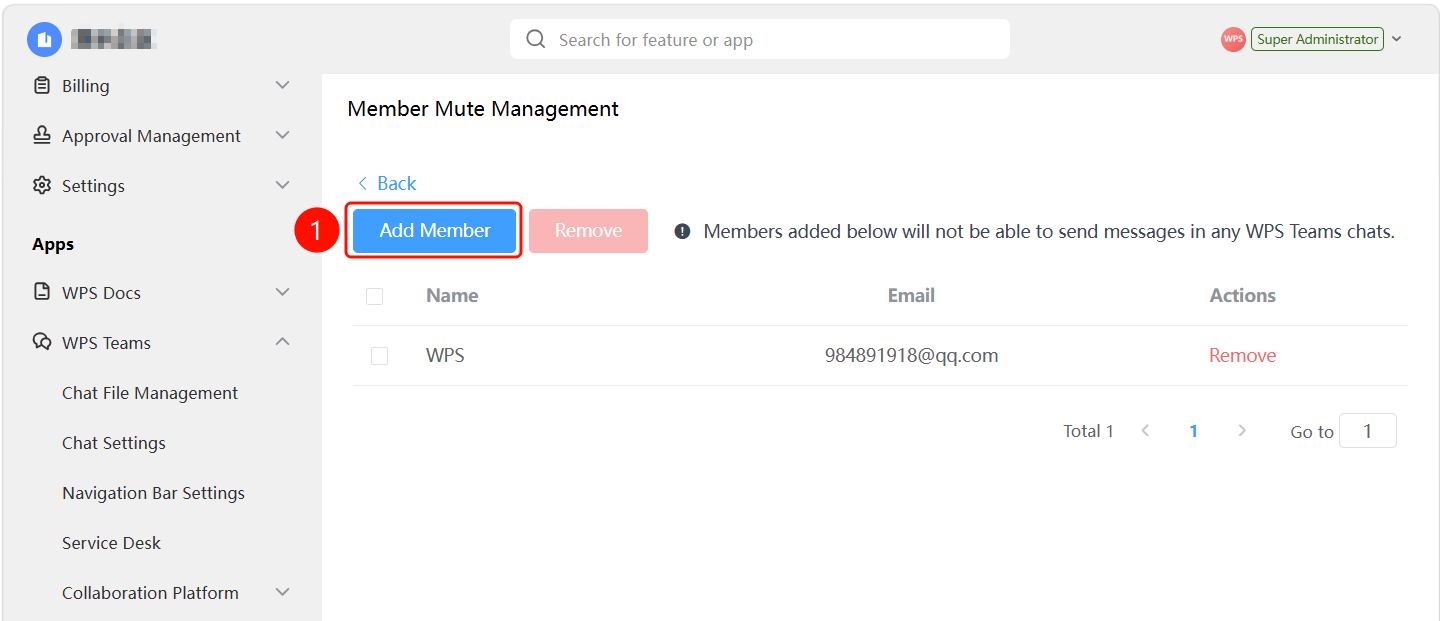
「Member Mute Management」page → 「Add Member」button
- Enter the 「Member Mute Management」 page
- Click the 「Add Member」 button to open the member selection panel
- Select the members to be muted
- After adding, the members will be unable to speak in any conversation within the collaboration chat
Remove Muted Members
Feature Entry
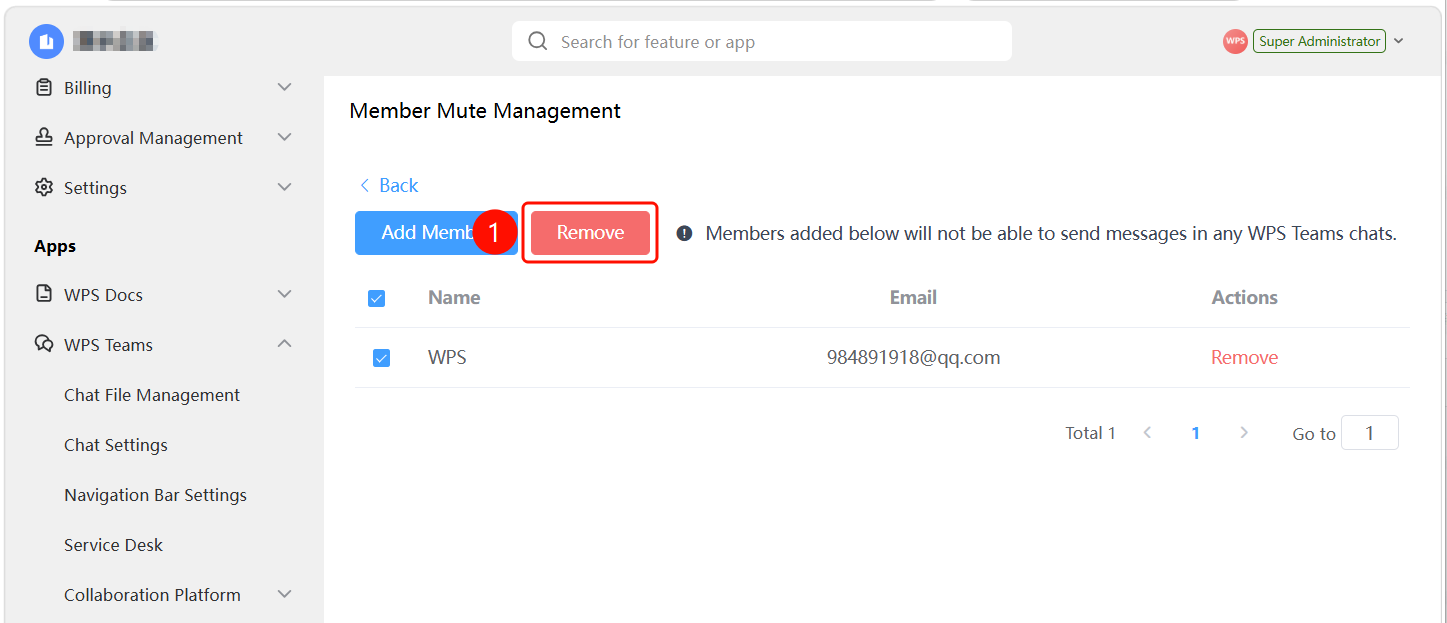
「Member Mute Management」page → Muted member list → 「Remove」button
- Enter the 「Member Mute Management」 page
- In the muted member list, find the member to be unmuted
- Click the 「Remove」 button, and the member's speaking permission will be restored
FAQ
Q1: Where is the entry for member mute management?
- Solution: The entry path is: Office Document → Office Suite → WPS Collaboration → Chat Message Settings → Member Mute Management (click the View Details link).
Q2: What is the scope of impact after muting?
- Solution: Members added to the mute list will be unable to speak in all conversations within the collaboration chat, including all group chats and Private chats.
Q3: How long does it take for the unmute to take effect?
- Solution: The unmute takes effect immediately, and the member can resume normal speaking permissions.
Notes
- This feature is only available to organization admins; regular members cannot view the Office Document
- The mute control scope covers all conversations within the collaboration chat
- Adding and removing mutes both take effect immediately