Feature Summary
Chat Security Settings is a feature within the security controls of the WPS 365 Office Document. It supports configuring mobile security policies, including device sign-in quantity limits, link domain whitelist, blocking of out-of-app operations, and content sharing controls, to safeguard organization data security.
Feature Description
| Feature Dimension | Description |
|---|---|
| Membership Restrictions | No membership restrictions |
| Version Restrictions | No version restrictions |
Operation Steps
Accessing the Chat Security Settings Page
Feature Entry
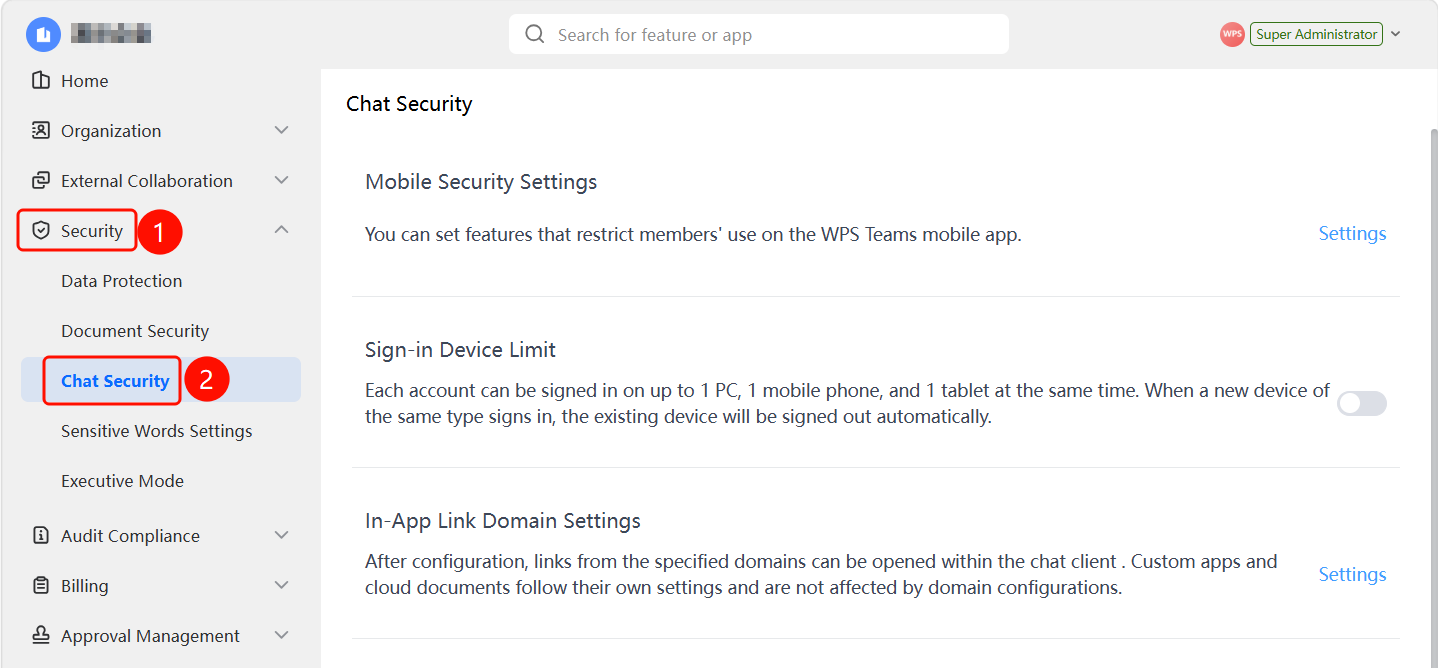
「Organization Office Document」page → 「Security」option → 「Chat Security」option
- Sign in to 「WPS 365 Office Document」
- In the Organization Office Document, click the 「Security」 option to expand the security controls menu
- Click the 「Chat Security」 option to enter the Chat Security management page
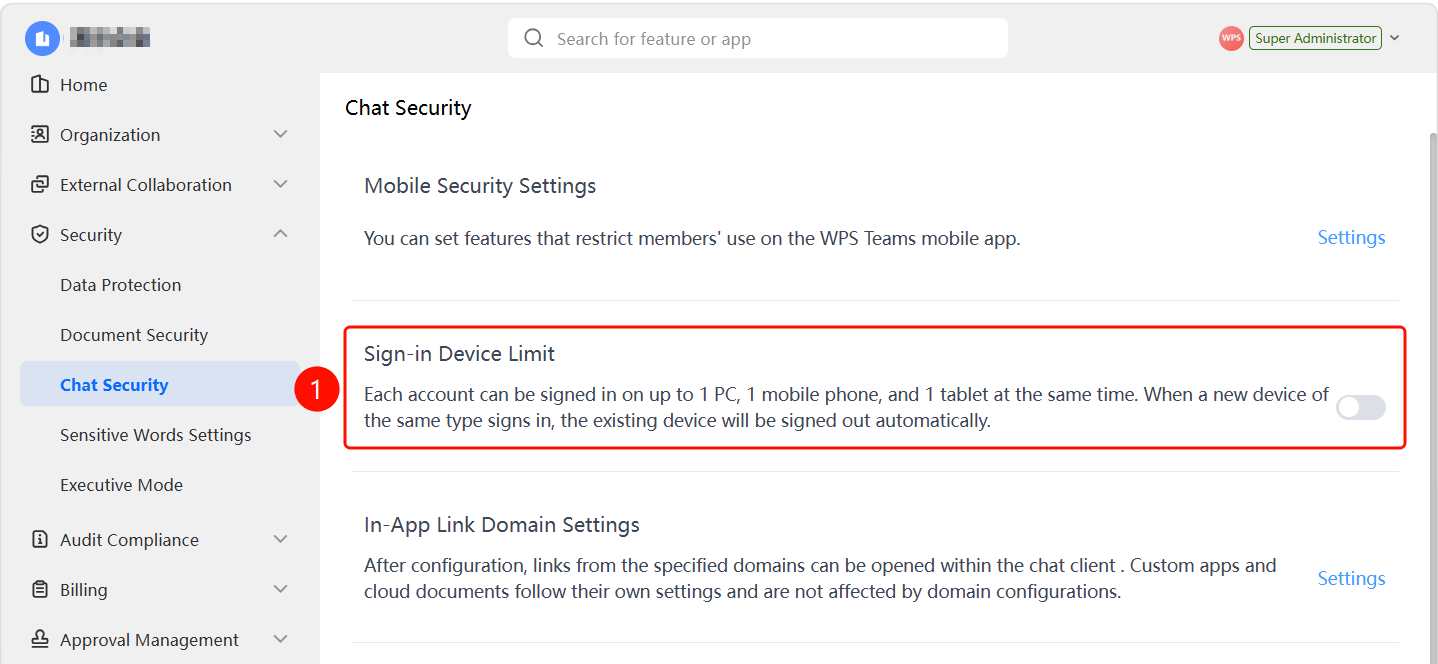
Enabling Sign-in Device Limit
Feature Entry
「Chat Security」page → 「Sign-in Device Limit」area
- Enter the 「Chat Security」 page
- Enable the 「Sign-in Device Limit」 feature
- After enabling, the maximum number of devices a member account can be signed in to simultaneously is: 1 computer, 1 phone, 1 tablet
- When a new device of the same type signs in, the old device will be automatically signed out
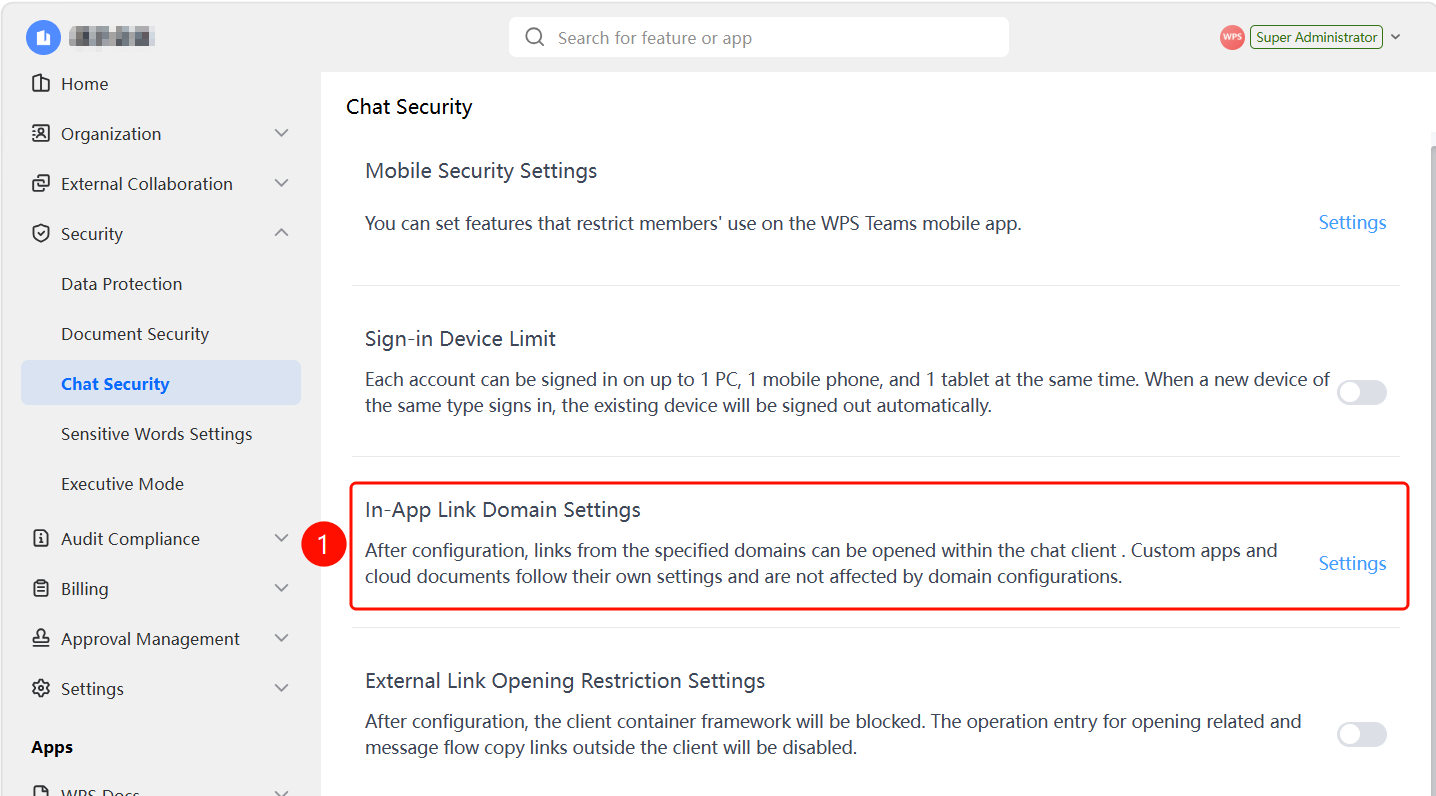
Configuring In-App Link Domain Settings
Feature Entry
「Chat Security」page → 「In-App Link Domain Settings」area → 「Settings」button → 「Domain Whitelist」dialog box
- Enter the 「Chat Security」 page
- In the 「In-App Link Domain Settings」 area, click the 「Settings」 button to open the Domain Whitelist dialog box
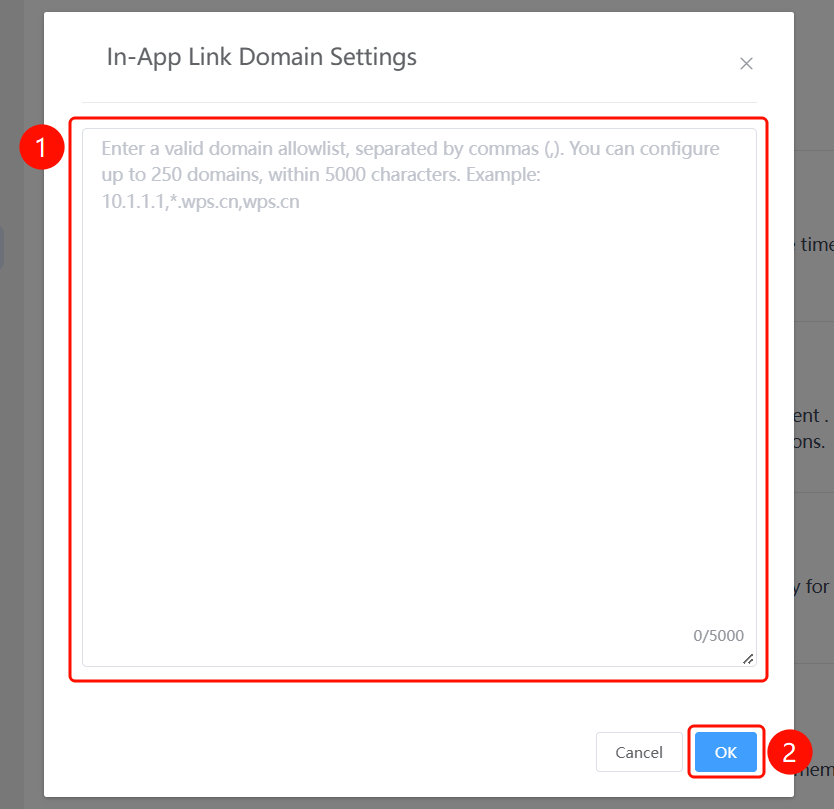
- Enter valid domain whitelist entries in the input box, separated by half-width commas (,)
- A maximum of 250 domains and 5000 characters can be configured
- Example entry:
10.1.1.1, *wps.cn, wps.cn
- After configuration, links corresponding to the specified domains can be opened within the chat client
- Self-built apps and cloud documents follow their own configurations and are not affected by the domain settings
- Click the 「OK」 button to save the configuration
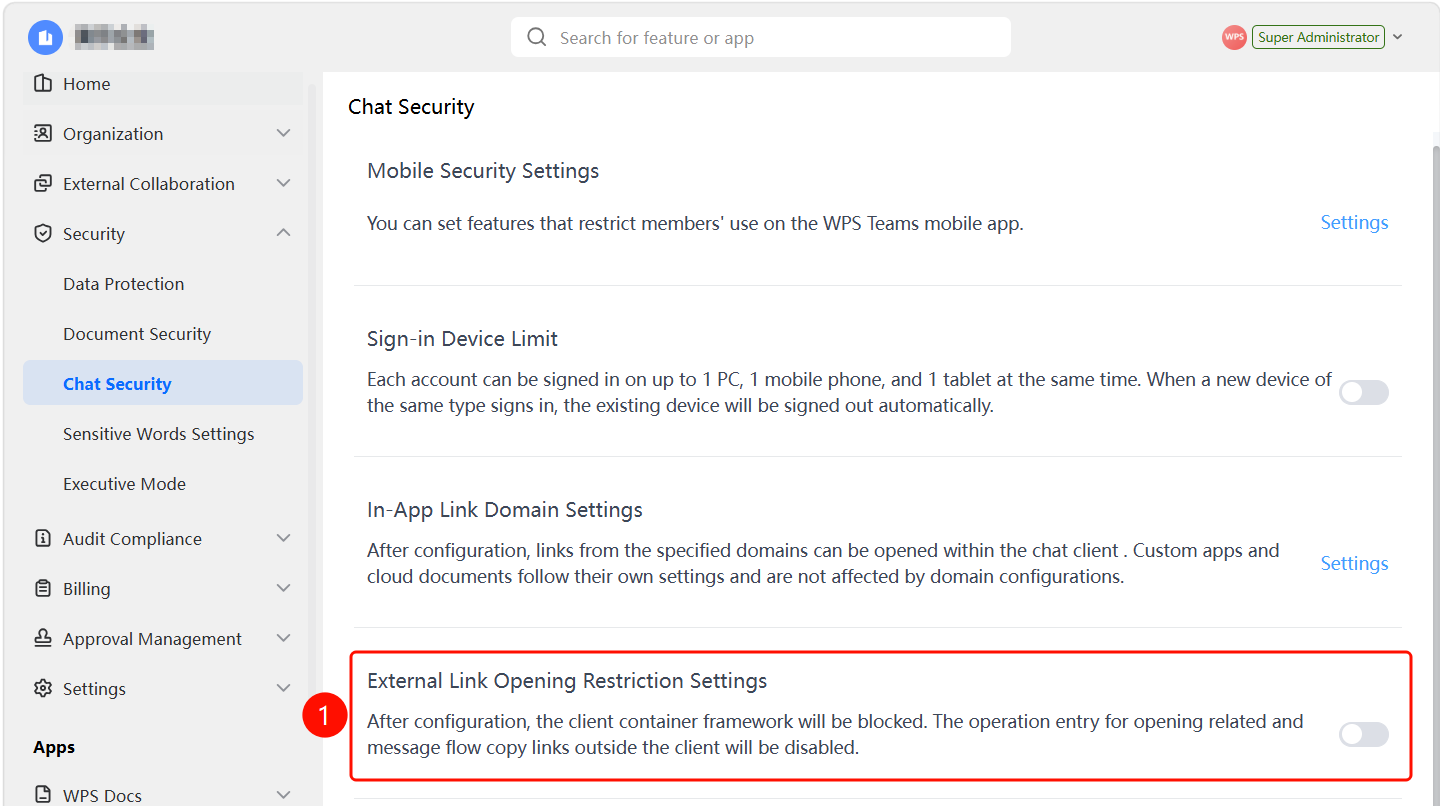
Configuring External Link Opening Restriction Settings
Feature Entry
「Chat Security」page → 「External Link Opening Restriction Settings」toggle
- Enter the 「Chat Security」 page
- In the 「External Link Opening Restriction Settings」 area, turn on the blocking toggle
- After enabling, the following operation entries within the client container framework will be blocked:
- Out-of-app related operation entries
- Operation entries related to copying links from the message stream
Configuring Mobile Settings
Feature Entry
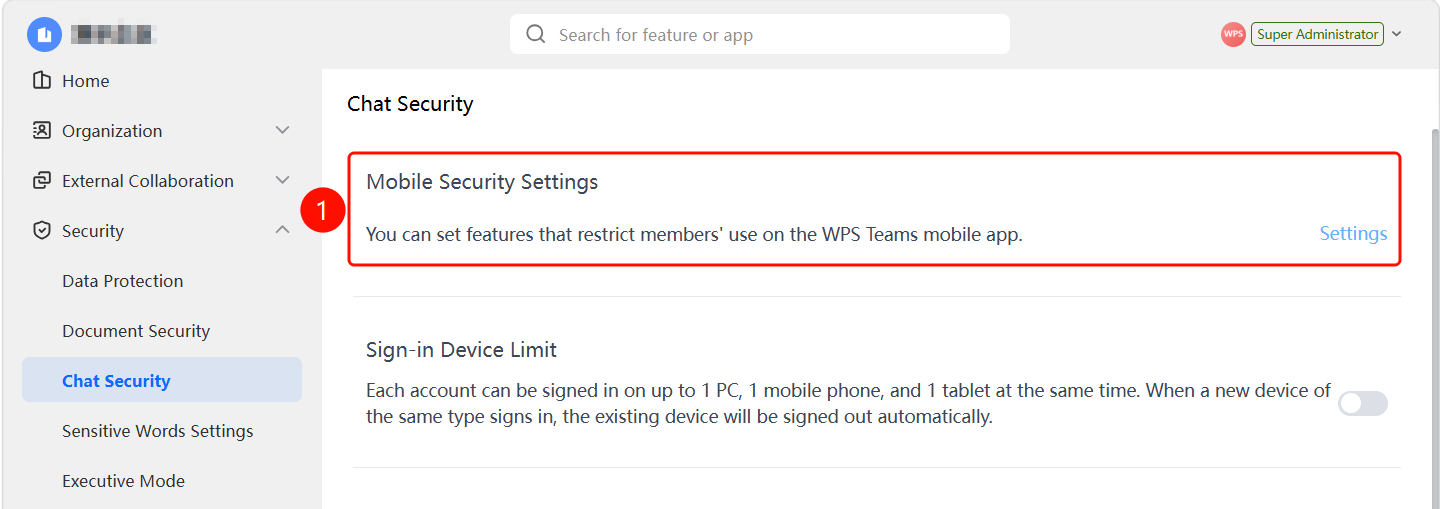
「Chat Security」page → 「Mobile Security Settings」area → 「Settings」button → 「Mobile Security Settings」configuration page
- Enter the 「Mobile Security Settings」 page
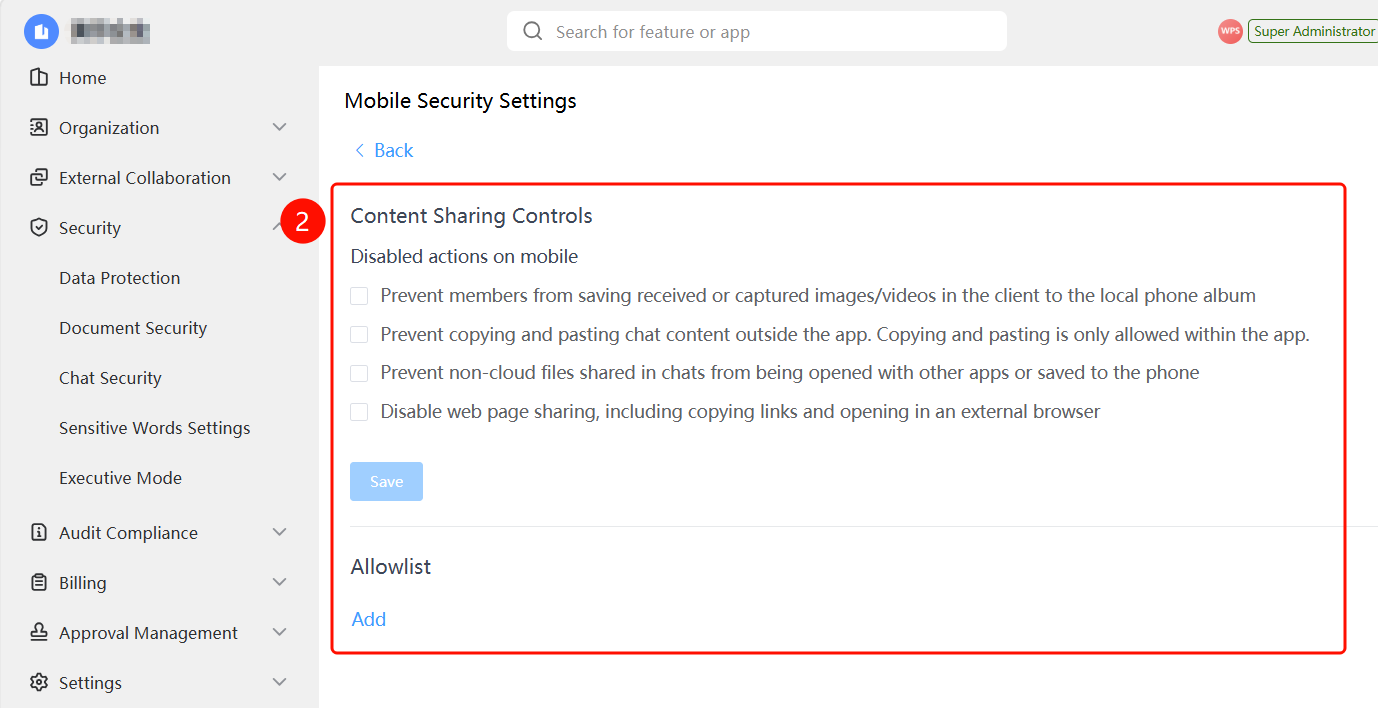
- In the 「Disabled Operations on Mobile」 area, check the following items to disable as needed (multiple selections allowed):
- Prohibit members from saving images and videos "received" and "captured" in the client to the local phone album
- Prohibit copying and pasting chat content outside the APP; copying and pasting is only allowed within the current APP
- Prohibit non-cloud document chat files from being opened via other apps or saved to the local phone storage
- Prohibit web page sharing (including copying links and opening in external browser entries)
- In the 「Whitelist」 area, if you need to exempt specific members from restrictions, click the 「Add」 button to select whitelist members
- Click the 「Save」 button to save the content sharing control settings
Frequently Asked Questions
Question 1: How does the device sign-in limit work?
- Solution: A member account can be signed in to a maximum of 1 computer, 1 phone, and 1 tablet simultaneously. When a new device of the same type signs in, the system will automatically sign out the old device to ensure account security.
Question 2: What are the requirements for the domain whitelist entry format?
- Solution: Use half-width commas (,) to separate multiple domains. A maximum of 250 domains / 5000 characters can be configured. Wildcards (e.g.,
*wps.cn) and IP addresses (e.g.,10.1.1.1) are supported. Self-built apps and cloud documents are not affected by the domain configuration.
Question 3: What is the purpose of the whitelist in content sharing control?
- Solution: After adding a member to the whitelist, that member will be exempt from the disabled mobile operations and can normally perform image saving, copy-paste, file sharing, and web page sharing operations.
Notes
- This feature is only available to organization Admins; regular members cannot view the Office Document
- Chat Security only affects the WPS Teams mobile client (phone/tablet) and does not affect the PC client
- After configuring the domain whitelist, only links from whitelisted domains can be opened directly within the chat client; other domains must be opened in an external browser