Feature Summary
The Sensitive Word Setting is a feature within the security management of the organization's Office Document. It allows Admins to add sensitive keywords. Once added, organization members will be unable to send text messages containing that content, and it provides hit Record query and export features.
Feature Description
| Feature Dimension | Description |
|---|---|
| Membership Restriction | No membership restriction |
| Version Restriction | No version restriction |
Operation Steps
Accessing the Sensitive Word Setting Page
Feature Entry
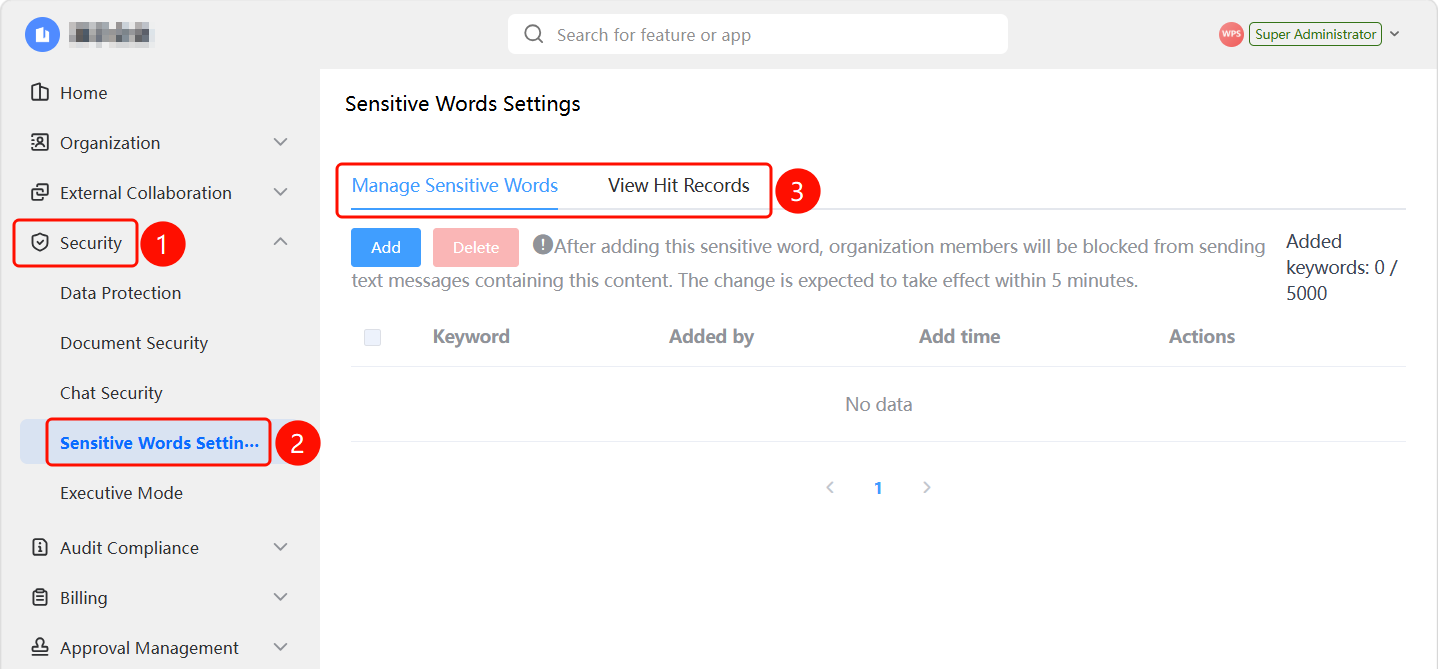
「Organization Office Document」page → 「Security Management」option → 「Sensitive Word Setting」option
- Sign in to the 「Organization Office Document」
- In the left navigation bar, click the 「Security Management」 option to expand the security management menu
- Click the 「Sensitive Word Setting」 option to enter the sensitive word setting page
- Two tabs are displayed at the top of the page: the 「Manage Sensitive Words」 tab and the 「View Hit Records」 tab
Adding Sensitive Keywords
Feature Entry
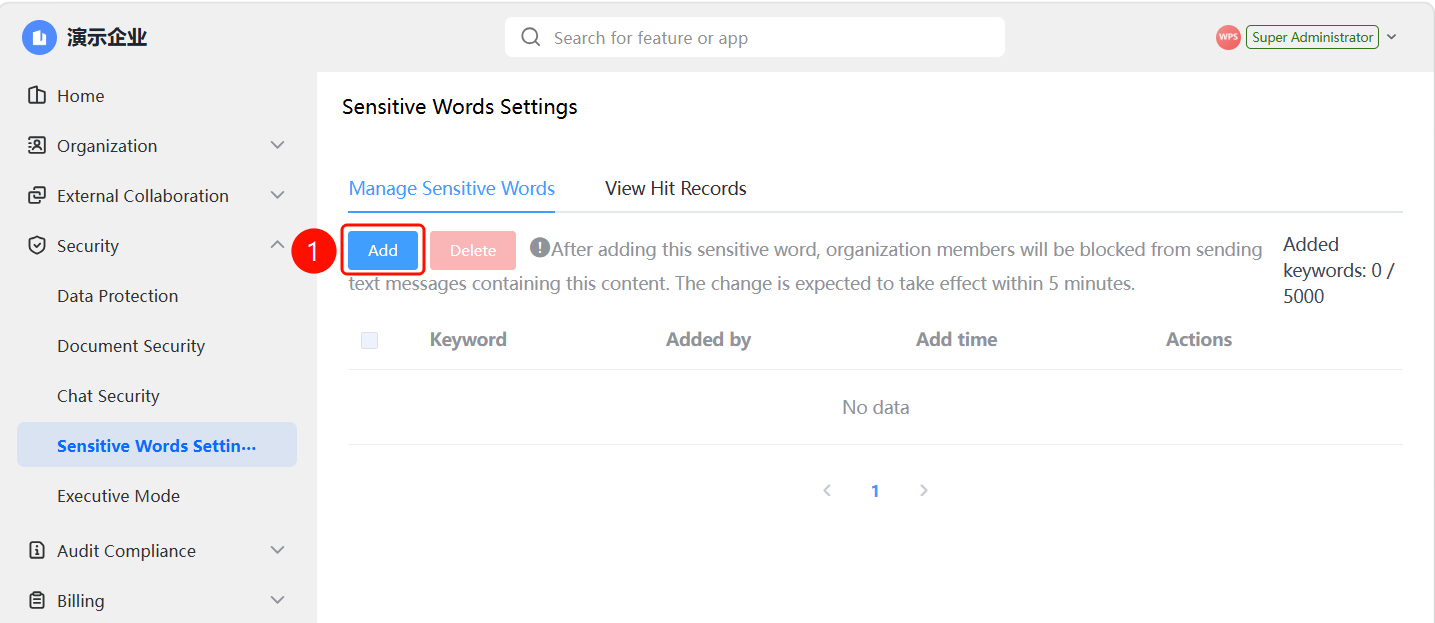
「Sensitive Word Setting」page → 「Manage Sensitive Words」tab → 「Add」button → 「Add Sensitive Word」dialog box
- Enter the 「Sensitive Word Setting」 page, the 「Manage Sensitive Words」 tab is displayed by default
- Click the 「Add」 button to pop up the Add Sensitive Word dialog box
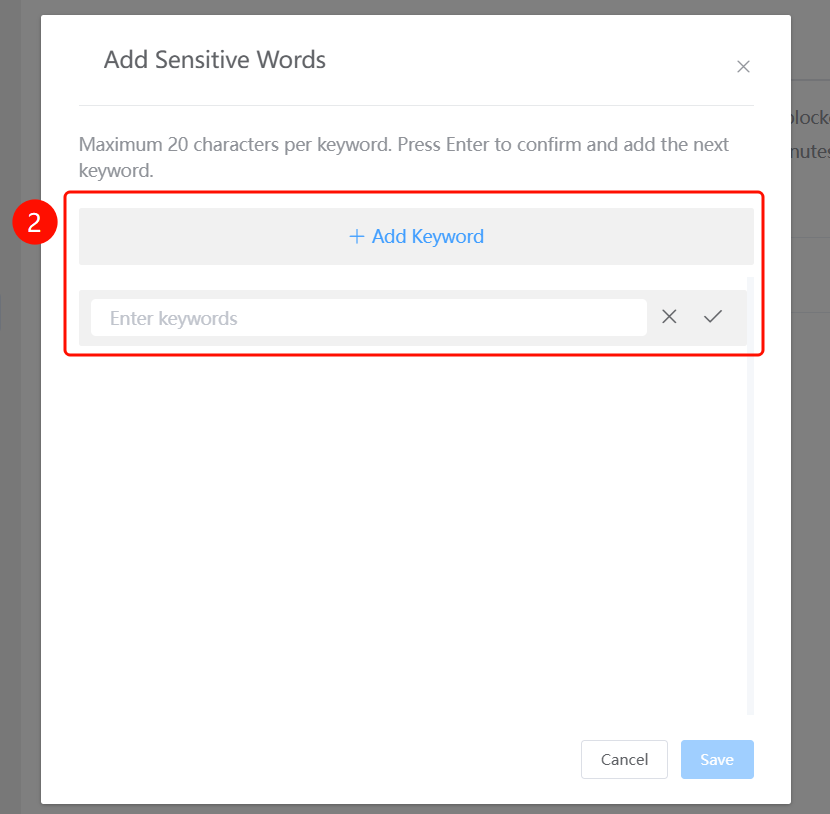
- Enter the sensitive keyword in the input box. Please note:
- A single sensitive keyword must not exceed 20 characters
- After entering, press the Enter key to add the next keyword
- To continue adding, click the 「+ Add Keyword」 button
- After adding, click the 「Save」 button to save all added keywords
Viewing and Deleting Sensitive Words
Feature Entry
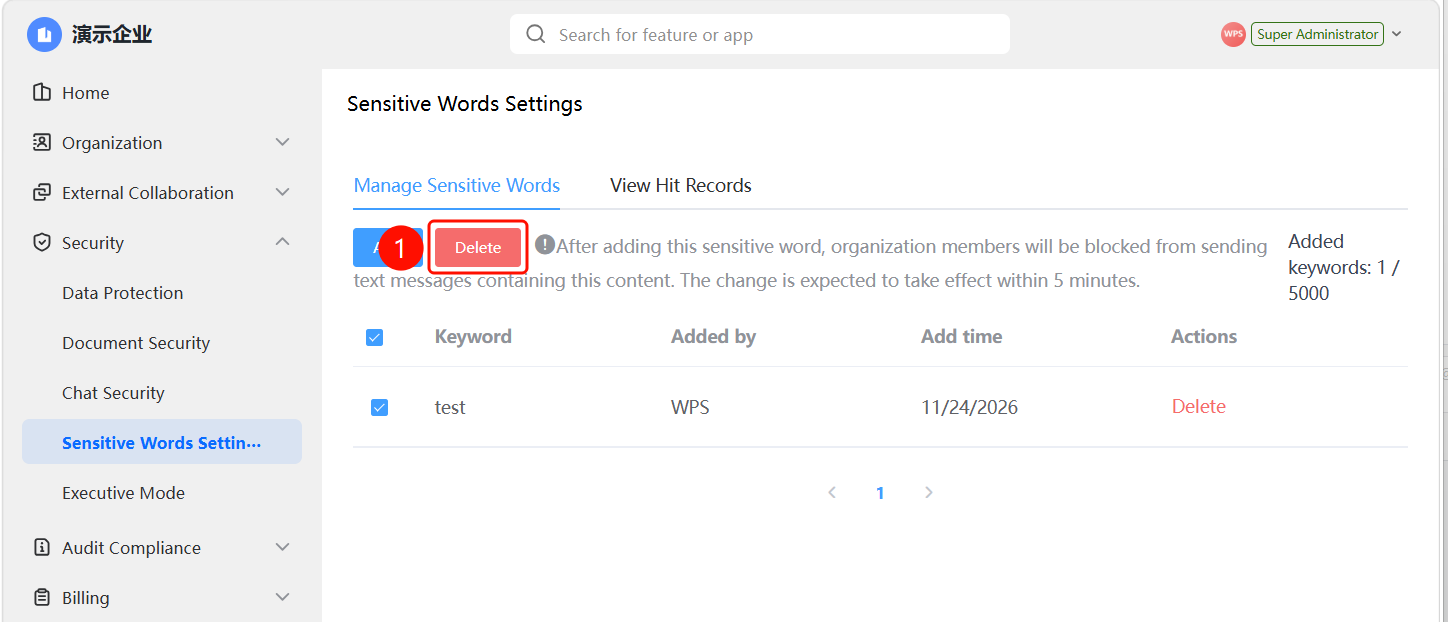
「Sensitive Word Setting」page → 「Manage Sensitive Words」tab → Keyword list
- Enter the 「Manage Sensitive Words」 tab
- The top of the page displays the number of added keywords, with a maximum limit of 5000
- The keyword list displays the following information:
- Keyword: The content of the added sensitive word
- Added By: The Admin who added the sensitive word
- Added Time: The time when the sensitive word was added
- Actions: Supports delete operation
- To delete a sensitive word, check the checkbox in front of the target keyword and click the 「Delete」 button
- After adding a sensitive word, it is expected to take effect within 5 minutes. Organization members will be unable to send text messages containing that content
Viewing Sensitive Word Hit Records
Feature Entry
「Sensitive Word Setting」page → 「View Hit Records」tab → Filter area
- Enter the 「Sensitive Word Setting」 page
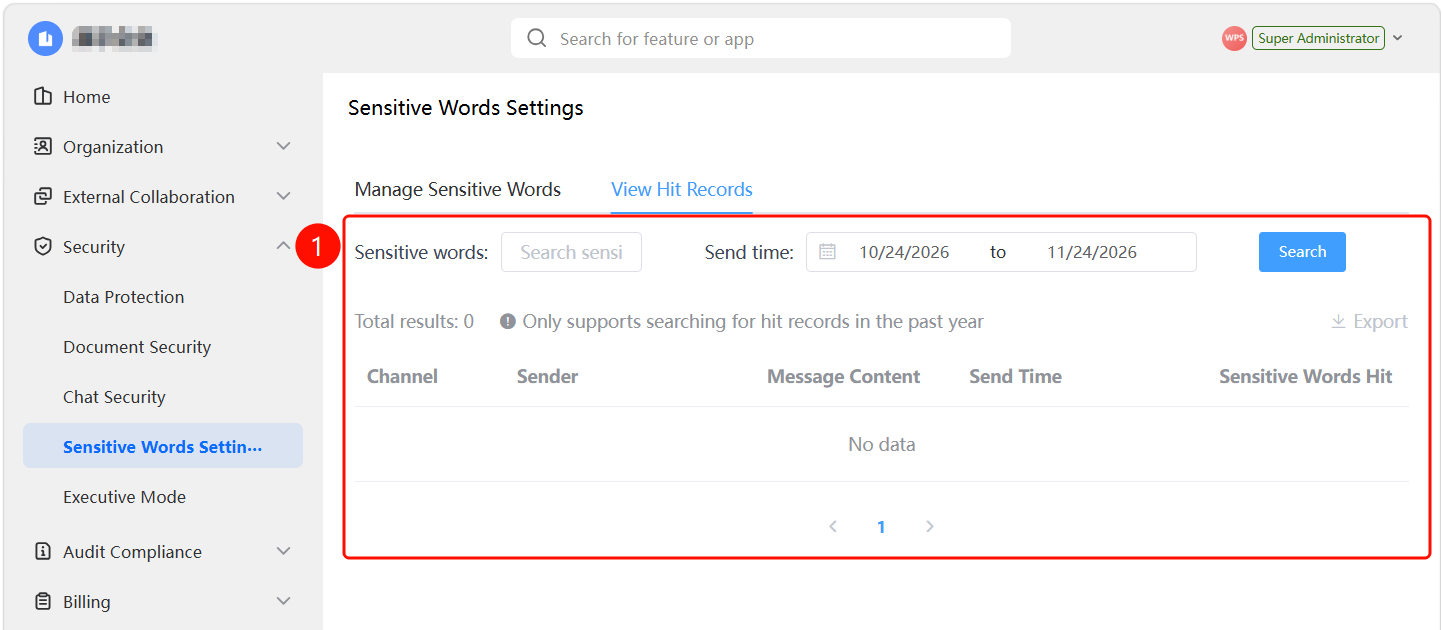
- Click the 「View Hit Records」 tab to switch to the hit record query page
- In the filter area, set the following filter criteria:
- 「Sensitive Word」 input box: Enter the sensitive keyword to search
- 「Send Time」 date range picker: Select the time range to query (only supports searching hit records from the past year)
- Click the 「Search」 button to query hit records that meet the criteria
- The hit record list displays the following information:
- Channel: The channel through which the message was sent
- Sender: The member who sent the message containing the sensitive word
- Sent Content: The content of the message
- Send Time: The time when the message was sent
- Hit Sensitive Word: The content of the sensitive word that was hit
Exporting Hit Records
Feature Entry
「View Hit Records」tab → 「Export」button
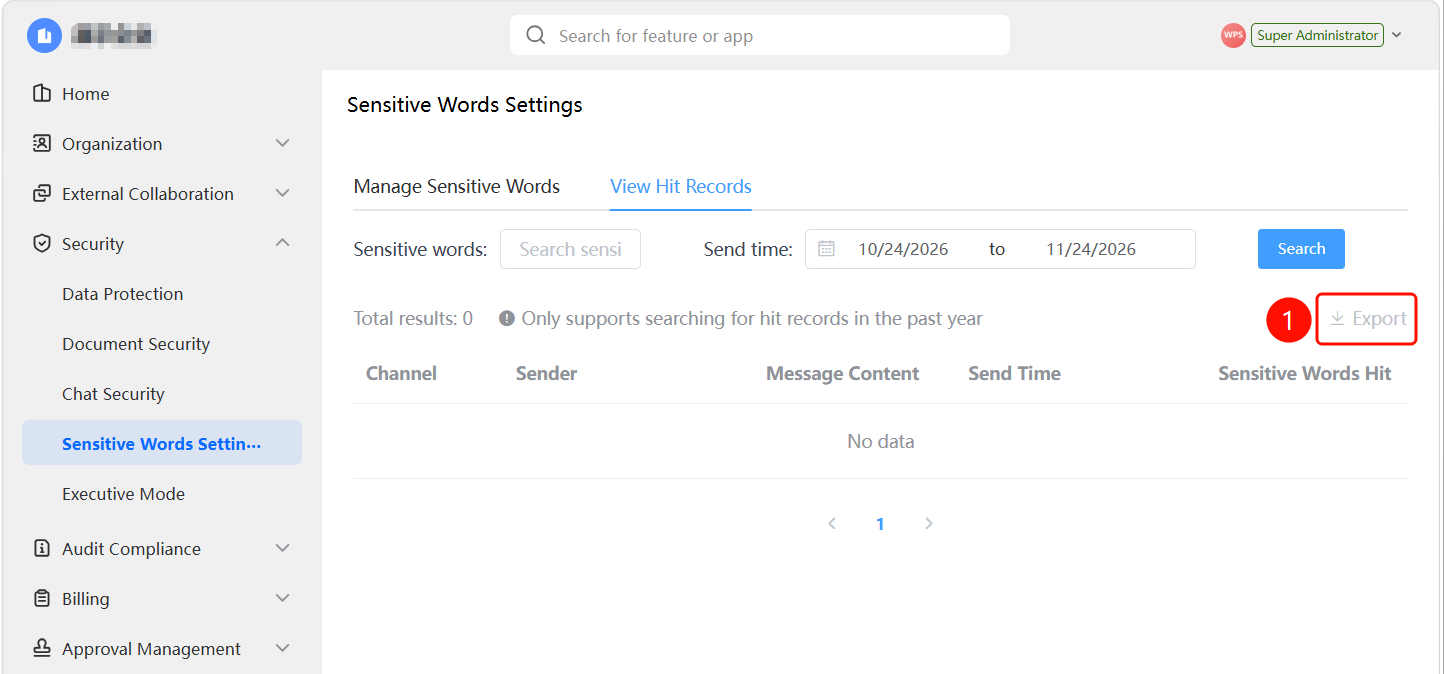
- At the top of the 「View Hit Records」 page, click the 「Export」 button
- The system exports the hit records within the current query scope to a file
- The exported records include information such as Channel, Sender, Sent Content, Send Time, and Hit Sensitive Word
FAQ
Q1: How long does it take for a sensitive word to take effect after being added?
- Solution: After adding a sensitive word, it is expected to take effect within 5 minutes. Once effective, organization members will be unable to send text messages containing that content and will receive a prompt when attempting to send the message.
Q2: What are the limits on the number and characters of sensitive keywords?
- Solution: A maximum of 5000 sensitive keywords can be added, and a single sensitive keyword must not exceed 20 characters. Multiple keywords can be entered at once when adding, separated by the Enter key.
Q3: How far back can hit records be queried?
- Solution: Only hit records from the past year can be searched; earlier records cannot be queried. To preserve historical data, it is recommended to export hit records regularly.
Q4: How to export sensitive word hit records?
- Solution: In the 「View Hit Records」 tab, set the filter criteria and click the 「Search」 button to view the results, then click the 「Export」 button to export the records within the current query scope to a file.
Q5: Will blocked messages be restored after deleting a sensitive word?
- Solution: After deleting the sensitive word, subsequent messages will no longer be restricted by it, but historical messages that have already been blocked will not be restored.
Notes
- This feature is only available to organization admins; regular members cannot access the Office Document.
- After adding a sensitive word, text messages containing that sensitive word sent by organization members in chats will be blocked.
- Sensitive word control only affects text messages and does not affect non-text content such as images and files.
- Hit Records only support searching data from the past year. It is recommended to export backups regularly.
- The scope of sensitive word enforcement covers all members of the organization and cannot be set separately by department or member.