Feature Summary
Chat file cleanup is a feature in the organization's Office Document chat file management, allowing Admins to search, delete, and restore chat files. Deleted data can be restored within 60 days, after which it will be automatically and permanently destroyed.
Feature Description
| Feature Dimension | Description |
|---|---|
| Membership Restriction | No membership restriction |
| Version Restriction | No version restriction |
Operation Steps
Accessing the Chat File Management Page
Feature Entry
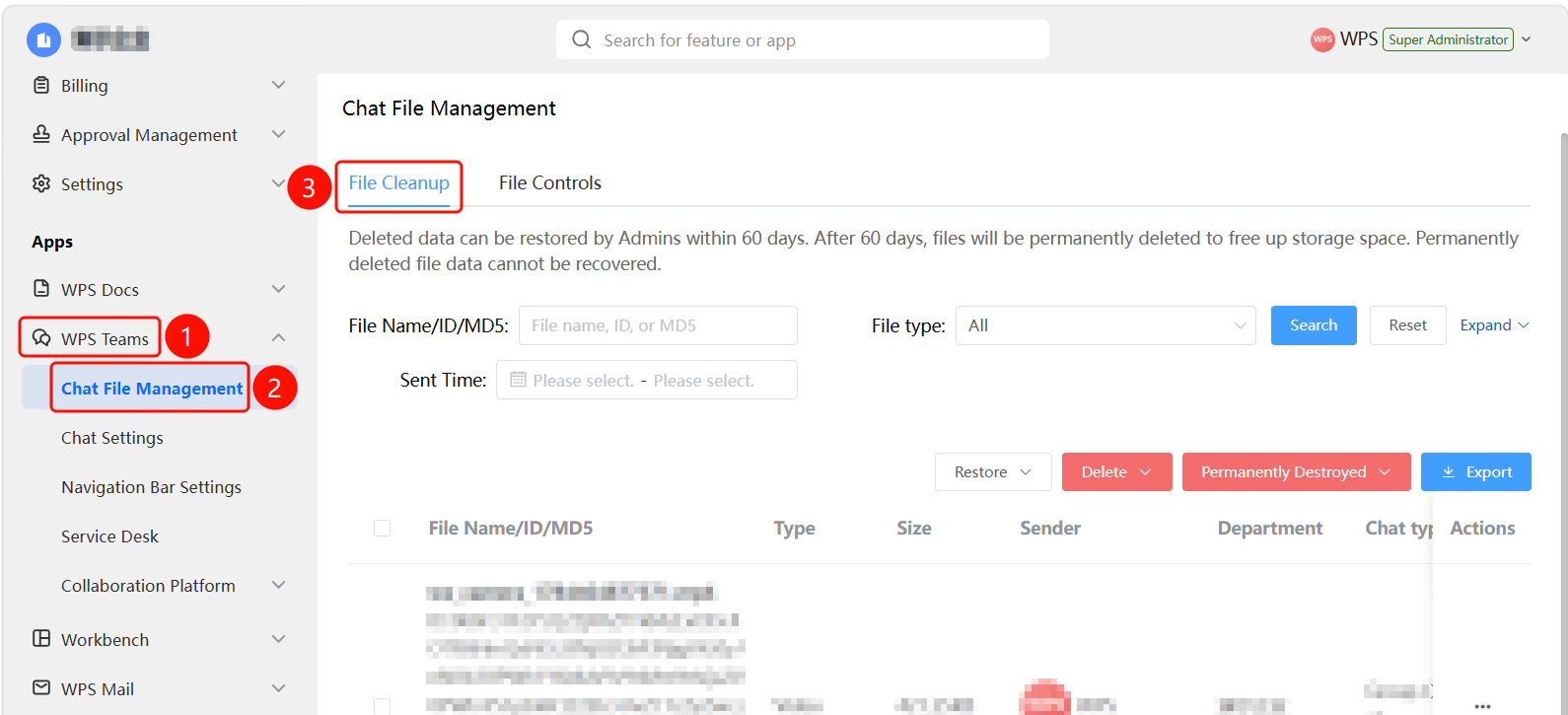
「Office Document」page → 「WPS Collaboration」option → 「Chat File Management」option
- Sign in to 「Office Document」
- In the left navigation bar, click the 「WPS Collaboration」 option to expand the collaboration management menu
- Click the 「Chat File Management」 option to enter the chat file management page
- Click the 「File Cleanup」 tab to enter the file cleanup page
Searching for Files
Feature Entry
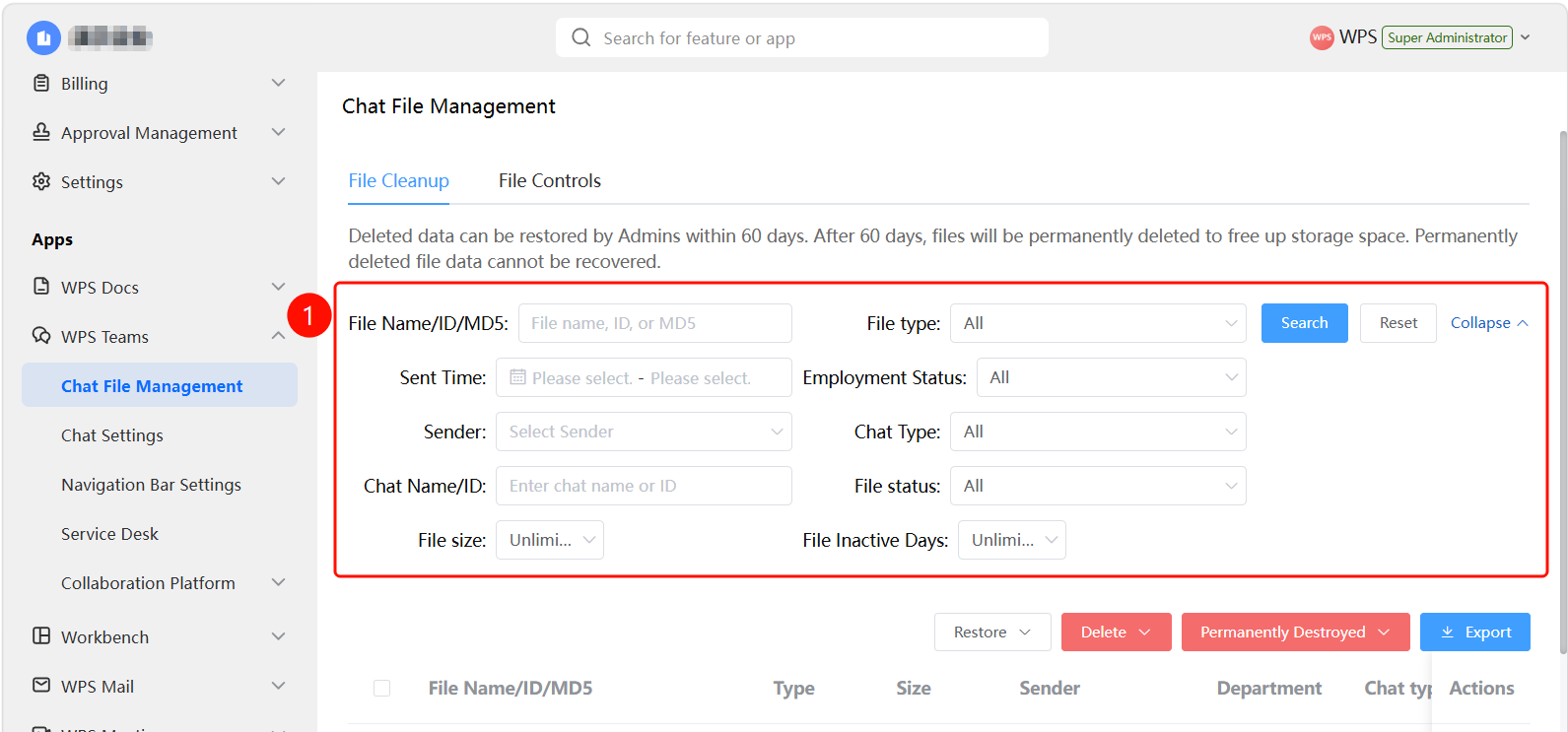
「File Cleanup」tab → Filter criteria area
- In the filter area, set the following search criteria:
- File Type: Filter by file type
- File Status: Filter by current file status
- Owner Status: Filter by the status of the file owner
- File Size: Filter by file size (≥ MB)
- Inactive Days: Filter by inactive days (> days)
- Name or UID: Enter the name or UID of the file owner
- File Name or File ID: Enter the file name or file ID
- Click the 「Clear All Criteria」 button to Reset the filter criteria
- Click the 「Search」 button to query files that meet the criteria
Deleting, Restoring, and Permanently Destroying Files
Feature Entry
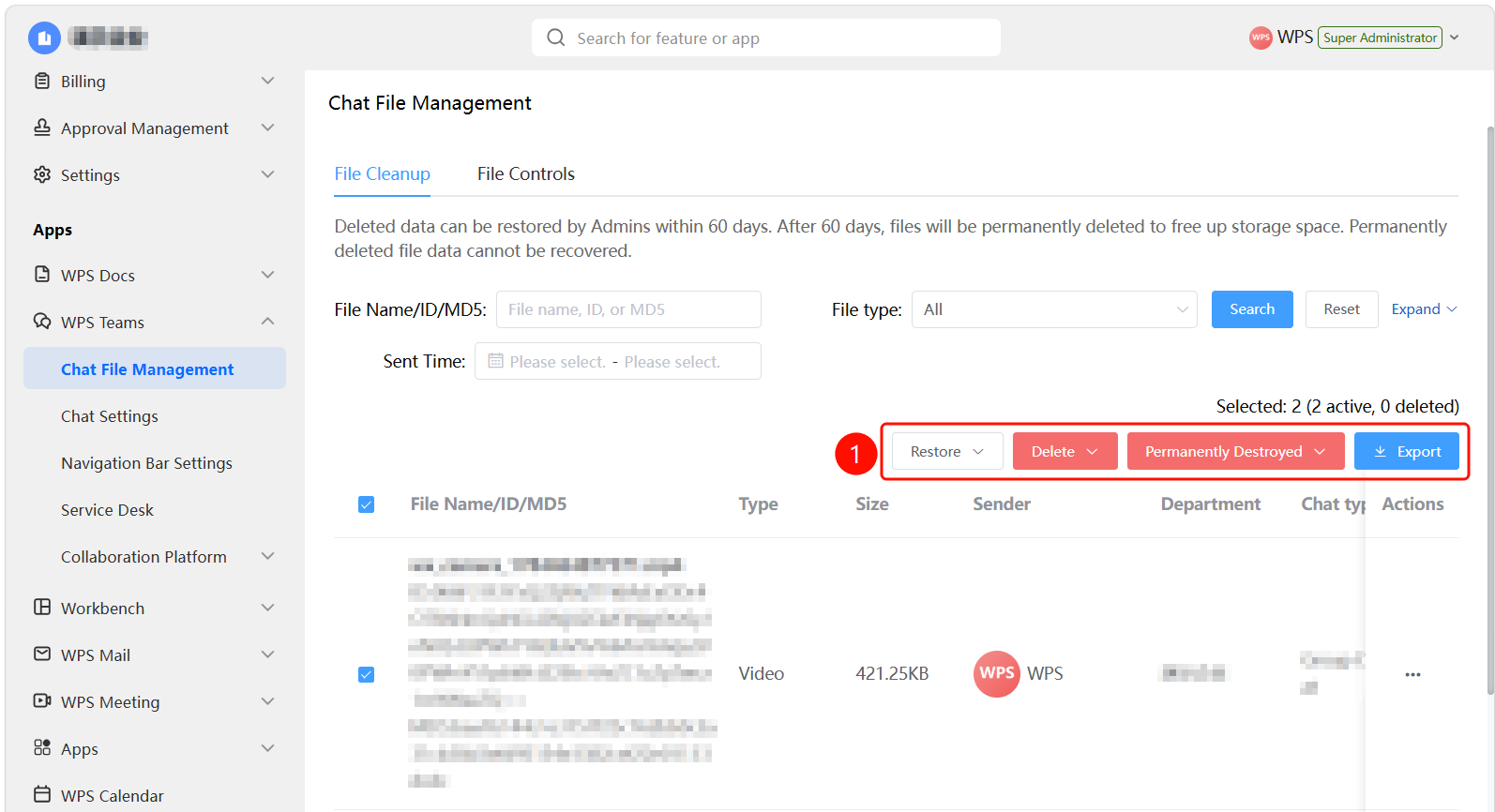
「File Cleanup」tab → File list → 「Actions」button
- After retrieving the target files, check the files to be processed in the file list
- Perform the following operations:
- 「Delete」: Move the file to Trash, restorable within 60 days
- 「Restore」: Restore the deleted file to its original location
- 「Permanently Destroy」: Permanently delete the file, cannot be restored
- The file list displays the following information: File Name/ID, Type, Owner, Size, Last Active Time, Status, Actions
- Data of permanently destroyed files cannot be recovered
FAQ
Q1: Where is the entry for chat file cleanup?
- Solution: Office Document → WPS Collaboration → Chat File Management → File Cleanup tab.
Q2: Can deleted files be restored?
- Solution: Yes. Deleted files can be restored by an Admin within 60 days. After 60 days, the files will be automatically and permanently destroyed and cannot be restored.
Q3: What is the difference between permanent destruction and deletion?
- Solution: Deletion moves the file to Trash, and it can be restored within 60 days; permanent destruction directly deletes it permanently, and the data cannot be restored.
Q4: What filter criteria are supported for file search?
- Solution: Combined filtering by criteria such as file type, file status, owner status, file size, inactive days, name or UID, and file name or file ID is supported.
Notes
- This feature is only available to organization Admins; regular members cannot view the Office Document
- Deleted data can be restored by an Admin within 60 days, and will be automatically and permanently destroyed after 60 days
- Data of permanently destroyed files cannot be recovered. Please confirm before proceeding.