Feature Summary
Chat file upload control is a feature within the organization admin Office Document chat file management. It allows Admins to create file upload control rules, restrict file upload behavior in chats based on conditions such as file format and file size, and configure a hit notification message for when uploads are blocked.
Feature Description
| Feature Dimension | Description |
|---|---|
| Membership Restriction | No membership restriction |
| Version Restriction | No version restriction |
Operation Steps
Access the Chat File Management Page
Feature Entry
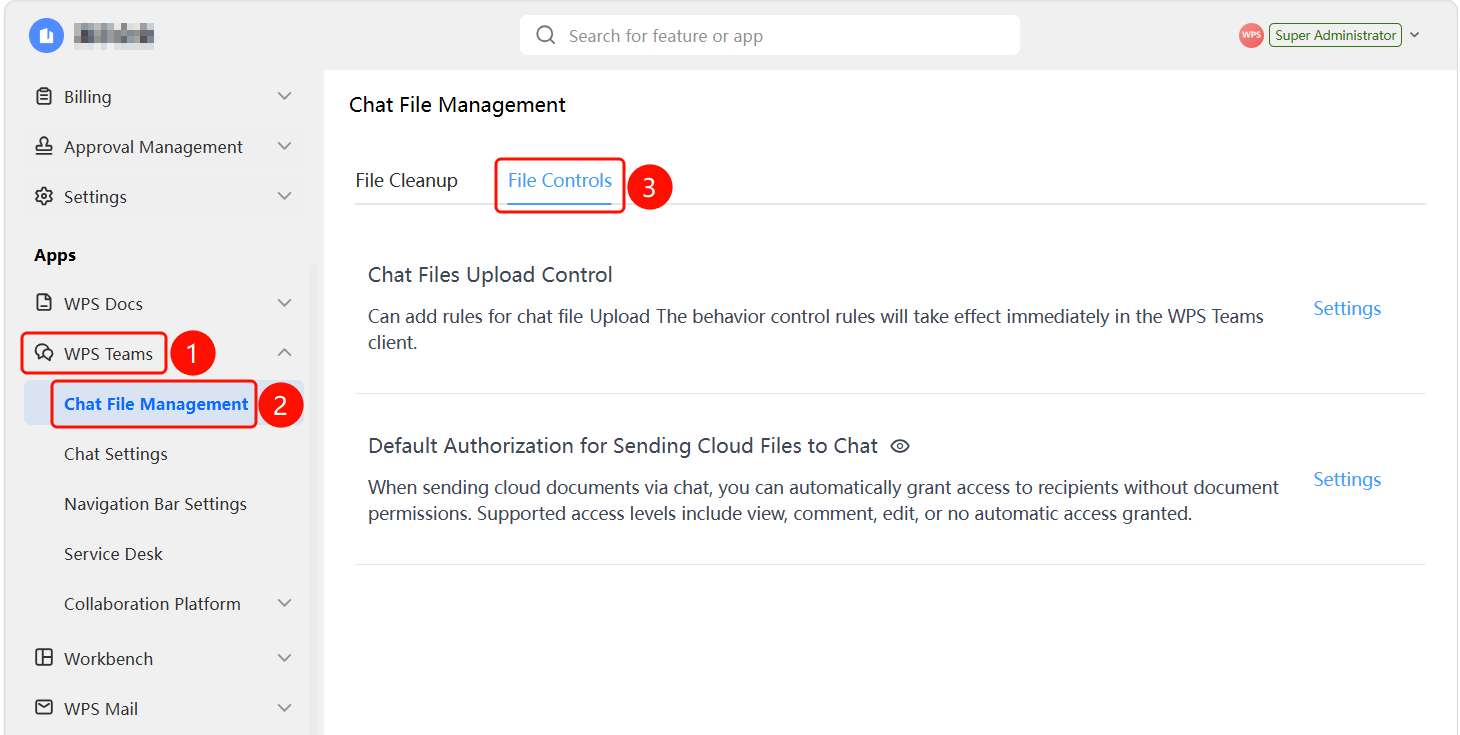
「Organization Admin Office Document」page → 「WPS Collaboration」option → 「Chat File Management」option → 「File Control」tab
- Sign in to 「Organization Admin Office Document」
- In the left navigation bar, click the 「WPS Collaboration」 option to expand the collaboration management menu
- Click the 「Chat File Management」 option to enter the chat file management page
- Click the 「File Control」 tab
Access Chat File Upload Control Configuration
Feature Entry
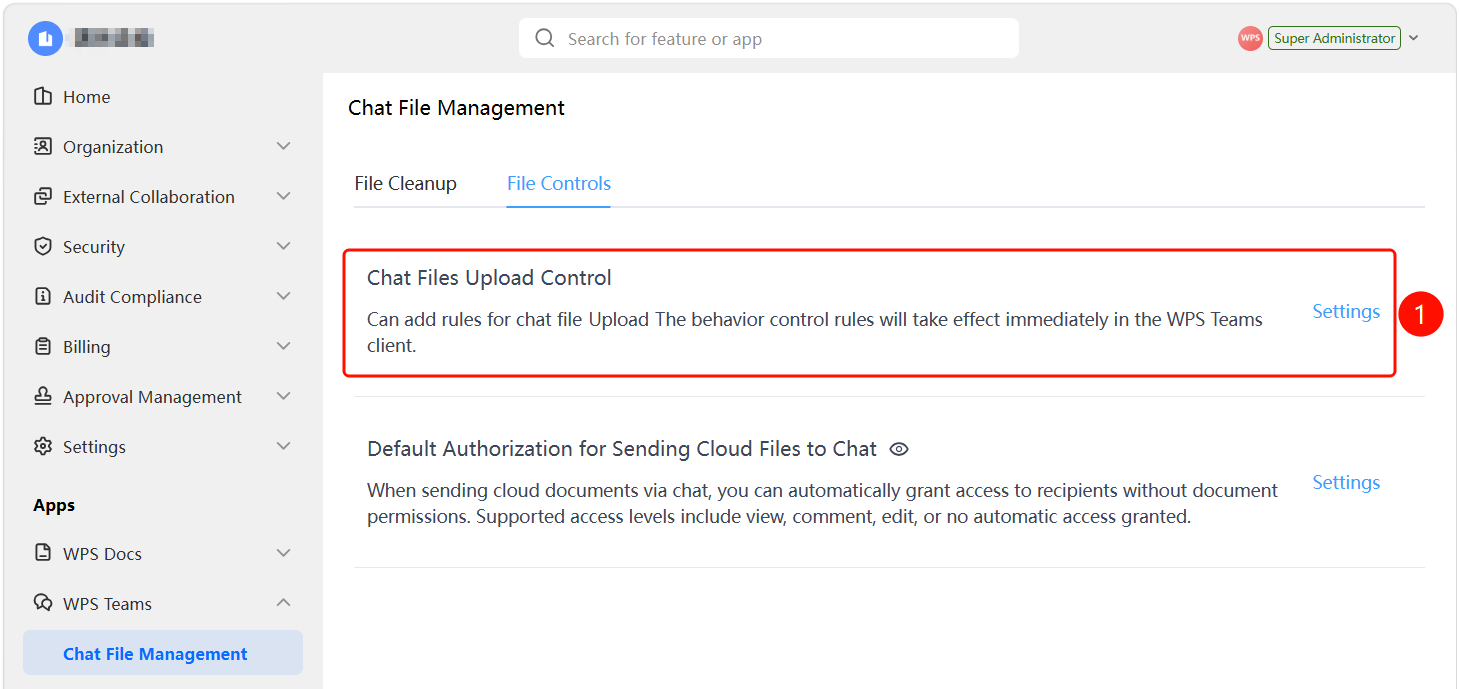
「Chat File Management」page → 「File Control」tab → 「Chat File Upload Control」section
- Enter the 「Chat File Management」 page
- Click the 「File Control」 tab to switch to the file control configuration page
- In the 「Chat File Upload Control」 section, click the 「Settings」 button to enter the upload control rule management page
View the List of Created Rules
Feature Entry
「Chat File Upload Control」page → Rule list
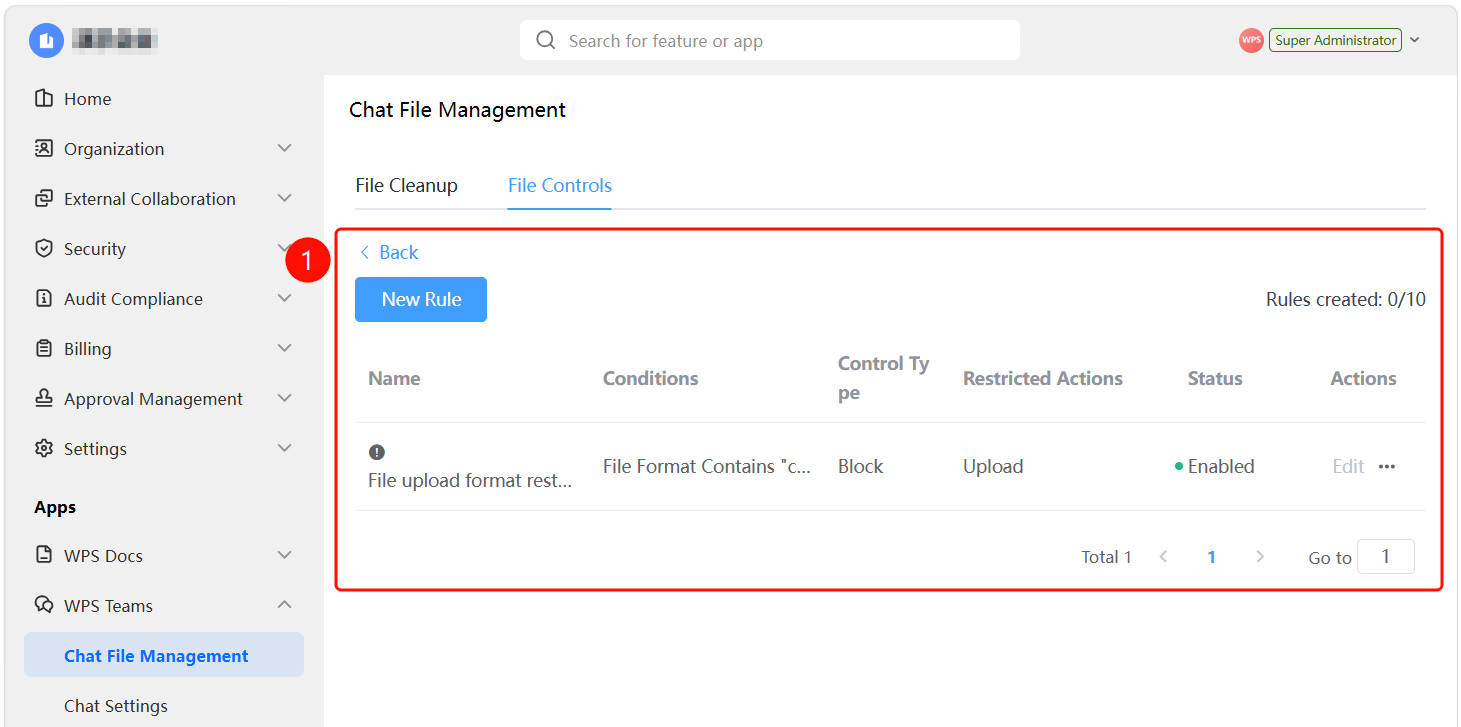
- Enter the upload control rule management page
- The top of the page displays the number of created rules (maximum 10 rules)
- The rule list displays the following information:
- Rule Name: The identifier name of the rule
- Condition: The type of control condition (e.g., file format includes specified suffixes)
- Control Category: The type of operation being controlled (e.g., Block, Allow)
- Control Action: The action executed by the control (e.g., Upload)
- Status: The current status of the rule (e.g., Enabled)
- Actions: Supports editing rules, enabling/disabling rules
Create a New Upload Control Rule
Feature Entry
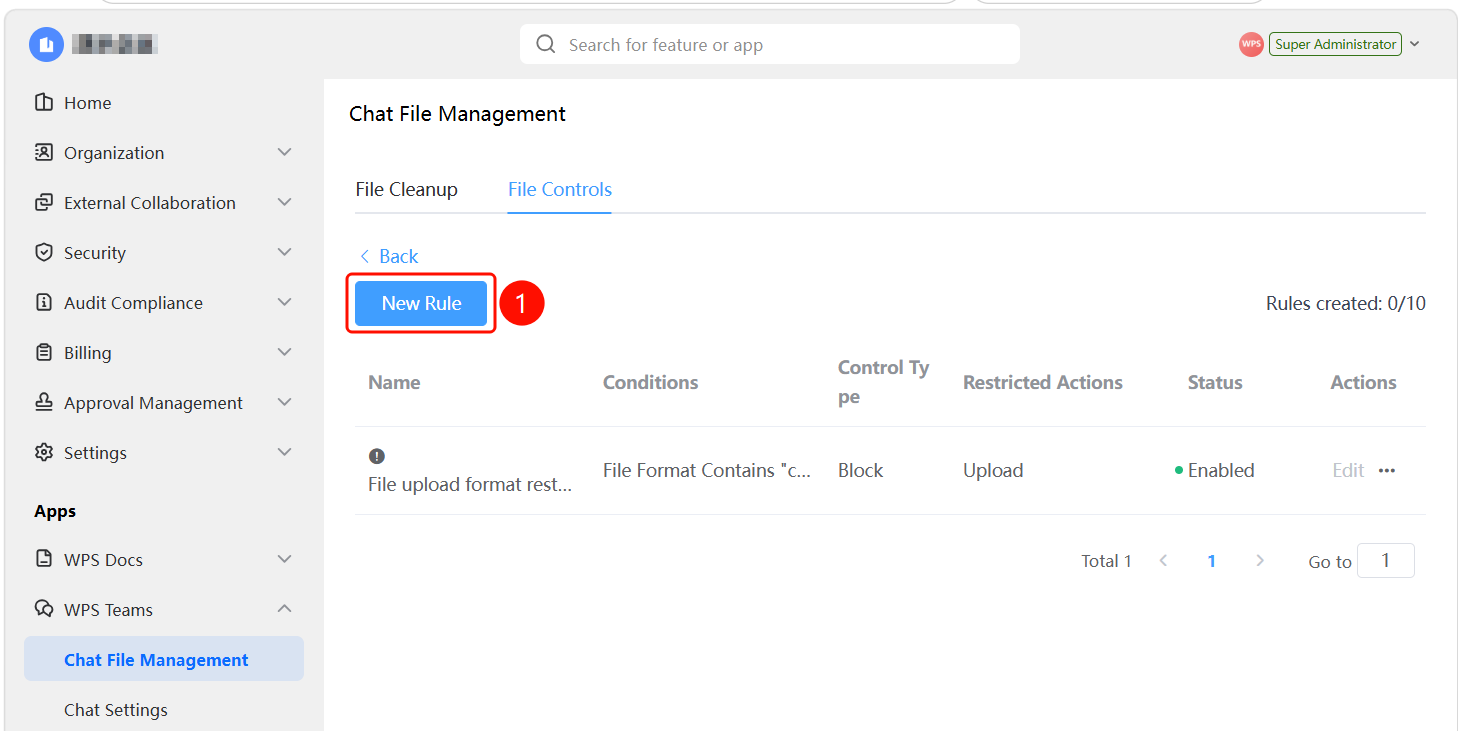
「Chat File Upload Control」rule list page → 「New Rule」button
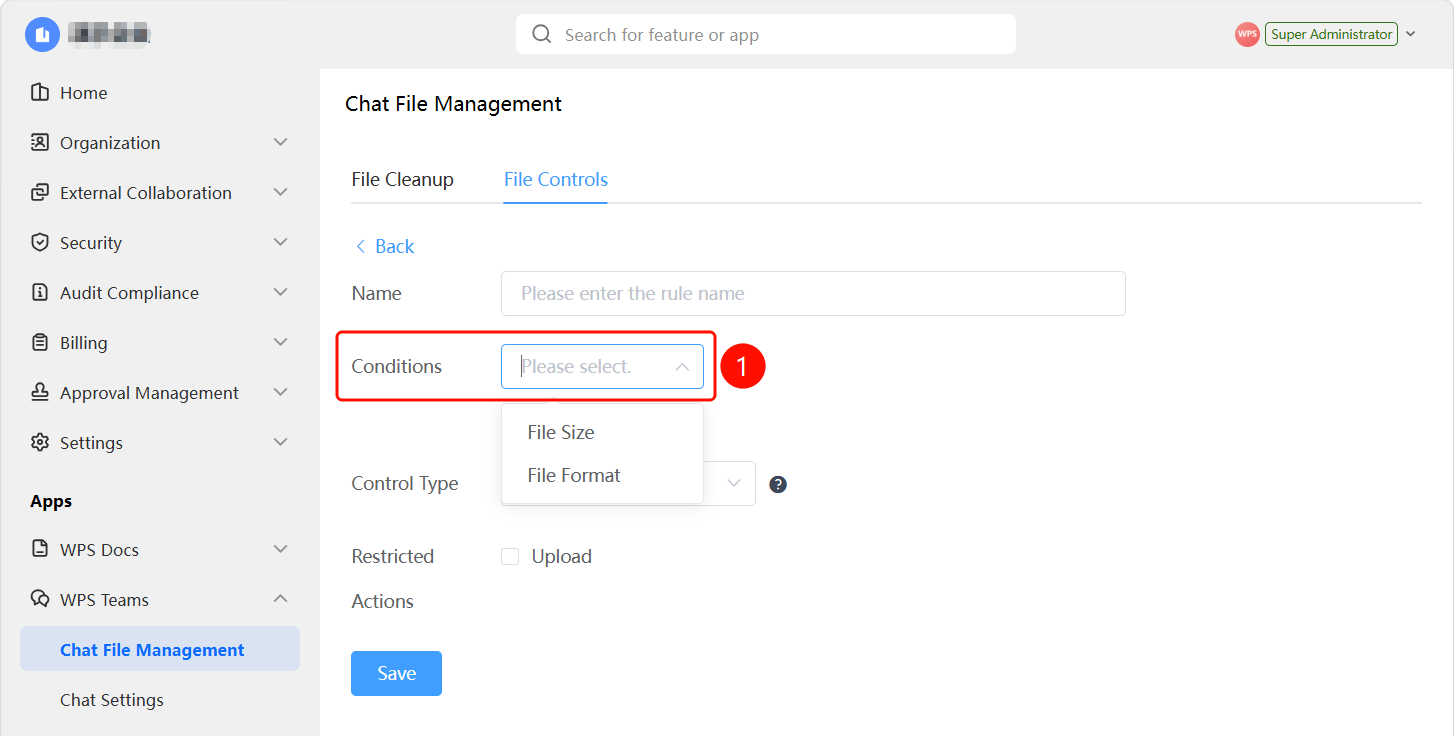
- On the upload control rule list page, click the 「New Rule」 button to enter the rule editing page
- In the 「Rule Name」 input box, enter the name of the rule
- In the 「Condition」 area, click the dropdown menu to select the condition type:
- File Size: Restrict uploads by file size
- File Format: Restrict uploads by file suffix format
- After selecting the condition type, enter the specific condition value (e.g., file format includes file suffixes such as
com, bin, air, dex, app, ...) - To add multiple conditions, click the 「Add Condition」 button to continue adding
- Files that do not meet the above conditions will not be allowed to execute the selected control action
Set Control Category and Control Action
Feature Entry
Rule editing page → 「Control Category」area → 「Control Action」area
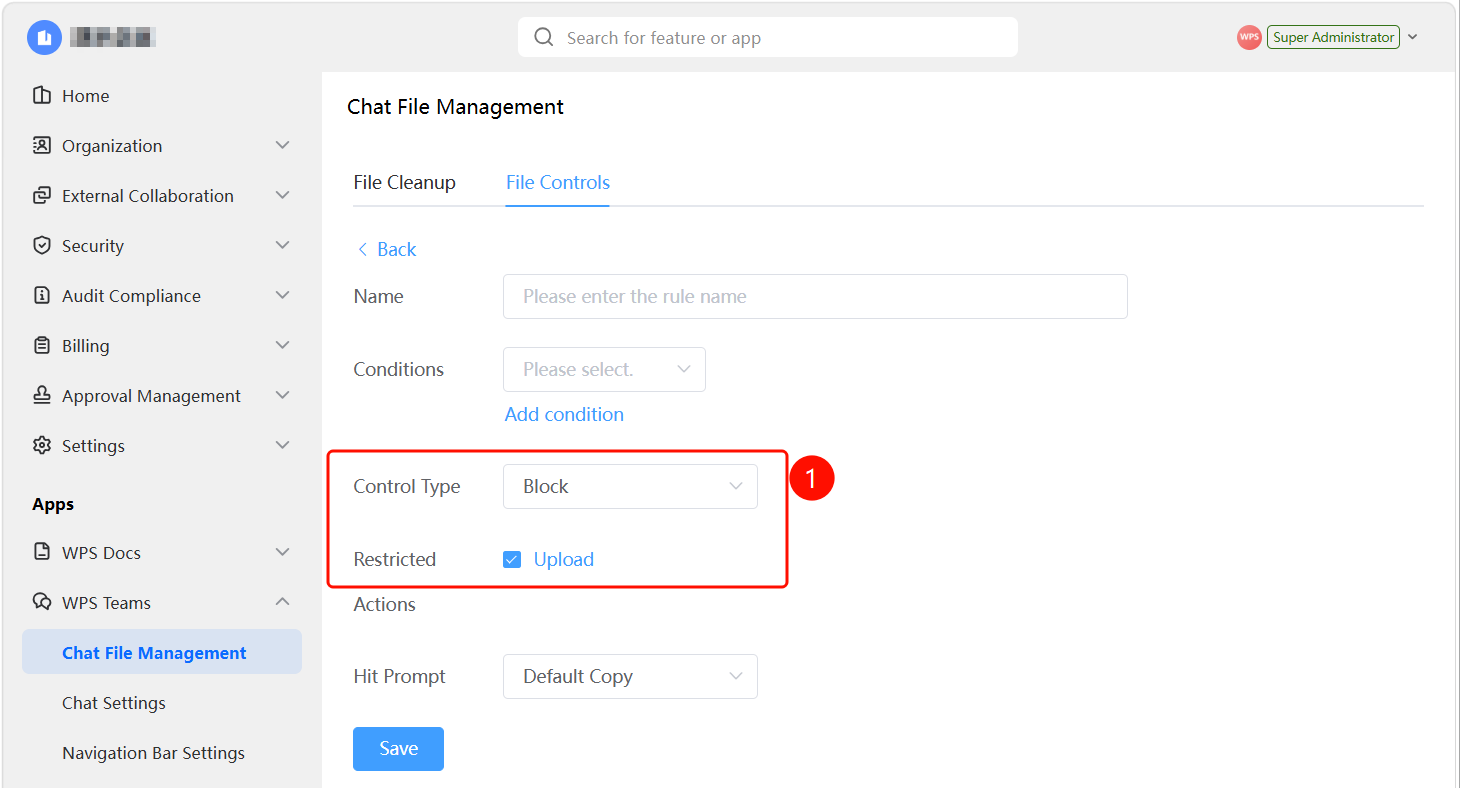
- In the 「Control Category」 area, select the operation category to be controlled:
- Allow: Files meeting the conditions can be uploaded
- Block: Files meeting the conditions are blocked from uploading
- In the 「Control Action」 area, check the action to be executed by the control:
- Upload: Control file upload behavior
Set Hit Prompt
Feature Entry
Rule editing page → 「Hit Prompt」area
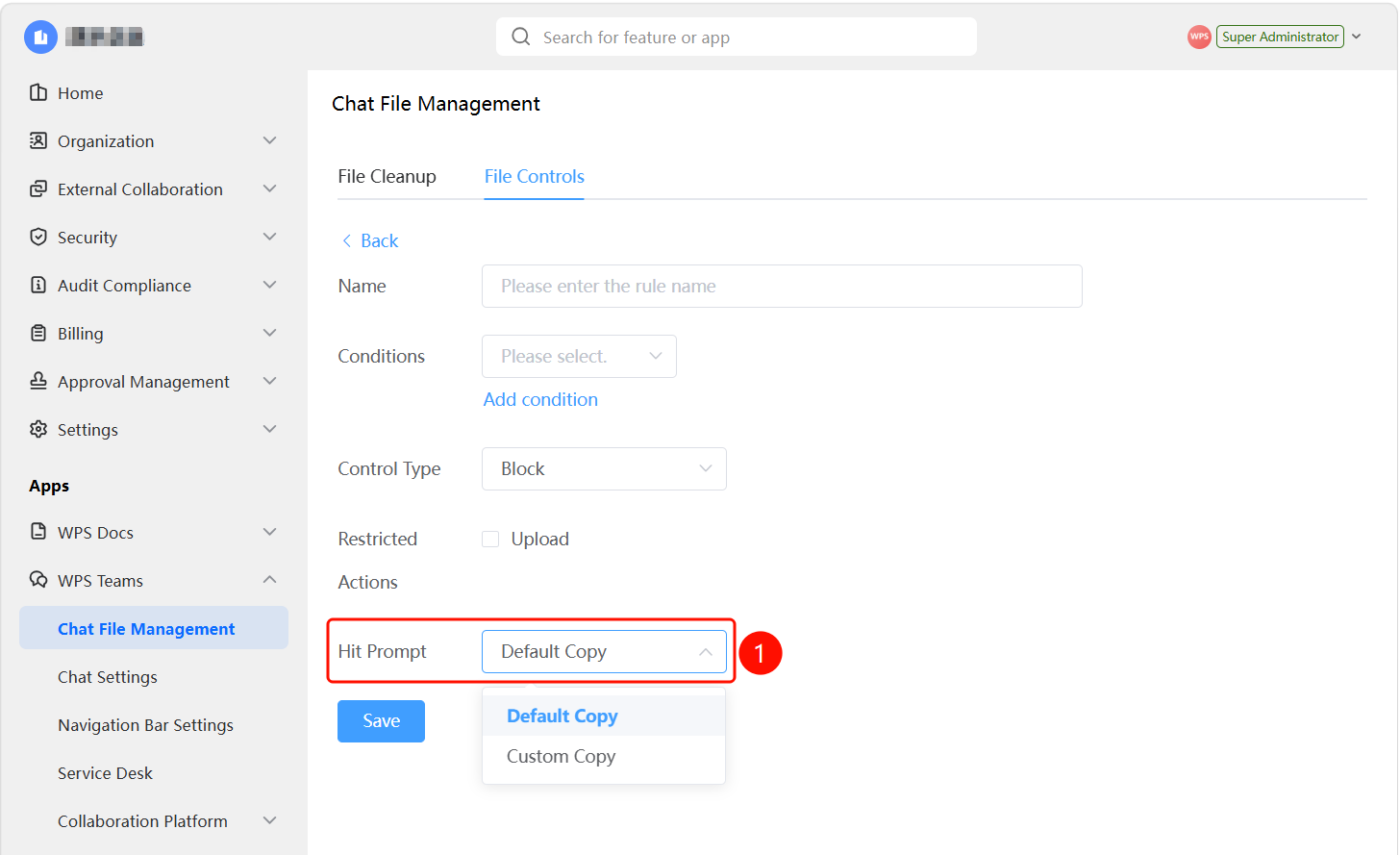
- In the 「Hit Prompt」 area, select the notification method:
- 「Default Copy」: Use the system default notification message
- 「Custom Copy」: Customize the notification message
- After selecting 「Custom Message」, enter the custom notification message in the input box
- When a member uploads a file that hits the rule, the system will display this notification message
FAQ
Q1: How many control rules can be created at most?
- Solution: A maximum of 10 control rules can be created. The top of the page displays the number of created rules. Once the limit is reached, old rules must be deleted or disabled before new ones can be created.
Q2: What is the difference between Block and Allow in control actions?
- Solution: Block means files meeting the conditions are not allowed to be uploaded; Allow means files meeting the conditions can be uploaded. When multiple conditions are set, files that do not meet all conditions will not be allowed to execute the selected control action.
Q3: What is the purpose of the custom hit notification message?
- Solution: When a file uploaded by a member hits a control rule, the system displays a notification message to inform the member. Admins can set a friendlier notification content via custom messages to help members understand why the file upload was restricted.
Notes
- This feature is only available to organization Admins; regular members cannot access the Office Document
- Enabled rules take effect immediately in the WPS Teams client
- A maximum of 10 control rules can be created
- The file format condition supports entering multiple extensions, separated by commas
- After configuring the hit notification message, members will see the custom message set by the Admin when uploading non-compliant files