Feature Summary
The default authorization for sending cloud documents via chat is a feature within the chat file management of the organization's Office Document. It allows the Admin to uniformly set the default authorization rules when sending cloud documents to others via chat.
Feature Description
| Feature Dimension | Description |
|---|---|
| Membership Restriction | No membership restriction |
| Version Restriction | No version restriction |
Operation Steps
Access the Chat File Management Page
Feature Entry
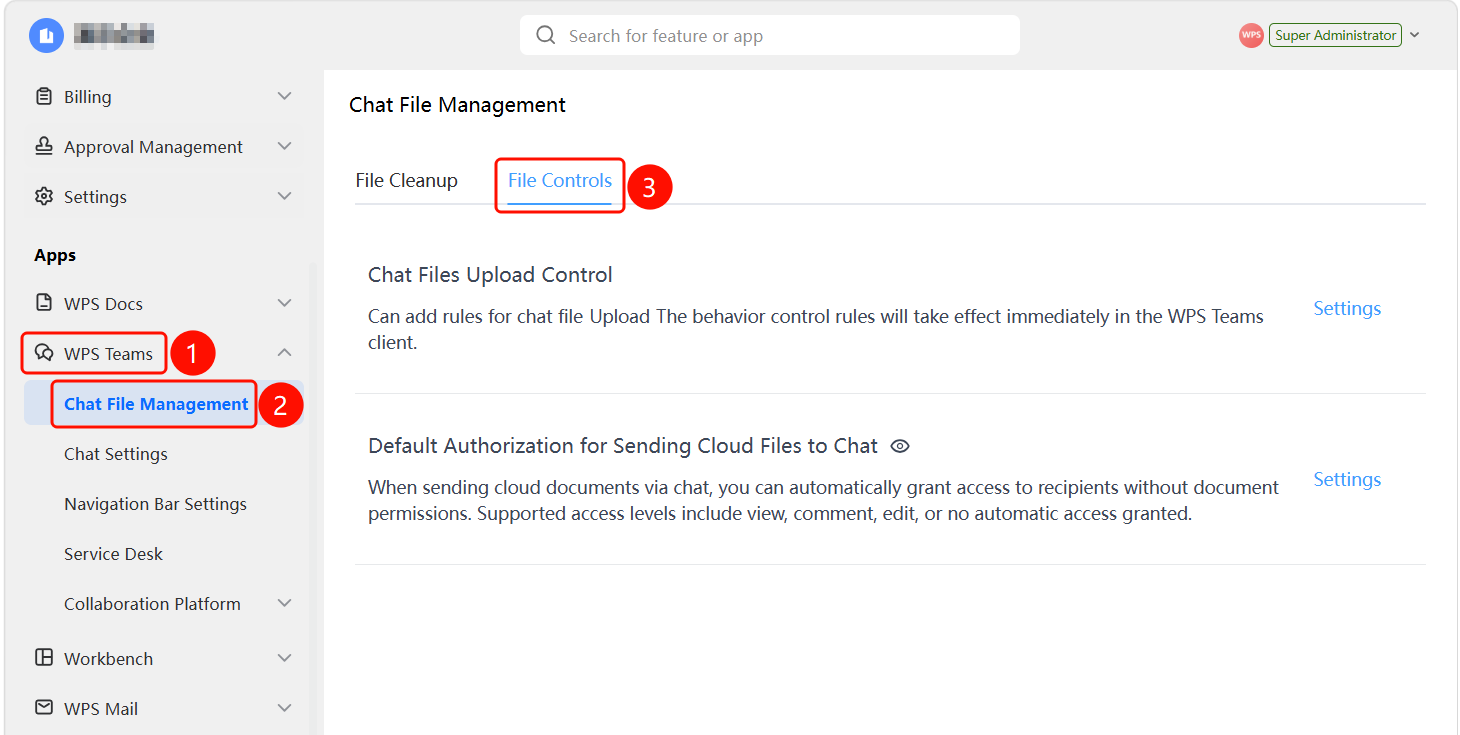
「Office Document」page → 「Office Suite」option → 「WPS Collaboration」option → 「Chat File Management」option → 「File Control」tab
- Sign in to 「Office Document」
- In the left navigation bar, click the 「Office Suite」 option to expand the office suite management menu
- Click the 「WPS Collaboration」 option to expand the collaboration management menu
- Click the 「Chat File Management」 option to enter the chat file management page
- Click the 「File Control」 tab
Access the Default Authorization Configuration for Sending Cloud Documents via Chat
Feature Entry
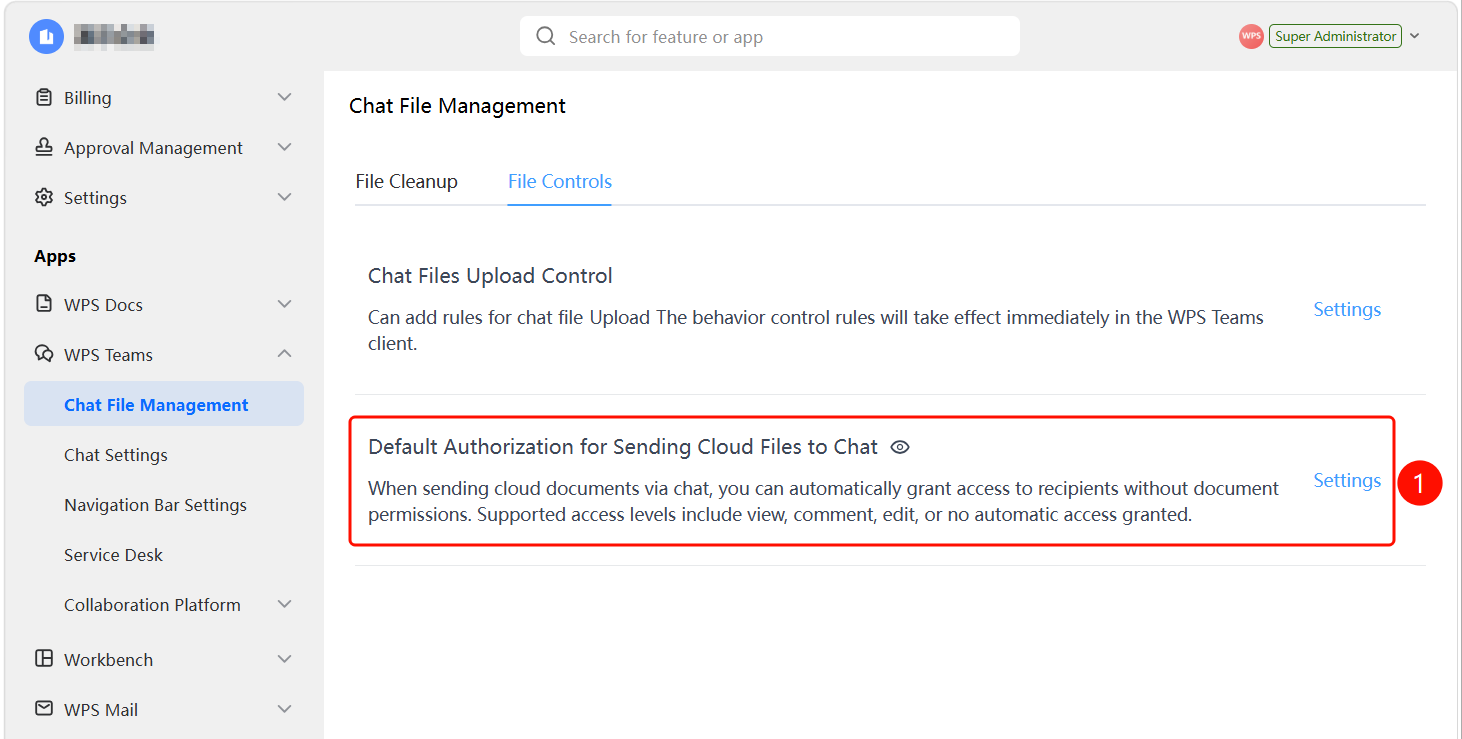
「Chat File Management」page → 「File Control」tab → 「Default Authorization for Sending Cloud Documents via Chat」area → 「Settings」button
- Enter the 「Chat File Management」 page
- Click the 「File Control」 tab to switch to the file control configuration page
- In the 「Default Authorization for Sending Cloud Documents via Chat」 area, click the 「Settings」 button to open the configuration dialog
Configure Authorization Management Method
Feature Entry
「Default Authorization for Sending Cloud Documents via Chat」dialog → 「Authorization Management Method」radio button area
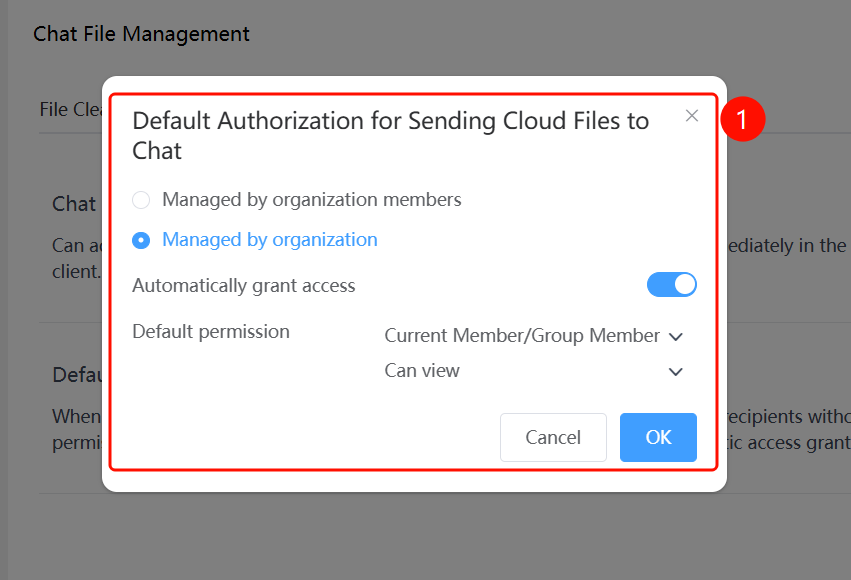
- In the pop-up configuration dialog, select a management method:
- 「Managed by Organization Members」: Members decide the authorization behavior when sending documents themselves, without unified control by the Admin
- 「Organization Unified Default Authorization」: The Admin uniformly configures the default authorization rules, which take effect for all organization members
Configure Organization Unified Management Rules
Feature Entry
「Default Authorization for Sending Cloud Documents via Chat」dialog → 「Organization Unified Default Authorization」option → Configuration area
- After selecting 「Organization Unified Default Authorization」, expand the configuration options
- In the 「Auto Authorization」 area, toggle the auto-authorization switch on or off
- When enabled, the system automatically authorizes chat recipients who do not have document permissions when sending cloud documents
- In the 「Default Authorization」 dropdown menu, select the authorization permission level:
- can view: The recipient can only view the document content
- can comment: The recipient can view and comment on the document
- can edit: The recipient can view, comment on, and edit the document
- In the 「Scope」 dropdown menu, select the authorization scope:
- Current Members/Group Members: Only authorize the recipients in the current chat
- Organization Members: Authorize all organization members
- After confirming the configuration is correct, click the 「Confirm」 button to save the settings
FAQ
Q1: Where is the entry for chat file management?
- Solution: The entry path is: Office Document → WPS Collaboration → Chat File Management. After entering, click the 「File Control」tab to see the default authorization configuration for sending cloud documents via chat.
Q2: What is the difference between 「Managed by Organization Members」and 「Organization Unified Default Authorization」?
- Solution: 「Managed by Organization Members」means members decide whether to authorize and what permissions to grant when sending documents; 「Organization Unified Default Authorization」means the Admin uniformly configures the rules, and all members' document sending will automatically follow these rules without individual operation.
Q3: What are the permission levels for default authorization?
- Solution: Three permission levels are supported: view only, can view, can comment, can edit. The Admin can choose the appropriate level based on the document security policy.
Q4: What is the difference between the authorization scopes 「Current Members/Group Members」and 「Organization Members」?
- Solution: 「Current Members/Group Members」only authorizes the chat recipients when sending the document, which is a smaller and more precise scope; 「Organization Members」authorizes all members within the organization, which is a broader scope. It is recommended to choose the appropriate scope based on the sensitivity of the document.
Notes
- This feature is only available for organization Admins; regular members cannot view the Office Document
- Once 「Organization Unified Default Authorization」is enabled, all members sending cloud documents via chat will follow the unified authorization rules
- The authorization configuration only affects scenarios where cloud documents are sent via chat and does not affect permissions for documents shared through other methods
- If different authorization policies are needed for different documents, it is recommended to select 「Managed by Organization Members」