Feature Summary
Display online device status in chat window is a feature in WPS Teams chat message settings. Once enabled, the user's online device status will be displayed in private chat windows, personal profile cards, and other locations, making it easier for members to see whether the other party is currently online and the type of device they are using.
Feature Description
| Feature Dimension | Description |
|---|---|
| Membership Restriction | No membership restriction |
| Version Restriction | No version restriction |
Operation Steps
Enter the Chat Message Settings Page
Feature Entry
「Office Document」page → 「WPS Teams」option → 「Chat Message Settings」option
- Sign in to 「WPS 365 Office Document」
- In the Office Document, click the 「WPS Teams」 option to expand the collaboration management menu
- Click the 「Chat Message Settings」 option to enter the chat message settings page
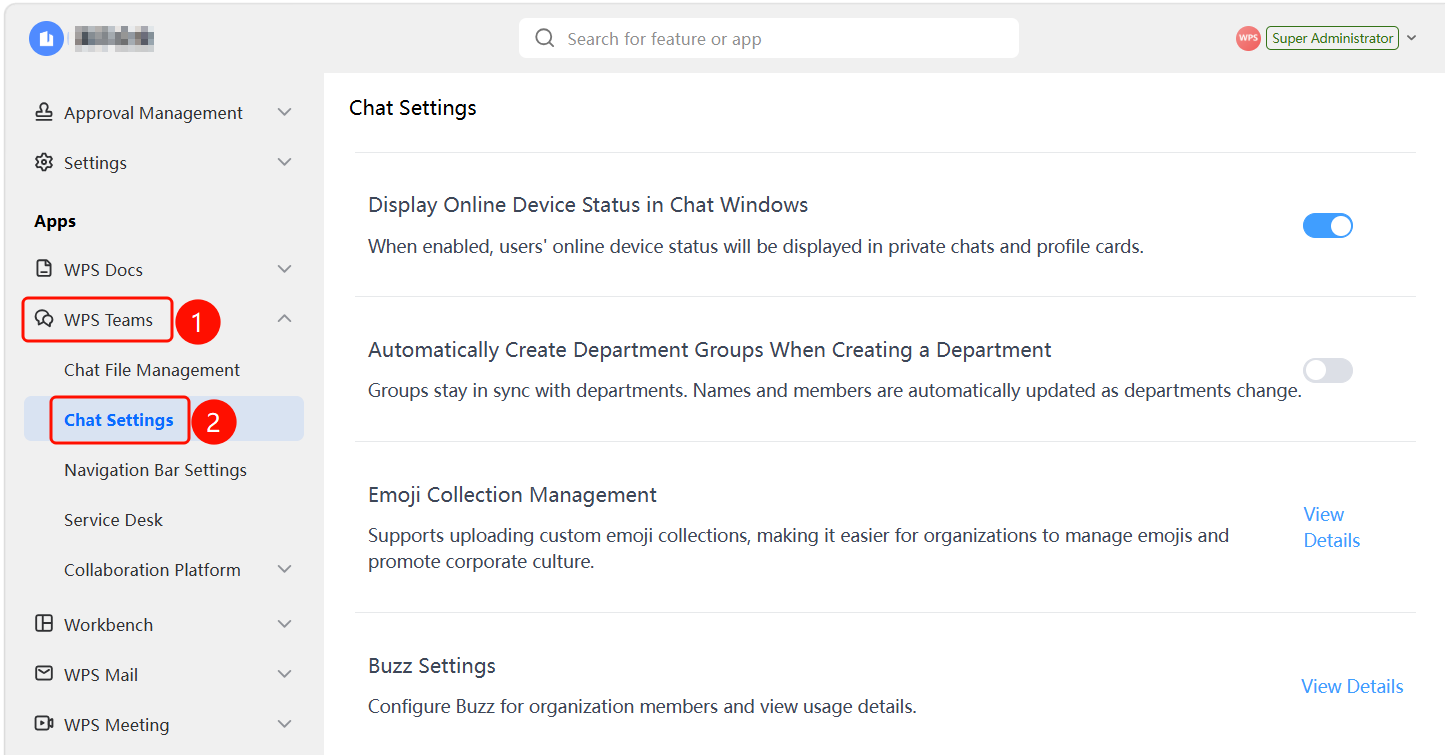
Enable Display Online Device Status in Chat Window
Feature Entry
「Chat Message Settings」page → 「Display online device status in chat window」toggle
- Enter the 「Chat Message Settings」 page
- Locate the 「Display online device status in chat window」 configuration item
- Turn on the toggle button on the right
- After enabling, the user's online device status will be displayed in the following locations:
- Private chat window
- Personal profile card and other locations
- To disable, simply turn off the toggle button
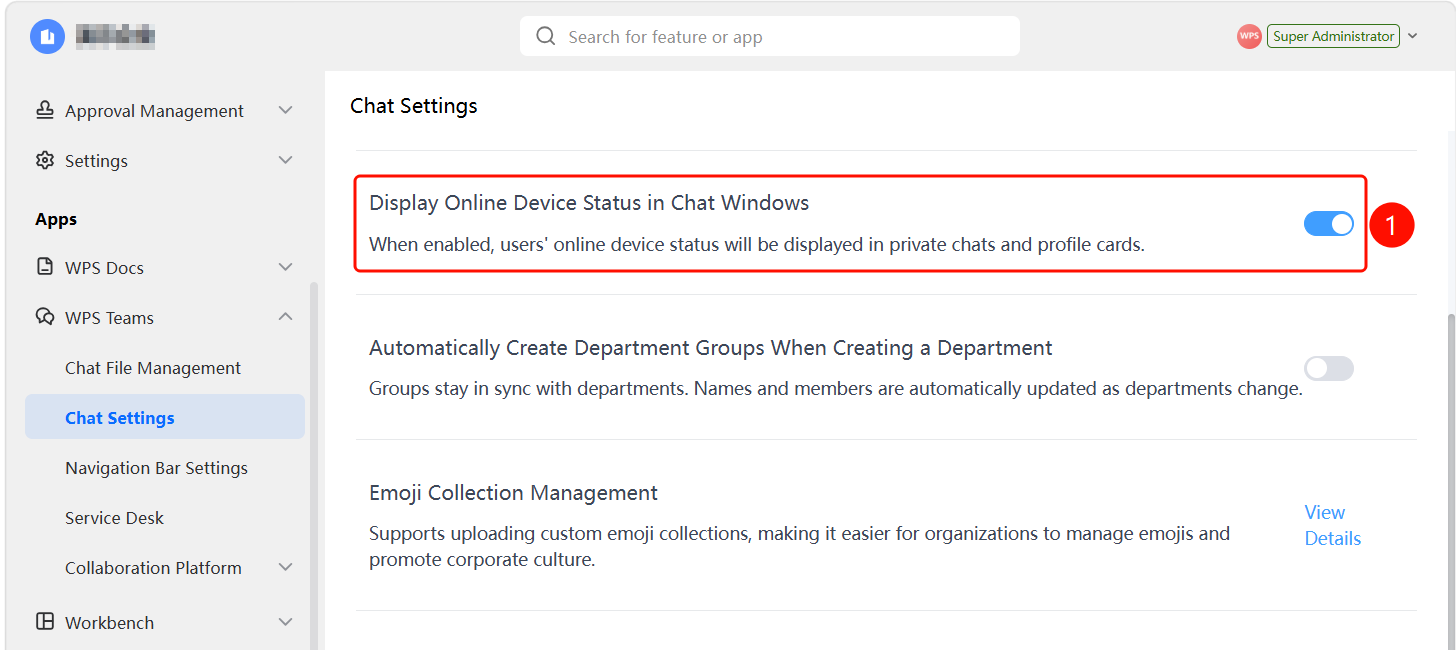
FAQ
Q1: After displaying online device status, can the other party see my specific device information?
- Solution: After enabling, only the user's current online status and the type of device used (such as computer, mobile phone, tablet) will be displayed. Specific device model or location information will not be shown.
Q2: Does this feature work for group chats?
- Solution: This feature is mainly applicable to private chat windows and personal profile cards. Members' online device status will not be displayed in group chats.
Q3: Will the status information in the history disappear after the feature is turned off?
- Solution: After turning off, the online device status information in the chat window and personal profile card will no longer be displayed, but it will not affect the content of messages already sent.
Q4: How long does it take for the configuration change to take effect?
- Solution: After modifying the configuration, it generally takes 1-3 minutes to take effect for all organization members, without requiring members to sign in again.
Notes
- This feature is only available for organization Admins; regular members cannot access the Office Document
- After enabling, the online device status will be displayed in the private chat windows and personal profile cards of all members, and cannot be set individually for specific members
- This feature only affects the display of online status and does not affect the sending and receiving of messages