Feature Summary
The navigation bar configuration is a feature in the organization's Office Document for WPS Teams, allowing Admins to separately configure the navigation bar layout for desktop and mobile, including the top navigation bar, left sidebar external entries, main navigation bar, shortcut entries, and multilingual entry names.
Feature Description
| Feature Dimension | Description |
|---|---|
| Membership Restriction | No membership restriction |
| Version Restriction | No version restriction |
Steps
Accessing the Navigation Bar Configuration Page
Feature Entry
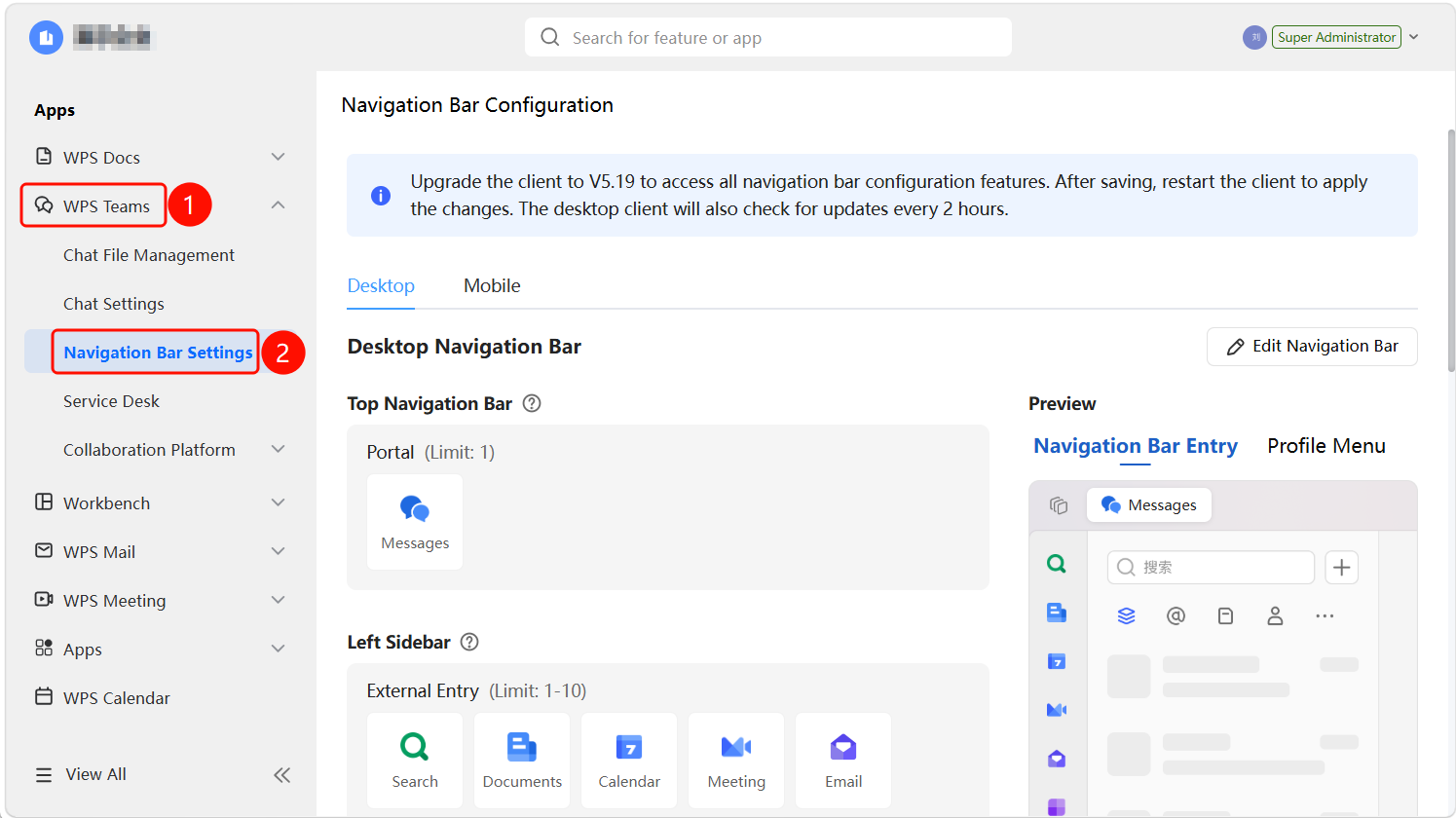
「Admin console」page → 「WPS Teams」option → 「Navigation Bar Settings」option
- Sign in to 「Admin console」
- In the left navigation bar, click the 「WPS Teams」 option to expand the collaboration management menu
- Click the 「Navigation Bar Settings」 option to enter the navigation bar configuration page
Configuring the Desktop Navigation Bar
Feature Entry
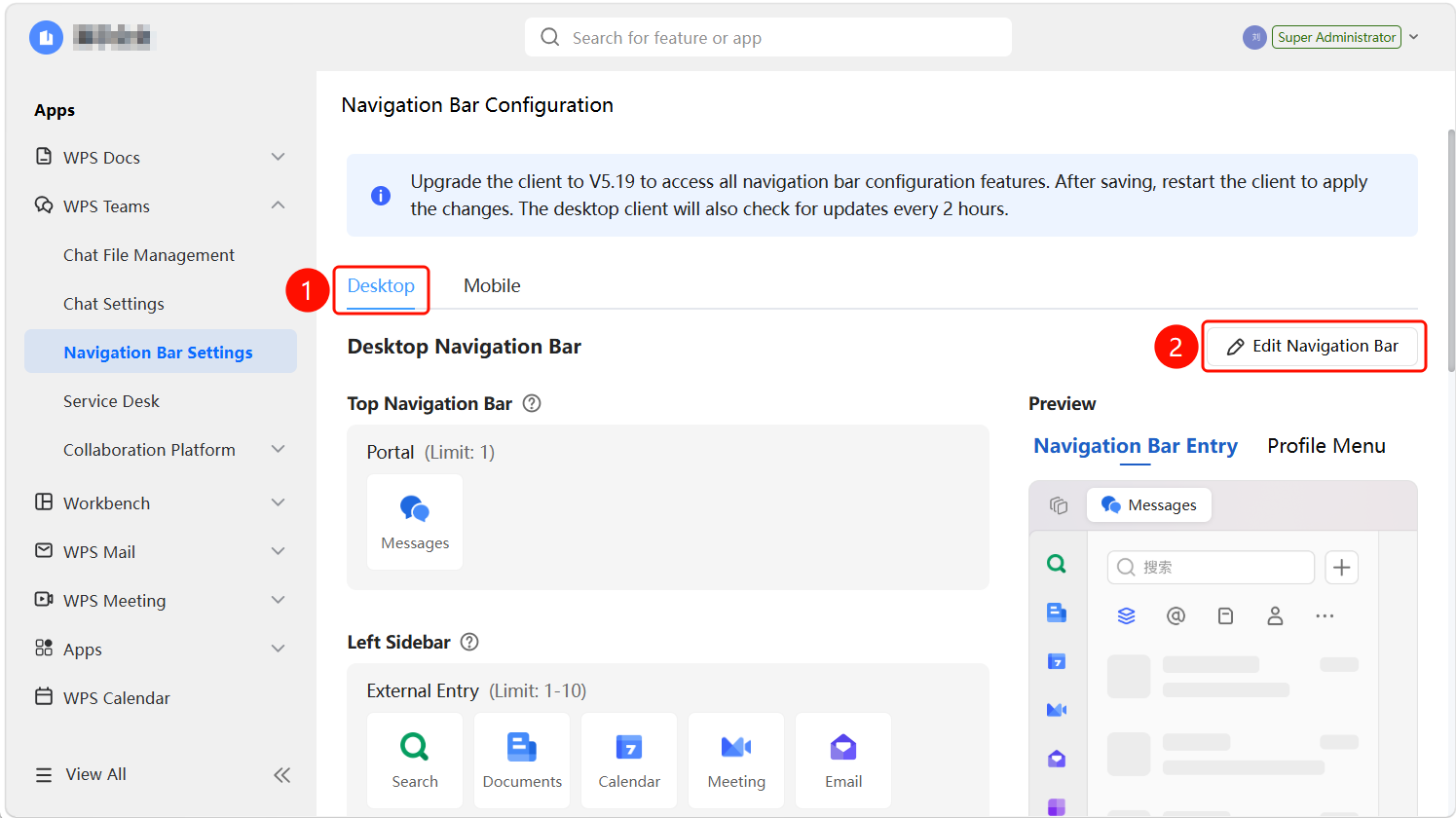
「Navigation Bar Configuration」page → 「Desktop」tab → 「Edit Navigation Bar」button
- Enter the 「Navigation Bar Configuration」 page; the 「Desktop」 tab is displayed by default
- In the desktop navigation bar configuration area, you can edit the following sections:
- Top Navigation Bar: Configure portal entries (Quantity limit: 1)
- Left Sidebar External Entries: Configure quick entries for Documents, Calendar, Meeting, Email, Workbench, My, Search, etc. (Quantity limit: 1-10)
- More Menu Entries: Configure other application entries (Quantity limit: 0-18)
- My Profile Picture Feature Menu: Configure feature entries in the profile picture dropdown menu (Quantity limit: 0-5)
- Drag icons to adjust grouping and sorting
Configuring the Mobile Navigation Bar
Feature Entry
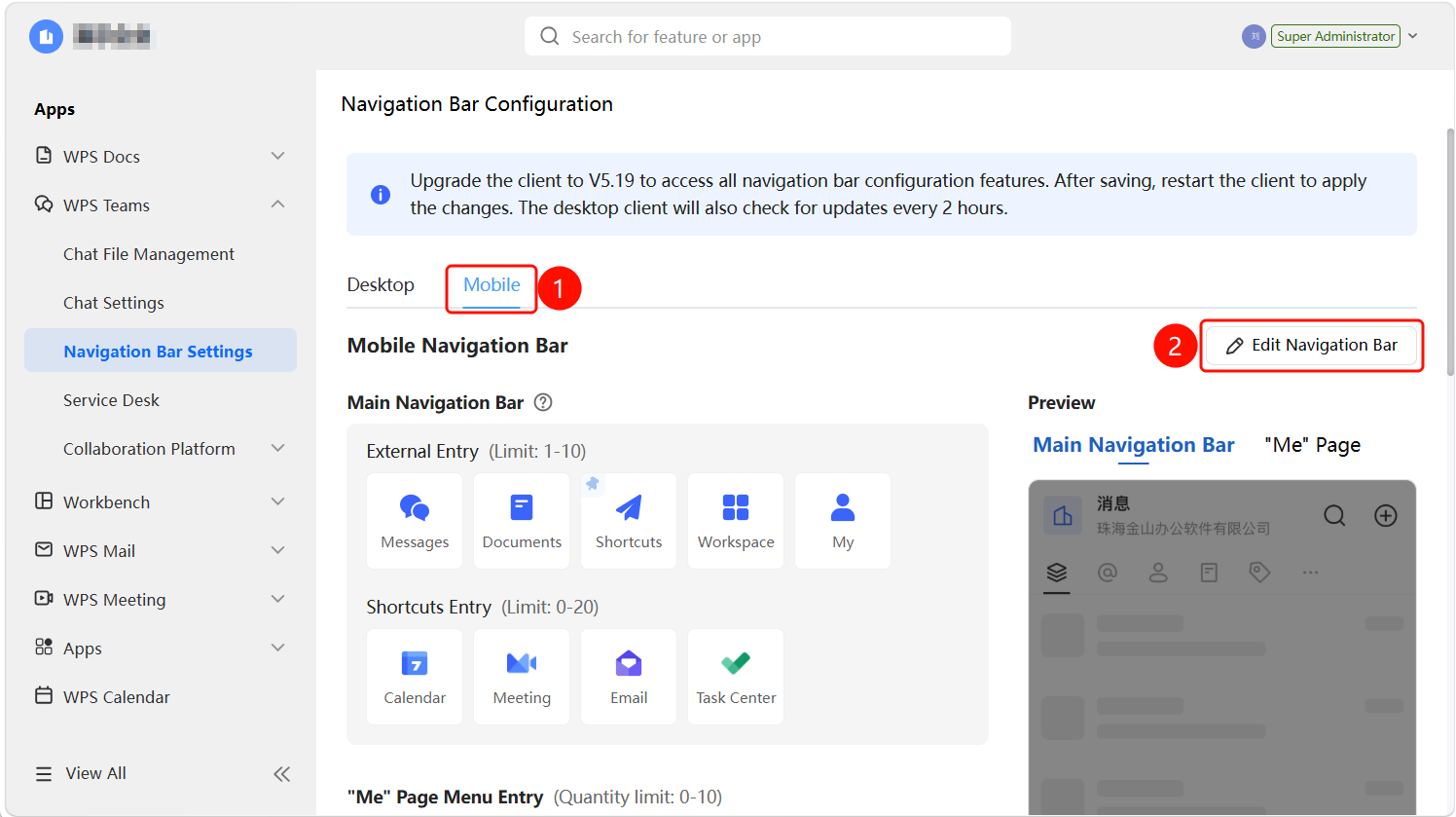
「Navigation Bar Configuration」page → 「Mobile」tab → 「Edit Navigation Bar」button
- Enter the 「Navigation Bar Configuration」 page
- Click the 「Mobile」 tab to switch to mobile navigation bar configuration
- In the mobile navigation bar configuration area, you can edit the following sections:
- Main Navigation Bar: Configure bottom navigation apps (Quantity limit: 1-10), such as Messages, Documents, Workbench, My, etc.
- Shortcut Entries: Configure quick entries in shortcuts (Quantity limit: 0-20), such as Calendar, Meeting, Email, etc.
- 「My」Page Menu Entries: Configure menu items on the personal center page (Quantity limit: 0-10), such as Meeting, Download List, Contacts, Chat Files, Favorites, etc.
FAQ
Q1: Where is the entry for navigation bar configuration?
- Solution: The entry path is: Office Document → WPS Teams → Navigation Bar Configuration. After entering, you can configure separately via the Desktop and Mobile tabs.
Q2: Are the desktop and mobile navigation bar configurations independent?
- Solution: Yes, the desktop and mobile navigation bar configurations are completely independent. The desktop configures the top navigation bar, left sidebar external entries, and more menu entries; the mobile configures the main navigation bar and shortcut entries.
Q3: What are the quantity limits for each section of the navigation bar?
- Solution: Desktop: Top Navigation Bar 1, Left Sidebar External Entries 1-10, More Menu Entries 0-18, My Profile Picture Feature Menu 0-5. Mobile: Main Navigation Bar 1-10, Shortcut Entries 0-20, 「My」Page Menu Entries 0-10.
Notes
- This feature is only available to organization Admins; regular members cannot view the Office Document
- Desktop and mobile configurations are independent of each other and must be edited separately
- Entry names support multilingual configuration, facilitating use by multinational organizations
- You can adjust the order and grouping of navigation items in each section by dragging icons