Feature Summary
Offline push configuration is a feature of WPS Teams SDK, supporting the creation and management of application identifiers, and the configuration of push certificates for iOS, multiple Android vendors, and HarmonyOS platforms, enabling offline message push capabilities for applications.
Feature Description
| Feature Dimension | Description |
|---|---|
| Membership Restriction | No membership restriction |
| Version Restriction | No version restriction |
Operation Steps
Access the Offline Push Configuration Page
Feature Entry
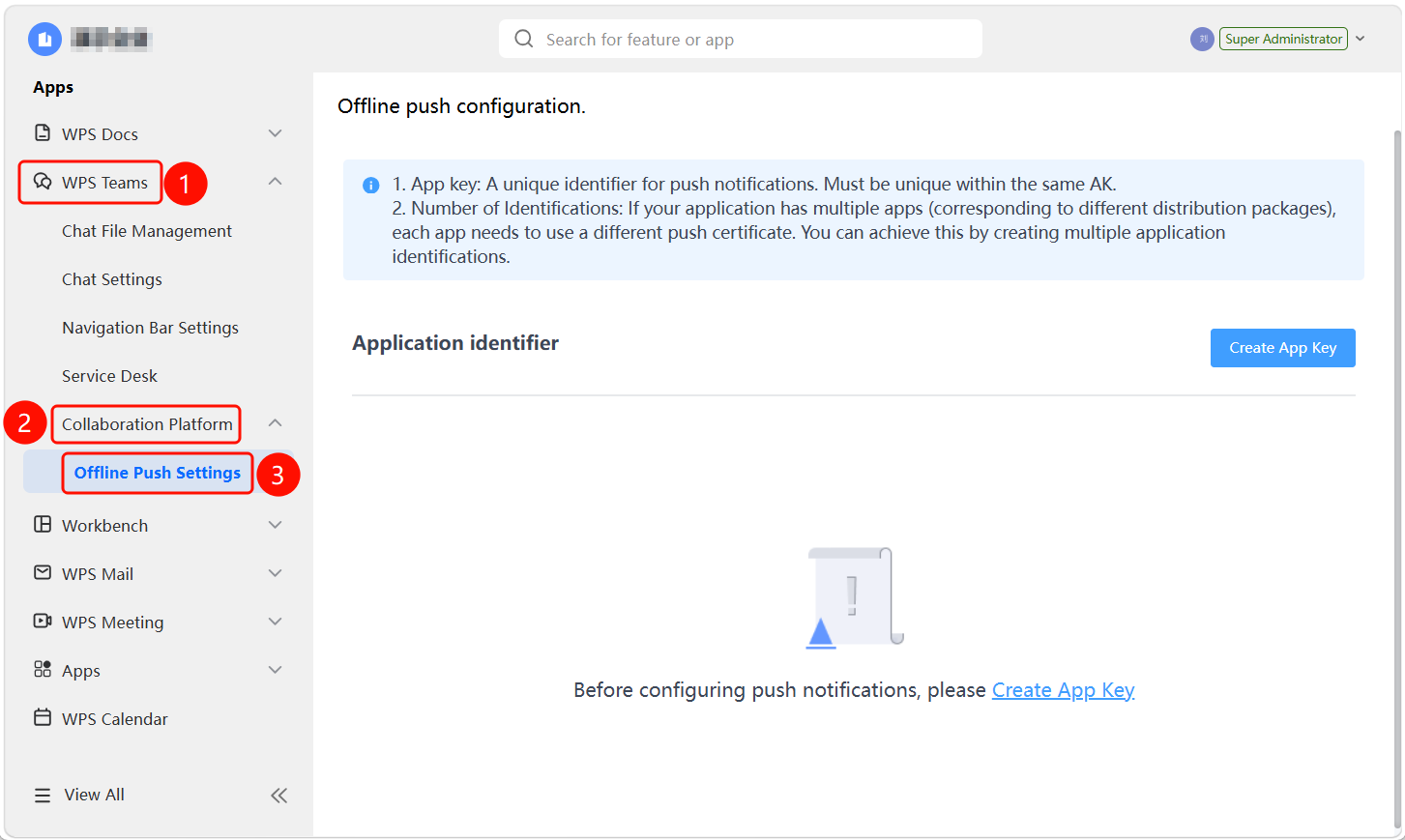
「Admin Console」page → 「WPS Teams」option → 「Collaboration Platform」option → 「Offline Push Settings」option
- Sign in to 「WPS 365 Admin Console」
- In the left navigation bar, click the 「WPS Teams」 option to expand the collaboration management menu
- Click the 「Collaboration Platform」 option to expand the SDK management menu
- Click the 「Offline Push Settings」 option to enter the offline push configuration page
Create Application Identifier
Feature Entry
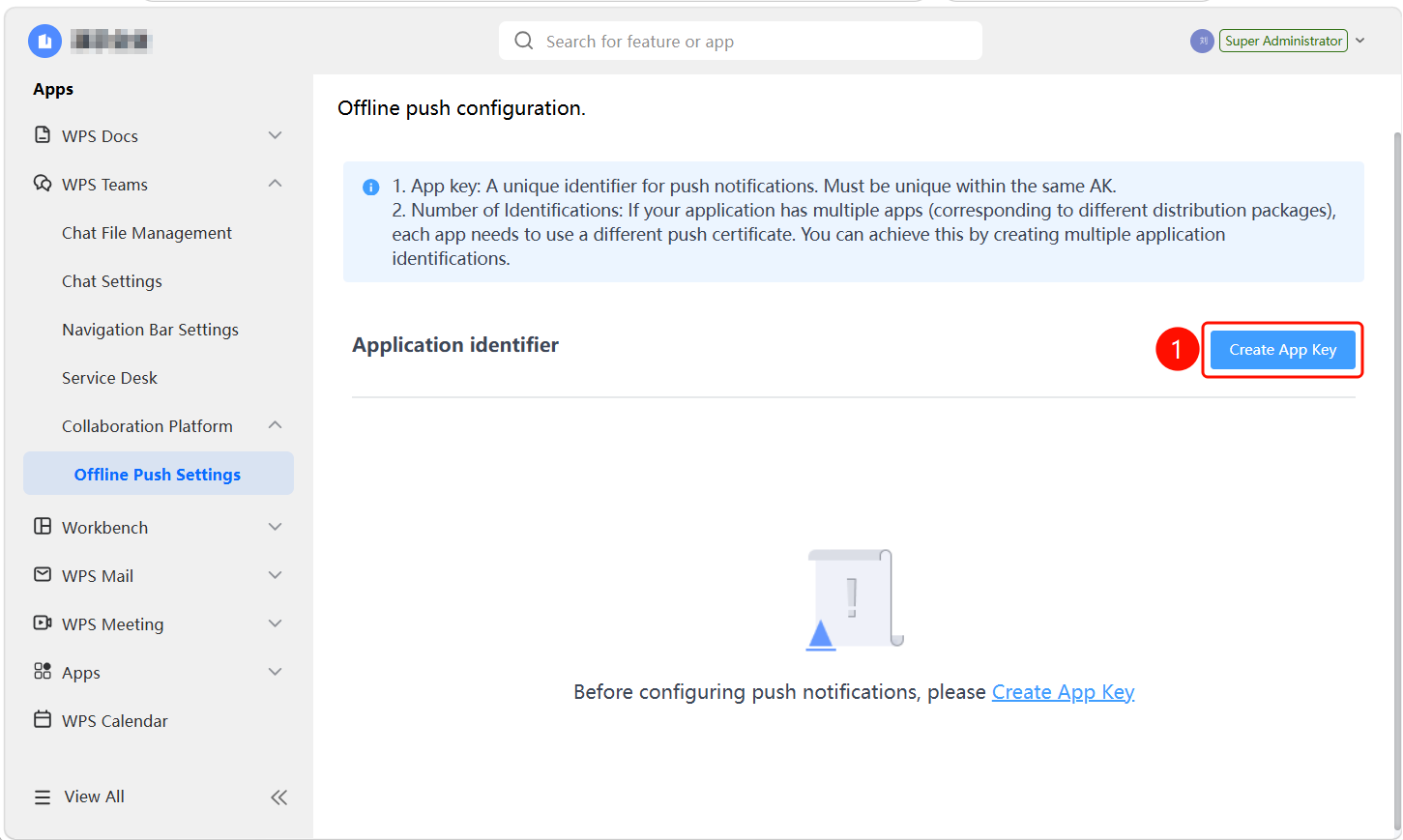
「Offline Push Configuration」page → 「Application Identifier」tab → 「Create Application Identifier」button
- Enter the 「Offline Push Configuration」 page, the 「Application Identifier」 tab is displayed by default
- Click the 「Create Application Identifier」 button to pop up the creation dialog
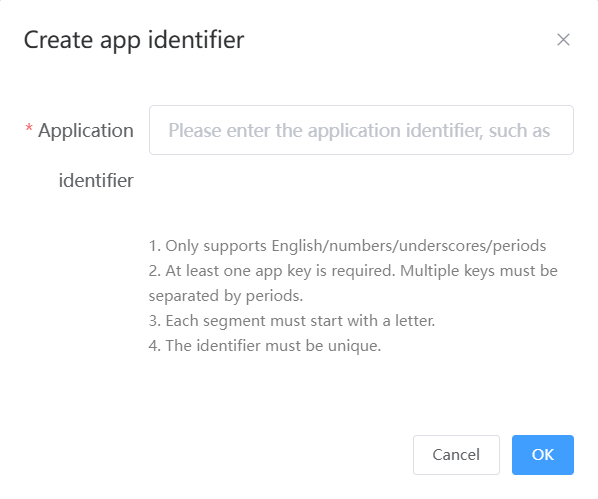
- In the 「Application Identifier」 input box, enter the application identifier (e.g.,
com.xiezuo.demo), which must meet the following rules:
- Only supports English letters, numbers, underscores, and decimal points
- Must contain at least one segment; multiple segments must be separated by decimal points
- Each segment must start with a letter
- The identifier cannot be duplicated
- Click the 「OK」 button to complete creation
Manage Application Identifier
Feature Entry
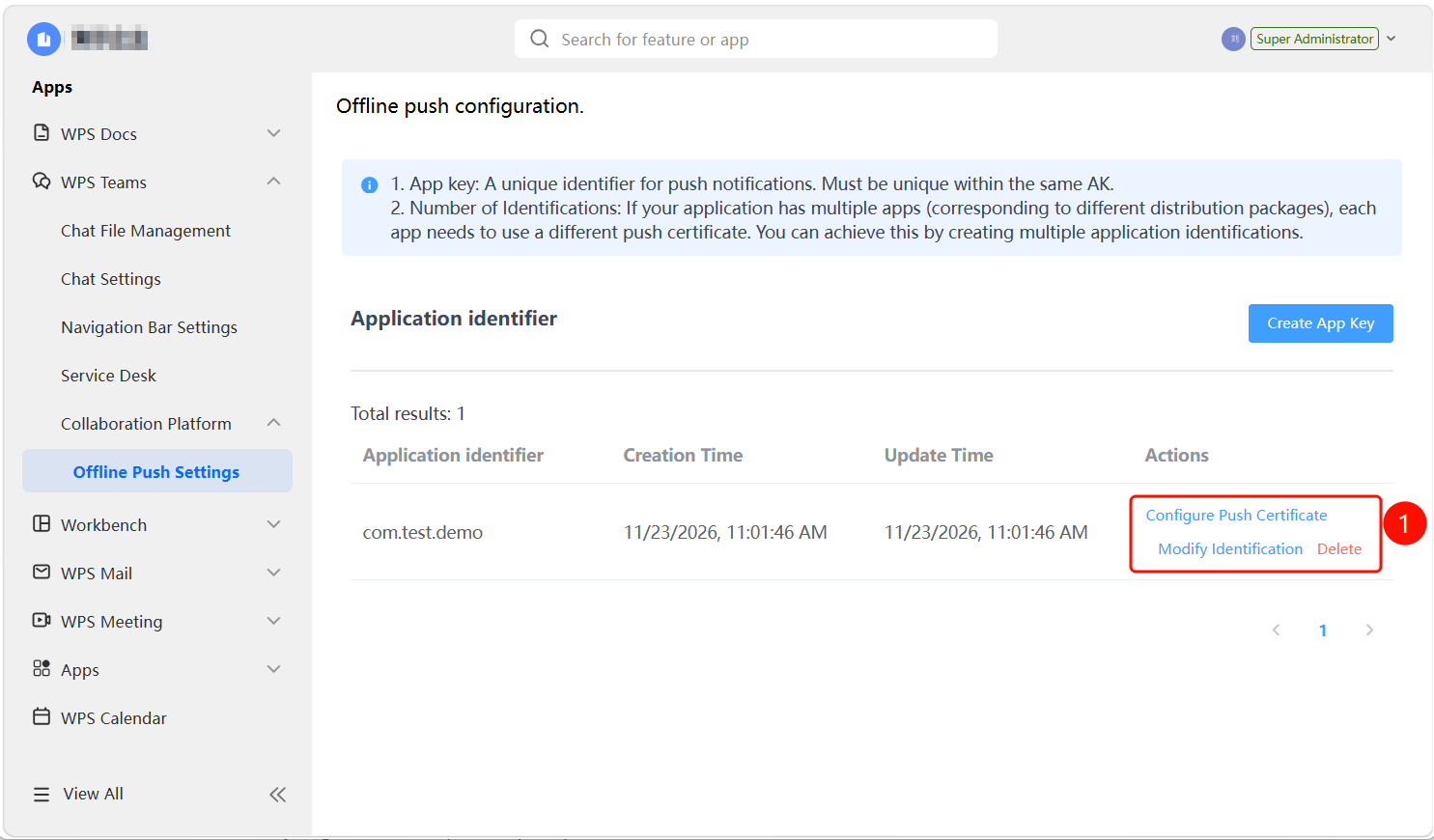
「Offline Push Configuration」page → 「Application Identifier」tab → Application Identifier list → 「Actions」button
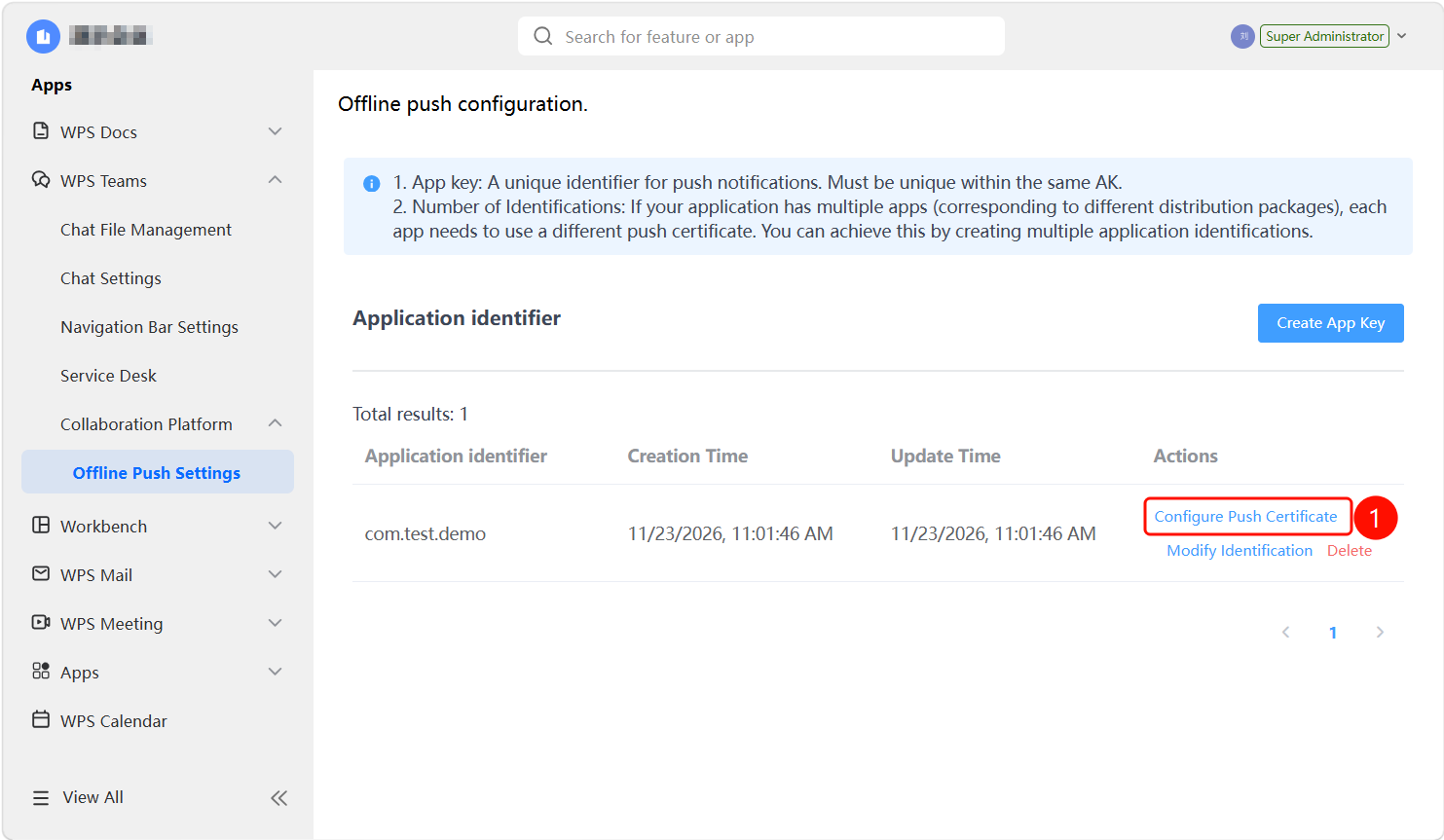
- After successful creation, the application identifier is displayed in the list, showing the following information:
- Application Identifier: The identifier name filled in during creation
- Creation Time: The creation time of the application identifier
- Update Time: The last update time of the application identifier
- Actions: Supports the following management operations
- Click the 「Configure Push Certificate」 button to enter the push certificate configuration page
- Click the 「Modify Identifier」 button to modify the application identifier name
- Click the 「Delete」 button to delete the current application identifier
Configure iOS Push Certificate
Feature Entry
「Offline Push Configuration」page → 「Configure Push Certificate」 → 「iOS」tab
- In the application identifier list, click the 「Configure Push Certificate」 button to enter the push configuration page
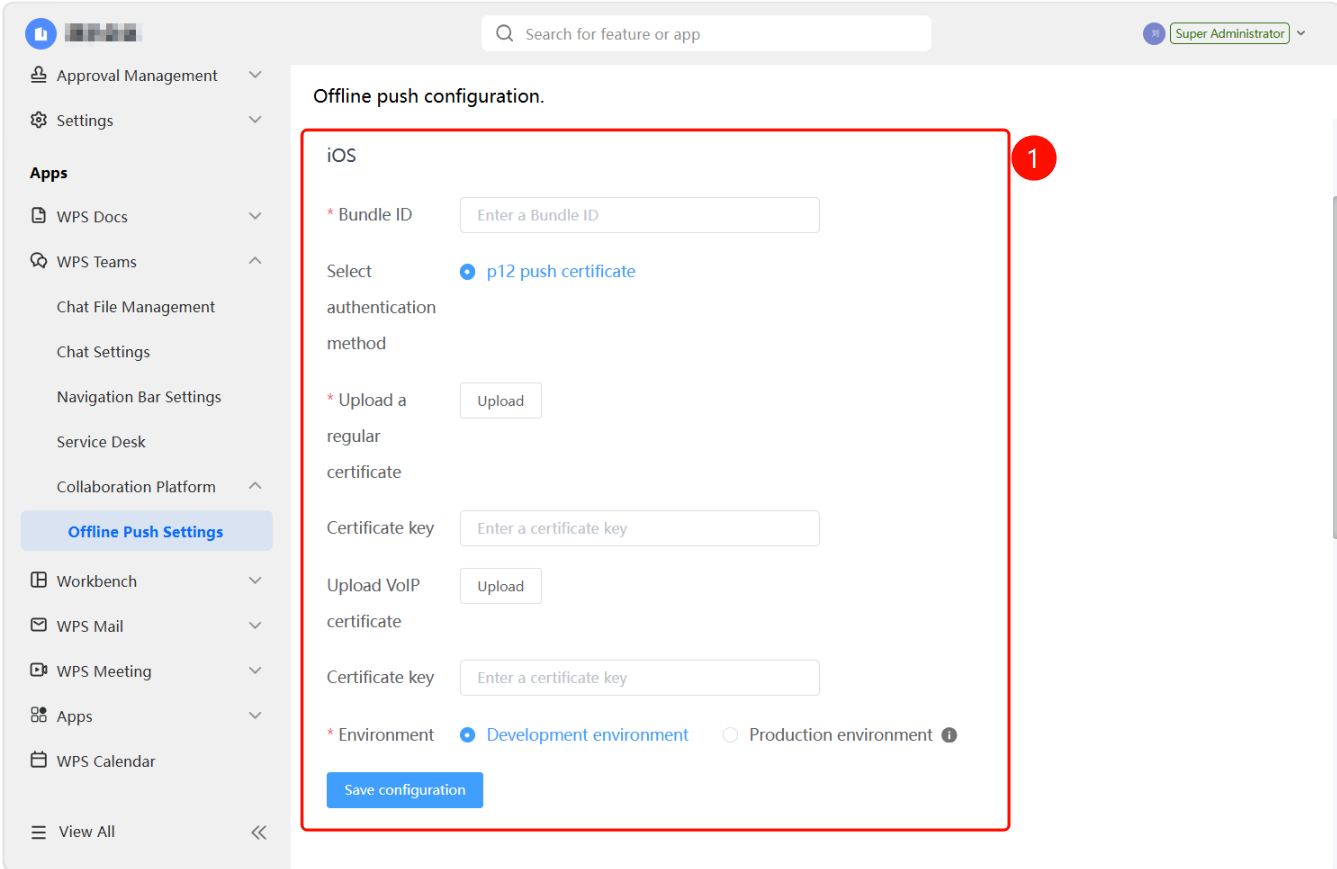
- Click the 「iOS」 tab to configure iOS push parameters
- In the 「Bundle ID」 input box, enter the application's Bundle ID
- In the 「Select Authentication Method」 area, select the 「P12 (Push Certificate)」 option
- In the 「Upload Standard Certificate」 area, click the 「Upload」 button to upload the push certificate file
- In the 「Certificate Key」 input box, enter the certificate key
- Optional: In the 「Upload VOIP Certificate」 area, upload the VOIP certificate and key
- In the 「Environment」 area, select 「Development Environment」 or 「Production Environment」
- Click the 「Save Configuration」 button to save the iOS push settings
Configure Android Multi-Vendor Push
Feature Entry
「Offline Push Configuration」page → 「Configure Push Certificate」 → 「Android」tab
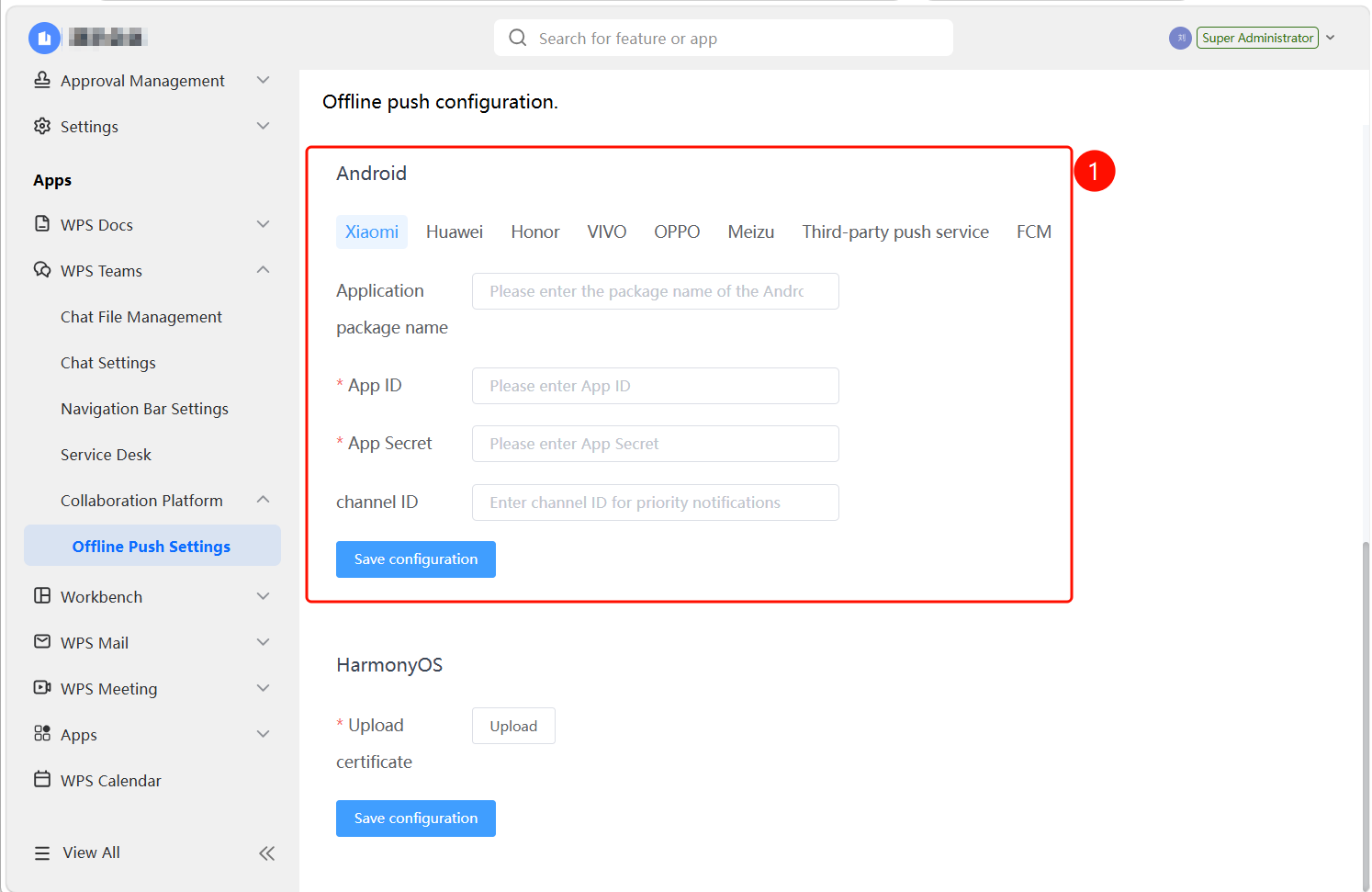
- On the push configuration page, click the 「Android」 tab
- In the vendor list on the left, select the push vendor to configure:
- Xiaomi / Huawei / Honor / VIVO / OPPO / Meizu / Third-party Push Service / FCM
- Configure general parameters (different vendors may require additional parameters; fill in according to page prompts):
- 「App Package Name」 input box: Enter the package name of the Android application
- 「App ID」 input box: Enter the application's App ID
- 「App Secret」 input box: Enter the application's App Secret
- 「channel ID」 input box: Enter the channel ID for the high-importance information push channel
- Click the 「Save Configuration」 button to save the Android push settings
Configure HarmonyOS Push Certificate
Feature Entry
「Offline Push Configuration」page → 「Configure Push Certificate」 → 「HarmonyOS」tab
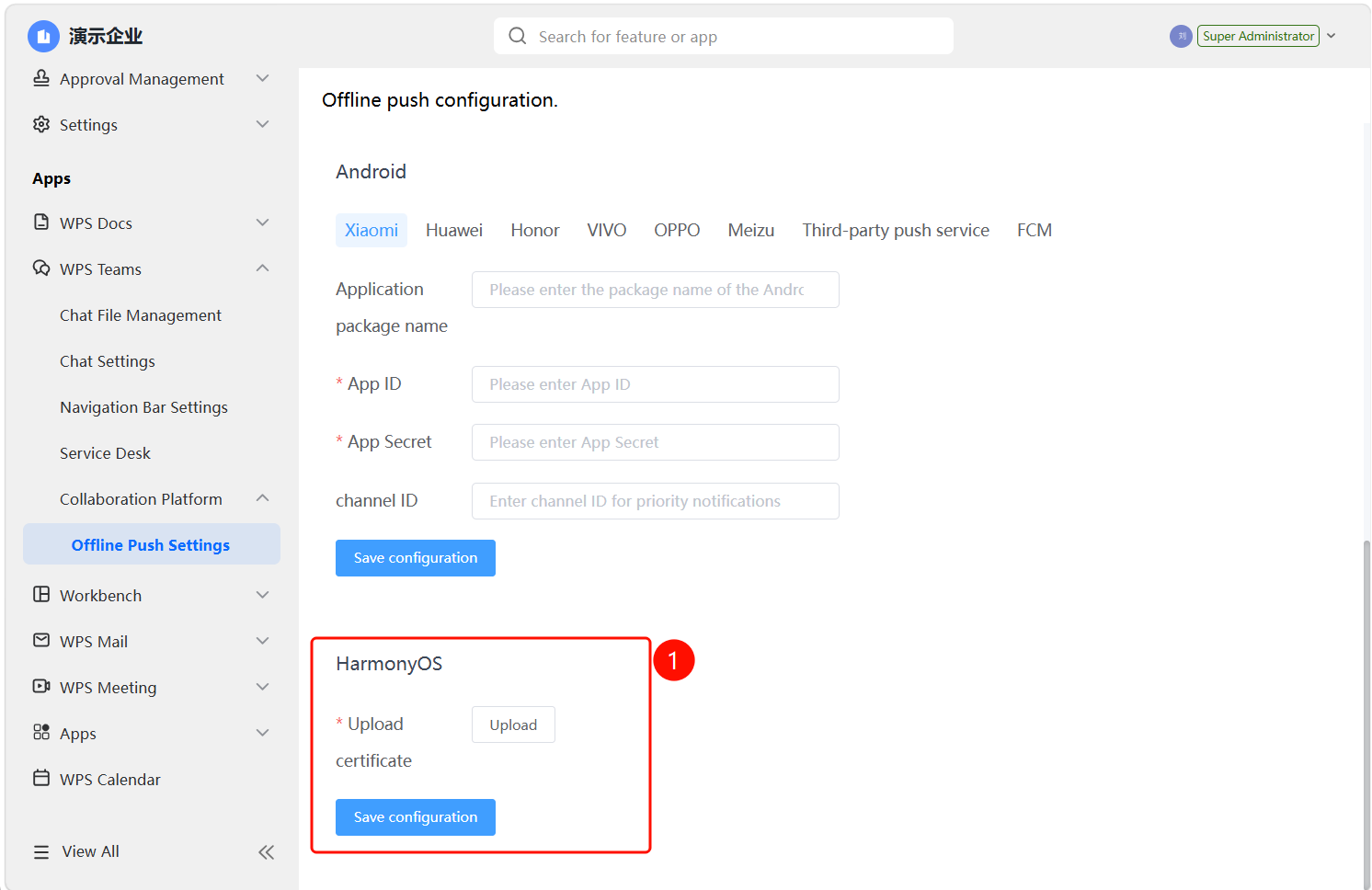
- On the push configuration page, click the "HarmonyOS" tab
- Follow the instructions to create a "Service Account Key" on the HarmonyOS developer platform
- Fill in the content of the downloaded JSON file into the input box below
- Click the "Upload" button to upload the certificate file
- Click the "Save Configuration" button to save the HarmonyOS push settings
FAQ
Question 1: What are the naming rules for the application identifier?
- Solution: The application identifier only supports English letters, digits, underscores, and periods. It must contain at least one segment. Multiple segments must be separated by periods. Each segment must start with a letter, and the identifier must not be duplicated.
Question 2: Which platforms are supported for offline push?
- Solution: Supports iOS (P12 push certificate + VOIP certificate), Android multi-vendor push (Xiaomi, Huawei, Honor, VIVO, OPPO, Meizu, third-party push services, FCM), and HarmonyOS push.
Question 3: How to choose the push environment?
- Solution: iOS push supports development and production environments. The development environment is used during the testing phase, and the production environment is used after the app is officially released. It is recommended to select the corresponding environment based on the app's development stage.
Question 4: Does Android push need to be configured separately for each vendor?
- Solution: Yes, Android push requires separate configuration of push parameters (App ID, App Secret, etc.) for each supported vendor. Different vendors' push services have their own developer platforms and configuration requirements.
Notes
- The application identifier is the unique identifier for app push and cannot be duplicated under the same application identifier.
- If an app has multiple APKs (corresponding to different channel packages), each APK needs to use a different push certificate, and multiple application identifiers must be created.
- Before configuring push certificates, you must first sign up on the corresponding platform's developer platform and obtain push credentials.
- For HarmonyOS push, you must first create a "Service Account Key" on the HarmonyOS developer platform and fill the key file content into the configuration page.