Summary
Set text in a PDF document to superscript or subscript format, commonly used for special formatting such as mathematical formulas and chemical equations.
Feature Description
| Feature Dimension | Description |
|---|---|
| Membership Restriction | A membership is required to subscribe to PDF editing |
| Version Restriction | No version restriction |
Steps
Entering Text Editing Mode in the Ribbon
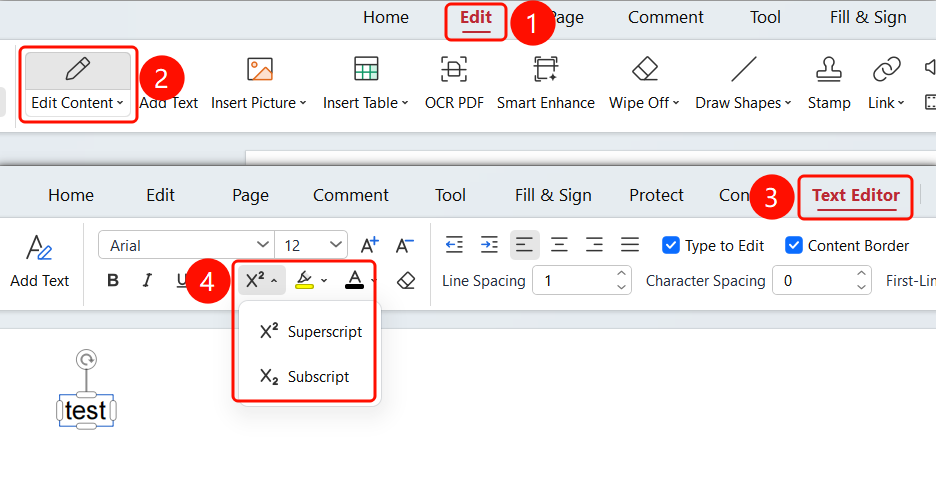
Access Path"Edit" tab → "Edit Content" button → "Text Editing" tab → "X²" dropdown menu
- Open the PDF file you wish to edit
- Click the "Edit" tab in the top ribbon
- Click the "Edit Content" button in the ribbon
- Click on the text within the PDF to enter Text Editing mode
- Select the text you want to format as superscript or subscript
- Locate the "X²" button in the "Text Editing" tab
- Click the dropdown arrow to open the menu
- Choose the desired effect:
- X²: Set as superscript
- X₂: Set as subscript
FAQ
Q1: Can superscript and subscript be used at the same time?
They cannot be used at the same time. A piece of text can only be set to either superscript or subscript, not both simultaneously.
Q2: What are common scenarios for using superscript and subscript?
Superscript is often used for mathematical exponentiation (e.g., X²) and footnote markers; subscript is often used for chemical formulas (e.g., H₂O) and mathematical variable indices.
Notes
- The superscript/subscript effect only applies to the currently selected text
- After setting superscript/subscript, the text size will automatically shrink
- Text in scanned PDFs may not be directly editable and requires OCR recognition first