Feature Summary
Erase text, images, or other content in PDF documents, with support for custom eraser tip styles and line thickness.
Feature Description
| Feature Dimension | Description |
|---|---|
| Membership Restriction | Requires subscribe to membership |
| Version Restriction | No version restriction |
Steps
Enable Erase from the Ribbon
Feature Entry
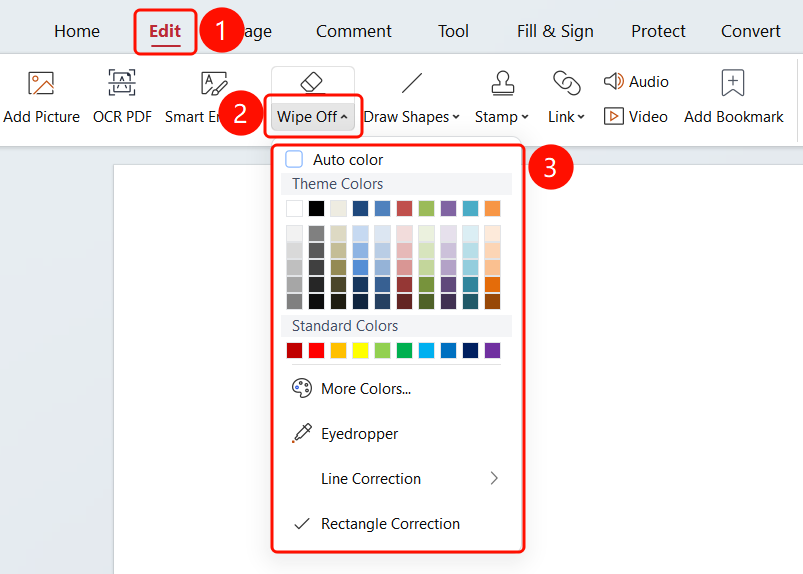
「Edit」 tab → 「Erase」 dropdown menu
- Open the PDF file you want to edit
- Click the 「Edit」 tab in the top ribbon
- Click the 「Erase」 dropdown button in the ribbon
- Set erase parameters in the dropdown menu:
- Auto Color Picker: Automatically matches the background color when checked
- Theme Colors: Select the eraser stroke color
- Standard Colors: Select a standard color
- More Colors (M): Custom color
- Eyedropper (E): Pick a color from the document
- Brush Selection: Select the tip style (rounded tip, square tip)
- Rectangular Selection: Erase a rectangular area
- Line Thickness: Select the eraser stroke thickness (1pt-12pt)
- After setting, drag and select the area you want to erase in the PDF document
- Once you release the mouse, the selected content will be erased
FAQ
Q1: What should I do if the erased color does not match the background?
- Solution: Check the 「Auto Color Picker」 option, and the system will automatically match the selected color.
Q2: What should I do if the eraser stroke is too thick?
- Solution: Select a smaller pt value in the 「Line Thickness」 option, such as 1pt or 2pt.
Notes
- Supports the auto color picker feature for seamless blending with the background after erasing
- Eraser stroke thickness supports multiple options from 1pt to 12pt
- Rounded tip or square tip styles are available