Feature Summary
Select text in a PDF document for translation, supporting multiple translation engines and automatic language detection.
Feature Description
| Feature Dimension | Description |
|---|---|
| Membership Restriction | Requires a subscribe to membership |
| Version Restriction | No version restriction |
Operation Steps
Enable Select & Translate from the Ribbon
Feature Entry
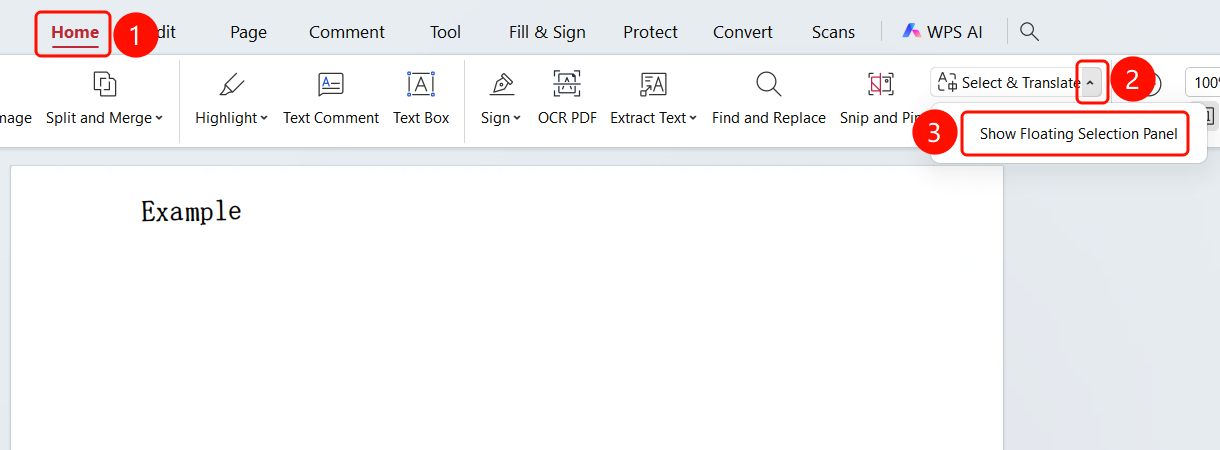
「Home」 tab → 「Select & Translate」 dropdown menu → 「Word-selection follow-up panel (H)」
- Open the PDF file you need to translate
- Click the 「Home」 tab in the top ribbon
- Find the 「Select & Translate」 button in the ribbon
- Click the dropdown arrow and select the 「Word-selection follow-up panel (H)」 option
- The 「Translate」 panel pops up on the right. Set the source language and target language (both default to 「Auto-detect」)
- Select text in the PDF or enter content in the input box, and the system will translate automatically
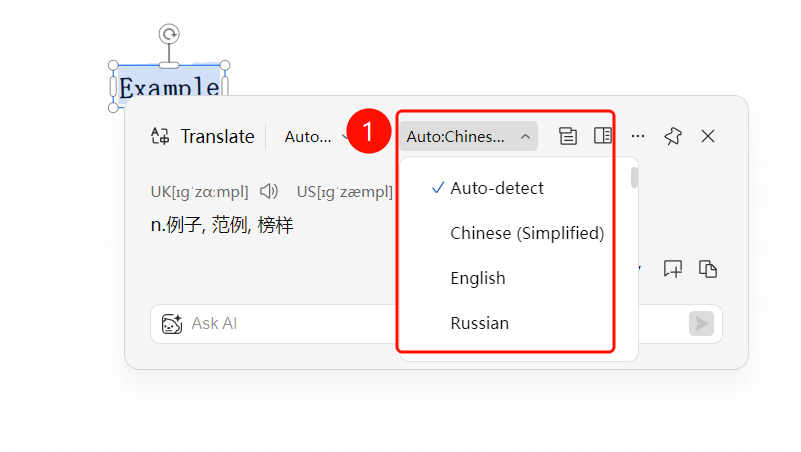
Translation Panel Language Settings
Feature Entry
Translation panel → Language selection dropdown menu
- Set the translation language at the top of the right-side translation panel
- Source language: Click the left dropdown menu and select 「Auto-detect」 or specify a language
- Target language: Click the right dropdown menu and select 「Auto-detect」 or specify a language
- Select text in the PDF, and the system will automatically translate and display the result
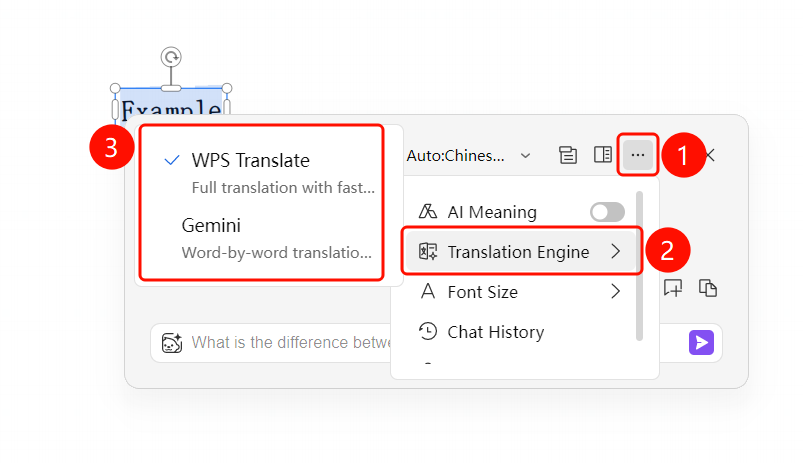
Translation Engine Settings
Feature Entry
Translation panel → 「...」 menu → 「Translation Engine」
- Click the 「...」 menu in the upper right corner of the translation panel
- Select the 「Translation Engine」 option
- Select a translation engine:
- WPS Self-developed: Returns the translation in full paragraphs, fast translation speed (default)
- Gemini: Returns the translation word by word, more balanced performance
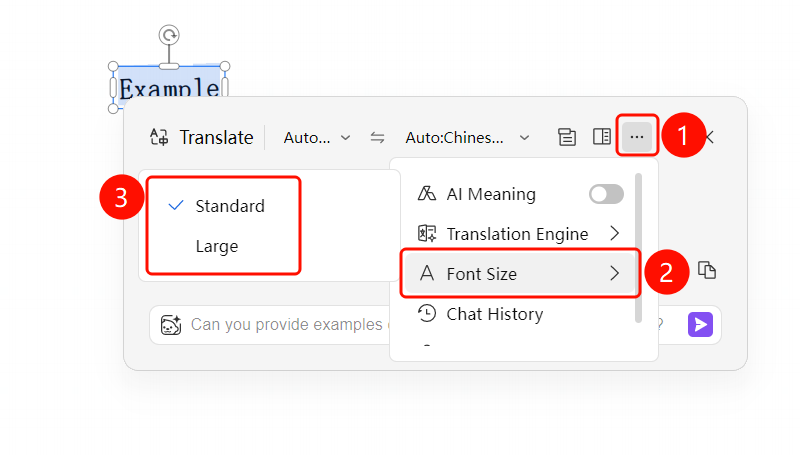
Font Size Adjustment
Feature Entry
Translation panel → 「...」 menu → 「Font Size Adjustment」
- Click the 「...」 menu in the upper right corner of the translation panel
- Select the 「Font Size Adjustment」 option
- Select the font size:
- Standard: Default font size (default)
- Large: Larger font size
FAQ
Q1: What languages does Select & Translate support?
- Solution: Supports translation between multiple languages including Chinese, English, Japanese, Korean, etc., and supports automatic source language detection.
Q2: Can the translation result be copied?
- Solution: Yes, click the translation result to copy it to the clipboard.
Q3: How to switch the translation engine?
- Solution: Click the 「...」 menu in the upper right corner of the translation panel, select 「Translation Engine」, and switch between WPS Self-developed or Gemini.
Notes
- Select & Translate requires an internet connection
- The WPS Self-developed engine offers faster translation speed, while the Gemini engine provides more balanced performance
- You can adjust the display size of the translation result using the font size adjustment feature