Feature Summary
Copy, paste, and cut content in PDF documents, supporting both shortcuts and the floating toolbar.
Feature Description
| Feature Dimension | Description |
|---|---|
| Membership Restriction | Requires a subscribe to membership |
| Version Restriction | No version restriction |
Operation Steps
Copy Content via Floating Toolbar
Feature Entry
"Edit" tab → "Edit Content" button → "Docs Edit" tab → Floating Toolbar → "Copy" button
- Open the PDF file you need to edit
- Click the "Edit" tab in the top menu bar
- Click the "Edit Content" button in the toolbar
- Select the text you need to copy
- Click the "Docs Edit" tab
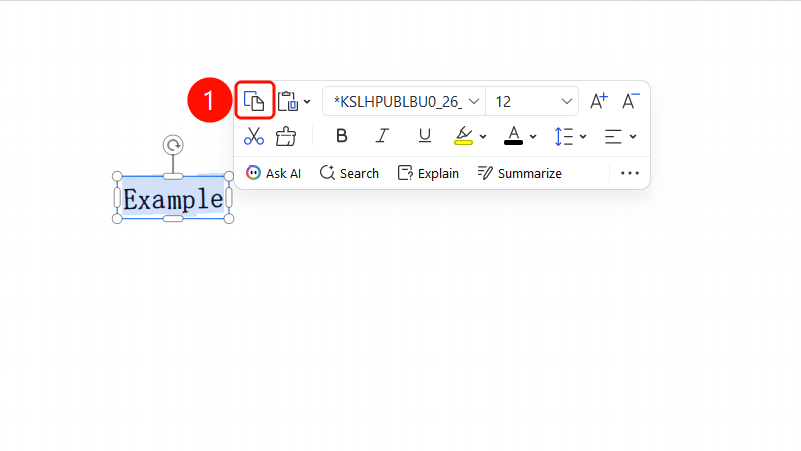
- After selecting the text, a floating toolbar will pop up above
- Click the "Copy" button in the floating toolbar to copy the selected content
Paste Content via Floating Toolbar
Feature Entry
"Edit" tab → "Edit Content" button → Select text → Floating Toolbar → "Paste" button
- Open the PDF file you need to edit
- Click the "Edit" tab in the top menu bar
- Click the "Edit Content" button in the toolbar
- Select the text you need to operate on
- Click the "Docs Edit" tab
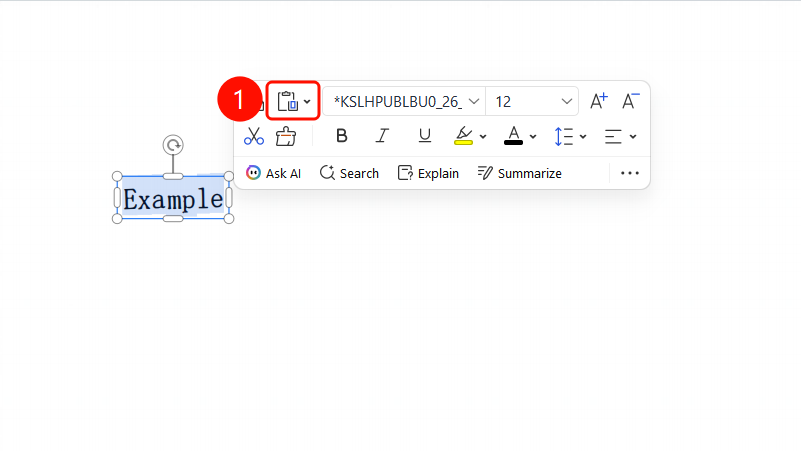
- After selecting the text, a floating toolbar will pop up above
- Click the "Paste" button in the floating toolbar to paste the clipboard content
Cut Content via Floating Toolbar
Feature Entry
"Edit" tab → "Edit Content" button → Select text → Floating Toolbar → "Cut" button
- Open the PDF file you need to edit
- Click the "Edit" tab in the top menu bar
- Click the "Edit Content" button in the ribbon
- Select the text you need to cut
- Click the "Docs Edit" tab
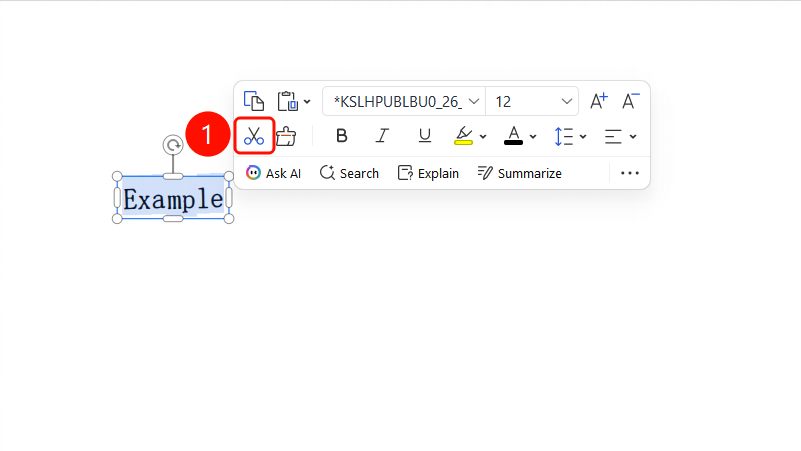
- After selecting the text, a floating toolbar will pop up above
- Click the "Cut" button in the floating toolbar to cut the selected content
Copy Content via Right-Click
Feature Entry
"Edit" tab → "Edit Content" button → Right-Click Menu → "Copy" button
- Open the PDF file you need to edit
- Click the "Edit" tab in the top menu bar
- Click the "Edit Content" button in the toolbar
- Select the text you need to copy
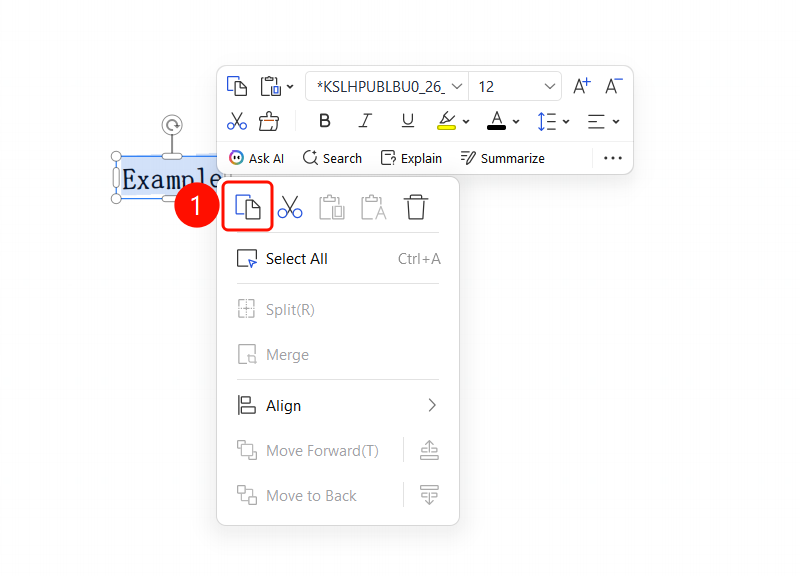
- Right-click the selected text to bring up the "Right-Click Menu"
- Click the "Copy" button to copy the selected content
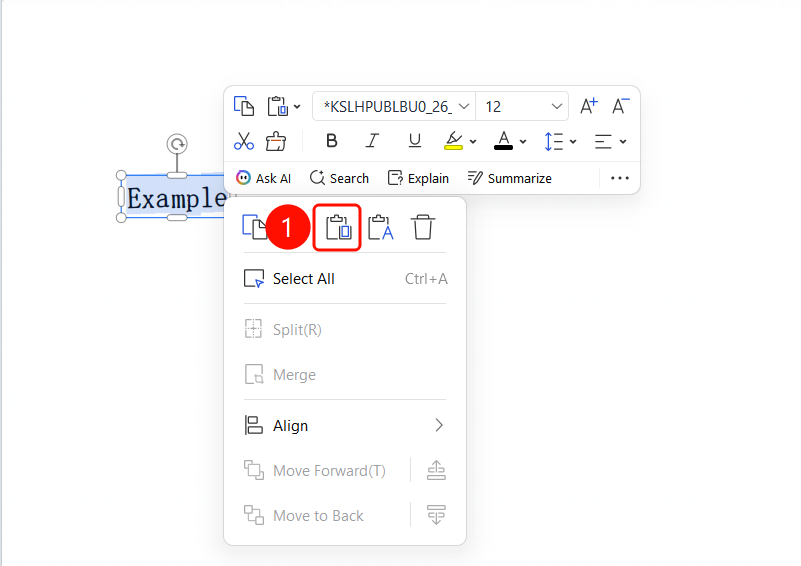
Paste Content via Right-Click
Feature Entry
"Edit" tab → "Edit Content" button → Right-Click Menu → "Paste" button
- Open the PDF file you need to edit
- Click the "Edit" tab in the top menu bar
- Click the "Edit Content" button in the toolbar
- Right-click the location where you need to paste the text to bring up the "Right-Click Menu"
- Click the "Paste" button in the floating toolbar to paste the clipboard content
Cut Content via Right-Click
Feature Entry
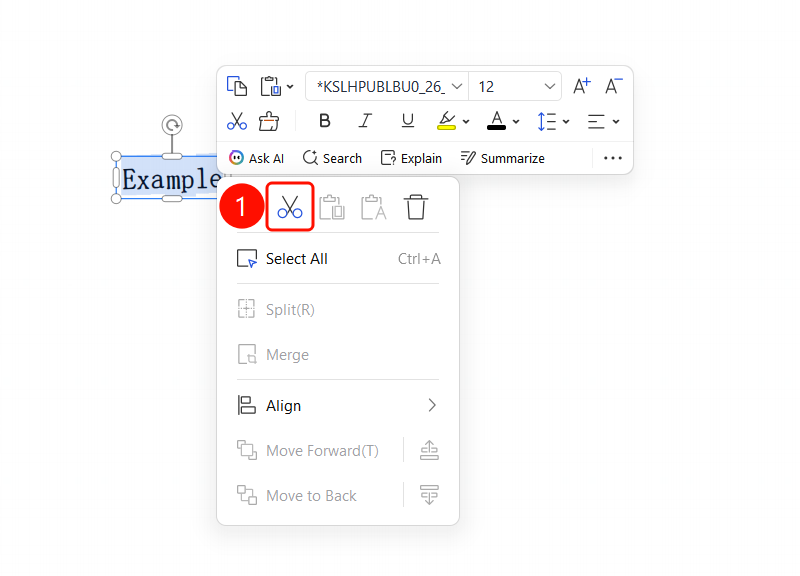
"Edit" tab → "Edit Content" button → Right-Click Menu → "Cut" button
- Open the PDF file you need to edit
- Click the "Edit" tab in the top menu bar
- Click the "Edit Content" button in the ribbon
- Select the text you need to cut
- Right-click the selected text to bring up the "Right-Click Menu"
- Click the "Cut" button to cut the selected content
Copy, Paste, and Cut via Shortcuts
Feature Entry
Keyboard Shortcuts
- Select the Docs content you want to work with
- Use the following shortcuts:
Ctrl+C: CopyCtrl+V: PasteCtrl+X: Cut
FAQ
Q1: What should I do if the floating toolbar doesn't appear after selecting text?
- Solution: You need to enter "Edit Content" mode first and then select the content for the floating toolbar to appear.
Notes
- Both the floating toolbar and shortcuts are supported
- Copied content retains its original formatting