Feature Summary
Modify the font and font size of text in PDF documents, with support for a variety of fonts and sizes.
Feature Description
| Feature Dimension | Description |
|---|---|
| Membership Restriction | A membership is required to subscribe to editing PDF files |
| Version Restriction | No version restriction |
Operation Steps
Change Font
Feature Entry
「Docs Editing」 tab → Font dropdown box
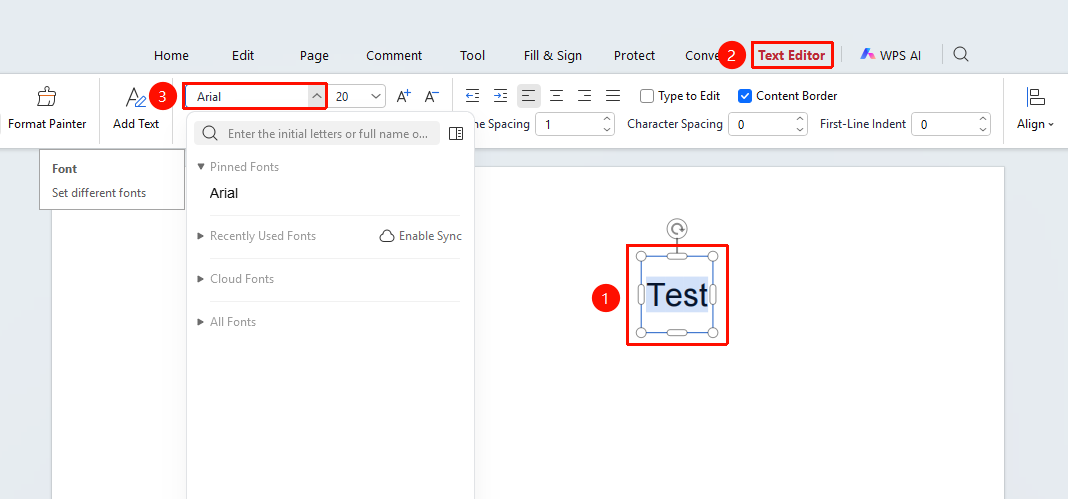
- Select the text content whose font you want to change
- Click the font dropdown box in the toolbar (default display 「SimSun」 )
- Select the desired font from the font list:
- Pinned Fonts: Frequently used fonts (Microsoft YaHei, SimHei, Arial, etc.)
- Cloud Fonts: Downloadable online fonts (some require VIP)
- All Fonts: All fonts installed on the system
- Click the font name to apply
Change Font Size
Feature Entry
「Docs Editing」 tab → Font size dropdown box
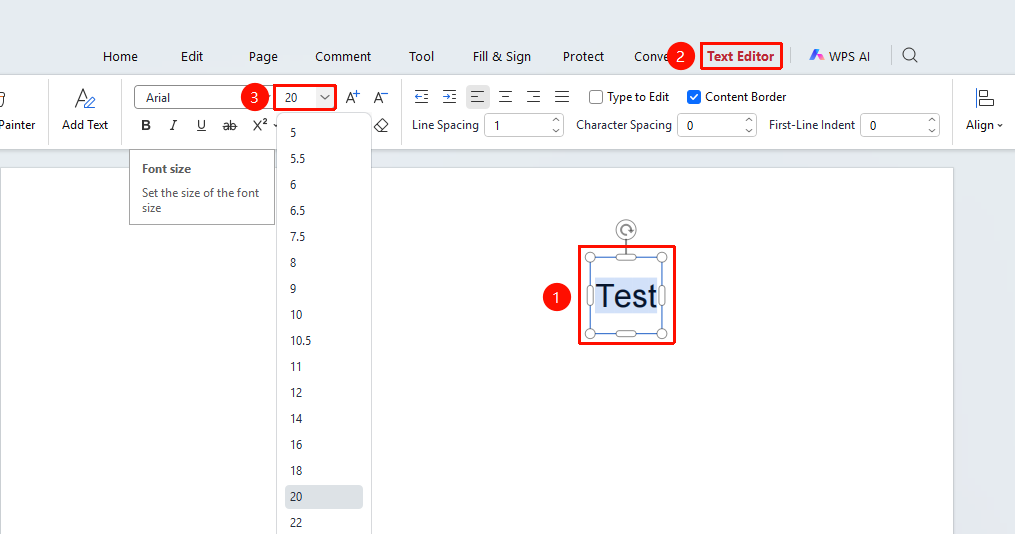
- Select the text content whose font size you want to change
- Click the font size dropdown box in the toolbar (default display 「Xiao Si (12pt)」 )
- Select the desired font size from the font size list:
- Chinese Font Sizes: Xiao Chu, Yi Hao, Xiao Yi, Er Hao, Xiao Er, San Hao, Xiao San, Si Hao, Xiao Si, Wu Hao, Xiao Wu, Liu Hao, Xiao Liu, Qi Hao, Ba Hao
- Numeric Font Sizes: 5, 5.5, 6, 6.5, 7.5, 8, 9, 10, 10.5, 11, etc.
- Click the font size to apply
Quickly Increase or Decrease Font Size
Feature Entry
「Docs Editing」 tab → Font size increase/decrease buttons
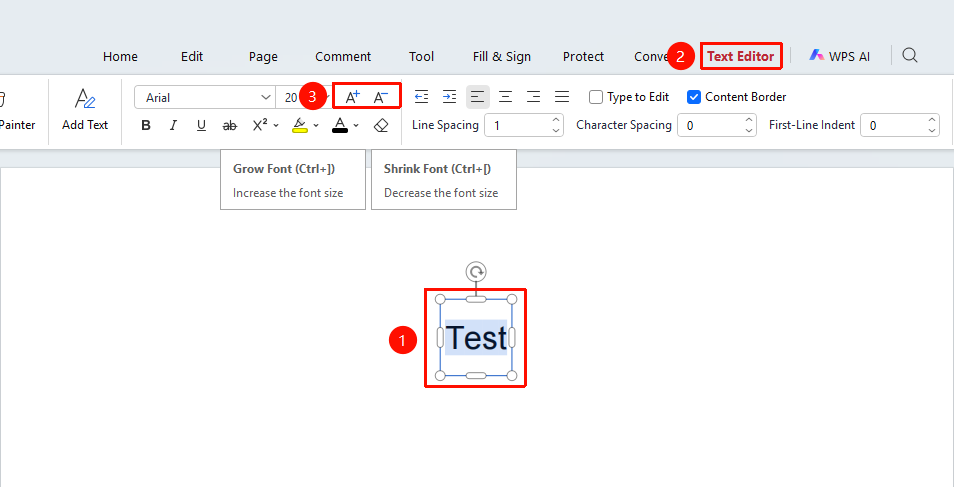
- Select the text content whose font size you want to adjust
- Click the 「A+」 「button」 to the right of the font size dropdown box to increase the font size
- Click the 「A-」 「button」 to the right of the font size dropdown box to decrease the font size
FAQ
Q1: Do cloud fonts in the font dropdown box require payment?
Some cloud fonts are marked with a 「VIP」 label and require a WPS membership subscription to use. Pinned fonts and system fonts in All Fonts can be used for free.
Q2: What should I do if the text displays abnormally after changing the font?
This may be due to font and document encoding incompatibility. It is recommended to switch to another font (such as SimSun or Microsoft YaHei).
Q3: How can I view the font and font size of the current text?
After selecting the text, the font and font size dropdown boxes in the toolbar will display the properties of the currently selected text.
Notes
- Changing the font and font size only applies to the selected text
- Text in scanned PDFs must undergo OCR recognition before the font and font size can be modified
- The font list supports searching; you can quickly locate a font by entering its name