Feature Summary
Modify the color of text in a PDF document, supporting theme colors, standard colors, custom colors, and a color picker.
Feature Description
| Feature Dimension | Description |
|---|---|
| Membership Restriction | Requires a subscribed membership to edit PDF files |
| Version Restriction | No version restriction |
Steps
Select the text you want to change the color of
Feature Entry
「Docs Editing」 tab
- Enter Docs editing mode and select the text content you want to change the color of
- After selecting the text, the font color 「button」 in the toolbar will be activated
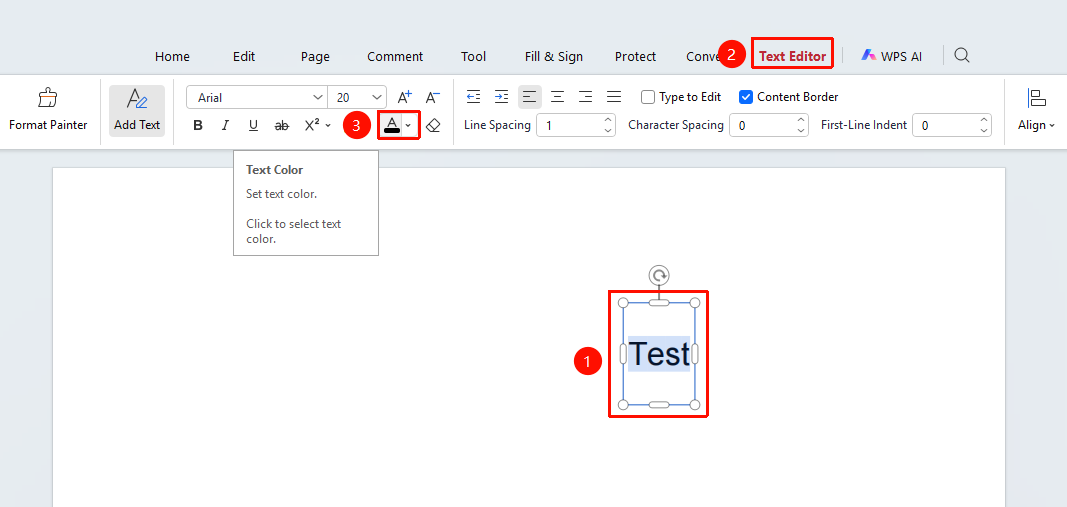
Set the font color
Feature Entry
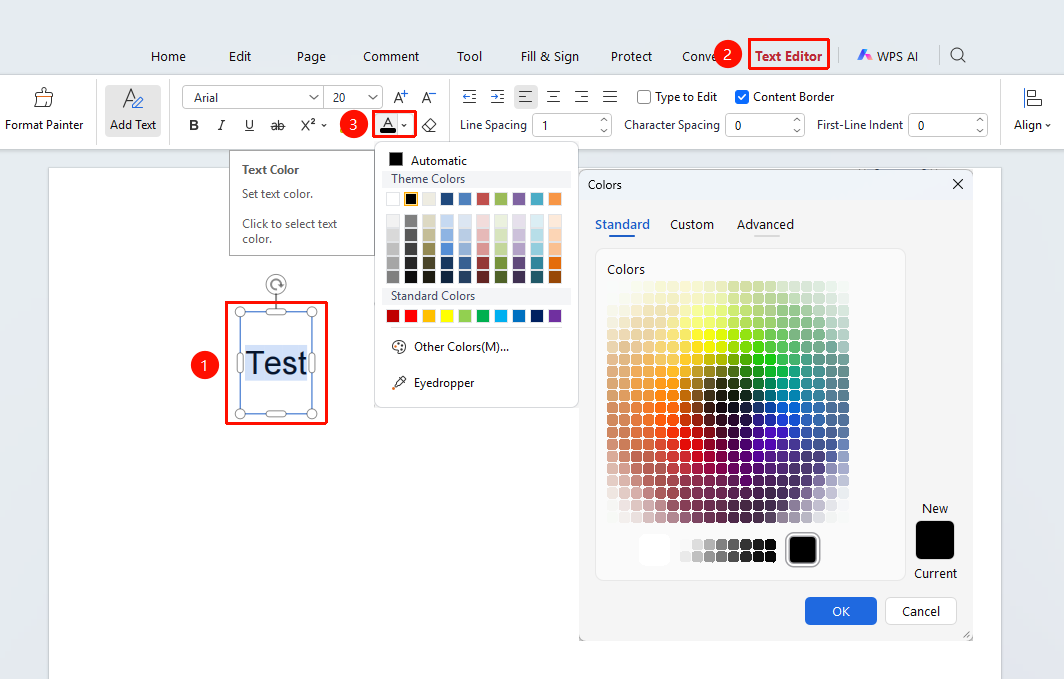
「Docs Editing」 tab → Font Color button
- Click the 「Font Color in the toolbar」 「button」 (A icon with a color bar)
- Select a color in the pop-up color picker:
- Automatic: Restore the default color (black)
- Theme Colors: Preset theme color schemes
- Standard Colors: Commonly used standard colors
- More Colors: Open the custom color dialog to select any color
- Color Picker: Use the eyedropper tool to pick a color from the document or screen
- The selected color is applied to the selected text immediately
FAQ
Q1: What should I do if the font color button is grayed out?
You need to select text first to use the font color feature. Please ensure you have entered 「Docs Editing」 mode and selected the text.
Q2: How do I restore the default text color?
Click the font color button and select the 「Automatic」 option in the color picker to restore the default black color.
Q3: What is the use of the Color Picker feature?
The Color Picker can pick up colors from other elements in the document or from anywhere on the screen to ensure color consistency.
Notes
- Font color modification only takes effect on the currently selected text
- Text in scanned PDFs needs to undergo OCR recognition first before its color can be modified
- The color picker supports a preview feature; hover the mouse to preview the effect