Feature Summary
Set the paragraph alignment of Docs in a PDF Document, supporting left align, center align, right align, justify, and distributed align.
Feature Description
| Feature Dimension | Description |
|---|---|
| Membership Restriction | Requires a subscribe to membership |
| Version Restriction | No version restriction |
Steps
Set Left Align
Feature Entry
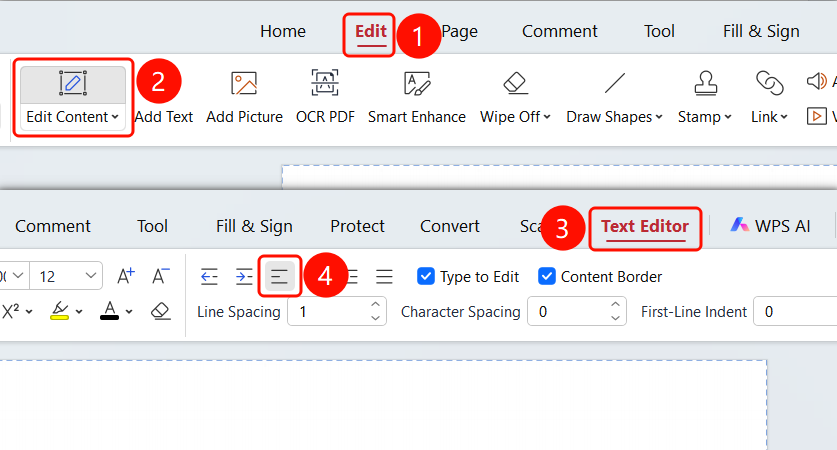
「Edit」tab → 「Edit Content」button → 「Docs Editing」tab → 「Left Align」button
- Open the PDF file you want to edit
- Click the 「Edit」 tab in the top menu bar
- Click the 「Edit Content」 button in the ribbon
- Select the Docs content you want to set the alignment for
- Click the 「Left Align」 button in the 「Docs Editing」 tab
- The text will be displayed left-aligned
Set Center Align
Feature Entry
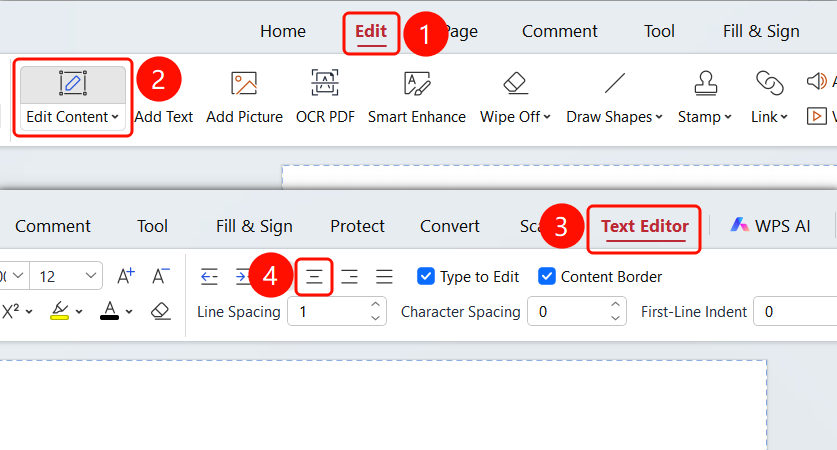
「Edit」tab → 「Edit Content」button → 「Docs Editing」tab → 「Center Align」button
- Open the PDF file you want to edit
- Click the 「Edit」 tab in the top menu bar
- Click the 「Edit Content」 button in the ribbon
- Select the Docs content you want to set the alignment for
- Click the 「Center Align」 button in the 「Docs Editing」 tab
- The text will be displayed center-aligned
Set Right Align
Feature Entry
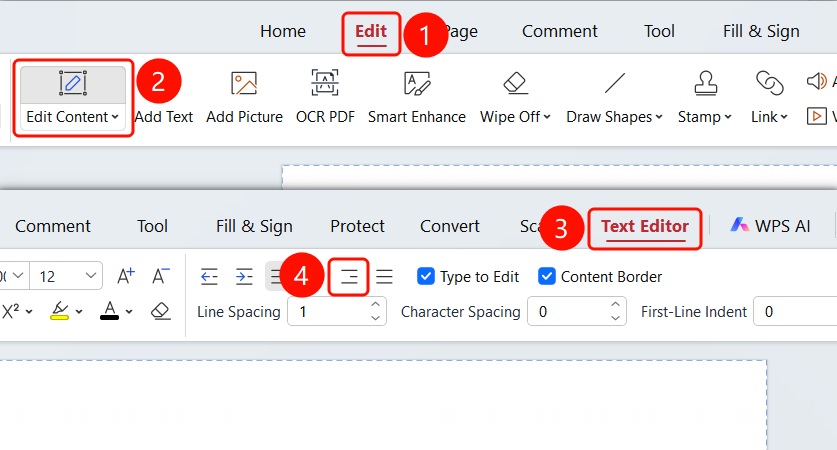
「Edit」tab → 「Edit Content」button → 「Docs Editing」tab → 「Right Align」button
- Open the PDF file you want to edit
- Click the 「Edit」 tab in the top menu bar
- Click the 「Edit Content」 button in the ribbon
- Select the Docs content you want to set the alignment for
- Click the 「Right Align」 button in the 「Docs Editing」 tab
- The text will be displayed right-aligned
Set Justify
Feature Entry
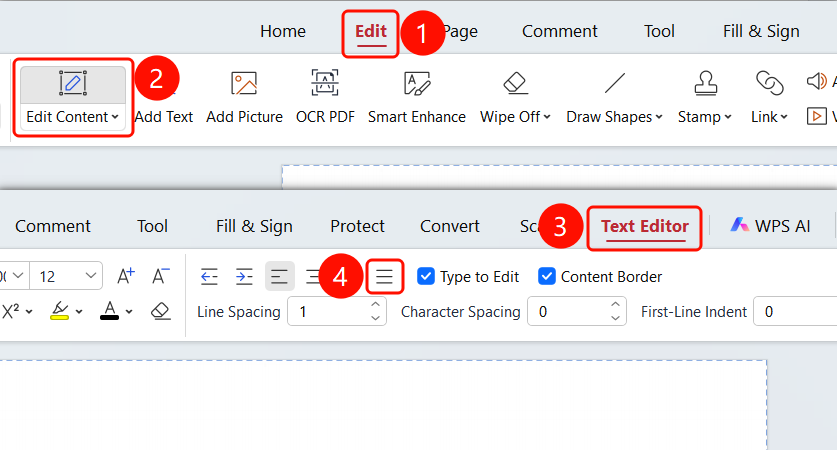
「Edit」tab → 「Edit Content」button → 「Docs Editing」tab → 「Justify」button
- Open the PDF file you want to edit
- Click the 「Edit」 tab in the top menu bar
- Click the 「Edit Content」 button in the ribbon
- Select the Docs content you want to set the alignment for
- Click the 「Justify」 button in the 「Docs Editing」 tab
- The text will be displayed justified
FAQ
Q1: What should I do if the alignment buttons are grayed out and cannot be clicked?
- Solution: You need to enter 「Edit Content」 mode and select the text first to use the alignment feature.
Q2: How to restore the default alignment?
- Solution: Select the text and then choose Left Align to restore the default.
Q3: Can I set alignment and other formatting at the same time?
- Solution: Yes, alignment can be used simultaneously with formatting such as font, font size, and color.
Notes
- You must enter 「Edit Content」 mode first to use the alignment feature
- Alignment only applies to the currently selected paragraph
- Shortcut key operation supported: Left Align
Ctrl+L