Feature Summary
Capture a screen area and compare it with a PDF document, supporting multiple screenshot tools and annotation features.
Feature Description
| Feature Dimension | Description |
|---|---|
| Membership Restriction | Requires a subscribe to membership |
| Version Restriction | No version restriction |
Operation Steps
Enable Screenshot Comparison from the Ribbon
Feature Entry
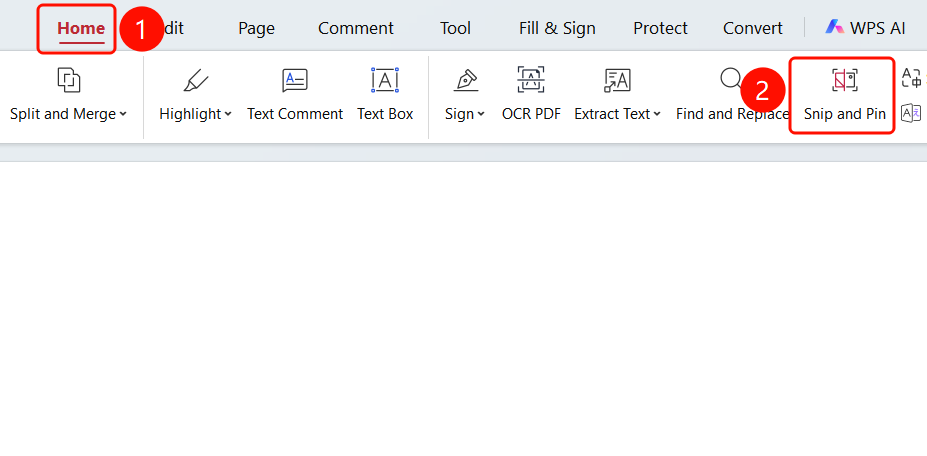
"Home" tab → "Screenshot Comparison" button
- Open the PDF file you want to compare
- Click the "Home" tab in the top ribbon
- Click the "Screenshot Comparison" button in the ribbon
- Enter screenshot mode; the mouse cursor changes to a crosshair
- After taking the screenshot, it will be pinned to the screen for easy comparison with the document
Capture Screen Area
Feature Entry
Screenshot toolbar
- Drag the mouse to select the area you want to capture
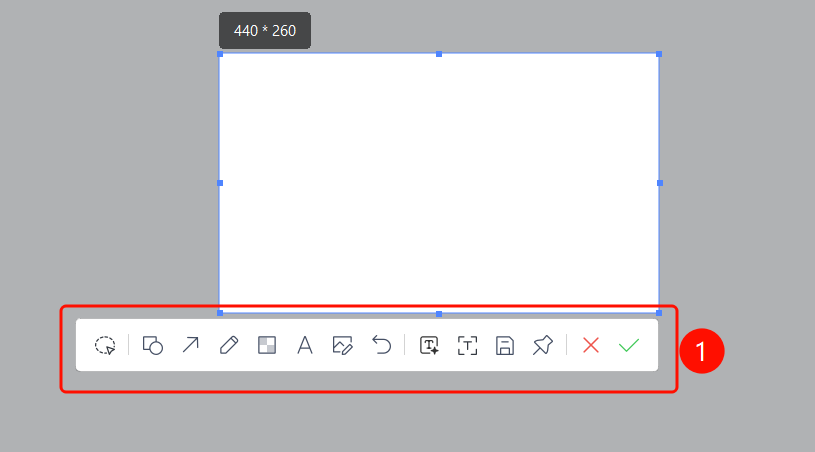
- After selecting the area, the screenshot toolbar will pop up below
- The toolbar contains various tools:
- Selection Shapes: Rectangle, ellipse, etc.
- Annotation Tools: Arrow, brush, Docs, etc.
- Image Tools: Insert image annotation
- Undo: Undo the previous action
- Screenshot Size: Adjust screenshot dimensions
- Full Screen: Full-screen screenshot
- Save: Save the screenshot
- Copy: Copy the screenshot to the clipboard
- Cancel: Click the red cross to cancel the screenshot
- Confirm: Click the green checkmark to confirm the screenshot
FAQ
Q1: How to save after taking a screenshot?
- Solution: Click the save button in the screenshot toolbar and choose a save location.
Q2: Can annotations be added to the screenshot?
- Solution: Yes, use the annotation tools (arrow, brush, Docs, etc.) in the screenshot toolbar to add annotations.
Notes
- The screenshot toolbar provides various annotation and saving options
- Supports multiple screenshot annotation tools