Feature Summary
Apply multiple filter effects to scanned PDFs in batch, completing image processing operations such as intelligent optimization, Remove Shadow, and Remove Moiré in one go.
Feature Description
| Feature Dimension | Description |
|---|---|
| Membership Restriction | Requires a subscribed membership |
| Version Restriction | No version restrictions |
Operation Steps
Open Batch Apply Filters from the Ribbon
Feature Entry
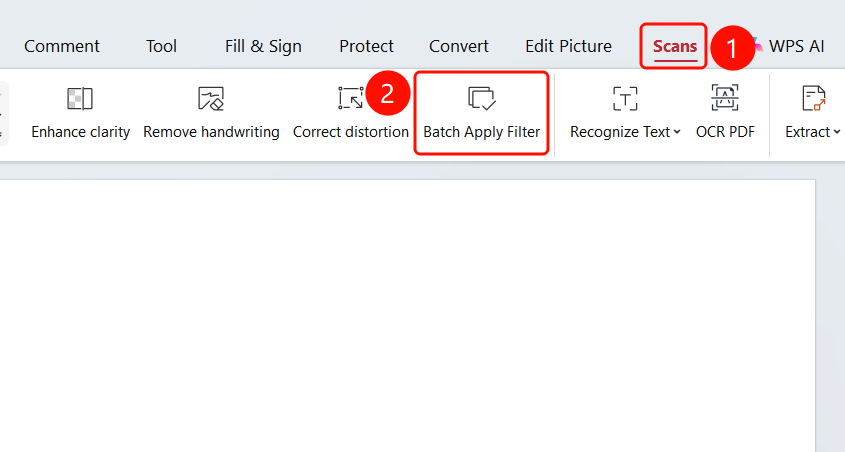
「Scan」 tab → 「Batch Apply Filters」 button
- Open the scanned PDF file you need to process
- Click the 「Scan」 tab in the top ribbon
- Click the 「Batch Apply Filters」 button in the ribbon
Select Filter Effects and Set Range
Feature Entry
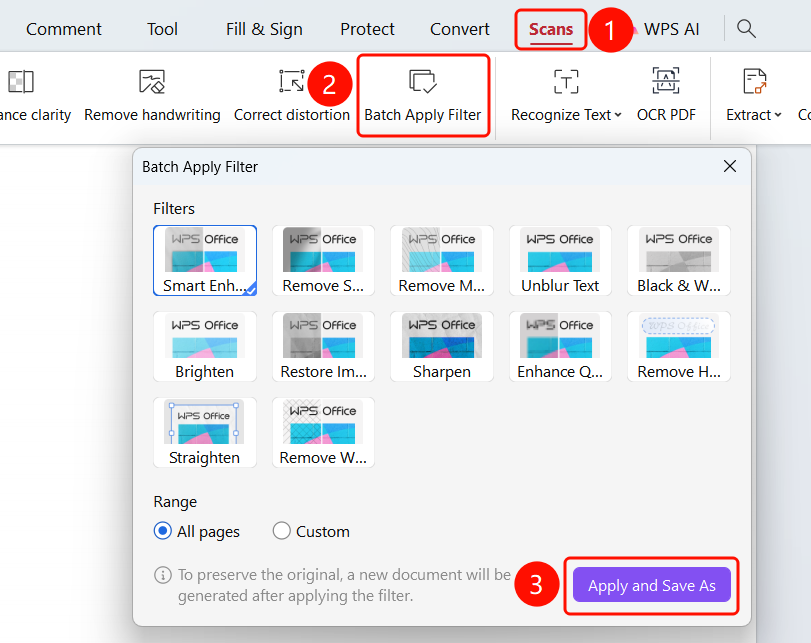
「Batch Apply Filters」 dialog → 「Apply and Save As」 button
- The 「Batch Apply Filters」 dialog pops up
- Select the desired filter effect in the 「Apply Filters」 area:
- Intelligent Optimization: AI automatic analysis and optimization
- Remove Shadow: Eliminate shadows from scans
- Remove Moiré: Remove moiré patterns from screen captures
- Enhance Text: Improve text clarity
- Black & White Background Removal: Convert to black and white and remove background
- Brighten: Increase overall brightness
- Restore Image: Repair image quality damage
- Sharpen: Enhance edge sharpness
- Upscale: Increase resolution
- Remove Handwriting: Remove handwritten marks
- Deskew: Correct page tilt
- Remove Watermark: Remove watermarks
- Set the 「Recognition Range」: All pages or custom pages
- Click the 「Apply and Save As」 button
FAQ
Q1: How to restore the original image after batch applying filters?
- Solution: Click the 「Original」 filter in the toolbar to restore to the original state.
Q2: Can multiple filters be applied simultaneously?
- Solution: You can select one filter effect in the 「Batch Apply Filters」 dialog. If you need to overlay effects, apply one filter, save it, and then apply another.