Feature Summary
Split a PDF document into multiple files or merge multiple PDFs into one file, supporting various split methods and output settings.
Feature Description
| Feature Dimension | Description |
|---|---|
| Membership Restriction | Requires a subscription to membership |
| Version Restriction | No version restriction |
Operation Steps
Split Feature
Feature Entry
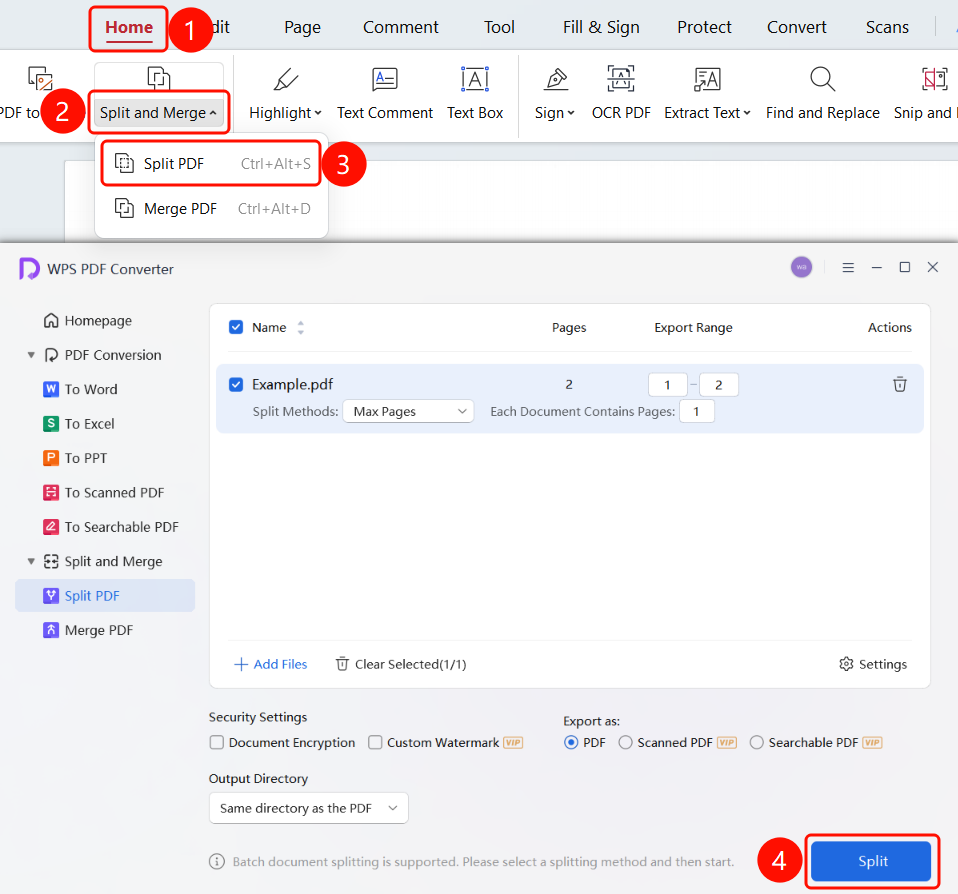
"Home" tab → "Split & Merge" dropdown menu
- Open the PDF file to be processed
- Click the "Home" tab in the top menu bar
- Click the "Split & Merge" dropdown menu in the ribbon
- Select "Split Document"
- Settings available in the interface:
- Output Range: Set the split range of the document
- Security Settings: Set whether to encrypt or add a custom watermark after merging documents
- Output Type: Set the document type after merging
- Output Directory: Choose the save location for the merged document
- Click the "Start Split" button to split
Merge Feature
Feature Entry
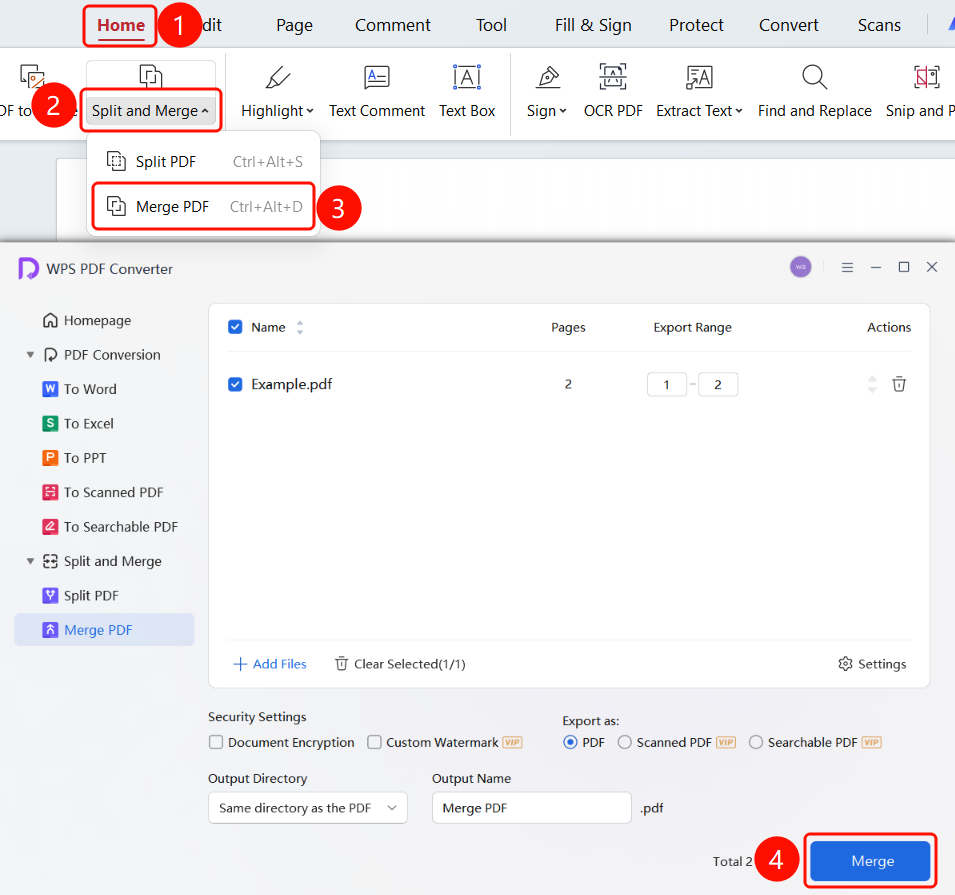
"Home" tab → "Split & Merge" dropdown menu
- Open the PDF file to be processed
- Click the "Home" tab in the top menu bar
- Click the "Split & Merge" dropdown menu in the ribbon
- Select "Merge Documents"
- Click the "Add Files" button to add files for merging
- Settings available in the interface:
- Security Settings: Set whether to encrypt or add a custom watermark after merging documents
- Output Type: Set the document type after merging
- Output Directory: Choose the save location for the merged document
- Output Name: Set the name of the merged document
- Click the "Start Merge" button to merge
FAQ
Q1: What should I do if the order of the merged PDF is incorrect?
- Solution: Use the up and down arrows in the file list to adjust the file order, or drag and drop to rearrange positions.
Q2: How do I extract only specific pages when splitting?
- Solution: Select the "Select Range" split method and manually enter the page range you want to extract.
Q3: What is the difference between Scanned PDF and Searchable PDF?
- Solution: Scanned PDF is a pure image format, while Searchable PDF contains an OCR-recognized text layer, supporting text search and copying. Features marked as VIP in the output type require membership.
Notes
- When merging multiple PDFs, it is recommended to adjust the file order before executing the merge
- Scanned PDF and Searchable PDF output types are VIP features
- Both split and merge operations support batch processing of multiple files
- Document encryption and custom watermarking are advanced security settings