Feature Summary
Extract text content from PDF documents for easy copying and editing.
Feature Description
| Feature Dimension | Description |
|---|---|
| Membership Restriction | Requires a membership subscription to edit PDF files |
| Version Restriction | No version restriction |
Steps
Extract Document Text
Feature Entry
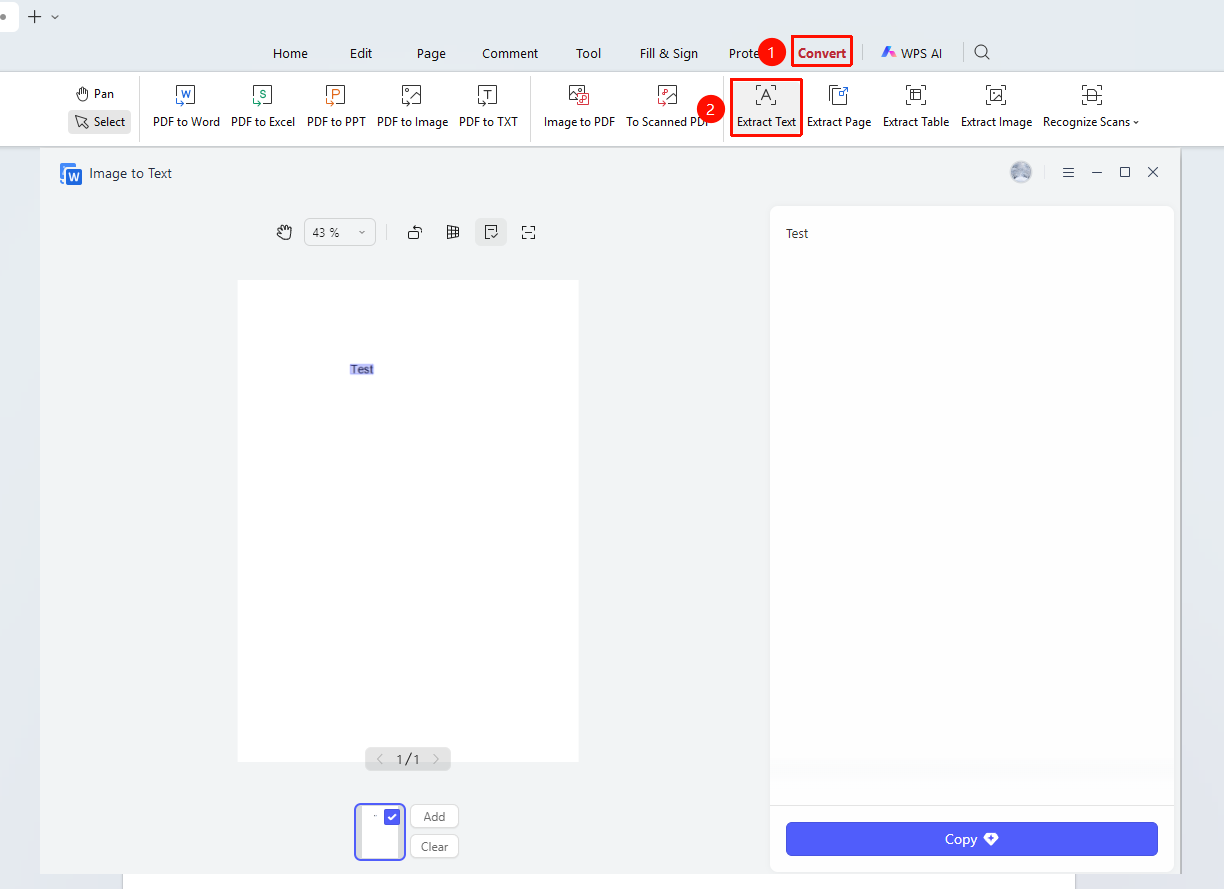
"Convert" tab → "Extract Text" button
- Click the "Convert" tab in the top menu bar
- Click the "Extract Text" button in the toolbar
- In the pop-up dialog, select the extraction range:
- All Pages: Extract text from the entire document
- Current Page: Extract text from the current page only
- Custom Pages: Select specific pages
- Select the extraction language
- Click the "Start Extraction" button
- Wait for the extraction to complete; the text will be displayed in the results panel
Copy Extracted Text
Feature Entry
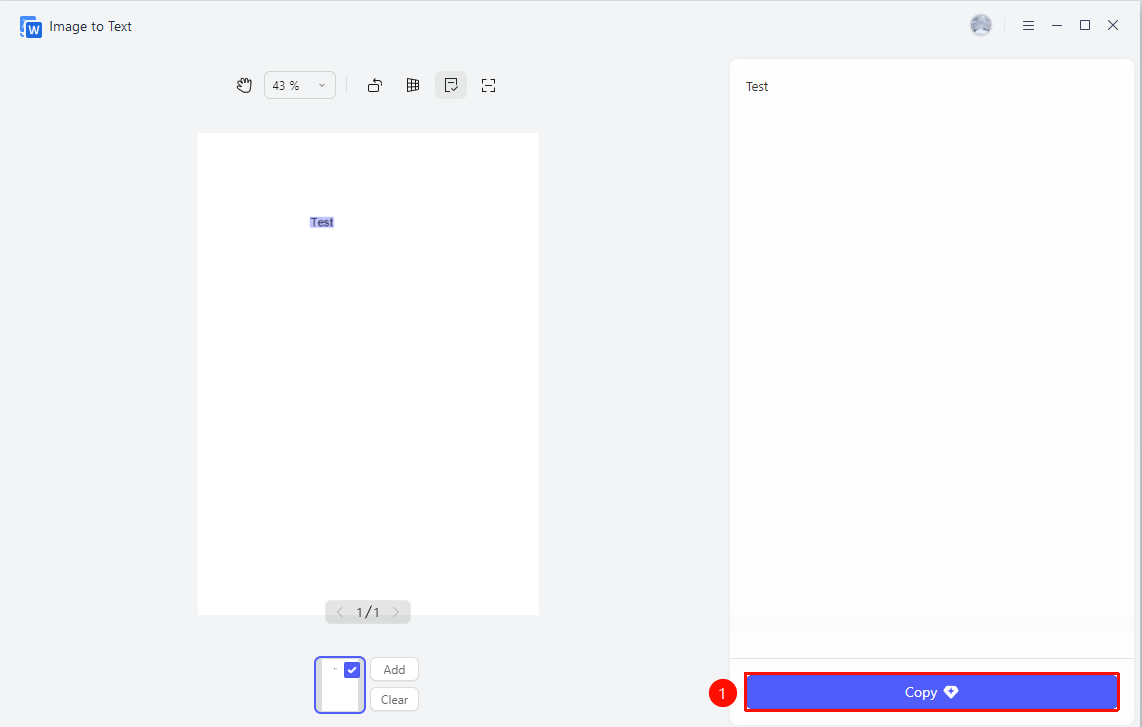
"Convert" tab → "Extract Text" button → Results Panel
- After extraction is complete, the text will be displayed in the results panel on the right
- Select the text content you want to copy
- Right-click and select "Copy" or use the Ctrl+C shortcut
- Paste into another application
FAQ
Q1: What should I do if the extracted text is inaccurate?
Ensure the correct recognition language is selected. Clearer PDF documents yield better extraction results.
Q2: Can text be extracted from scanned PDFs?
Yes. Scanned PDFs require OCR recognition first, after which the text can be extracted.
Q3: Will the extracted text retain its formatting?
The extracted text will try to preserve the paragraph structure, but complex formatting may require manual adjustment.
Notes
- Scanned PDFs require OCR recognition before text can be extracted
- Extracted text can be copied to other applications for editing
- It is recommended to check and correct possible recognition errors after extraction