Feature Summary
Insert preset or custom stamps into PDF documents, supporting three types: round stamps, rectangular stamps, and imported image stamps.
Feature Description
| Feature Dimension | Description |
|---|---|
| Membership Restriction | Requires a subscribe to WPS membership |
| Version Restriction | No version restriction |
Steps
Select a Preset Stamp
Feature Entry
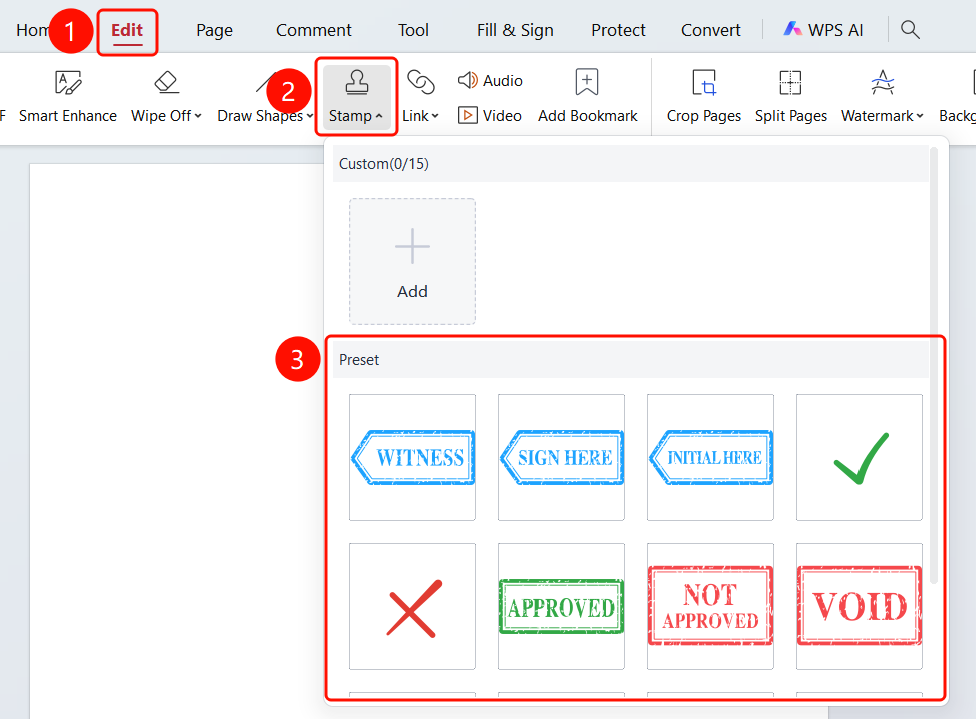
"Edit" tab → "Stamp" dropdown menu → "Stamp" dropdown panel
- Open the PDF file where you want to insert a stamp
- Click the "Edit" tab in the top menu bar
- Click the "Stamp" dropdown menu in the toolbar
- In the "Stamp" dropdown panel, select a preset stamp from the "Recommended Stamps" area:
- Click the stamp to insert it into the PDF page
Create a Round Stamp
Feature Entry
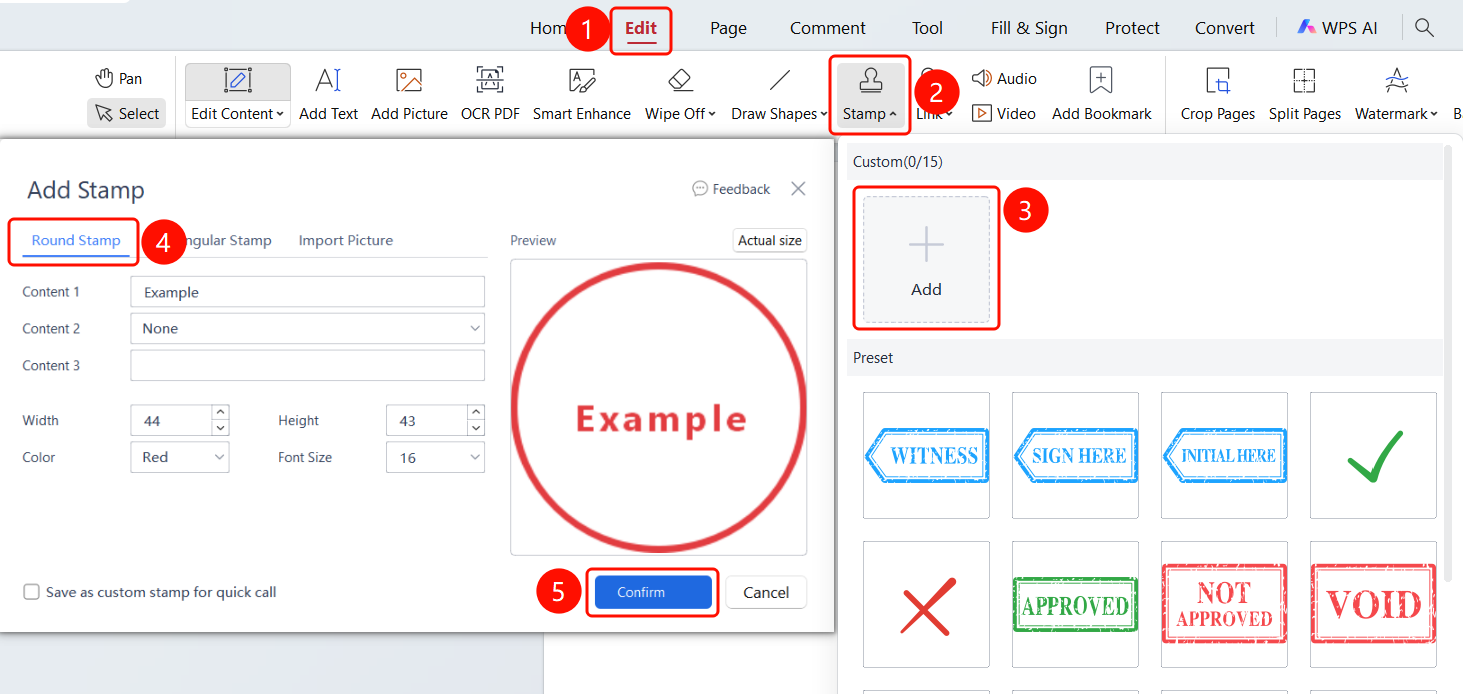
"Edit" tab → "Stamp" dropdown menu → "Add Stamp" dialog → "Round Stamp" tab
- Open the PDF file where you want to insert a stamp
- Click the "Edit" tab in the top menu bar
- Click the "Stamp" dropdown menu in the toolbar
- Click the "+ Click to Add" button in the "Custom Stamp" area
- Select the "Round Stamp" tab
- Set the stamp content:
- Content 1: Enter the first line of text (e.g., company name)
- Content 2: Select a date format (e.g., current date)
- Content 3: Enter the third line of text (e.g., approval status)
- Set the stamp style: width, height, color, font size
- You can check "Save as custom stamps for quick call"
- Click the "OK" button
Create a Rectangular Stamp
Feature Entry
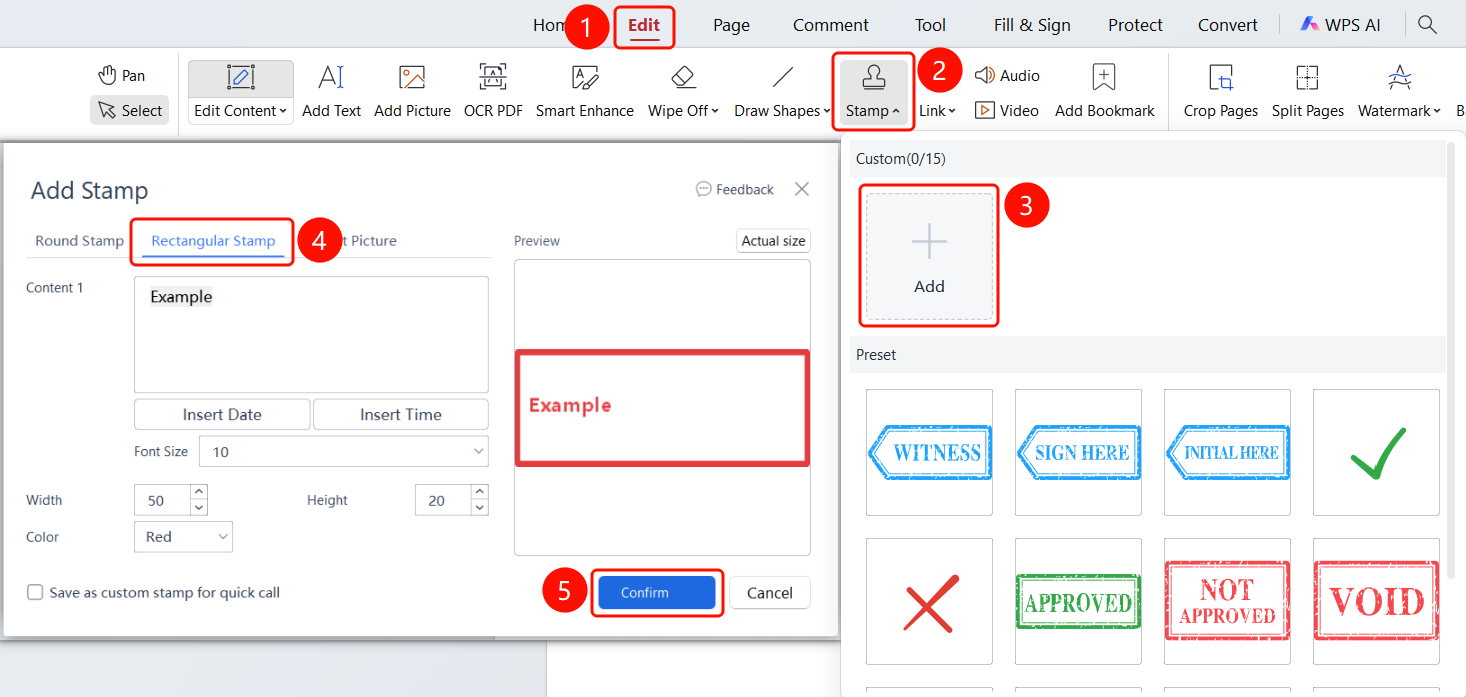
"Edit" tab → "Stamp" dropdown menu → "Add Stamp" dialog → "Rectangular Stamp" tab
- Open the PDF file where you want to insert a stamp
- Click the "Edit" tab in the top menu bar
- Click the "Stamp" dropdown menu in the toolbar
- Select the "Rectangular Stamp" tab
- Enter the stamp text content in the Content 1 area
- You can click the "Insert Date" or "Insert Time" button to add a timestamp
- Set the stamp style: font size, width, height, color
- You can check "Save as custom stamps for quick call"
- Click the "OK" button
Import an Image Picutre
Feature Entry
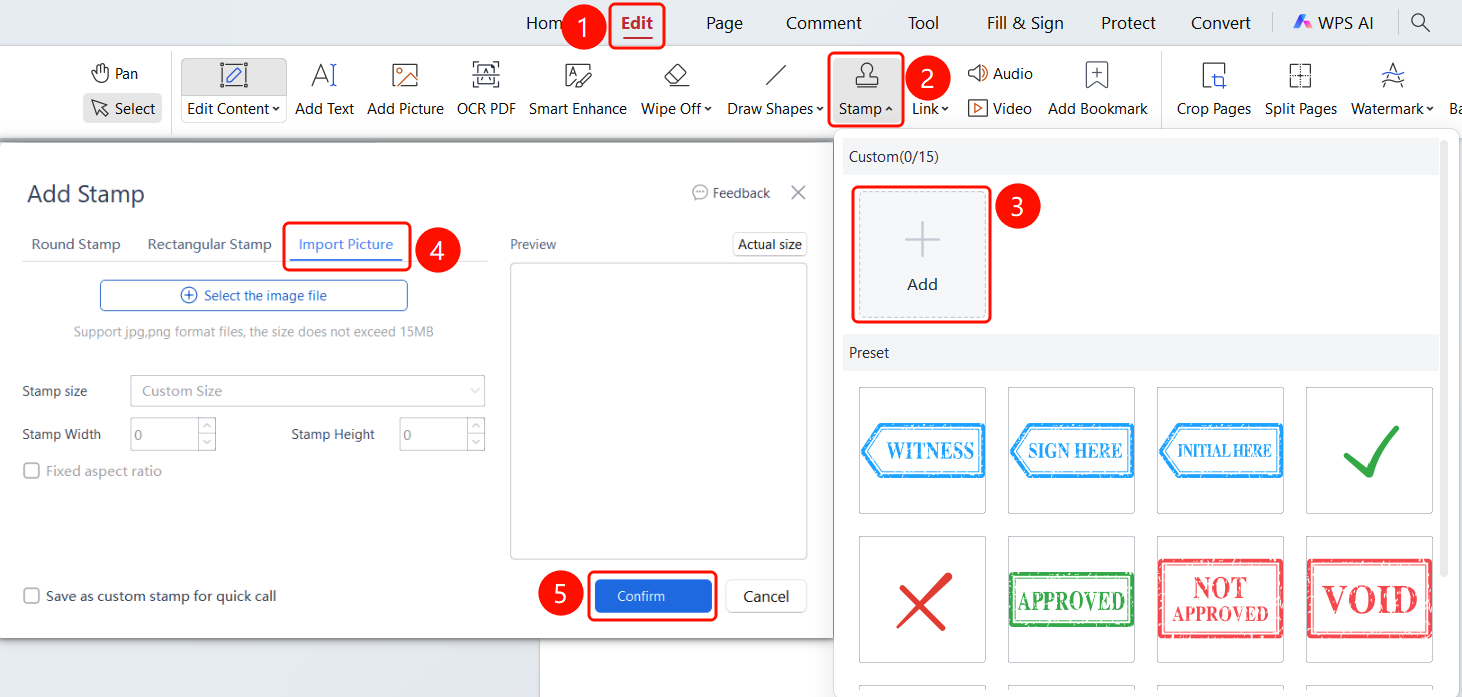
"Edit" tab → "Stamp" dropdown menu → "Add Stamp" dialog → "Import Picutre" tab
- Open the PDF file where you want to insert a stamp
- Click the "Edit" tab in the top menu bar
- Click the "Stamp" dropdown menu in the toolbar
- Select the "Import Picutre" tab
- Click the "+ Select Image File" button
- Select an image file in jpg or png format (size no larger than 15MB)
- Set the stamp size: custom size or fixed aspect ratio
- You can check "Save as custom stamps for quick call"
- Click the "OK" button
FAQ
Q1: How do I adjust the position and size of an inserted stamp?
- Solution: After clicking to select the stamp, you can drag to adjust its position, and drag the corner handles to adjust its size.
Q2: How many custom stamps can be saved?
- Solution: Up to 15 custom stamps can be saved. Once saved, they can be quickly accessed in the "Custom Stamp" area.
Q3: How do I delete an inserted stamp?
- Solution: After clicking to select the stamp, press the Delete key or select delete from the right-click menu.
Notes
- Supports saving up to 15 custom stamps for convenient reuse
- Round and rectangular stamps support automatic date and time insertion
- Imported image stamps only support jpg and png formats
- After insertion, the stamp's position, size, and transparency can be freely adjusted