Feature Summary
Adjust the zoom level of your PDF document. Preset zoom levels and custom percentages are supported.
Feature Details
| Feature Dimension | Description |
|---|---|
| Premium Restrictions | No premium restrictions |
| Version Restrictions | No version restrictions |
Steps
Adjusting Zoom Level from the Ribbon
Feature Entry
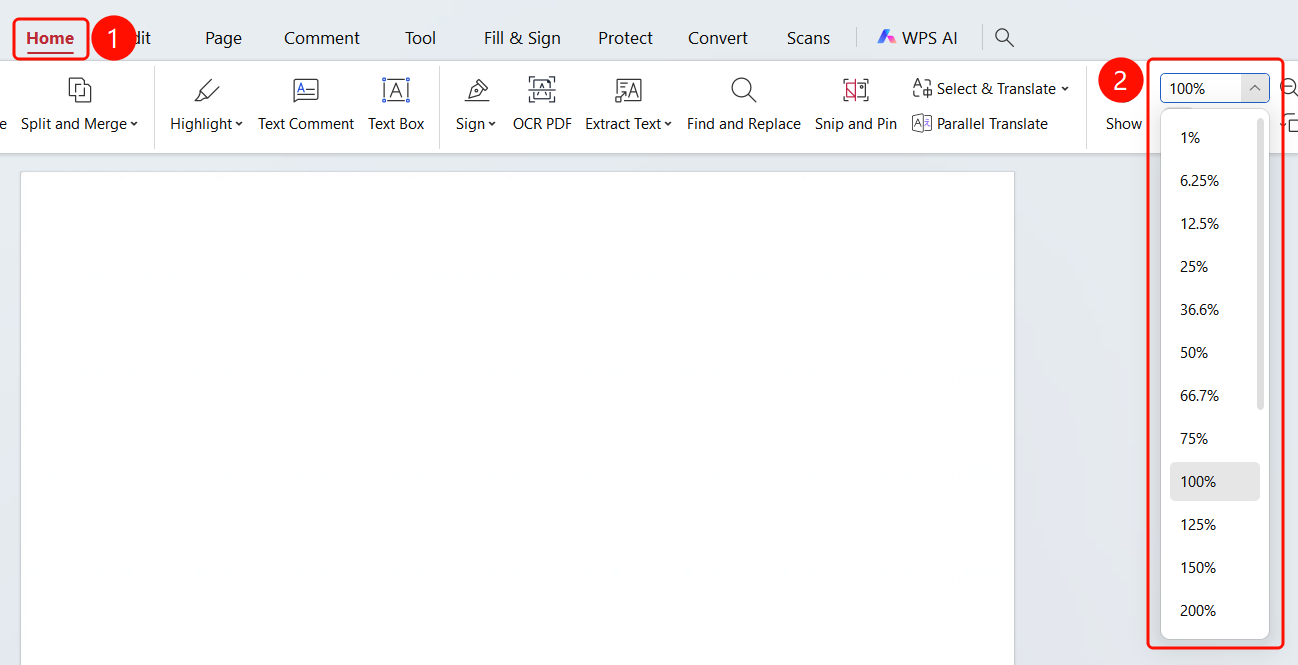
"Home" tab > Zoom drop-down list
- Open the PDF file you want to view.
- Click the Home tab in the top menu bar.
- Find the Zoom drop-down list on the right side of the ribbon and click to expand it.
- Select your desired zoom level from the drop-down list (supports 125%–6400%).
Adjusting Zoom Level from the Status Bar
Feature Entry
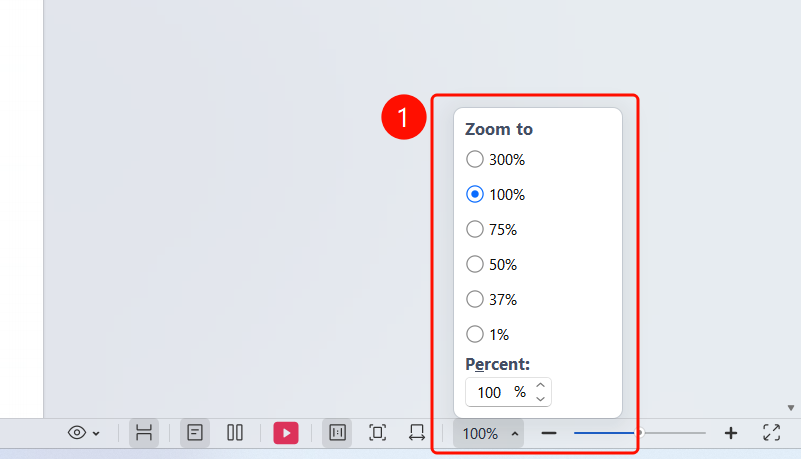
Status bar > Zoom button > "Zoom" dialog box
Click the Zoom button on the right side of the status bar.
In the Zoom dialog box that appears, you can choose one of the following methods:
- Click a preset zoom radio option: 300%, 100%, 75%, 50%, 37%, or 1%.
- Enter a custom value in the Percent (E) input box.
FAQ
Question 1: How do I quickly restore the zoom level to 100%?
- Solution: Select 100% from the Zoom drop-down list on the ribbon, or click the 100% button on the status bar.
Question 2: Can I customize the zoom level?
- Solution: Yes. Simply enter a custom value in the "Percent (E)" input box in the "Zoom" dialog box on the status bar.
Question 3: Does the zoom level affect printing?
- Solution: No. The zoom level only affects how the document is displayed on your screen and does not affect the printed output.