Feature Summary
Add bookmarks to PDF documents for quick positioning and navigation.
Feature Description
| Feature Dimension | Description |
|---|---|
| Member Limit | Subscription required |
| Version Limit | No version limit |
Steps
Enabling Add Bookmark from the Ribbon
Feature Entry
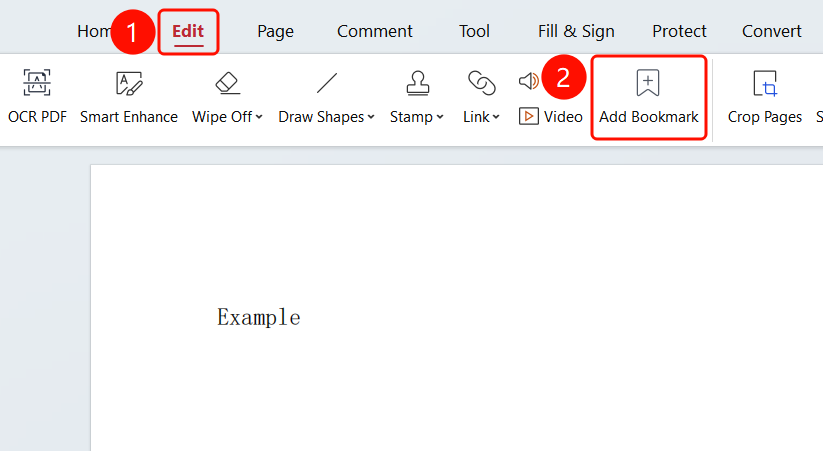
Edit tab → Add Bookmark button → Bookmark panel → Add Bookmark button
- Open the PDF file where you want to add bookmarks.
- Click the Edit tab in the top ribbon.
- Click the Add Bookmark button in the ribbon.
- After clicking the Add Bookmark button, the Bookmark panel will appear on the left.
- Click the Add Bookmark button to create a new bookmark.
- Enter a name for the bookmark (default is "[Bookmark] New Bookmark").
- The bookmark will automatically point to the current page.
Bookmark Settings
Feature Entry
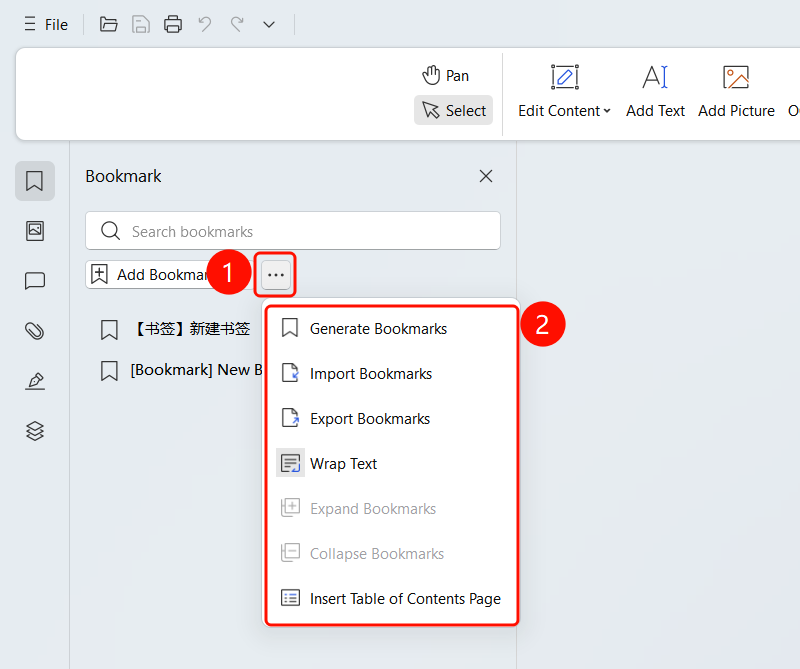
Bookmark panel → "..." More menu
Click the ... button in the Bookmark panel.
Select the desired action from the dropdown menu:
- Generate Bookmarks: Automatically generate bookmarks.
- Import Bookmarks: Import an external bookmark file.
- Export Bookmarks: Export the bookmark file.
- Word Wrap: Enable word wrap for bookmark text.
- Expand Bookmarks: Expand all bookmark levels.
- Collapse Bookmarks: Collapse all bookmark levels.
- Insert Table of Contents Page: Generate a table of contents page based on the bookmarks.
Deleting Bookmarks
Feature Entry
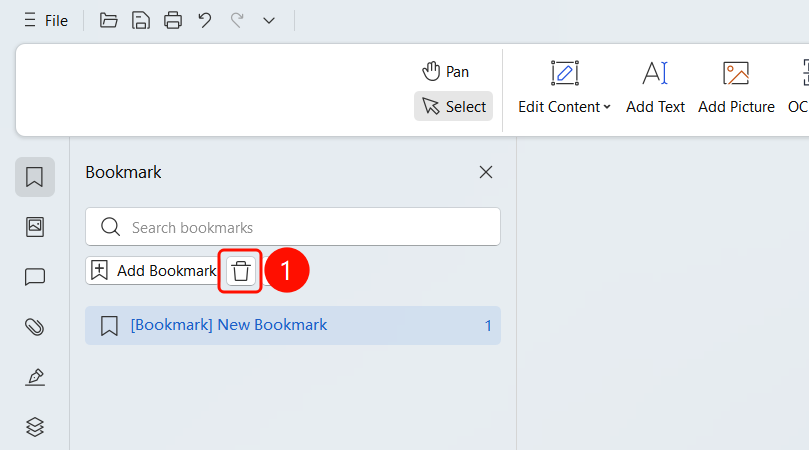
Bookmark panel → Delete button
- Select the bookmark you want to delete.
- Click the Delete button (trash can icon).
- Confirm the deletion of the selected bookmark.
FAQ
Q1: Can bookmarks be nested?
- Solution: Yes. You can create a hierarchical structure by dragging and dropping bookmarks.
Q2: Can bookmarks be exported?
- Solution: Yes. Click the Export Bookmarks option in the ... menu.
Q3: How do I delete a bookmark?
- Solution: Select the bookmark in the Bookmark panel and click the Delete button.
Notes
- Bookmarks are saved with the PDF document.
- Searching, renaming, and deleting bookmarks are supported.
- Bookmarks help you quickly locate content in the document.