Summary
Enhance the clarity of images in PDF documents to improve visual effects.
Feature Description
| Feature Dimension | Description |
|---|---|
| Membership Restriction | Requires a subscribe to membership |
| Version Restriction | No version restriction |
Steps
Enable Sharpening from the Ribbon
Feature Entry
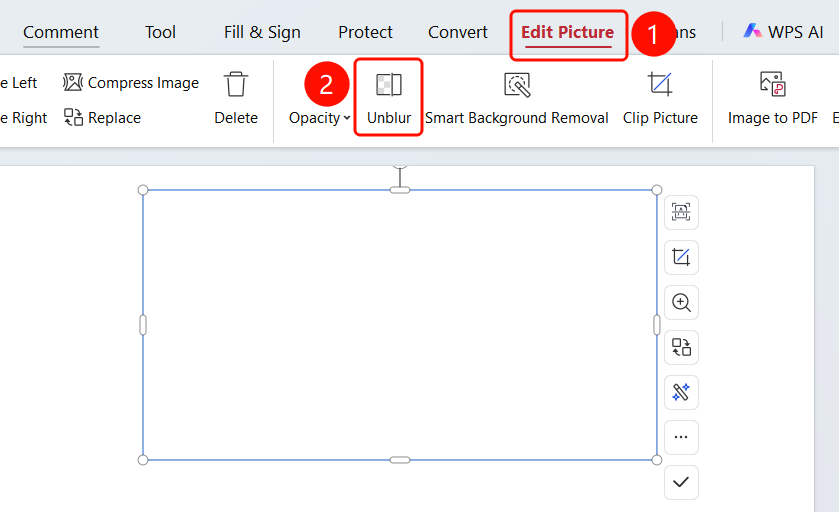
「Picture Editing」 tab → 「Unblur」 button
- Open the PDF file you need to edit
- Click on an image in the PDF to select it
- The system automatically switches to the 「Picture Editing」 tab
- Click the 「Unblur」 button in the ribbon
Apply to All Images
Feature Entry
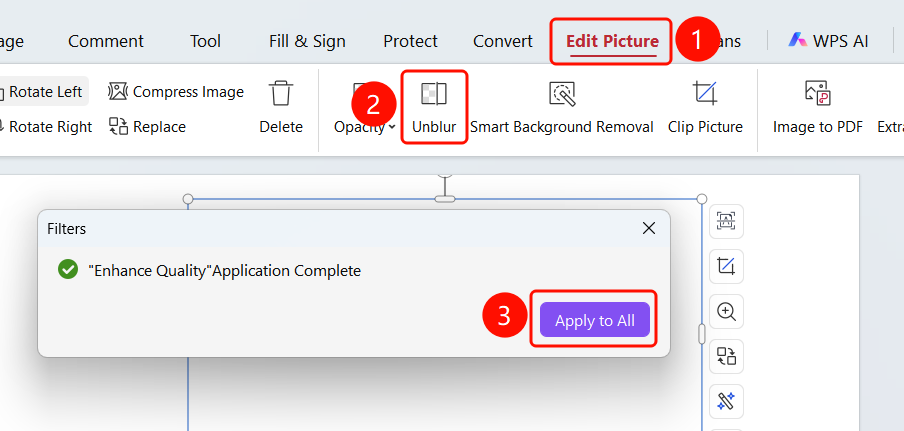
「Picture Editing」 tab → 「Sharpen」 button → 「Apply Filter」 dialog → 「Apply to All」 button
- Open the PDF file you need to edit
- Click on an image in the PDF to select it
- The system automatically switches to the 「Picture Editing」 tab
- Click the 「Sharpen」 button in the ribbon
- After the current image sharpening is complete, 「HD Enhancement applied successfully」 is displayed
- Click the 「Apply to All」 button to apply the sharpening effect to all images in the Document
FAQ
Q1: What does sharpening do?
- Solution: Sharpening improves the clarity and resolution of images, enhancing visual effects.
Notes
- Sharpening only affects images and does not affect Docs content
- The process may take some time
- The sharpening operation can be undone