Feature Summary
Clear all formatting from text, retaining only unformatted text.
Feature Description
| Feature Dimension | Description |
|---|---|
| Membership Restriction | Requires subscribe to membership |
| Version Restriction | No version restriction |
Operation Steps
Clear Formatting in the Ribbon
Feature Entry
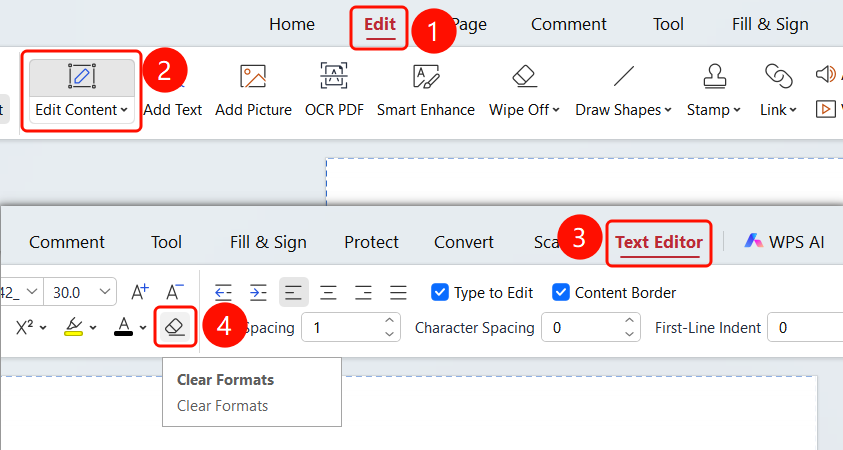
「Docs Editing」 tab → 「Clear Formatting」 button
- Open the PDF file you need to edit
- Click the 「Edit」 tab in the top ribbon
- Click the 「Edit Content」 button in the ribbon
- Click on the text in the PDF to enter Docs Editing mode
- Select the text content you want to clear formatting from
- In the 「Docs Editing」 tab, locate the 「Clear Formatting」 button (eraser icon)
- Click this button to clear all formatting from the selected content, retaining only unformatted text
FAQ
Q1: Will clearing formatting delete the text?
- Solution: No, clearing formatting only removes formatting; the text content will be retained.
Q2: Can clearing formatting be undone?
- Solution: Yes, you can use
Ctrl+Zto undo the clear formatting operation.
Q3: What formatting will be cleared?
- Solution: All formatting such as font, font size, color, bold, italic, and underline will be cleared.
Notes
- You must first enter 「Edit Content」 mode to use the clear formatting feature
- Clearing formatting only removes formatting and retains the text content