Feature Summary
Set the line spacing and character spacing of text in a PDF document to adjust paragraph formatting.
Feature Details
| Feature Dimension | Description |
|---|---|
| Premium Limitation | Requires a subscription |
| Version Limitation | No version limitation |
Steps
Setting Line Spacing from the Ribbon
Feature Entry
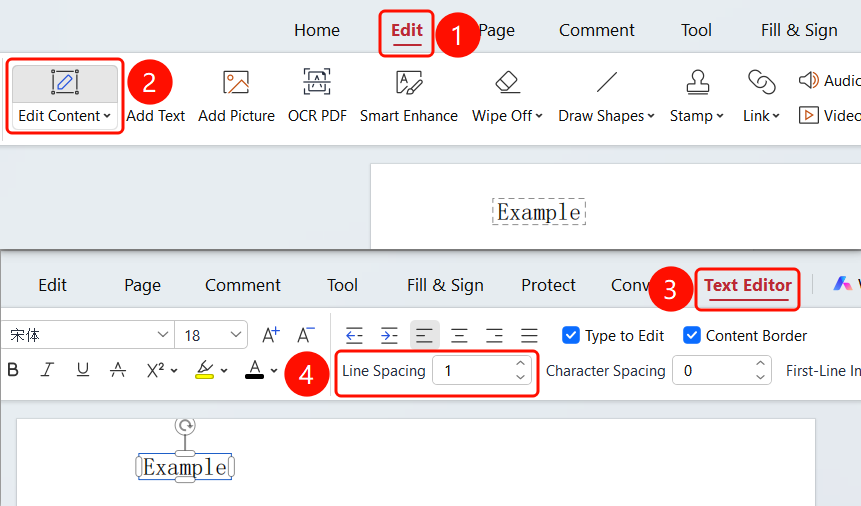
"Edit" tab → "Edit Content" button → "Text Edit" tab → "Line Spacing" input box
- Open the PDF file you want to edit.
- Click the Edit tab on the top ribbon.
- Click the Edit Content button on the ribbon.
- Enter text Edit Mode and select the paragraph where you want to set the line spacing.
- Find the Line Spacing input box on the Text Editor tab.
- Enter a value for line spacing (for example, 1 for single spacing, 1.5 for 1.5x spacing).
- Press Enter to apply the setting.
Setting Character Spacing from the Ribbon
Feature Entry
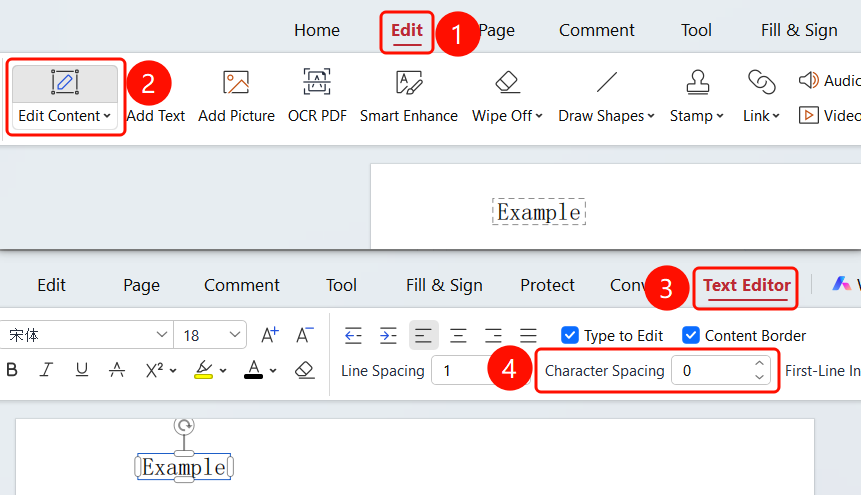
"Edit" tab → "Edit Content" button → "Text Editor" tab → "Character Spacing" input box
- Open the PDF file you want to edit.
- Click the Edit tab on the top ribbon.
- Click the Edit Content button on the ribbon.
- Enter text Edit Mode and select the text where you want to set the character spacing.
- Find the Character Spacing input box on the Text Editor tab.
- Enter a value for character spacing (for example, 0 for default spacing).
- Press Enter to apply the setting.
Setting Line Spacing from the Floating Toolbar
Feature Entry
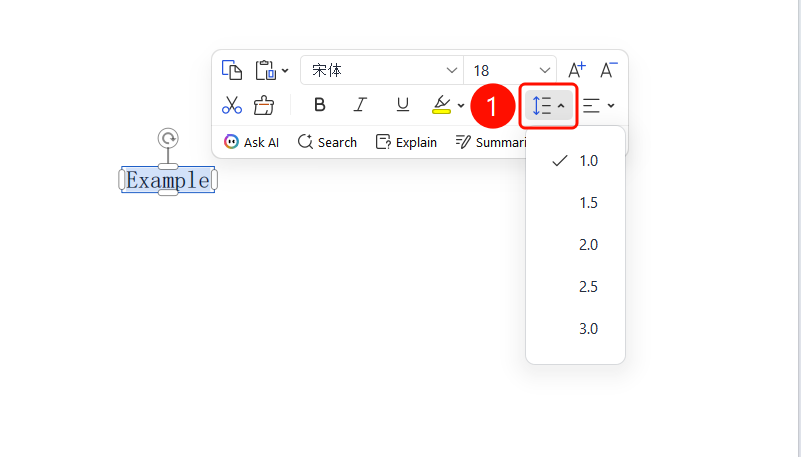
Select text → Floating toolbar → Line Spacing drop-down menu
- In text Edit Mode, select the paragraph where you want to set the line spacing.
- After selecting the text, a floating toolbar will appear above it.
- Click the Line Spacing drop-down menu on the floating toolbar.
- Choose the desired line spacing value (1.0, 1.5, 2.0, 2.5, 3.0).
FAQ
Question 1: What should I do if the line spacing and character spacing buttons are grayed out and cannot be clicked?
- Solution: You must enter "Edit Content" mode and select text first to use the line spacing and character spacing features.
Question 2: How do I restore the default line spacing and character spacing?
- Solution: Select the text, set the line spacing to 1, and set the character spacing to 0 to restore the default.
Question 3: Will line spacing and character spacing affect other paragraphs?
- Solution: No, line spacing and character spacing only apply to the currently selected paragraph.