Feature Summary
Adjust the opacity of images in PDFs. Supports free adjustment from 0% to 100% to create watermark effects or semi-transparent displays.
Feature Description
| Feature Dimension | Description |
|---|---|
| Subscription Limit | Requires subscribing to Premium |
| Version Limit | No version limit |
Steps
Adjust Opacity on the Ribbon
Feature Entry
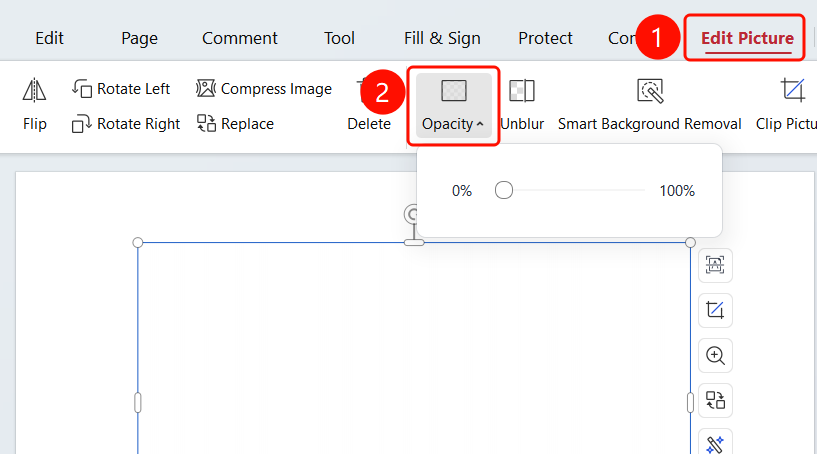
Picture Tools tab > Opacity slider
- Open the PDF file you want to edit.
- Click the image in the PDF to select it.
- The system will automatically switch to the Picture Tools tab.
- Find the Opacity slider on the ribbon.
- Drag the slider to adjust the image opacity.
- Slider range: 0% (completely transparent) to 100% (completely opaque).
FAQs
Q1: How do I restore an image to be completely opaque?
- Solution: Drag the opacity slider to 100% to restore full opacity.
Q2: How do I fine-tune the opacity after setting it?
- Solution: Select the image again and drag the opacity slider to fine-tune it. Supports free adjustment from 0% to 100%.
Q3: How do I create a watermark effect?
- Solution: Set the image opacity to around 20%–30% to create a watermark effect.
Notes
- Opacity adjustments are previewed in real time for easy confirmation.
- Supports free adjustment across the full range of 0%–100%.