Feature Summary
Play PDF documents in full screen, supporting slide-style browsing and annotation tools.
Feature Description
| Feature Dimension | Description |
|---|---|
| Member Limit | No member limit |
| Version Limit | No version limit |
Operating Steps
Enter Page Playback
Feature Entry
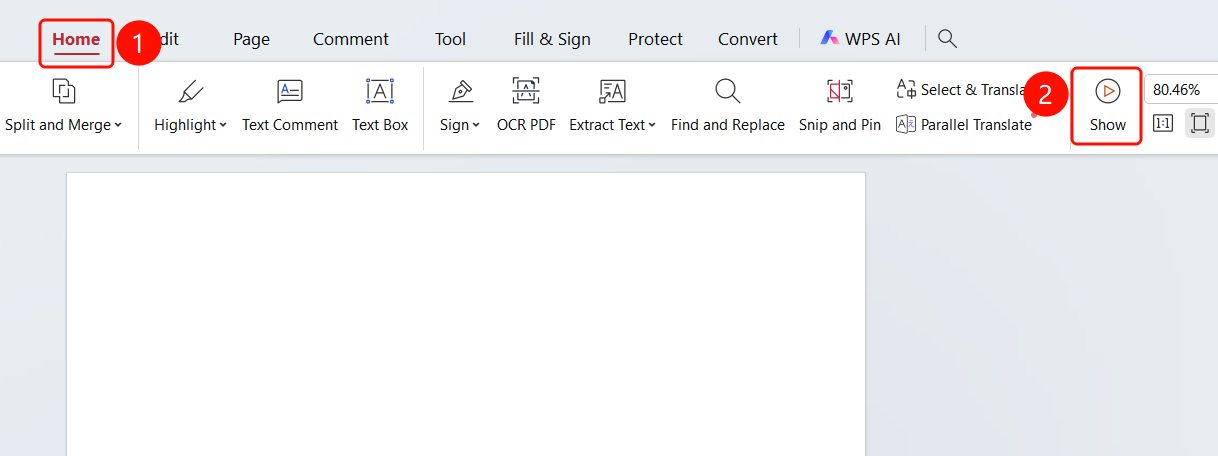
Start tab -> Play button
- Open the PDF file that needs to be played.
- Click the Start tab in the top ribbon.
- Click the Play button in the ribbon to enter full-screen playback mode.
Playback Mode Toolbar
Feature Entry
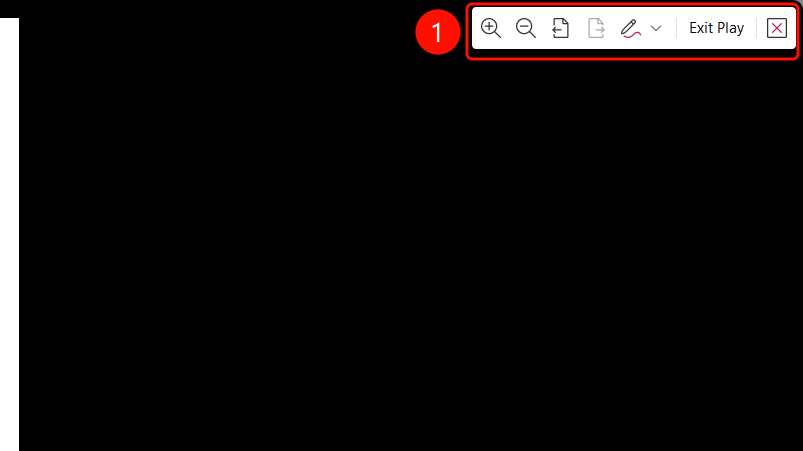
Toolbar in the upper-right corner of full-screen playback mode
After entering full-screen playback mode, the playback toolbar will be displayed in the upper-right corner.
The toolbar contains the following feature buttons:
- Zoom In/Zoom Out: Adjust the page display size.
- Previous/Next: Switch pages.
- Brush: Expand the annotation tool menu.
- Exit Playback: Exit full-screen playback mode.
Frequently Asked Questions
Question 1: How do I exit playback mode?
- Solution: Click the Exit Playback button on the toolbar, or press the
Esckey to exit.
Question 2: Can I use annotation tools in playback mode?
- Solution: Yes. Click the brush icon on the toolbar to use the brush annotation tool.
Question 3: Can I adjust the display ratio in playback mode?
- Solution: Yes. Use the Zoom In/Zoom Out buttons on the toolbar to adjust the display size.