Feature Summary
Compress images in PDF documents to reduce file size while maintaining visual quality.
Feature Description
| Feature Dimension | Description |
|---|---|
| Membership Restriction | Low-quality compression does not require a membership; "AI Compression" and "Target File Size" in high-quality compression require a membership |
| Version Restriction | No version restriction |
Steps
Using Low-Quality Compression
Feature Entry
Picture Editing tab → "Compress Image" button
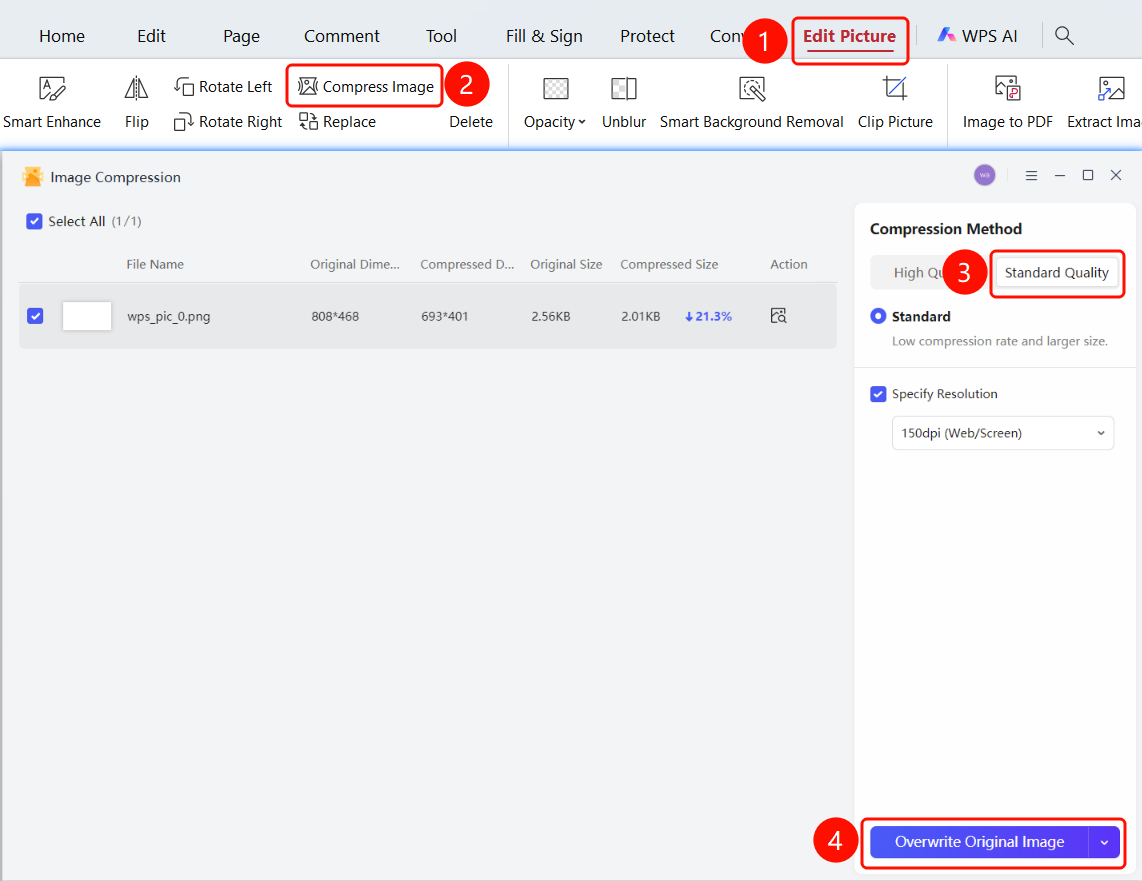
- Select the image you want to compress in the PDF document, then click the "Picture Editing" tab at the top
- Click the "Compress Image" button in the secondary toolbar to open the Compress Image window
- In the "Compression Method" area on the right, switch to the "Low-Quality Compression" tab
- Select a compression mode: "Normal Compression" is selected by default (smaller compression ratio, larger file size)
- Check the "Specify Resolution" checkbox, and select the target resolution from the dropdown list (e.g., 150dpi (Web/Screen))
- Confirm that the images to be compressed are checked in the image list on the left, and click the "Overwrite Original" button to complete compression
Using High-Quality Compression (Membership Required)
Feature Entry
Picture Editing tab → "Compress Image" button
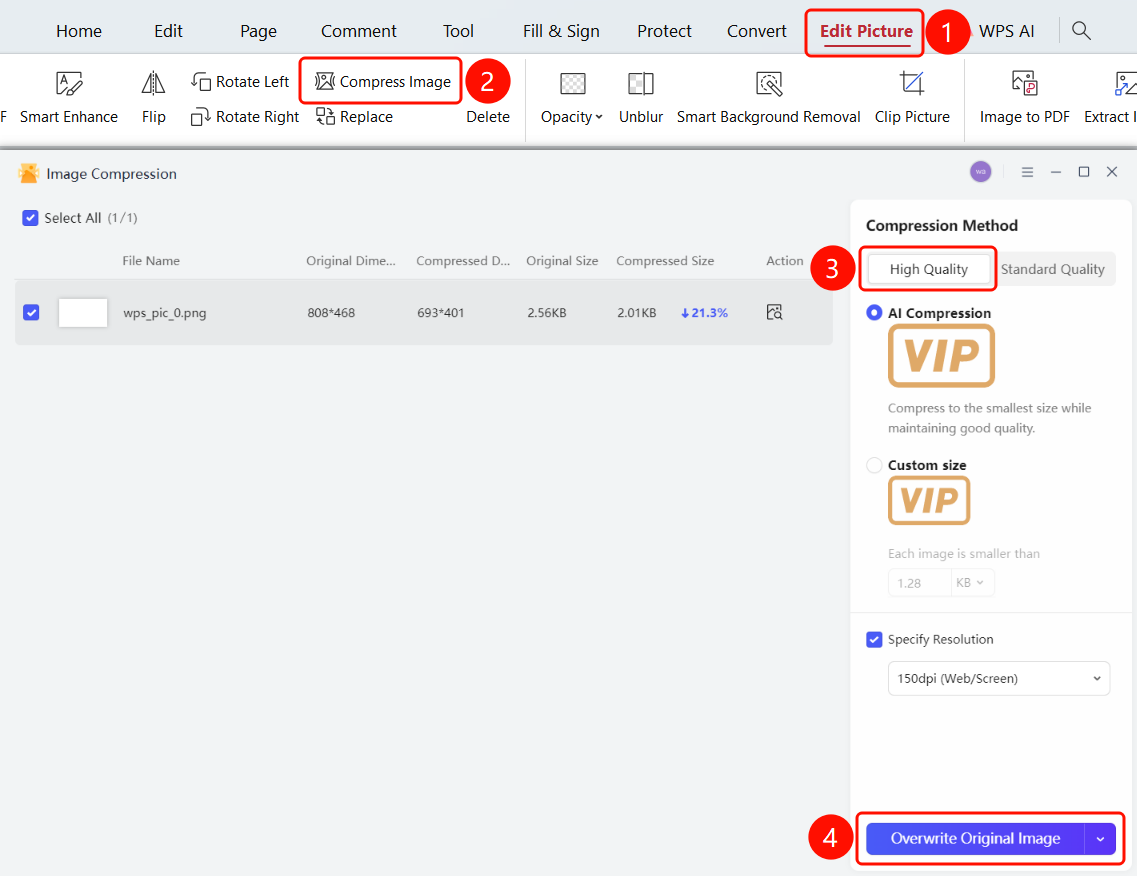
- After opening the Compress Image window, switch to the "High-Quality Compression" tab in the "Compression Method" area on the right
- Select a compression sub-mode:
- "AI Compression": Compresses images to the smallest size while ensuring clarity (membership required)
- "Custom Size": Set a target size limit for each image, e.g., 0.85 KB (membership required)
- Check the "Specify Resolution" checkbox, and select the target resolution from the dropdown list
- Confirm that the images to be compressed are checked in the image list on the left, and click the "Overwrite Original" button to complete compression
FAQ
Q1: What file information is displayed in the Compress Image window?
- Solution: The image list on the left side of the Compress Image window displays the thumbnail, file name, original dimensions, compressed dimensions, original size, compressed size, and compression ratio for each image. The "Select All" checkbox in the upper right corner supports batch checking or unchecking of images.
Q2: What is the difference between high-quality compression and low-quality compression?
- Solution: "Low-Quality Compression" provides the "Normal Compression" mode, which has a smaller compression ratio but does not require a membership; "High-Quality Compression" provides "AI Compression" and "Custom Size" modes, which can achieve greater compression while ensuring clarity, but require membership privileges.
Q3: What are the dropdown options for specifying resolution?
- Solution: The "Specify Resolution" dropdown provides preset DPI options. The screenshot shows the "150dpi (Web/Screen)" option, which is suitable for screen display scenarios. There are also resolution options suitable for high-precision scenarios such as printing.
Notes
- The "Compress Image" button is located in the secondary toolbar of the "Picture Editing" tab, and is only visible after switching to the "Picture Editing" tab
- The "AI Compression" and "Custom Size" features are marked with a VIP badge and require membership privileges to use
- The compression operation directly overwrites the images in the original document. It is recommended to back up the original document before compression.