Feature Summary
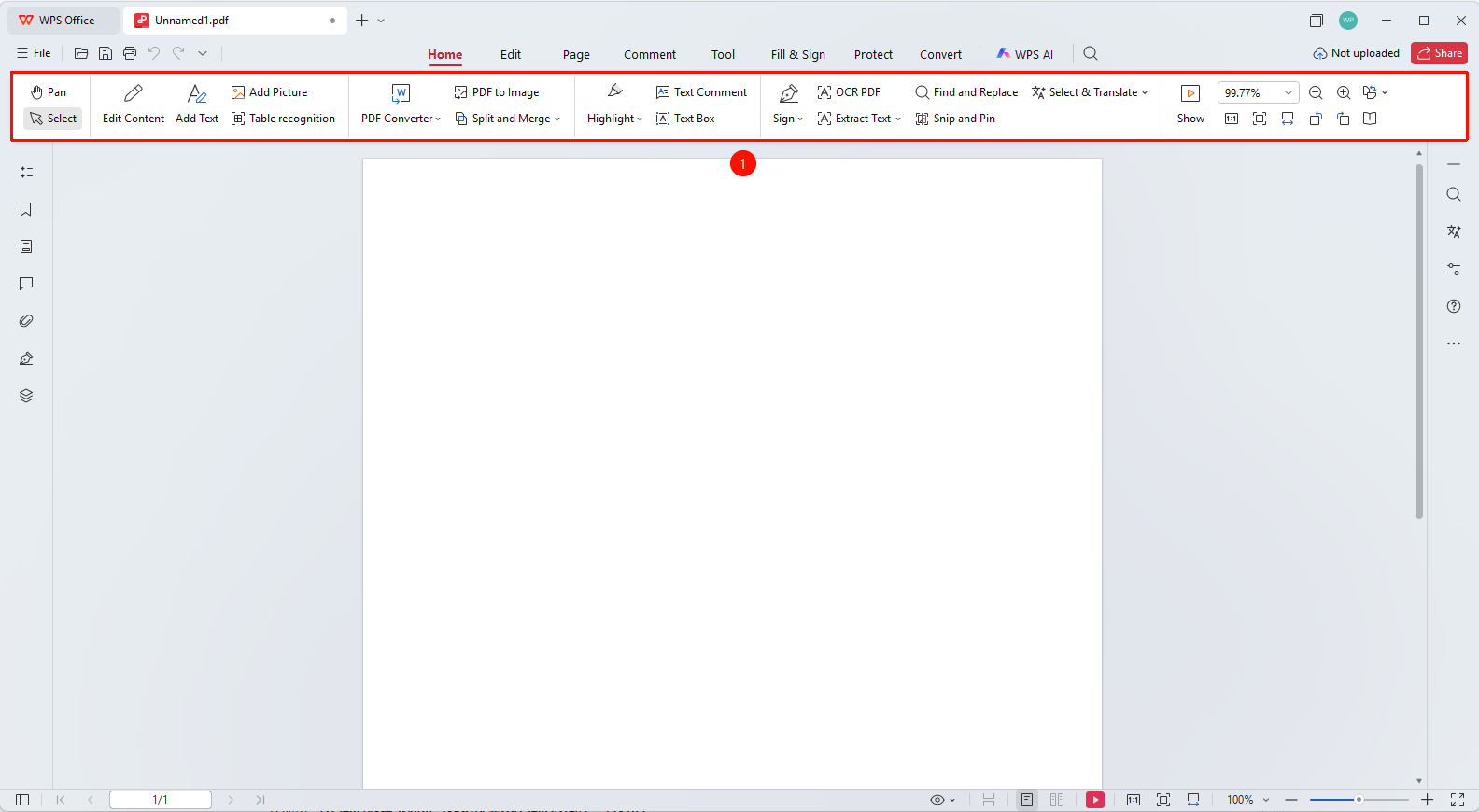
The ribbon is located below the menu bar and provides various PDF editing and processing features in the form of tabs and buttons.
Feature Description
| Feature Dimension | Description |
|---|---|
| Membership Restriction | Need to subscribe to membership to edit PDF files |
| Version Restriction | No version restriction |
Operation Steps
Understanding the Ribbon
Feature Entry
The ribbon area below the menu bar
- The ribbon is located below the menu bar and is the main operation area of the interface
- The ribbon adopts a tab design, including: Start, Edit, Page, Comment, Tools, Fill & Sign, Protect, Convert, WPS AI
- Each tab contains related feature 「buttons」 and tool groups
Switching Tabs
Feature Entry
The tab labels at the top of the ribbon
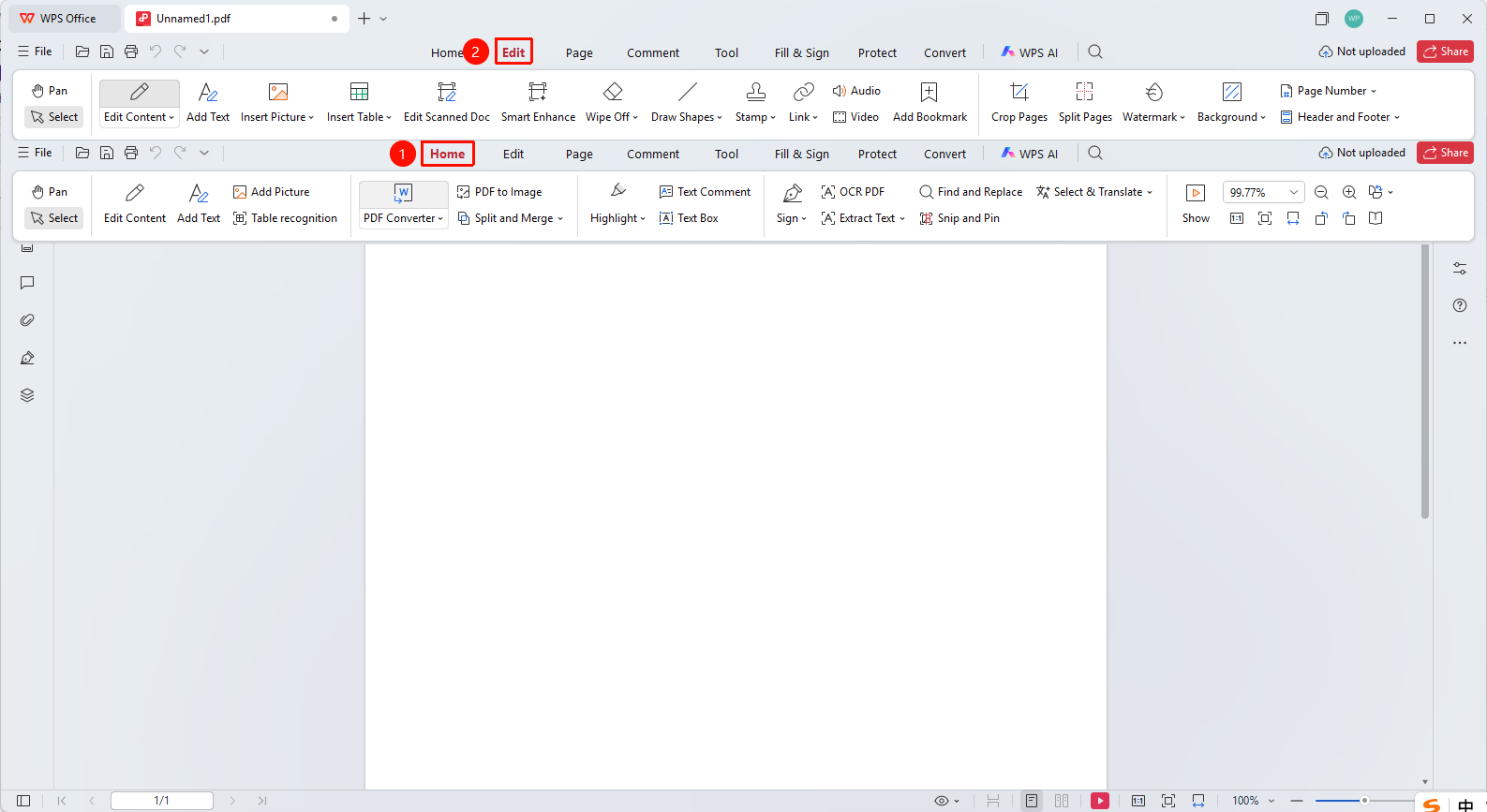
- Click 「different tab labels to switch and display different features」 「buttons」
- 「Start」 tab: Common features (edit, insert, convert, etc.)
- 「Edit」 tab: Content editing related features
- 「Page」 tab: Manage Pages related features
- 「Comment」 tab: Comment and annotation related features
Using Feature Buttons
Feature Entry
Feature buttons in the ribbon
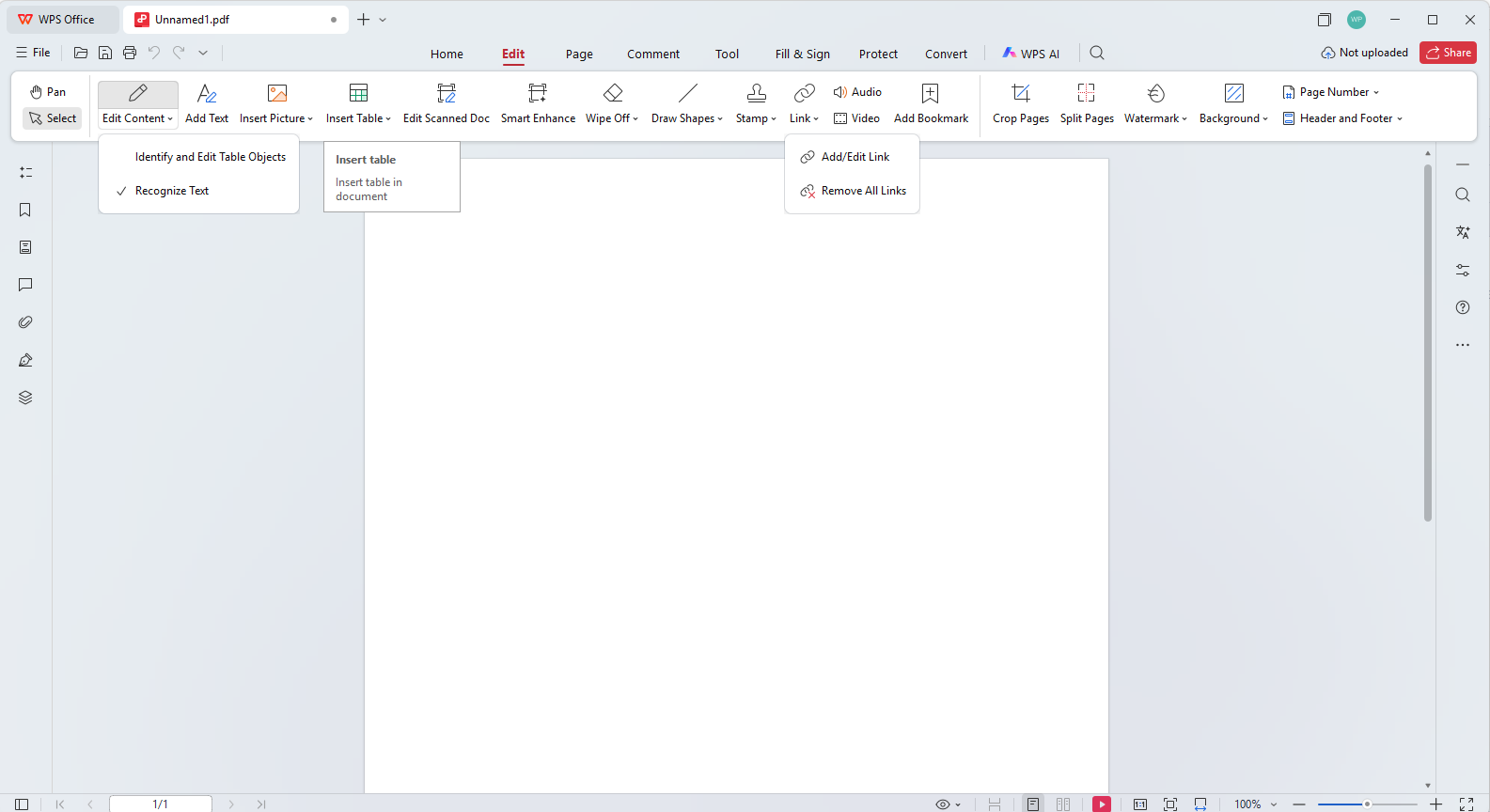
- Click 「buttons in the ribbon」 to execute the corresponding feature
- Some 「buttons」 have a drop-down arrow, click to expand more options
- Hover the mouse over a 「button」 to view feature description and Shortcut
FAQ
Question 1: What should I do if the buttons in the ribbon are grayed out?
Some features require specific conditions to be used. For example, the editing feature requires a PDF document to be opened first.
Question 2: How to hide the ribbon to get more editing space?
Double-click the currently selected tab label to collapse the ribbon, and double-click again to expand it.
Question 3: What should I do if there are too many buttons in the ribbon and I can't find one?
Use the search button (🔍) on the right to quickly search for features.
Notes
- The ribbon dynamically displays relevant features based on the current operation context
- Some advanced features require membership permissions to use
- You can quickly access AI-assisted features via the WPS AI button