Feature Summary
The Create PDF feature supports creating PDF documents from a variety of sources, including blank documents, images, and other file formats.
Feature Description
| Feature Dimension | Description |
|---|---|
| Membership Restriction | You need to subscribe to a membership to edit PDF files |
| Version Restriction | No version restriction |
Operation Steps
Create Blank PDF
Feature Entry
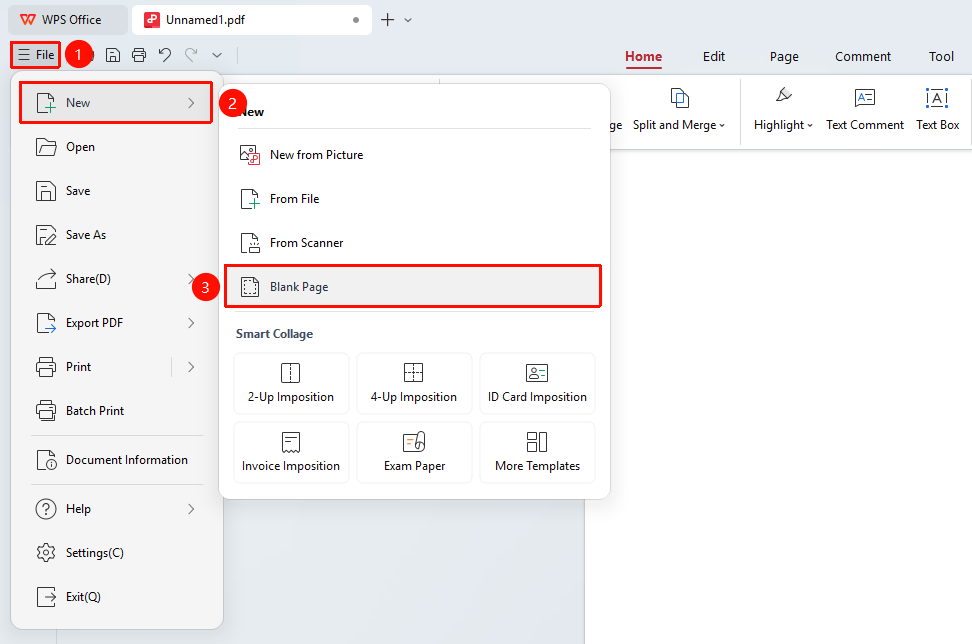
「File」 menu → 「New」 option
- Click the 「File」 menu and select the 「New」 option
- Select 「New PDF」 from the pop-up menu
- Select the 「Create Blank PDF」 option
- The system will create a new blank PDF document
Create PDF from Image
Feature Entry
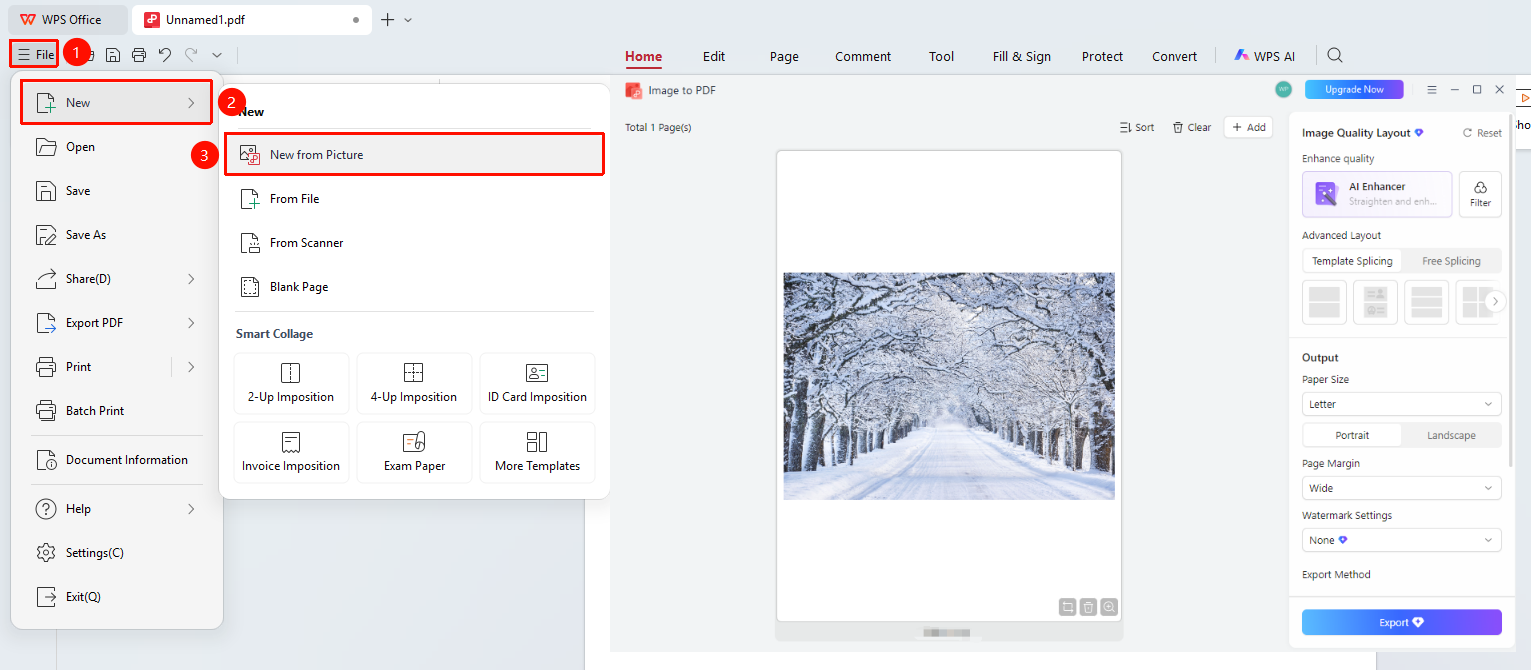
「File」 menu → 「New」 → 「Create from Image」
- Click the 「File」 menu and select the 「New」 option
- Select the 「Create from Image」 option
- Select image files in the pop-up file selection dialog
- Multiple images can be selected, and each image will become a separate page
- Click the 「Open」 button to complete the creation
Create PDF from Word/Excel/PPT
Feature Entry
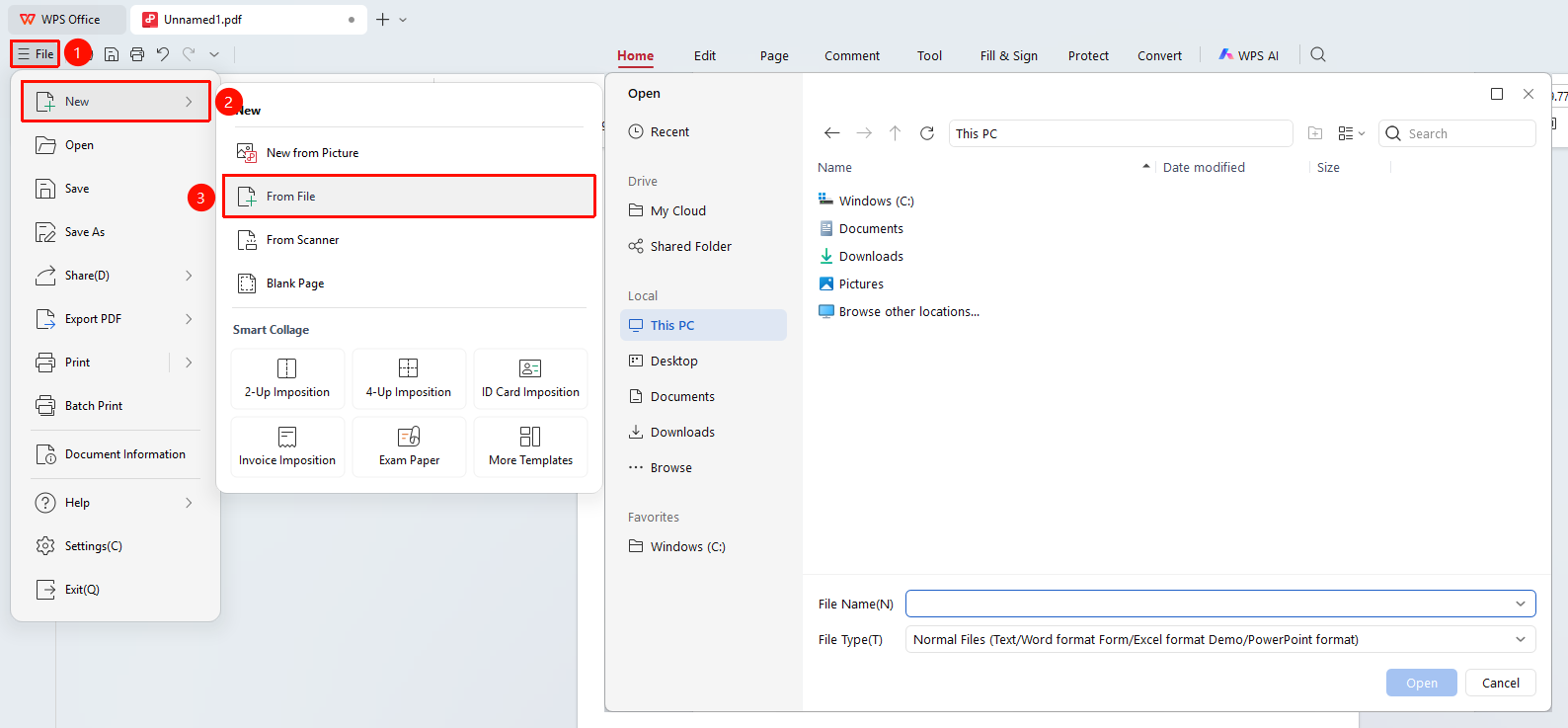
「File」 menu → 「New」 → 「Create from Word, Excel, PPT」
- Click the 「File」 menu and select the 「New」 option
- Select the 「Create from Word, Excel, PPT」 option
- Select an Office Document in the pop-up file selection dialog
- The system will automatically convert the Office Document to PDF format
- After conversion, you can edit and save it
FAQ
Q1: What should I do if the image order is incorrect when creating a PDF from images?
Before creating, you can hold down the Ctrl key in the file selection dialog to select multiple files and adjust the order, or after creating, use the 「Extract Pages」 feature in the 「Page」 tab to adjust.
Q2: Will formatting be lost when creating a PDF from an Office Document?
Generally, formatting will not be lost, but complex layouts may have slight differences. It is recommended to check after creation.
Q3: Can I create multiple blank pages at once?
Currently, you can only create one blank page at a time. If you need multiple pages, you can use the 「Insert Blank Page」 feature in the 「Page」 tab.
Notes
- When creating a PDF from images, images will be inserted at their original size
- Creating a PDF from an Office Document requires the corresponding Office software to be installed on the system
- Newly created PDF documents will automatically open in a tab