Feature Summary
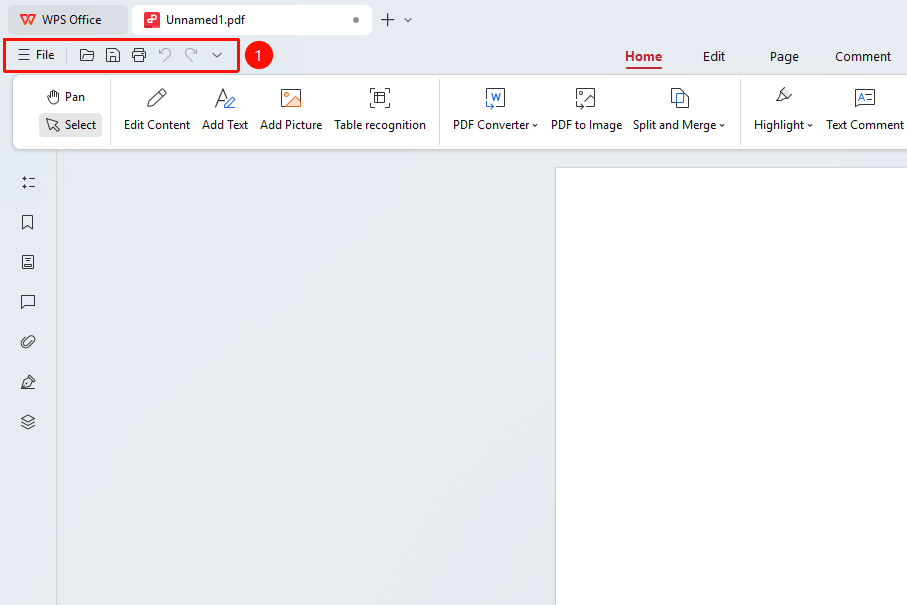
The menu bar is located below the title bar, providing the "File" menu and commonly used shortcut operation buttons.
Feature Description
| Feature Dimension | Description |
|---|---|
| Membership Restriction | Requires a membership subscription to edit PDF files |
| Version Restriction | No version restriction |
Operation Steps
Understanding the Menu Bar
Feature Entry
The menu bar area below the title bar
- The menu bar is located below the title bar and is the second row of the interface
- The far left is the 「☰ File」 menu 「button」; click to expand the file operation menu
- To the right of the File menu are commonly used shortcut 「buttons」: Save, Undo, Redo, etc.
Using the File Menu
Feature Entry
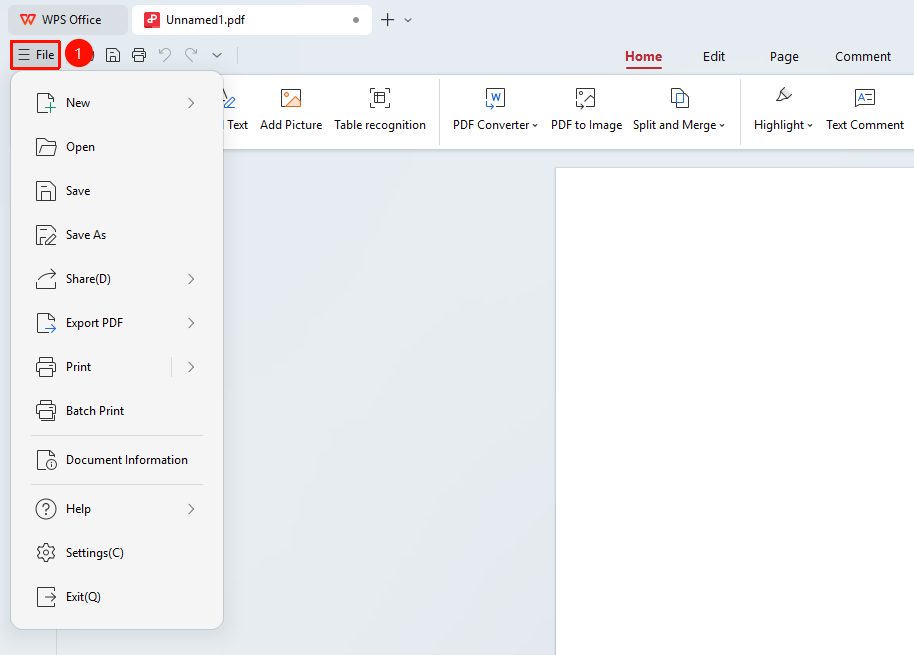
"File" menu button
- Click the 「☰ File」 button to expand the file menu
- The menu includes: New, Open, Save, Save As, Print, Close, and other options
- Click the corresponding option to perform the corresponding operation
Using Shortcut Buttons
Feature Entry
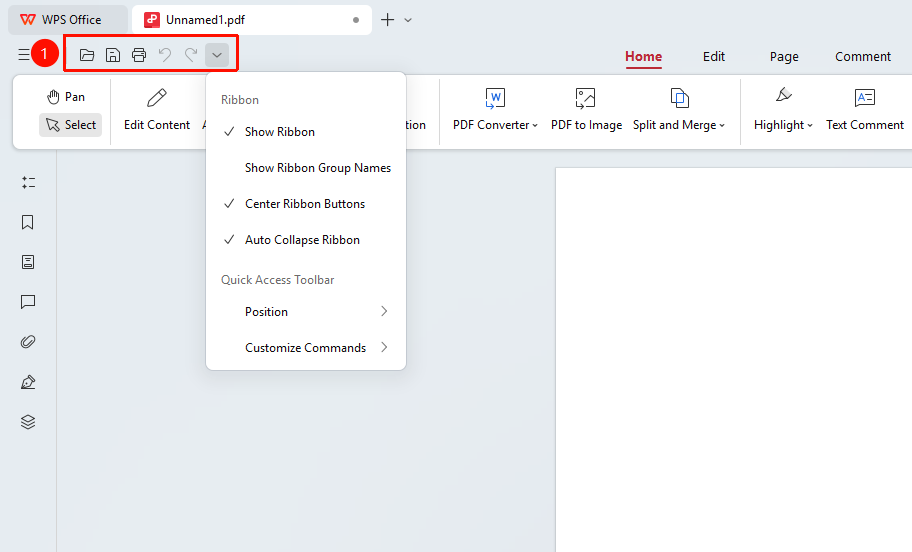
Shortcut buttons in the menu bar
- 「Save」 「button」: Quickly save the current document
- 「Undo」 「button」: Undo the previous operation
- 「Redo」 「button」: Redo the undone operation
- These 「buttons」 provide quick access to commonly used features
FAQ
Q1: What should I do if the options in the File menu are grayed out?
Some options require a document to be opened first. Please ensure a PDF document is open.
Q2: How do I quickly save a document?
You can use the Ctrl+S shortcut to quickly save, or click the Save button in the menu bar.
Q3: How many undo operations can be performed?
WPS PDF supports multiple undo operations, up to the state when the document was opened.
Notes
- The shortcut buttons in the menu bar provide quick access to commonly used features
- Some features require specific conditions to be used (e.g., Undo requires an undoable operation)
- The File menu also includes advanced features such as Export and Share