Feature Summary
Automatically optimize images in PDF documents to improve image quality and clarity.
Feature Description
| Feature Dimension | Description |
|---|---|
| Subscription Limit | Subscription required |
| Version Limit | No version limit |
Steps
Access Smart Optimization via the Image Editing Tab
Feature Entry
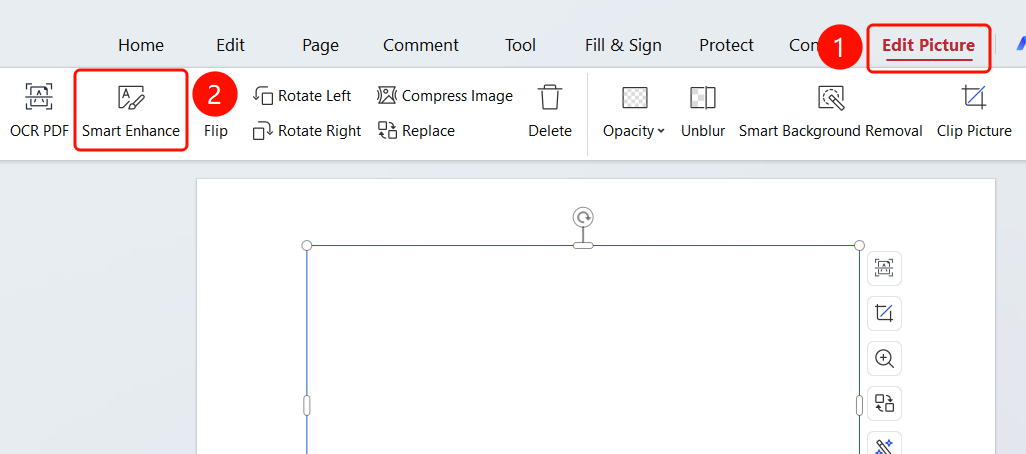
"Edit Picture" tab → "Smart Enhance" button
- Open the PDF file that needs to be optimized.
- Click the image in the PDF to select it.
- Click the Edit Picture tab in the top ribbon.
- Click the Smart Enhance button in the ribbon.
Access Smart Optimization via the Edit Tab
Feature Entry
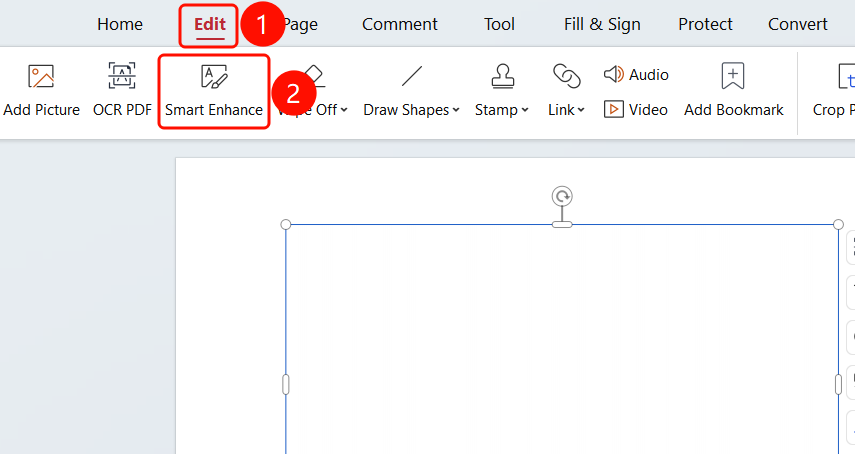
"Edit" tab → "Smart Enhance" button
- Open the PDF file that needs to be optimized.
- Click the Edit tab in the top ribbon.
- Click the Smart Enhance button in the ribbon.
FAQ
Q1: What does Smart Optimization do?
- Solution: Smart Optimization automatically improves image quality and clarity to enhance visual effects.
Q2: How do I apply the optimization effect to all images?
- Solution: After optimizing a single image, click the Apply to All button in the pop-up dialog.