Feature Summary
Crop images in PDFs. Three modes are supported: free crop, fixed ratio crop, and mask crop.
Feature Description
| Feature Dimension | Description |
|---|---|
| Membership Limit | Requires subscribing to WPS Premium |
| Version Limit | No version limit |
Steps
Accessing the Image Crop Feature
Feature Entry
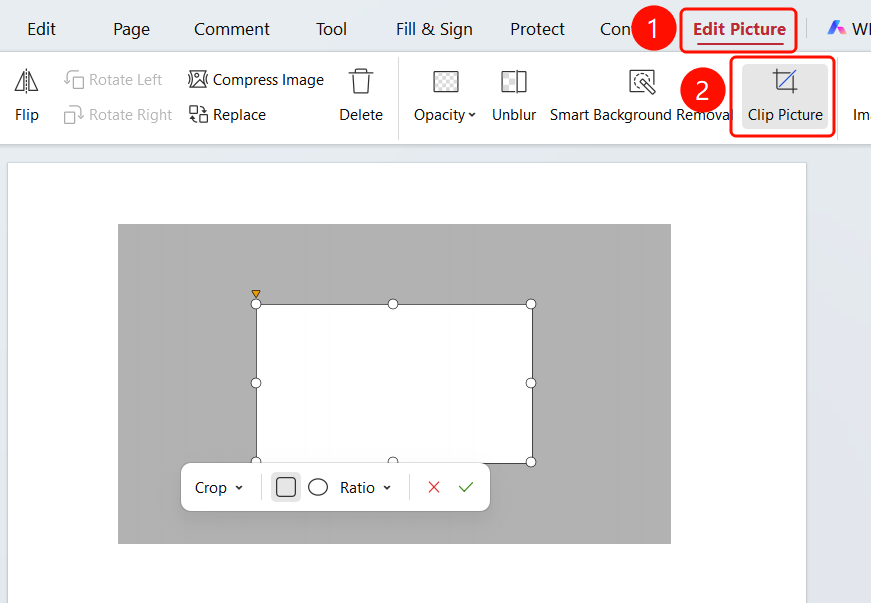
Select the image → "Image Edit" tab → "Crop" button
- Click the image in the PDF to select it.
- Click the Image Edit tab in the top menu bar.
- Click the Crop button in the ribbon.
- The Crop floating toolbar will appear.
Rectangular Crop Area
Feature Entry
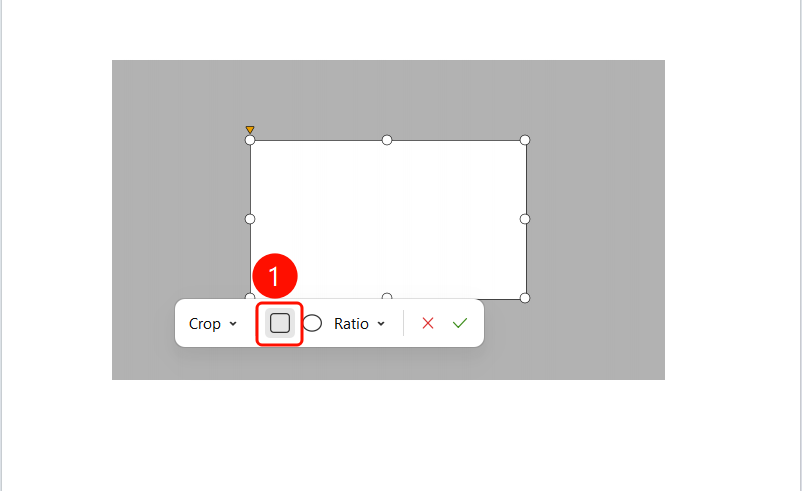
"Crop" floating toolbar → "Rectangle" icon
- Locate the Crop floating toolbar.
- Select the Rectangle icon button to set the mode to rectangular crop.
- Click the green checkmark to confirm the crop, or click the red X to cancel.
Circular Crop Area
Feature Entry
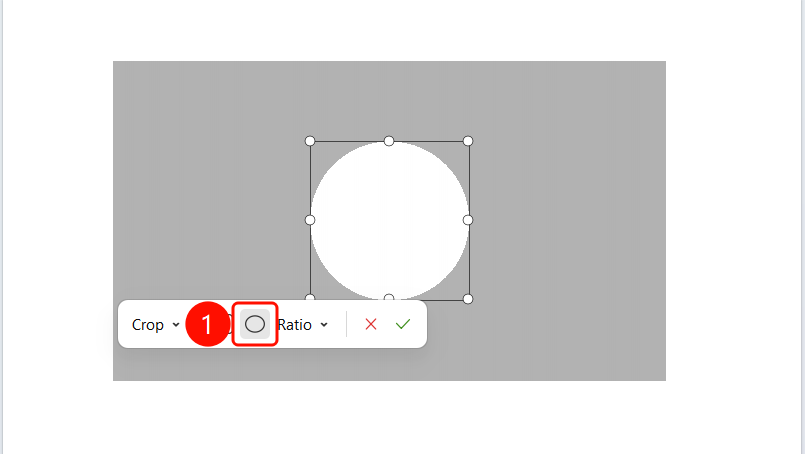
"Crop" floating toolbar → "Circle" icon
- Locate the Crop floating toolbar.
- Select the Circle icon button to set the mode to circular crop.
- Click the green checkmark to confirm the crop, or click the red X to cancel.
Setting the Crop Ratio
Feature Entry
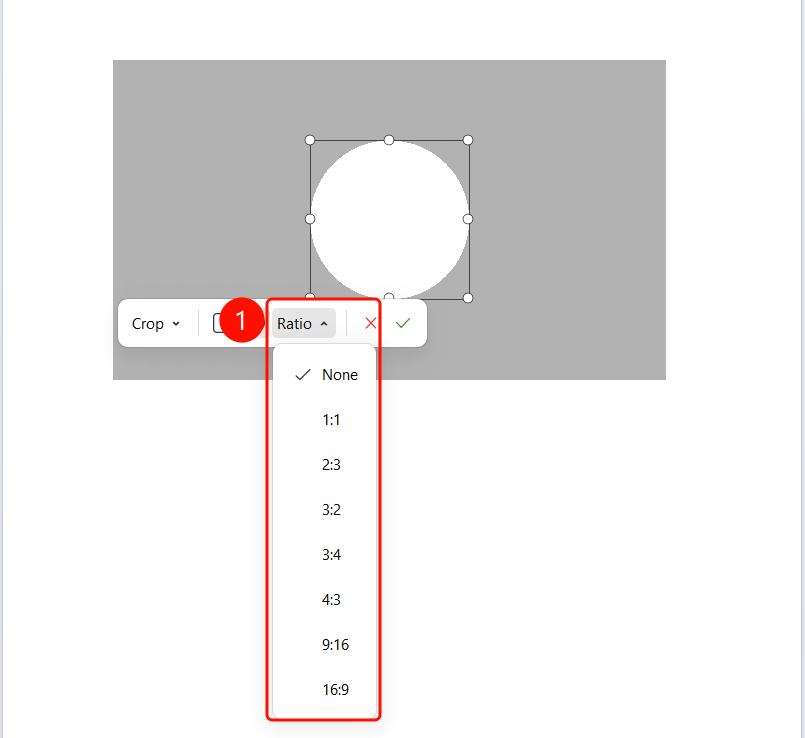
"Crop" floating toolbar → "Ratio" dropdown menu
Locate the Crop floating toolbar.
Click the Ratio dropdown menu.
Choose a preset ratio:
- None: Free crop
- 1:1: Square
- 2:3, 3:2, 3:4, 4:3: Common ratios
- 9:16, 16:9: Portrait/landscape ratios
The crop box will automatically adjust after you select a ratio.
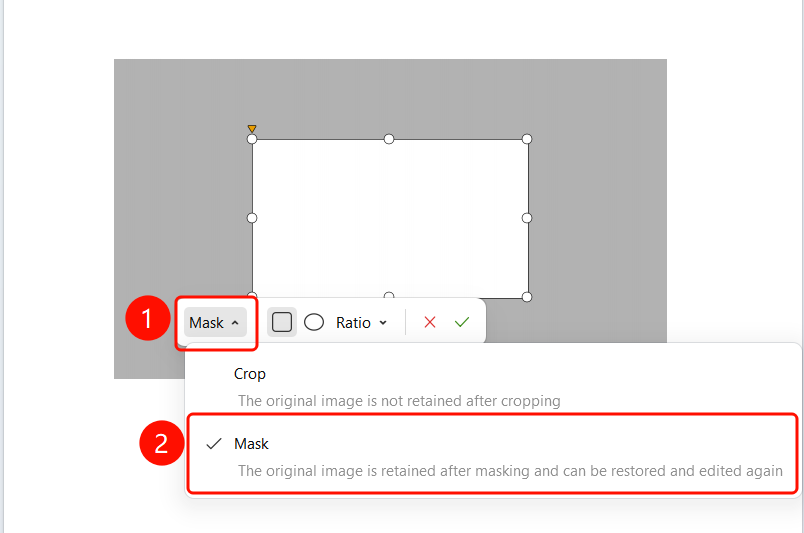
Choosing Crop or Mask Mode
Feature Entry
"Crop" floating toolbar → "Crop" dropdown menu
Locate the Crop floating toolbar.
Click the Crop dropdown menu to select a mode:
- Crop: The original image is not preserved after cropping. The image is cropped directly.
- Mask: The original image is preserved after masking. You can restore the original image and edit it again.
Select the appropriate mode based on your needs.
FAQ
Q1: How do I restore the original image after cropping?
- Solution: If you used the "Mask" mode to crop, you can enter crop mode again to restore the original image. If you used the "Crop" mode, the original image cannot be restored.
Q2: How do I crop an image into a circle?
- Solution: Click the circle icon in the crop control panel to switch to circular crop mode.
Q3: How do I freely adjust the crop box after the crop ratio is locked?
- Solution: Select None in the Ratio dropdown menu to freely adjust the size of the crop box.
Notes
- The "Crop" mode permanently modifies the image. We recommend using the "Mask" mode for important images.
- Multiple common crop ratios are supported.
- You can cancel the crop operation at any time before confirming, and the original image will not be affected.