Feature Summary
Apply the extract image effect to text in PDF documents to improve document readability.
Feature Description
| Feature Dimension | Description |
|---|---|
| Membership Requirement | Requires a subscribed membership to edit PDF files |
| Version Restriction | No version restriction |
Steps
Extract Images from Functional Area
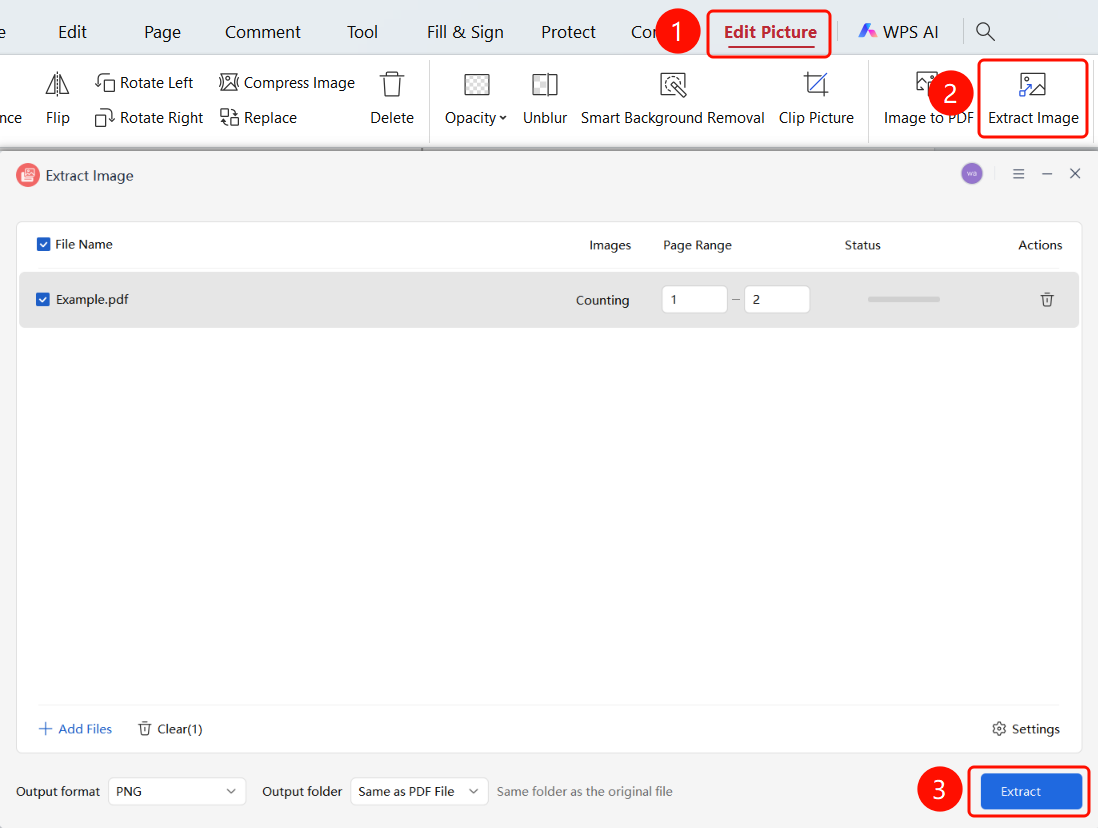
Access Path"Image Editing" tab → "Extract Images" button → "Extract Images" dialog box → "Start Extraction" button
- Open the PDF file containing images
- Click on an image in the PDF to select it
- The system automatically switches to the "Image Editing" tab
- Click the "Extract Images" button in the ribbon
- The "Extract Images" dialog box appears
- Review PDF information in the file list (filename, number of images, status)
- Set Page Range: Enter the range of pages from which to extract images
- Set Output Format: Choose formats such as PNG, JPG, etc.
- Set Output Directory: Select the same directory as the PDF or a custom location
- Click the "Start Extraction" button
Extract Images from the Convert Tab
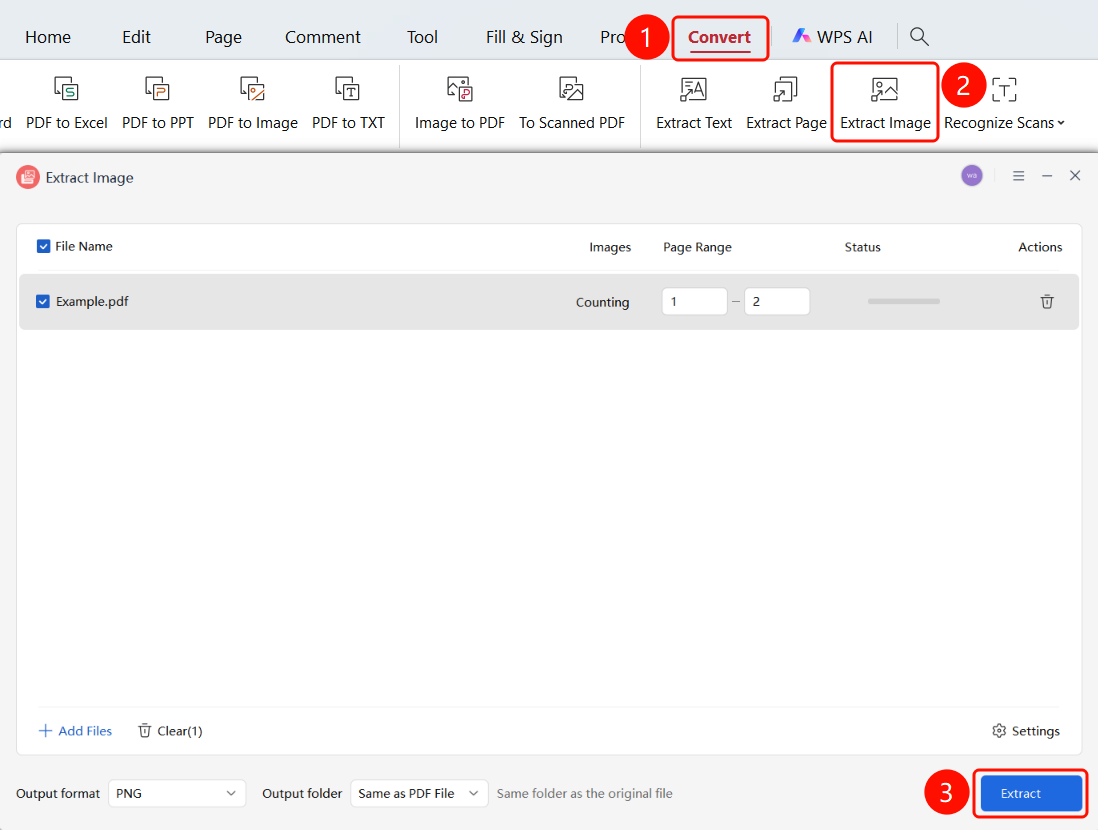
Accessing the FeatureConvert tab → Extract Images button → Extract Images window
- Open a PDF file containing images
- Click the Convert tab in the top ribbon
- Click the Extract Images button in the ribbon
- The Extract Images window will appear
- Review file information in the list (filename, number of images, page range, status)
- Click the Output Format dropdown menu
- Select the desired image format and output directory
- Click the Start Extraction button to begin extracting images
FAQ
Q1: What should I do if the Extract Image feature button is grayed out and cannot be clicked?
You need to select text content first to activate the formatting buttons. Please make sure you have entered 「Text Editing」 mode and selected the target text.
Q2: How do I cancel an applied extract image effect?
Select the text with the extract image effect applied, then click the 「Extract Image」 button again to cancel it.
Q3: Can multiple text formats be applied at the same time?
Yes. After selecting text, you can click buttons such as bold, italic, and underline in sequence, and the multiple formats will be applied cumulatively.
Notes
- You must first enter 「Text Editing」 mode to use text formatting features
- Formatting effects only apply to the currently selected text and will not affect other text
- Text in scanned PDFs may not be directly editable; OCR recognition is required first